Add categories and fields from a template to a project that is already in use. Templates are no longer limited to new project setup.

Mike Lee
You can apply a template to a project that is already in use. This adds the template's categories and fields to the project without removing any existing data.
When to use this
You started with a blank project and want to bring in a template's structure.
You want to add a standard set of categories to a project mid-lifecycle.
Your company updated a template and you want to apply the updated structure to an active project.
How to apply a template to an existing project
Open the project.
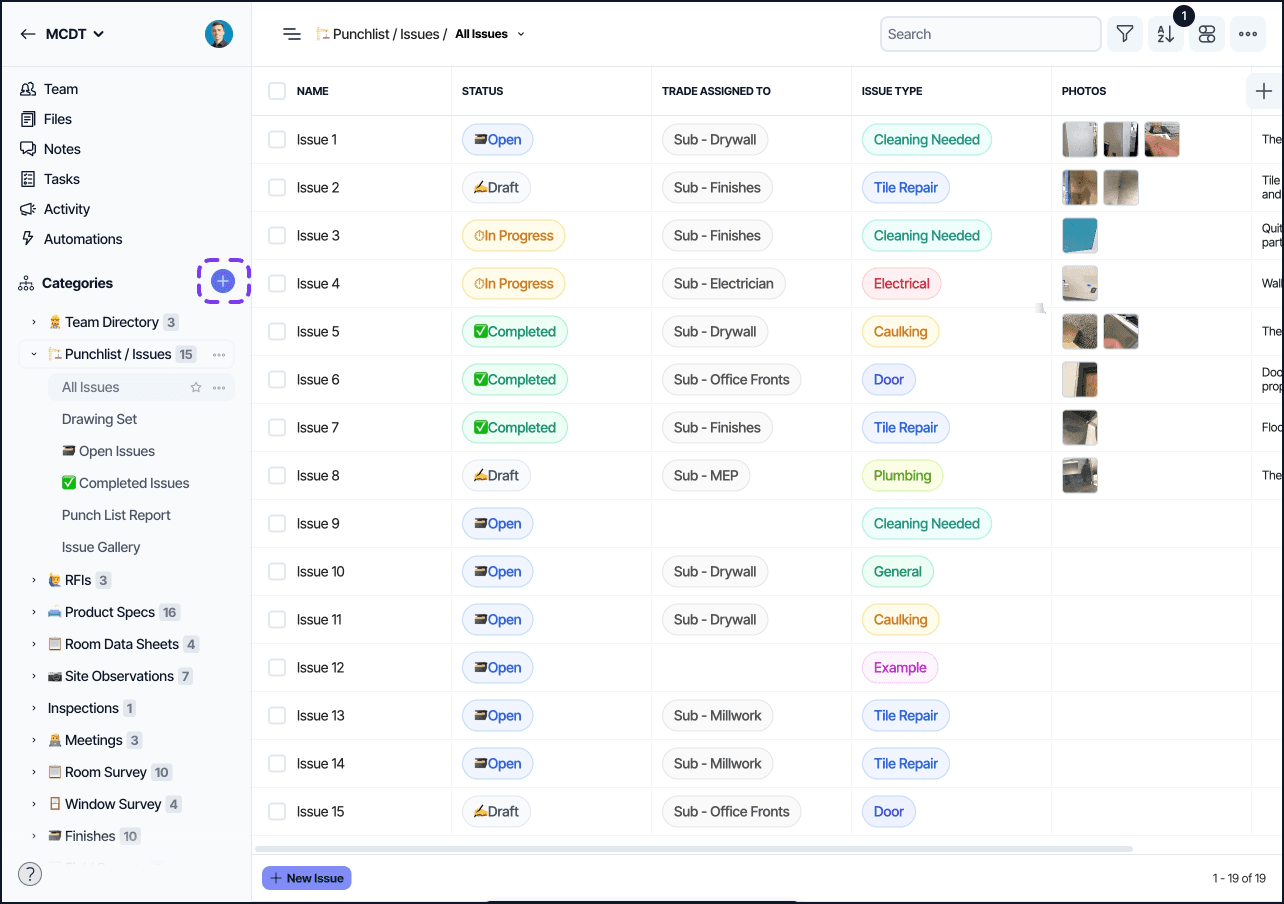
Select the purple “+” adjacent to the Categories header to “Create a new Category.”
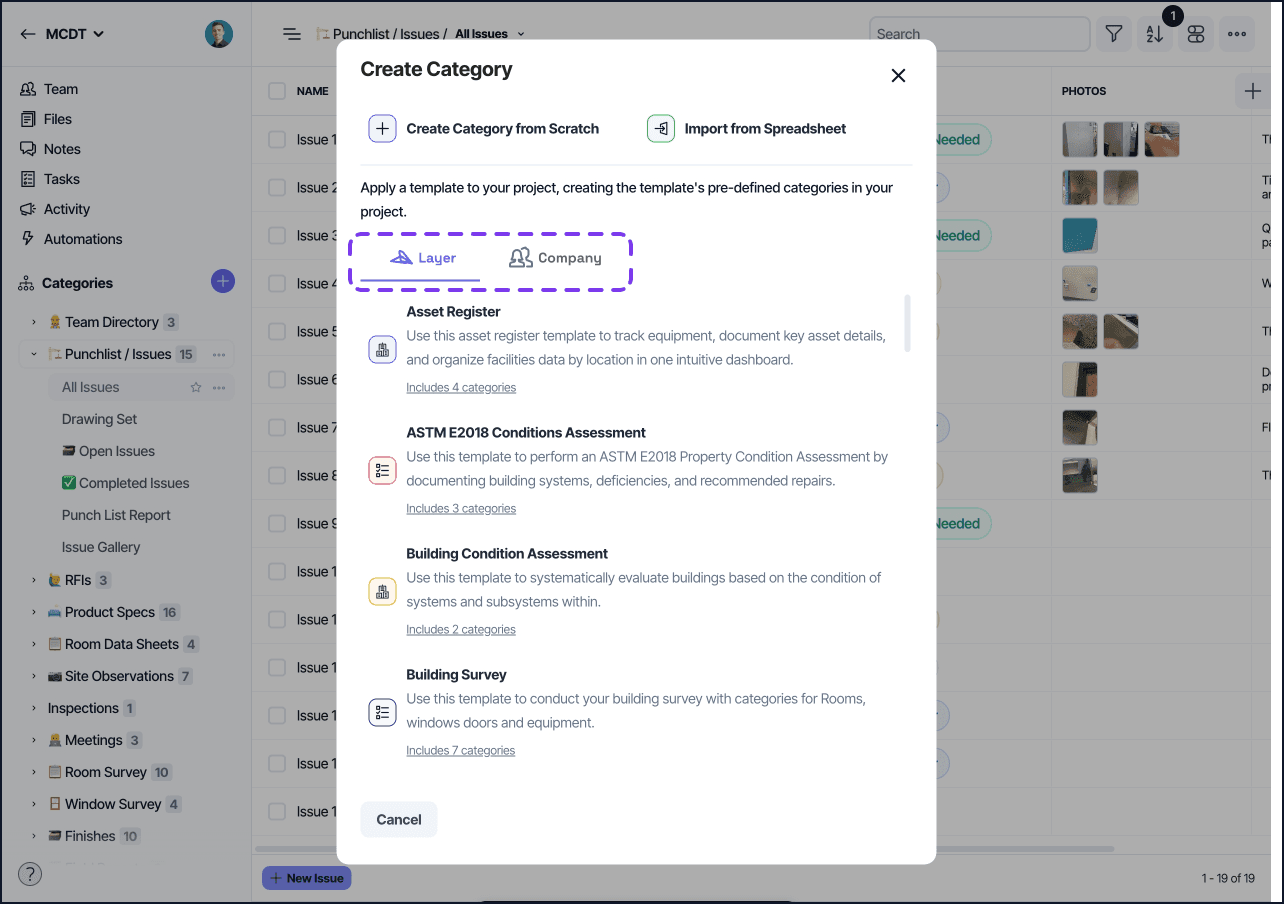
Browse or search the available templates, either from Layer’s standard templates, or your own Companies templates.
Select the template you want to apply.
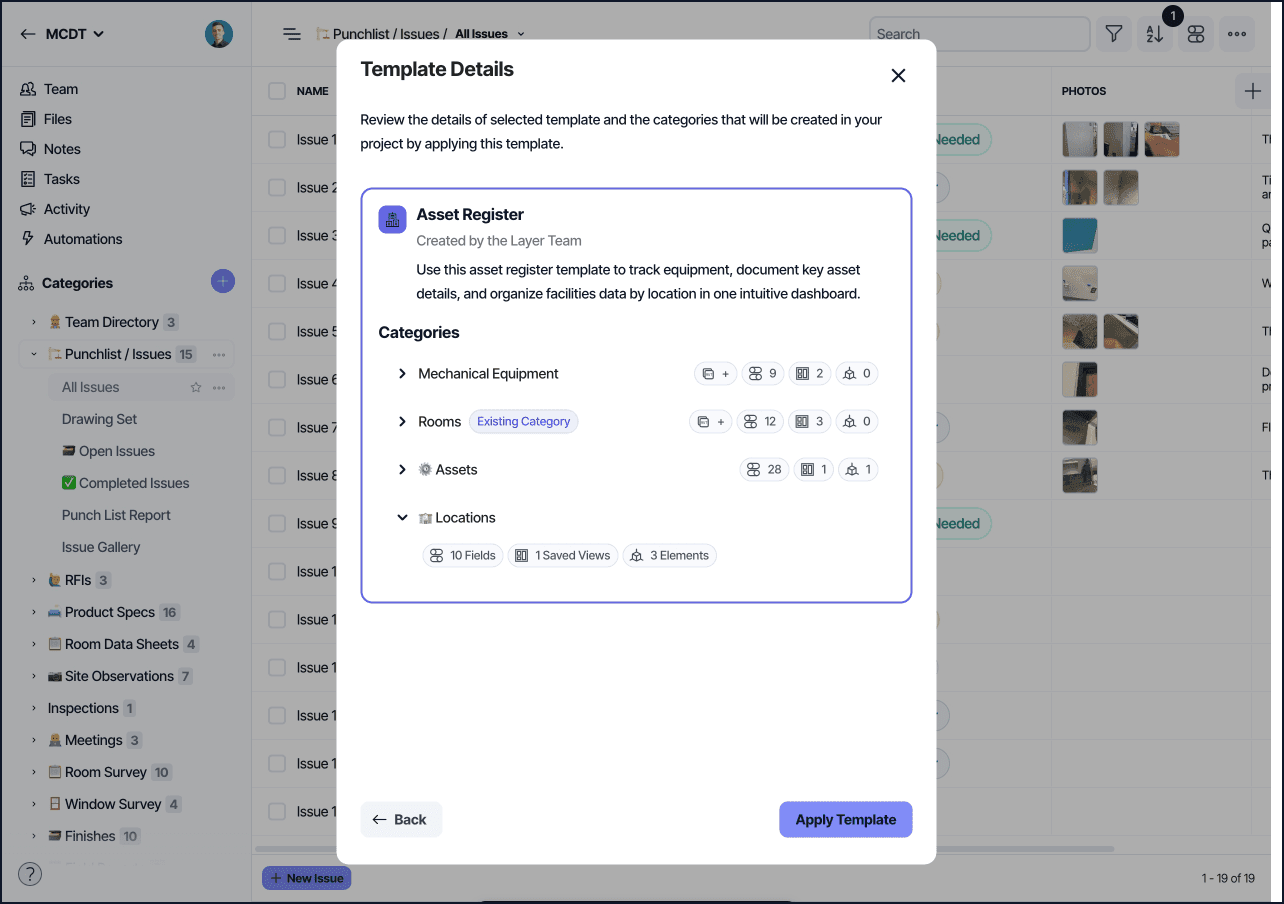
Review what the template will add, then confirm.
Layer adds the template's categories and fields to the project. Existing categories and data are not removed or overwritten.
Notes
Applying a template adds new categories. It does not modify or overwrite categories that are already in the project.
Fields within a new category are added as defined in the template.
Only Project Owners can apply templates to a project.