Reset the element numbers in a category so they run in order again. Useful after elements have been deleted or added. Run it from the category options menu.

Mike Lee
What element numbering is
Every element in a category has a unique element number. The number is assigned in the order elements are created, and it appears in places such as the Dot markup in Drawing View.
When to reset numbering
After elements are deleted or added over time, the numbers in a category can have gaps or run out of order. Resetting element numbering reassigns the numbers in the current order so they run in sequence again.
How to reset element numbering
Open the category.
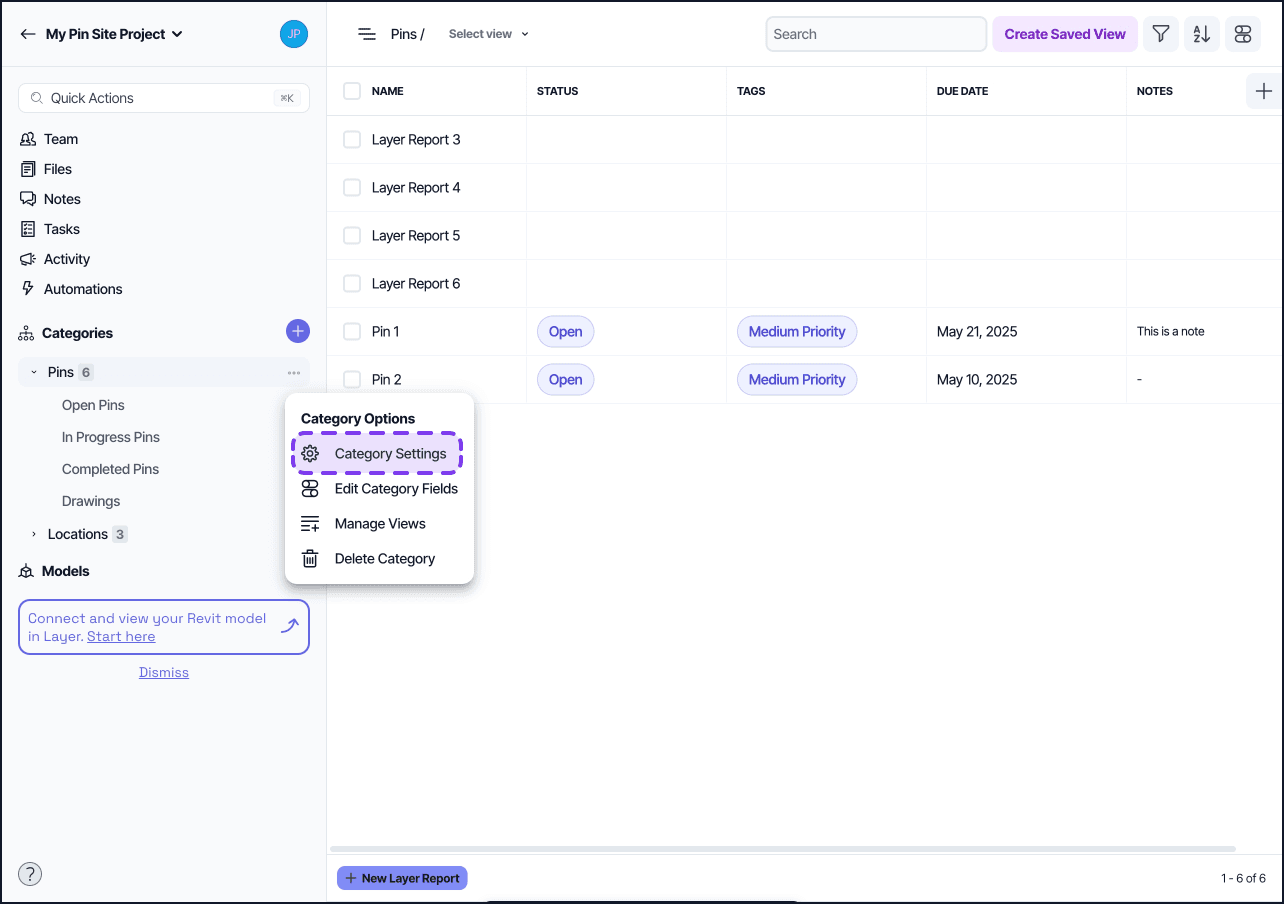
Open the category options menu, the three-dot menu next to the category.
Select Category Settings, under Category Options.
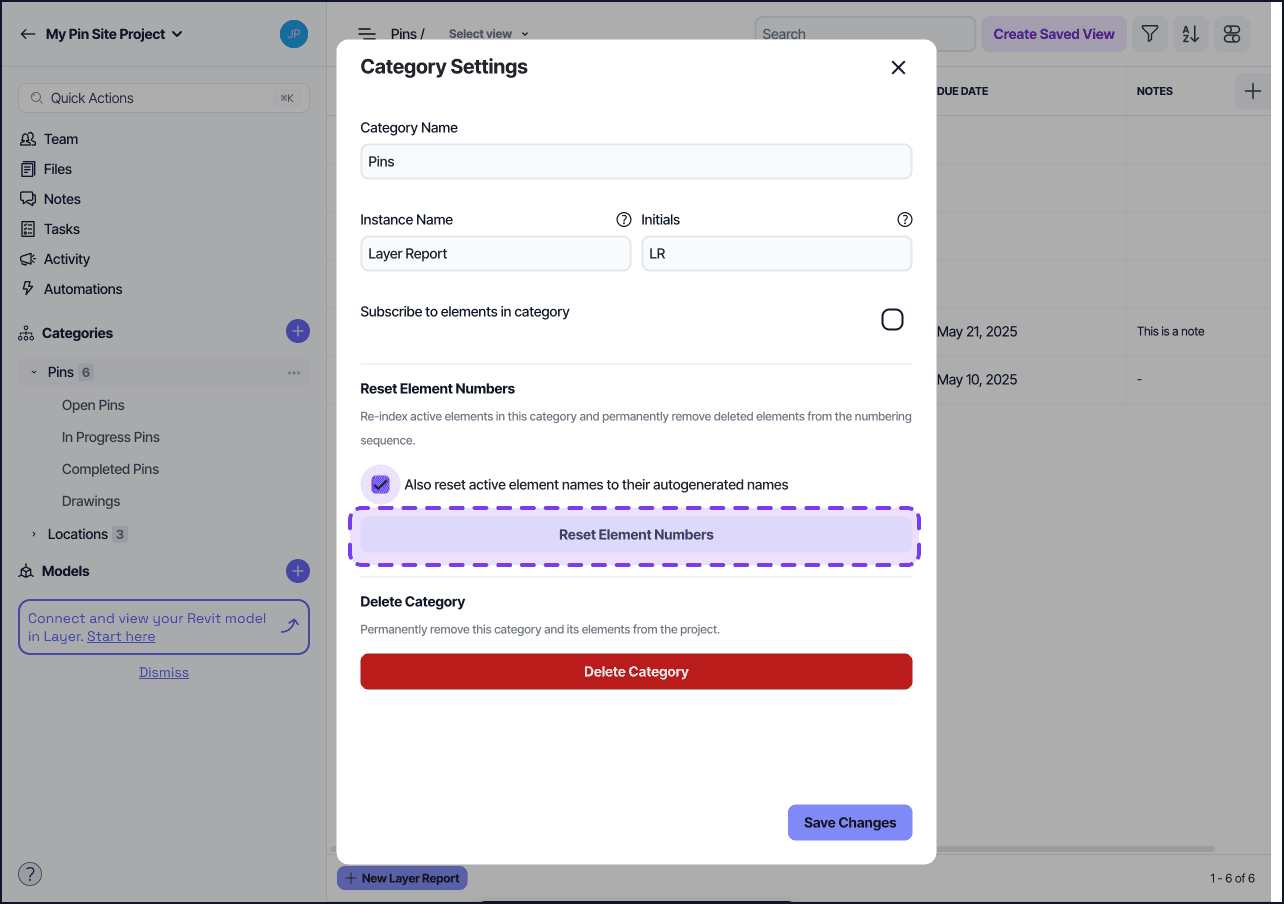
Select Reset Element Numbers.
In the confirmation dialog, optionally turn on "Also reset active element names to their autogenerated names".
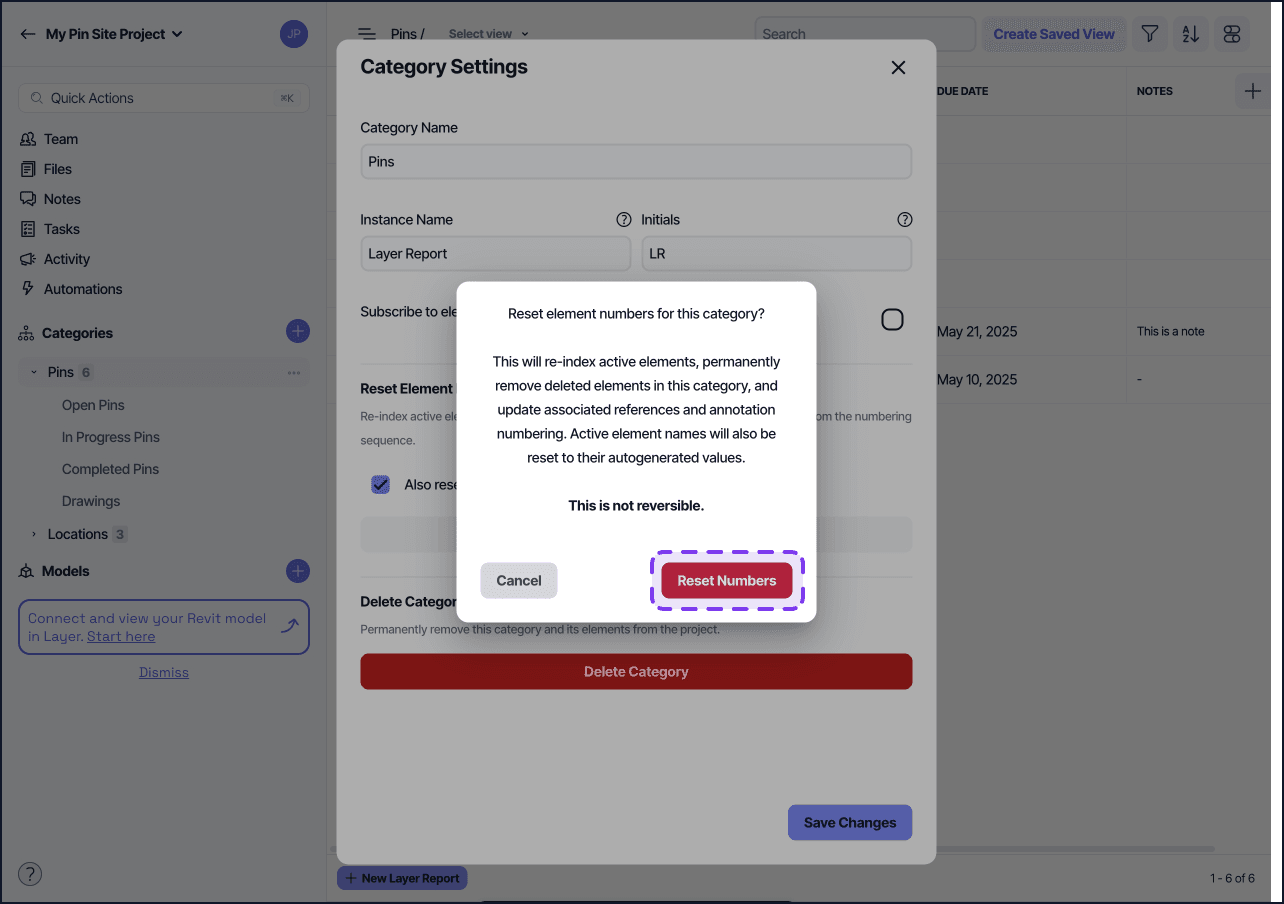
Confirm.
Layer reassigns the element numbers across the category and removes deleted elements from the numbering sequence.
** WARNING ** Please note that this deletes all recently archived elements and cannot be recovered, even by the engineers and support staff at Layer.
Notes
This is a category-level action. Project owners and editors, who can manage categories, can run it.
Resetting numbers updates the numbers shown on Dot markups in any Drawing View in that category.
The action applies to every element in the category.
You can optionally reset active element names to their autogenerated names at the same time, using the checkbox in the confirmation dialog.