Submittals
Managing Submittals in Layer: A Getting Started Guide
Managing Submittals in Layer: A Getting Started Guide
Learn how to apply the Layer Submittals Template to a new project, import your existing GC submittal log from Excel or Procore, and start managing the full submittal review process in Layer.

Contents
Construction Administration moves fast, and submittals are one of the most paper-heavy parts of it. A missed review deadline, a status code that never got updated, or a resubmittal with no connection to the original can quietly create liability for everyone on the project team. Spreadsheets and Procore logs handle the basics, but they require constant manual maintenance to stay accurate.
The Layer Submittals Template is a ready-to-use project structure that turns your existing submittal log into a live, searchable tracker with automatic deadline logic, resubmittal history, and formatted transmittal output. This guide explains how to apply the template to a new project, bring in your existing data, and start managing the submittal process through Layer.
What the Template Includes
When you apply the Submittals Template to a new Layer project, the following is already configured and ready to use:
Three data categories: Contacts (for GC, subcontractors, and consultants), Spec Sections (one entry per CSI section used on the project), and Submittals (the core log). Any additional Categories desired, such as RFIs, must be added via additional Layer templates or manually created from scratch.
Pre-built fields on every category: Every field needed to track the full submittal lifecycle is already in place, including submittal number, type, spec section, responsible reviewer, received and returned dates, review status, and comments. Though these categories may be build upon with additional or customized fields as desired.
Automatic deadline logic: The template calculates a review deadline from the date received and your contract review period. A separate field holds the contractual deadline from the GC's log for comparison. An overdue flag updates automatically so you always know what needs attention.
Resubmittal chaining: Each resubmittal can be linked back to the original submission, giving you a clean revision history without duplicate rows cluttering your log.
Four pre-configured views: Open Log (active items sorted by deadline), Full Log by Spec (grouped for meetings), Overdue (items past their contractual deadline), and Resubmittals Queue (all items on a second or later pass).
Three document templates: A formatted Submittal Log Report for meeting packets, a Review Transmittal Letter for returning reviewed items to the GC, and a Receipt Acknowledgment for confirming incoming submissions.
You do not need to configure any of this. Your job is to populate it with your project data.
Before You Begin
Gather the following before starting:
Your existing submittal log exported from Procore, Submittal Exchange, or Excel
The project's specification table of contents (CSI section numbers and titles)
A contact list for the GC and all subcontractors involved in the submittal process
Your contract's agreed review period in calendar days (commonly 10, 14, or 21 days)
Step 1: Apply the Template to Your Project
In Layer, create a new project and select the Submittals Template when prompted to choose a starting structure. The three categories, all fields, views, and document templates will be applied automatically.
If you are adding the template to an existing Layer project, contact your Layer administrator or reach out to the Layer team at help@layer.team for guidance on applying a template to a project already in progress.
Step 2: Add Your Contacts

The Contacts category holds every person and company involved in the submittal workflow. Submittals reference this list for the submitting subcontractor, the GC routing contact, and your distribution list on transmittals. Seeding this first prevents errors when you import your submittal log.
You can add contacts one at a time directly in Layer, or import them from a spreadsheet. If importing, prepare a sheet with the following columns and import it into the Contacts category:
Name | Company | Role | Email | PhoneThe Role field uses a fixed list of options: GC, Subcontractor, Architect, Structural Engineer, MEP Engineer, Civil Engineer, Owner, Other. Use one of these exact values in your import sheet.
For most projects, this list is small enough to enter manually in under ten minutes.
Step 3: Add Your Spec Sections
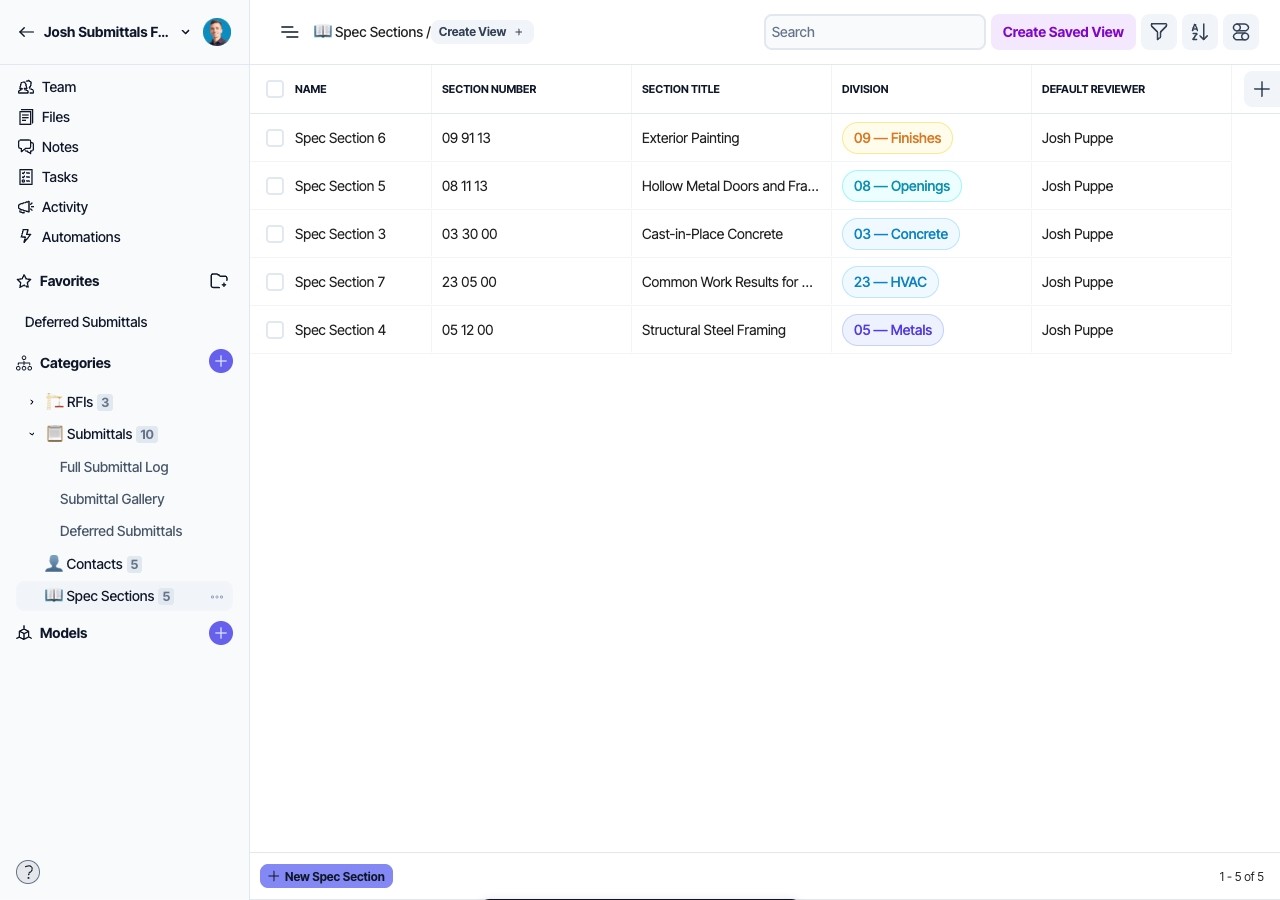
The Spec Sections category holds one entry per CSI MasterFormat section used on the project. It lets you assign a responsible reviewer per section once, rather than re-entering the same reviewer on every individual submittal.
Pull the section list from your project's specification table of contents or the project manual front-end document. Import it into the Spec Sections category using a sheet with these columns:
Section Number | Section Title | Division | Default ReviewerSection Number should follow the standard CSI format, for example 03 30 00. Default Reviewer should be the name of the person in your Layer workspace responsible for reviewing submittals under that section.
You can also assign Default Reviewer values manually inside Layer after the initial import if you prefer to handle reviewer assignments section by section.
Step 4: Prepare Your Submittal Log for Import
This is where most of the preparation work happens. Your GC's export will not match the Layer field names out of the box, and it will likely use status codes that need to be translated before import. Work through the following steps in your spreadsheet before importing.
Rename Your Column Headers
Layer matches import columns to fields by name. Rename your spreadsheet headers to match the Layer field names exactly, including capitalization.
Your Column May Be Named | Rename It To |
|---|---|
Submittal No, Item No, Log No | Submittal No |
Description, Title, Item Description | Title |
Spec Section, CSI Section, Spec No | Spec Section |
Type, Submittal Type, Category | Type |
Subcontractor, Sub, Submitted By | Submitted By |
GC, General Contractor, Via | Via GC |
Date Received, Rcvd Date, Date Submitted | Date Received |
Required Date, Due Date, Contract Due | GC Provided Deadline |
Date Returned, Returned Date, Date Transmitted | Date Returned |
Days, Review Days, Elapsed | Days in Review |
Action, Status, Review Action, Decision | Review Status |
Remarks, Notes, Comments | Review Notes |
Rev, Revision, Rev No | Revision No |
Contract Days, Review Period | Contract Review Days |
Delete any columns your GC's log includes that have no equivalent in the table above, such as internal cost codes or contractor tracking references.
Format all dates as YYYY-MM-DD. If your spreadsheet has dates in another format, use a custom number format or a TEXT formula to convert them before import.
Do not include a column for Review Deadline. The template calculates this automatically. Including it in your import sheet will not cause an error, but the value will be ignored.
Replace Your Status Codes
Procore and Bluebeam exports commonly use single-letter codes to indicate review status. Layer uses full text labels in the Review Status field. Replace each code in your spreadsheet with the matching label below before import. These values are case-sensitive.
Your Export May Show | Replace With in Your Spreadsheet |
|---|---|
A, 1, Approved, No Exceptions Taken | Approved |
B, 2, Approved as Noted, Make Corrections Noted | Approved as Noted |
C, 3, Revise and Resubmit, See Remarks | Revise and Resubmit |
D, 4, Rejected, Not Approved | Rejected |
E, Void, Cancelled | Void |
For Record, For Information Only, FIO | For Record Only |
Blank, Open, Pending, Under Review, In Review | Under Review |
Replace Your Type Values
Your Export May Show | Replace With in Your Spreadsheet |
|---|---|
Shop Dwg, SD | Shop Drawing |
Cut Sheet, Manufacturer Data | Product Data |
Material Sample | Sample |
Mockup | Mock-up |
Sub Request | Substitution |
For Information, FIO | For Record |
Step 5: Import Your Submittal Log
Import in this order. Contacts and Spec Sections must exist before Submittals, since submittal records reference those categories by name.
Import Contacts first, then import Spec Sections, then import your Submittals spreadsheet into the Submittals category. Layer will create one element per row.
After the import completes, do a quick row count: confirm the number of elements created matches the number of rows in your spreadsheet.
A note on Spec Section and Submitted By: These fields reference other categories by name. If the names in your spreadsheet match your Contacts and Spec Sections entries exactly, they will link automatically. If there are any mismatches, you will see unresolved text values rather than linked records. Correct the naming in the affected elements after import.
Resubmittals: If your import includes submittal items with a Revision No greater than zero, link each resubmittal to its original submission manually after import. Open the resubmittal element, find the Prior Submittal field, and select the original item.
Attachments cannot be imported from a spreadsheet. After your log is in place, upload the actual submittal PDFs directly to each element using the Attachments field. Prioritize active and returned-with-comments items first.
Step 6: Verify Before Sharing with Your Team
Spend a few minutes confirming the template is working as expected before giving your team access.
Check the Open Log view. The count should match your expected number of open items. If items that should be open are missing, check whether their Review Status values imported correctly.
Check the Overdue view. Any item past its GC Provided Deadline that has not been returned should appear here. If you have known overdue items and the view is empty, confirm that GC Provided Deadline populated correctly on those elements.
Spot-check five or six Submittal elements and confirm that Spec Section links to a Spec Sections record and Submitted By links to a Contacts record. If either shows as unresolved text, the names did not match and should be corrected individually.
Day-to-Day Use
Once your project is set up, the day-to-day workflow follows the same rhythm as your existing construction administration process.
When a new submittal arrives, create a new element in the Submittals category. Fill in the submittal number, title, type, spec section, and subcontractor. Set the Date Received, enter the Contract Review Days for that submission, and record the GC Provided Deadline from the transmittal cover sheet. Assign a Responsible Reviewer if the spec section default does not apply.
When you return a submittal, open the element, set Date Returned, and update Review Status. Add any written response to Review Notes. The elapsed review time will record automatically. Approved and void items will drop off the Open Log view on their own.
When a resubmittal arrives, create a new element for it, set Revision No to the next number in the sequence, and link it to the original using the Prior Submittal field. This keeps the revision chain intact without cluttering your main log.
For progress meetings, use the Full Log by Spec view for a grouped summary or generate the Submittal Log Report from the Document Templates section for a formatted PDF.
For transmittals, open the Review Transmittal Letter document template, select the submittal items you are returning, and generate the document. The addressee, dates, status, and notes populate automatically from the element data.
One Thing to Keep in Mind
The Overdue field depends on GC Provided Deadline being filled in. For submittals added after the initial import, make sure to enter the GC Provided Deadline during data entry. If it is left blank, the item will not appear in the Overdue view even if the review period has passed. Building this into your team's intake habit from the start will keep the Overdue view reliable throughout the project.
Questions or Issues?
Contact the Layer support team at help@layer.team or visit layer.team/docs for additional documentation on working with Layer projects, views, and document templates.
Construction Administration moves fast, and submittals are one of the most paper-heavy parts of it. A missed review deadline, a status code that never got updated, or a resubmittal with no connection to the original can quietly create liability for everyone on the project team. Spreadsheets and Procore logs handle the basics, but they require constant manual maintenance to stay accurate.
The Layer Submittals Template is a ready-to-use project structure that turns your existing submittal log into a live, searchable tracker with automatic deadline logic, resubmittal history, and formatted transmittal output. This guide explains how to apply the template to a new project, bring in your existing data, and start managing the submittal process through Layer.
What the Template Includes
When you apply the Submittals Template to a new Layer project, the following is already configured and ready to use:
Three data categories: Contacts (for GC, subcontractors, and consultants), Spec Sections (one entry per CSI section used on the project), and Submittals (the core log). Any additional Categories desired, such as RFIs, must be added via additional Layer templates or manually created from scratch.
Pre-built fields on every category: Every field needed to track the full submittal lifecycle is already in place, including submittal number, type, spec section, responsible reviewer, received and returned dates, review status, and comments. Though these categories may be build upon with additional or customized fields as desired.
Automatic deadline logic: The template calculates a review deadline from the date received and your contract review period. A separate field holds the contractual deadline from the GC's log for comparison. An overdue flag updates automatically so you always know what needs attention.
Resubmittal chaining: Each resubmittal can be linked back to the original submission, giving you a clean revision history without duplicate rows cluttering your log.
Four pre-configured views: Open Log (active items sorted by deadline), Full Log by Spec (grouped for meetings), Overdue (items past their contractual deadline), and Resubmittals Queue (all items on a second or later pass).
Three document templates: A formatted Submittal Log Report for meeting packets, a Review Transmittal Letter for returning reviewed items to the GC, and a Receipt Acknowledgment for confirming incoming submissions.
You do not need to configure any of this. Your job is to populate it with your project data.
Before You Begin
Gather the following before starting:
Your existing submittal log exported from Procore, Submittal Exchange, or Excel
The project's specification table of contents (CSI section numbers and titles)
A contact list for the GC and all subcontractors involved in the submittal process
Your contract's agreed review period in calendar days (commonly 10, 14, or 21 days)
Step 1: Apply the Template to Your Project
In Layer, create a new project and select the Submittals Template when prompted to choose a starting structure. The three categories, all fields, views, and document templates will be applied automatically.
If you are adding the template to an existing Layer project, contact your Layer administrator or reach out to the Layer team at help@layer.team for guidance on applying a template to a project already in progress.
Step 2: Add Your Contacts
The Contacts category holds every person and company involved in the submittal workflow. Submittals reference this list for the submitting subcontractor, the GC routing contact, and your distribution list on transmittals. Seeding this first prevents errors when you import your submittal log.
You can add contacts one at a time directly in Layer, or import them from a spreadsheet. If importing, prepare a sheet with the following columns and import it into the Contacts category:
Name | Company | Role | Email | PhoneThe Role field uses a fixed list of options: GC, Subcontractor, Architect, Structural Engineer, MEP Engineer, Civil Engineer, Owner, Other. Use one of these exact values in your import sheet.
For most projects, this list is small enough to enter manually in under ten minutes.
Step 3: Add Your Spec Sections
The Spec Sections category holds one entry per CSI MasterFormat section used on the project. It lets you assign a responsible reviewer per section once, rather than re-entering the same reviewer on every individual submittal.
Pull the section list from your project's specification table of contents or the project manual front-end document. Import it into the Spec Sections category using a sheet with these columns:
Section Number | Section Title | Division | Default ReviewerSection Number should follow the standard CSI format, for example 03 30 00. Default Reviewer should be the name of the person in your Layer workspace responsible for reviewing submittals under that section.
You can also assign Default Reviewer values manually inside Layer after the initial import if you prefer to handle reviewer assignments section by section.
Step 4: Prepare Your Submittal Log for Import
This is where most of the preparation work happens. Your GC's export will not match the Layer field names out of the box, and it will likely use status codes that need to be translated before import. Work through the following steps in your spreadsheet before importing.
Rename Your Column Headers
Layer matches import columns to fields by name. Rename your spreadsheet headers to match the Layer field names exactly, including capitalization.
Your Column May Be Named | Rename It To |
|---|---|
Submittal No, Item No, Log No | Submittal No |
Description, Title, Item Description | Title |
Spec Section, CSI Section, Spec No | Spec Section |
Type, Submittal Type, Category | Type |
Subcontractor, Sub, Submitted By | Submitted By |
GC, General Contractor, Via | Via GC |
Date Received, Rcvd Date, Date Submitted | Date Received |
Required Date, Due Date, Contract Due | GC Provided Deadline |
Date Returned, Returned Date, Date Transmitted | Date Returned |
Days, Review Days, Elapsed | Days in Review |
Action, Status, Review Action, Decision | Review Status |
Remarks, Notes, Comments | Review Notes |
Rev, Revision, Rev No | Revision No |
Contract Days, Review Period | Contract Review Days |
Delete any columns your GC's log includes that have no equivalent in the table above, such as internal cost codes or contractor tracking references.
Format all dates as YYYY-MM-DD. If your spreadsheet has dates in another format, use a custom number format or a TEXT formula to convert them before import.
Do not include a column for Review Deadline. The template calculates this automatically. Including it in your import sheet will not cause an error, but the value will be ignored.
Replace Your Status Codes
Procore and Bluebeam exports commonly use single-letter codes to indicate review status. Layer uses full text labels in the Review Status field. Replace each code in your spreadsheet with the matching label below before import. These values are case-sensitive.
Your Export May Show | Replace With in Your Spreadsheet |
|---|---|
A, 1, Approved, No Exceptions Taken | Approved |
B, 2, Approved as Noted, Make Corrections Noted | Approved as Noted |
C, 3, Revise and Resubmit, See Remarks | Revise and Resubmit |
D, 4, Rejected, Not Approved | Rejected |
E, Void, Cancelled | Void |
For Record, For Information Only, FIO | For Record Only |
Blank, Open, Pending, Under Review, In Review | Under Review |
Replace Your Type Values
Your Export May Show | Replace With in Your Spreadsheet |
|---|---|
Shop Dwg, SD | Shop Drawing |
Cut Sheet, Manufacturer Data | Product Data |
Material Sample | Sample |
Mockup | Mock-up |
Sub Request | Substitution |
For Information, FIO | For Record |
Step 5: Import Your Submittal Log
Import in this order. Contacts and Spec Sections must exist before Submittals, since submittal records reference those categories by name.
Import Contacts first, then import Spec Sections, then import your Submittals spreadsheet into the Submittals category. Layer will create one element per row.
After the import completes, do a quick row count: confirm the number of elements created matches the number of rows in your spreadsheet.
A note on Spec Section and Submitted By: These fields reference other categories by name. If the names in your spreadsheet match your Contacts and Spec Sections entries exactly, they will link automatically. If there are any mismatches, you will see unresolved text values rather than linked records. Correct the naming in the affected elements after import.
Resubmittals: If your import includes submittal items with a Revision No greater than zero, link each resubmittal to its original submission manually after import. Open the resubmittal element, find the Prior Submittal field, and select the original item.
Attachments cannot be imported from a spreadsheet. After your log is in place, upload the actual submittal PDFs directly to each element using the Attachments field. Prioritize active and returned-with-comments items first.
Step 6: Verify Before Sharing with Your Team
Spend a few minutes confirming the template is working as expected before giving your team access.
Check the Open Log view. The count should match your expected number of open items. If items that should be open are missing, check whether their Review Status values imported correctly.
Check the Overdue view. Any item past its GC Provided Deadline that has not been returned should appear here. If you have known overdue items and the view is empty, confirm that GC Provided Deadline populated correctly on those elements.
Spot-check five or six Submittal elements and confirm that Spec Section links to a Spec Sections record and Submitted By links to a Contacts record. If either shows as unresolved text, the names did not match and should be corrected individually.
Day-to-Day Use
Once your project is set up, the day-to-day workflow follows the same rhythm as your existing construction administration process.
When a new submittal arrives, create a new element in the Submittals category. Fill in the submittal number, title, type, spec section, and subcontractor. Set the Date Received, enter the Contract Review Days for that submission, and record the GC Provided Deadline from the transmittal cover sheet. Assign a Responsible Reviewer if the spec section default does not apply.
When you return a submittal, open the element, set Date Returned, and update Review Status. Add any written response to Review Notes. The elapsed review time will record automatically. Approved and void items will drop off the Open Log view on their own.
When a resubmittal arrives, create a new element for it, set Revision No to the next number in the sequence, and link it to the original using the Prior Submittal field. This keeps the revision chain intact without cluttering your main log.
For progress meetings, use the Full Log by Spec view for a grouped summary or generate the Submittal Log Report from the Document Templates section for a formatted PDF.
For transmittals, open the Review Transmittal Letter document template, select the submittal items you are returning, and generate the document. The addressee, dates, status, and notes populate automatically from the element data.
One Thing to Keep in Mind
The Overdue field depends on GC Provided Deadline being filled in. For submittals added after the initial import, make sure to enter the GC Provided Deadline during data entry. If it is left blank, the item will not appear in the Overdue view even if the review period has passed. Building this into your team's intake habit from the start will keep the Overdue view reliable throughout the project.
Questions or Issues?
Contact the Layer support team at help@layer.team or visit layer.team/docs for additional documentation on working with Layer projects, views, and document templates.
Get Started Today
Want to see how Layer can transform the way your team works?
Get Started Today
Want to see how Layer can transform the way your team works?
Get Started Today
Want to see how Layer can transform the way your team works?


Solutions
Solutions
Solutions