Use your device camera to take photos and attach them directly to elements in Layer. Useful for capturing site conditions or field observations without leaving the app.

Josh Puppe
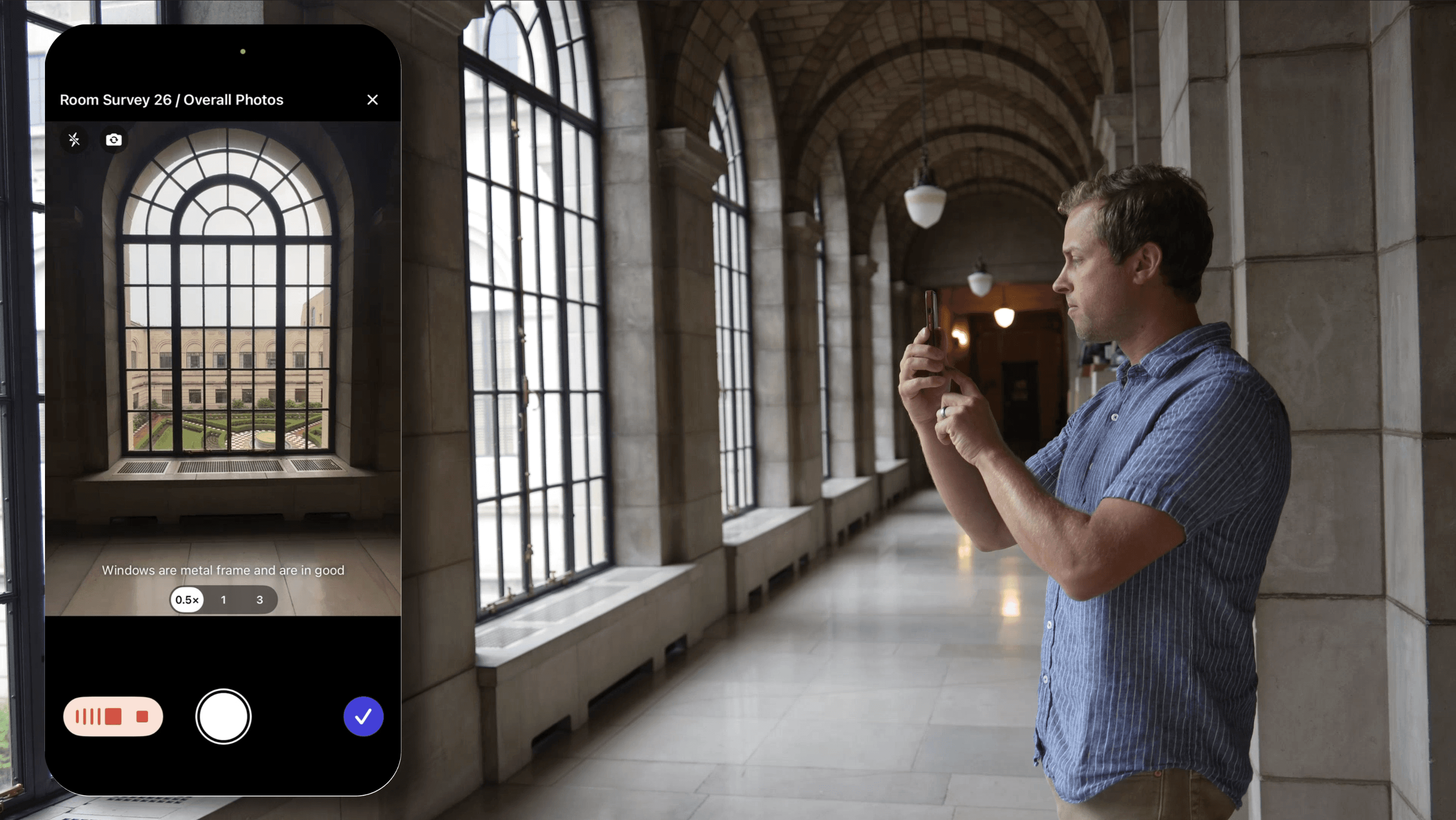
You can use your device's camera to take photos and attach them directly to elements in Layer. This is useful for capturing site conditions, equipment states, or other field observations without leaving the app.
How to capture a photo from your device
Open an element.
Tap a File field or image field you want to add a photo to.
Tap the camera icon or select Capture from Camera.
If this is the first time, your device will ask for camera permission. Allow access to continue.
(Optional) To caption the photo by voice, tap the microphone button and speak your caption before taking the photo.
Tap the shutter (circle) button to take the photo.
Confirm the caption was captured (see below), then tap to confirm — or retake the photo.
The photo is attached to the element and uploaded to Layer, and any voice caption is saved as the photo's file caption.
Add a voice caption while capturing
You can narrate a caption by voice instead of typing it. So the caption attaches to the correct photo, speak it before you take the shot:
From the camera, tap the microphone button and speak your caption.
Tap the shutter (circle) button to take the photo.
A small preview of the photo appears. If the caption was captured, a purple microphone icon shows on the bottom-left of the preview.
To double-check before uploading, tap the preview to open the full-screen view. The recorded caption appears just above and to the left of the photo, and you can add markups using the color tools below the image.
When you finish, the transcription is saved as the photo's file caption.
Tip: Capture one photo at a time when using voice captions, and confirm the purple microphone icon on each before moving on. If a caption does not attach, you can add it manually afterward — open the file, tap the three-dot menu, choose Edit File Caption, and type it in. See Fields - File for more on captions.
Note on privacy: Layer does not store the audio of your voice. Recordings are used only in the moment to transcribe speech to text for the caption — no audio file is saved to your device or to Layer's servers.
Notes
Camera capture is available on iOS and on Android and mobile browsers that support camera access.
Photos captured this way are stored as files on the element, the same as photos uploaded from your device library.
If the camera option does not appear, check that Layer has camera permission in your device's app settings.