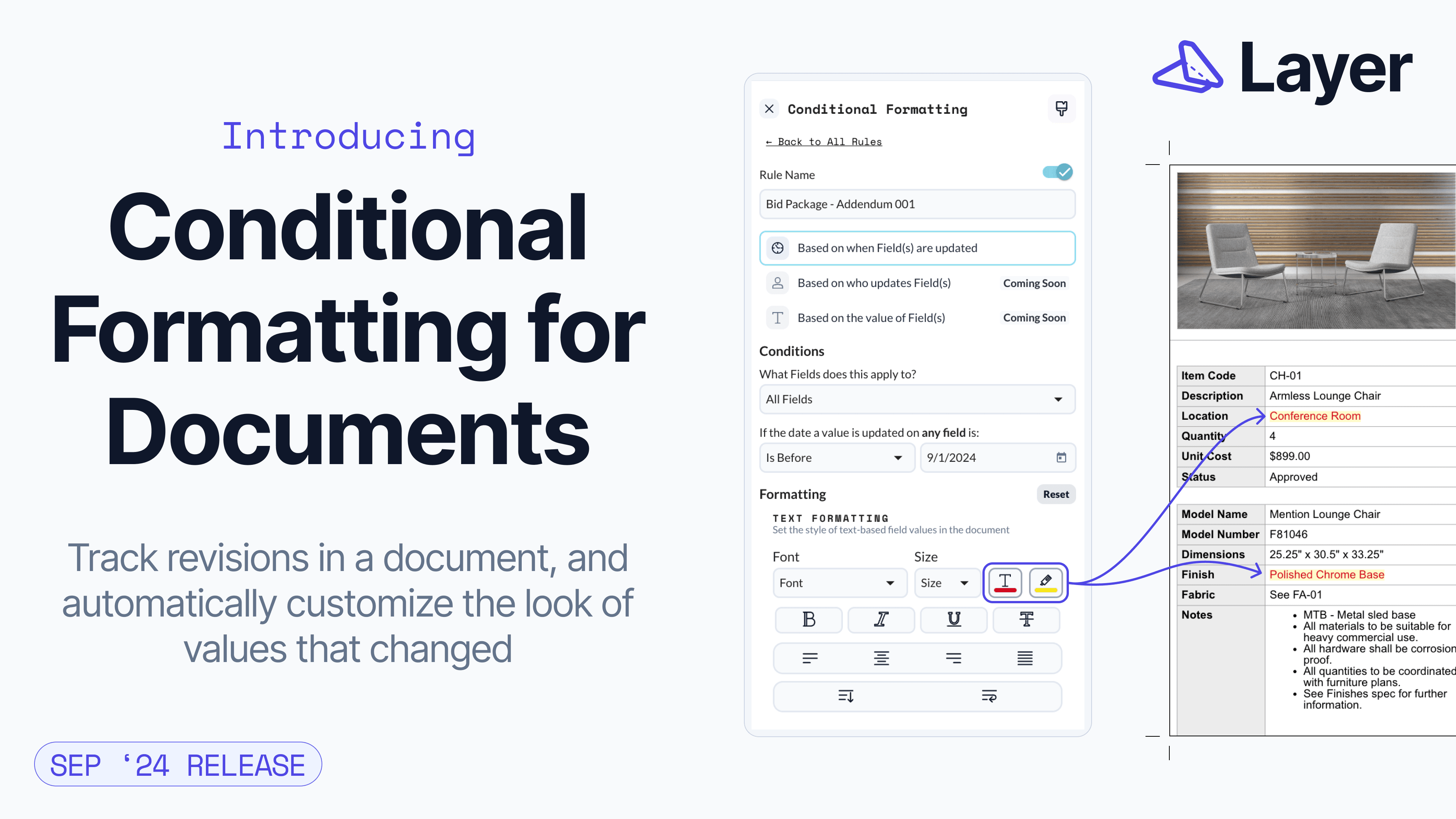
Conditional formatting in Document View allows project teams to track revisions and highlight data updates directly in Layer. By applying formatting rules, teams can produce visual reports that clearly communicate what has changed, when, and why.

Mike Lee
Conditional formatting in Document View enables you to visually flag changes to project data based on user-defined rules. This is useful for highlighting updates to submittals, comparing field revisions, or drawing attention to important project data before exporting reports.
This guide explains how to create, configure, and manage conditional formatting rules in Document View.
Feature Overview
You can apply formatting based on when fields were updated, allowing you to highlight recent changes in any document. These rules can be combined, toggled, and reordered to track multiple dates and field types. Formatting is applied across all elements in the view and is preserved in exported PDFs.
How to Create a Conditional Formatting Rule
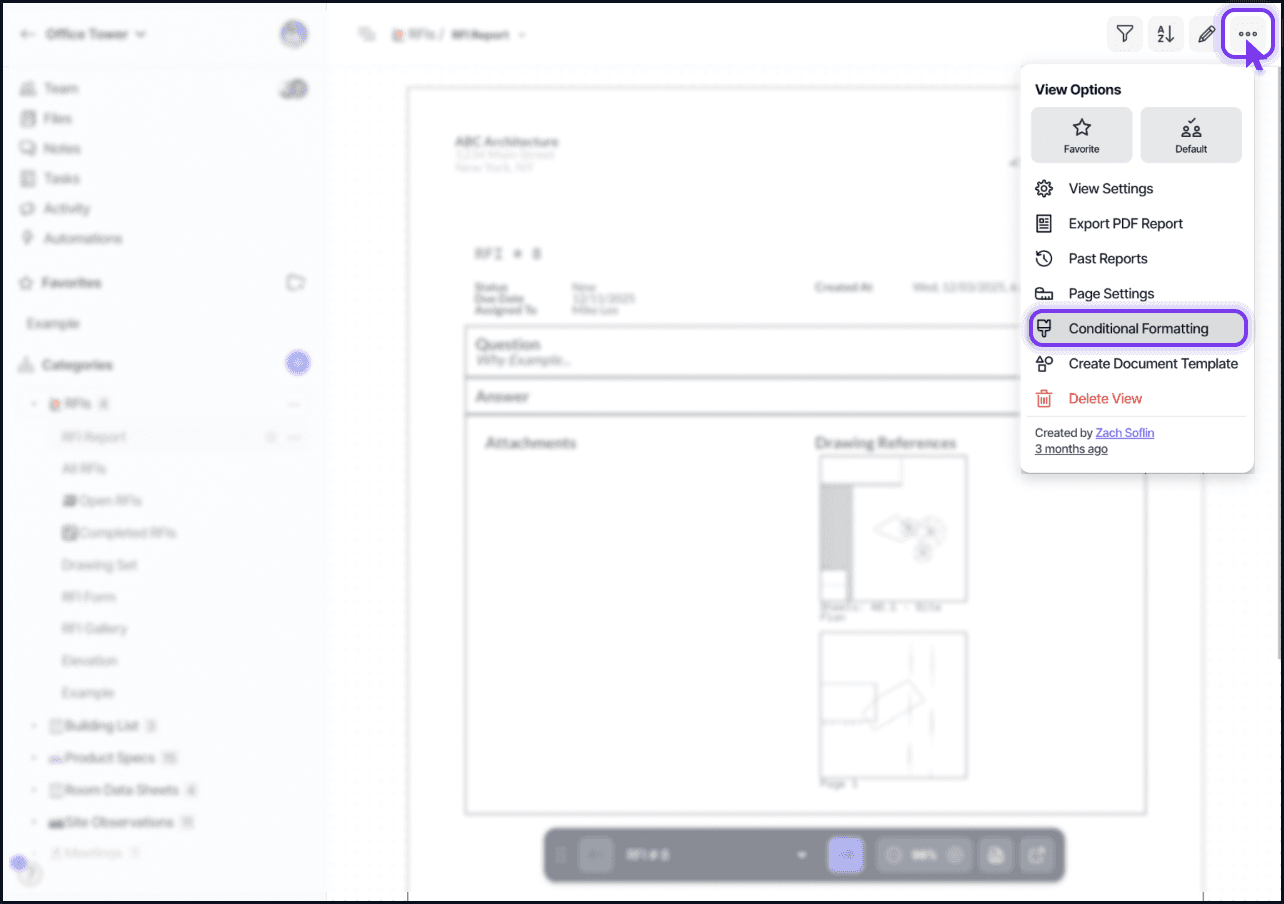
Open any Document View.
Click the Conditional Formatting icon in the toolbar.
Select + Create a New Rule
Enter a descriptive name for your rule (e.g., “Changes Since 9/27”).
Set the Rule Type:
Add your criteria
Choose the Fields the rule should apply to:
Configure the Formatting Style:
Close the dialog to apply the rule.
Chaining and Reordering Multiple Rules
You can create multiple rules that apply to the same view.
Example:
To change rule priority:
Drag a rule up or down in the list.
Higher rules take precedence if overlapping conditions are met.
Toggling Rules On or Off
Use the toggle beside each rule to temporarily disable formatting without deleting the rule.
Disabled rules will not appear in the exported document.
Supported Field Types
Rules can apply to most Layer field types, including:
Text and rich text
Select and multi-select
Files and images
Dates
Related fields
Updated At
Applying Formatting to Files
In addition to text fields, you can apply formatting to files:
Example: Highlight a file border in red if a new image was added since a specific date.
Choose “Files” as a target field when setting up the rule.
Export Behavior
When you export a Document View with conditional formatting rules active:
Formatting is preserved in the PDF.
Every page reflects the formatting across all elements.
Useful for submittal packages or highlighting revisions to external reviewers.
Tips
Use date-based rules to track progress since key milestones.
Use color combinations that maintain contrast and accessibility.
Limit simultaneous rules to avoid formatting conflicts.