Learn how to reset your Layer password if you've forgotten it. Follow steps to receive a reset email and update your password securely.

Zach Soflin
If you forgot your password, you can click the “Forgot Password?” link when you sign in.
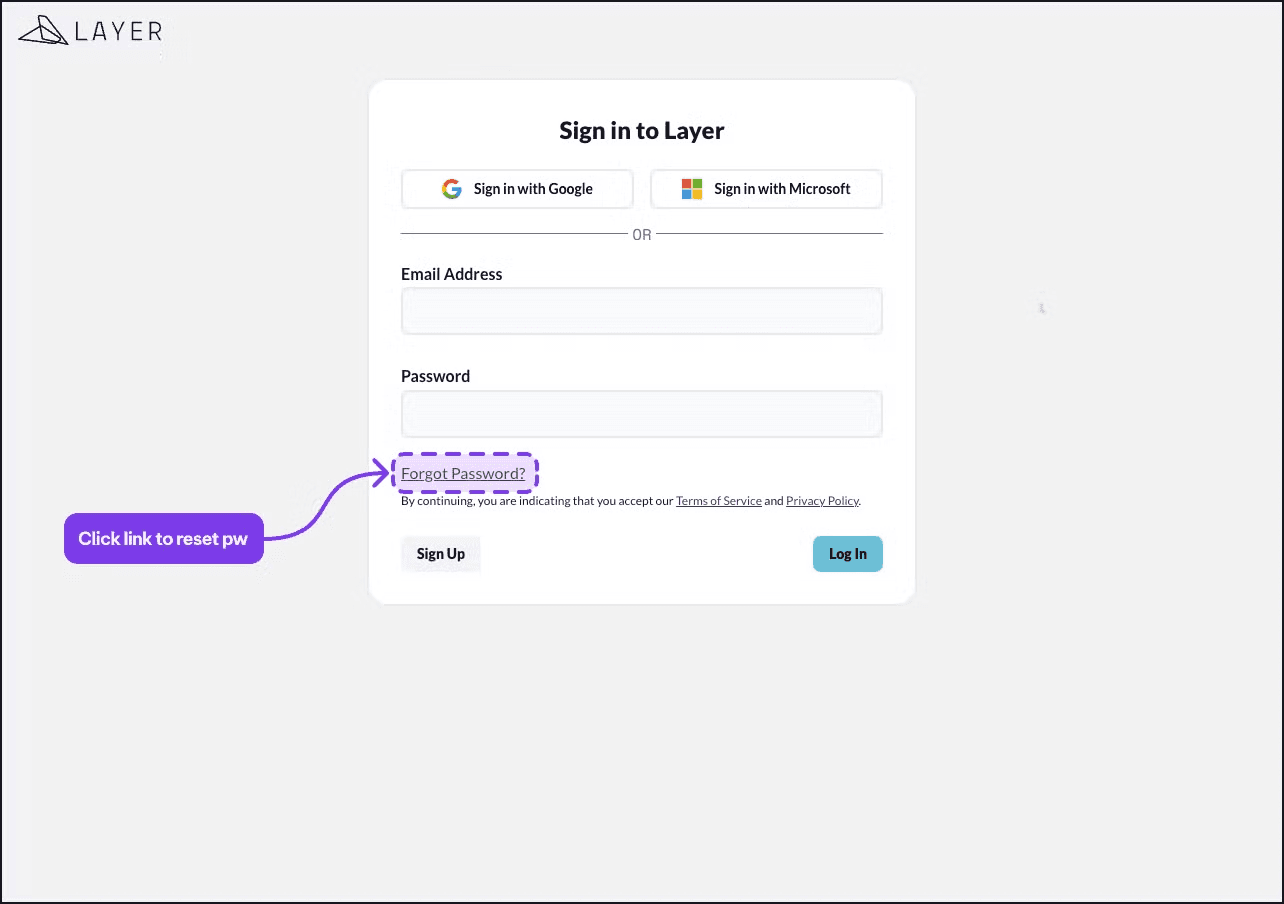
The Layer login screen with the “Forgot Password?” link highlighted.
You’ll be prompted to enter in the email address you use to sign in to Layer. After typing your email address, press the Send Reset Email button and a few minutes later you’ll receive an email in your inbox.
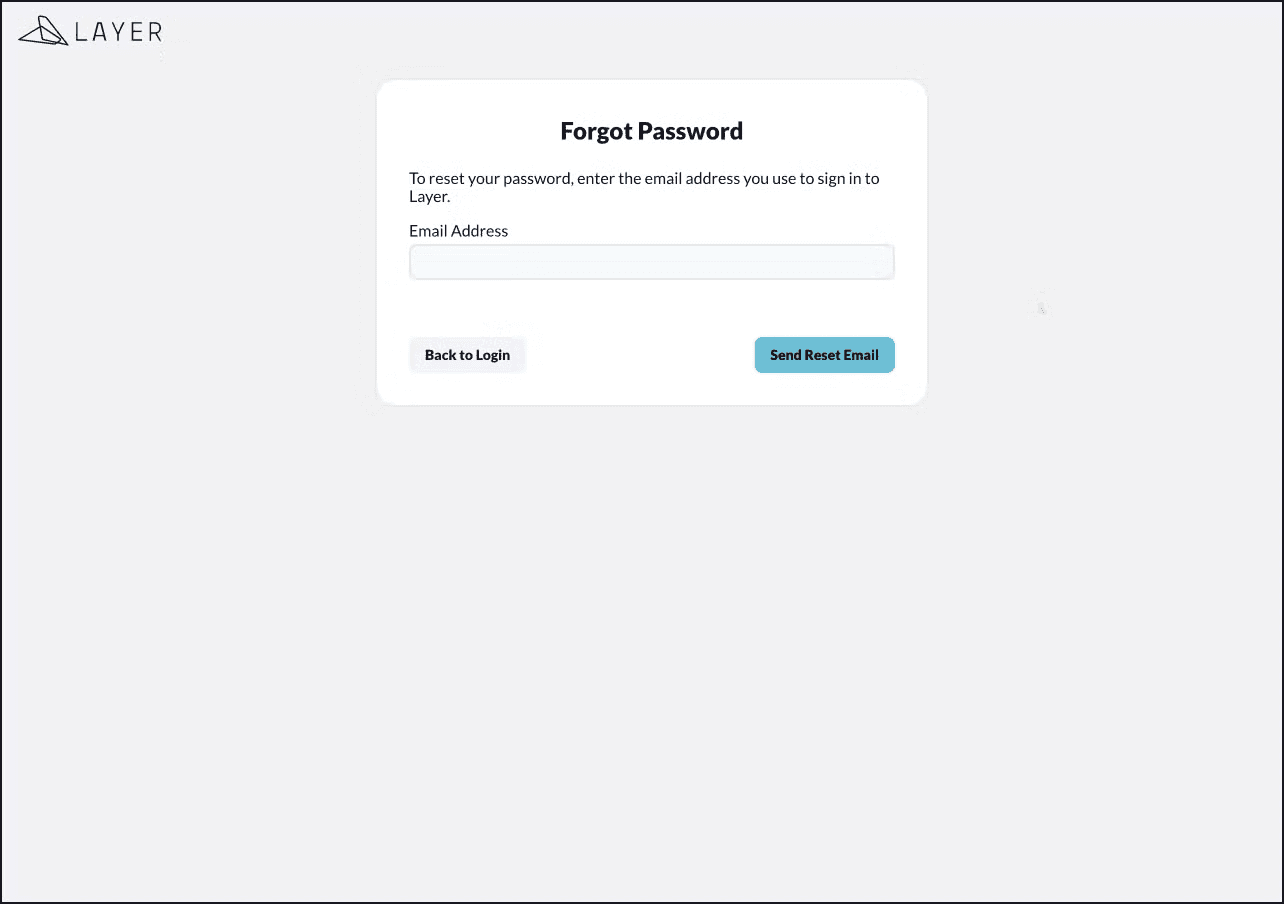
The password reset form where the user enters their account email to receive a reset link.
https://app.layer.team/login/forgot
This is the email you will receive. Please check your spam folder if you don’t see it after a few minutes.
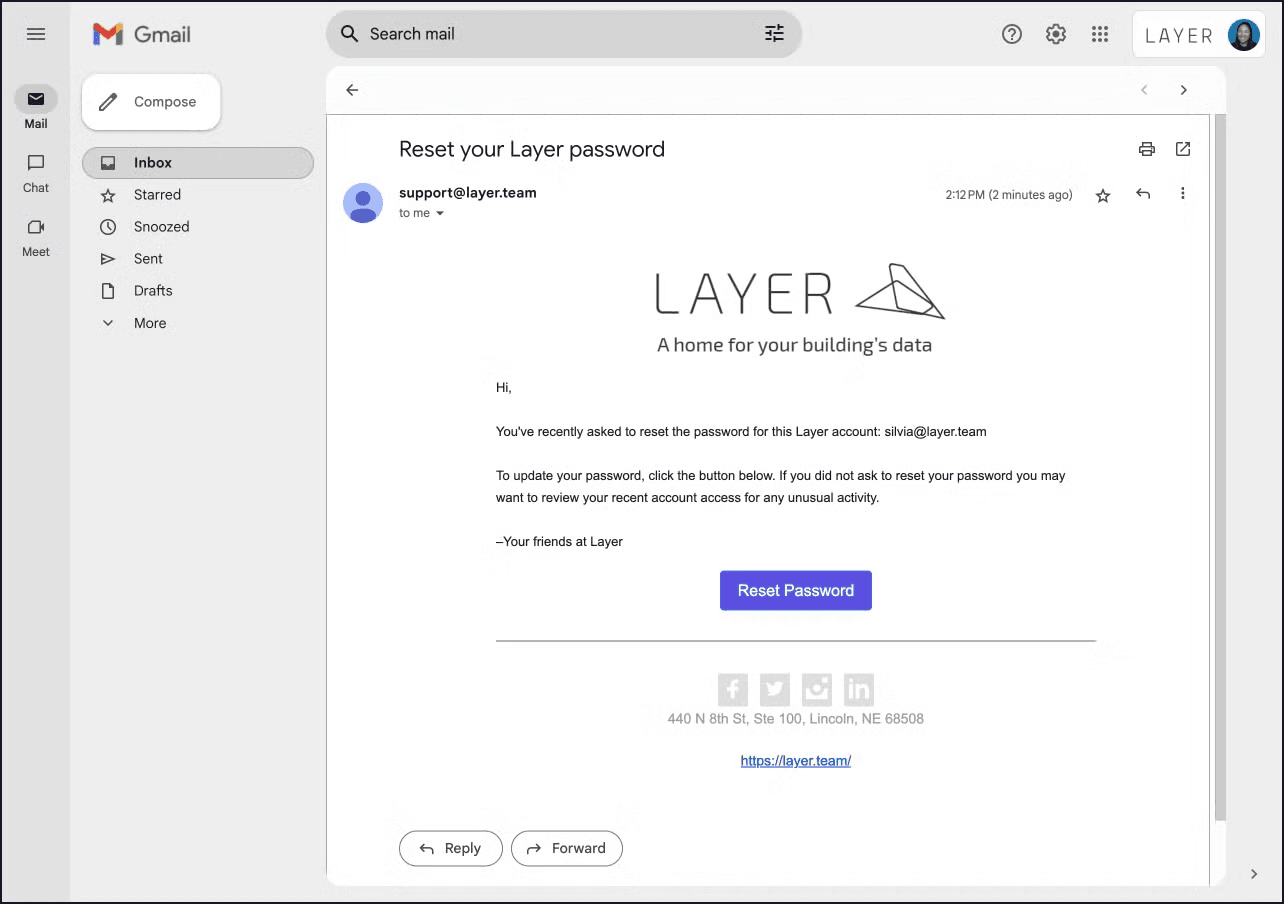
The password reset email Layer sends with the Reset Password button.
When you click the Reset Password link, you’ll be brought to a new page to enter in your new password.
If you are still logged into Layer you may not see this page. Please log out and click the link again to reach the Reset Password page.
Note: Passwords need to be a minimum of 6 characters
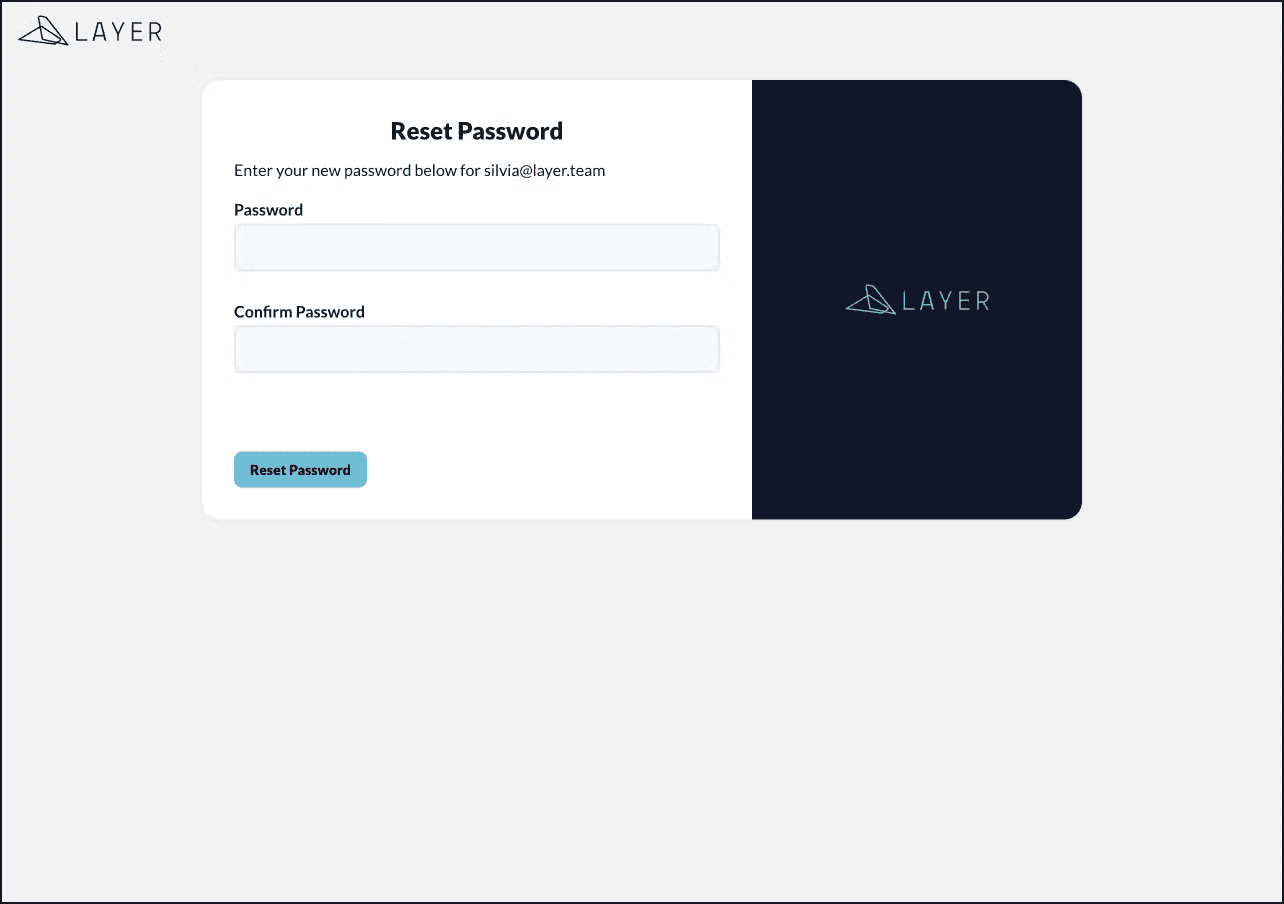
The Reset Password page for entering a new account password.
👉 After resetting your password, log out of any browsers or apps to log in again with your new password.