Pin your most-used projects to the Home screen and drag to reorder them. The order is saved to your account and stays the same the next time you sign in.

Josh Puppe
Pinned projects on Home
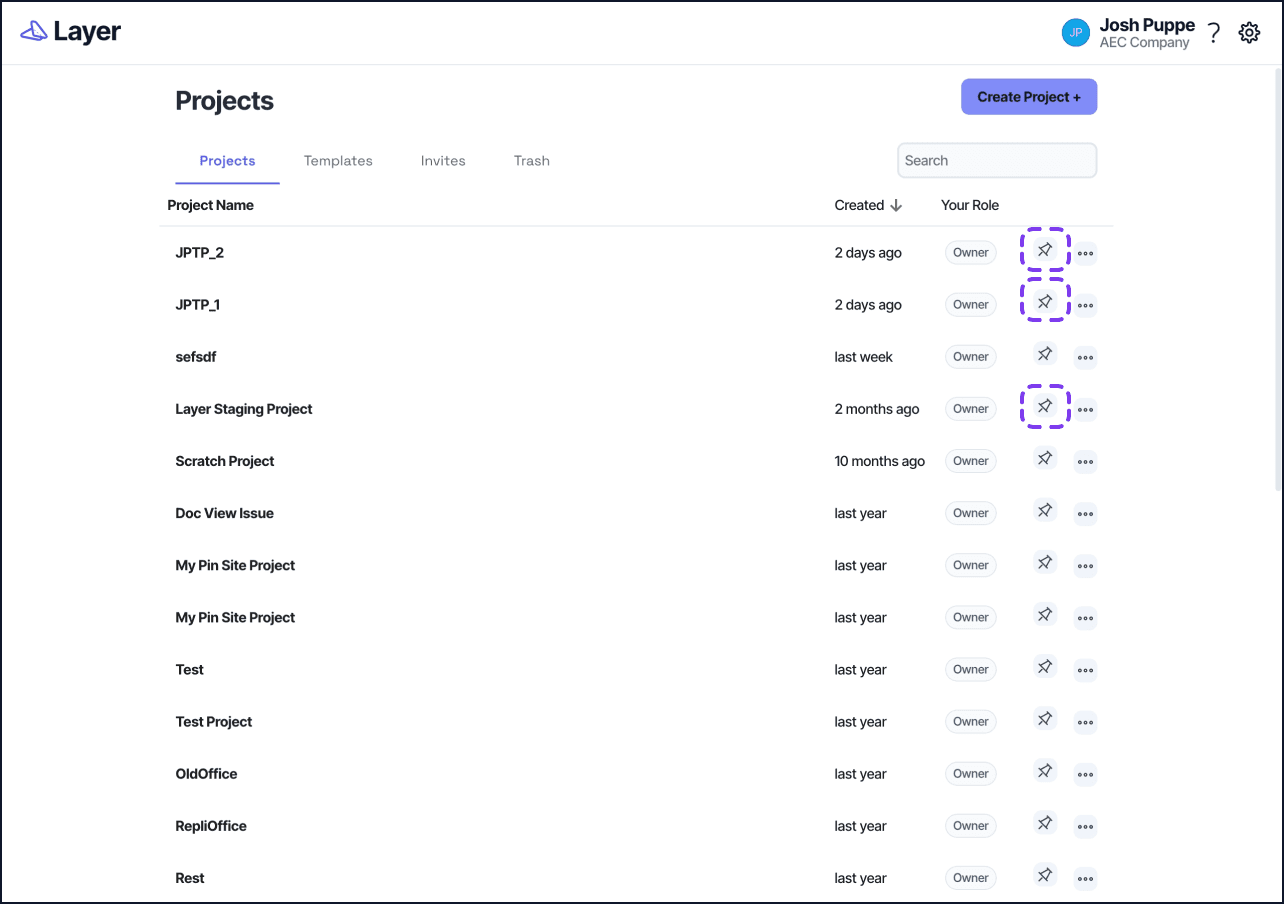
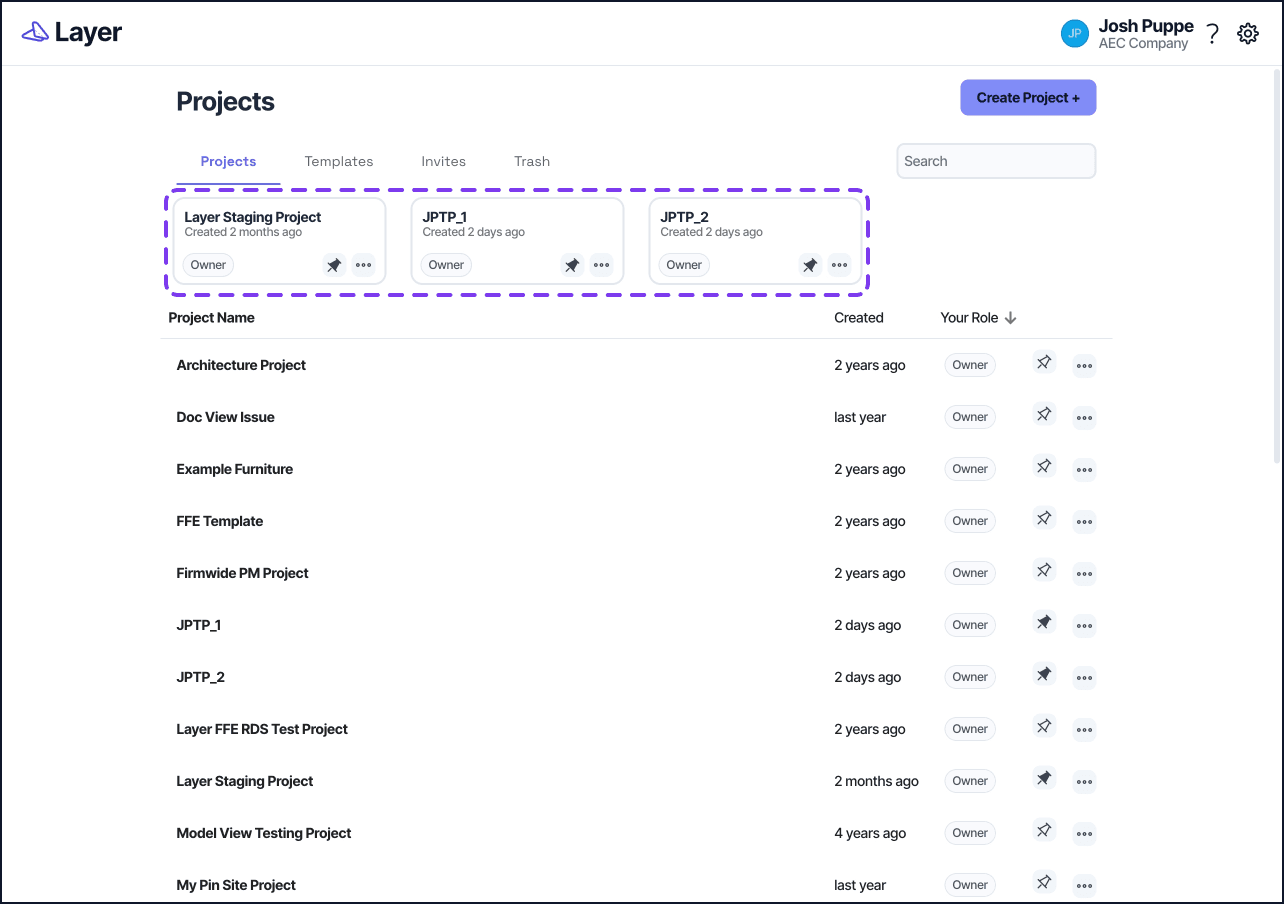
Pin the projects you use most so they appear in the Quick Access area at the top of the Home screen. Pinned projects are specific to your account.
Pin or unpin a project
Use the pin option on a project to add it to or remove it from your pinned projects. You can also pin or unpin a project from Search.
Reorder pinned projects
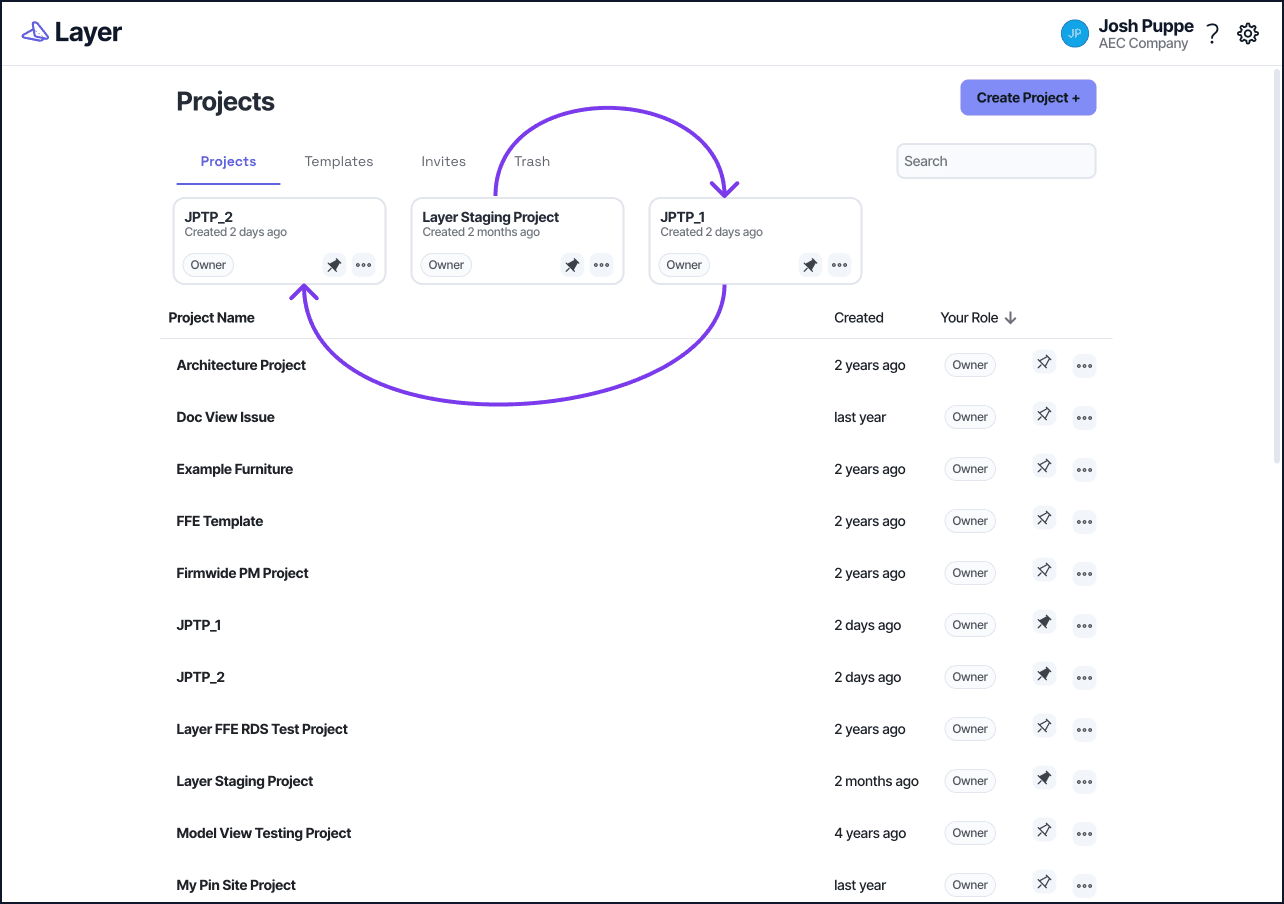
You can drag and drop pinned projects to change their order.
Go to the Home screen.
On the Projects tab, find your pinned projects in the Quick Access area.
Drag a pinned project to a new position and drop it.
Your order is saved automatically and stays the same the next time you open Layer or refresh the page.
While you are dragging a pinned project, tab swiping is paused so the screen does not switch to the Templates tab.