How to use the project-wide search bar to find elements, files, notes, and tasks across an entire Layer project.
Based solely on what the code confirms:
Search
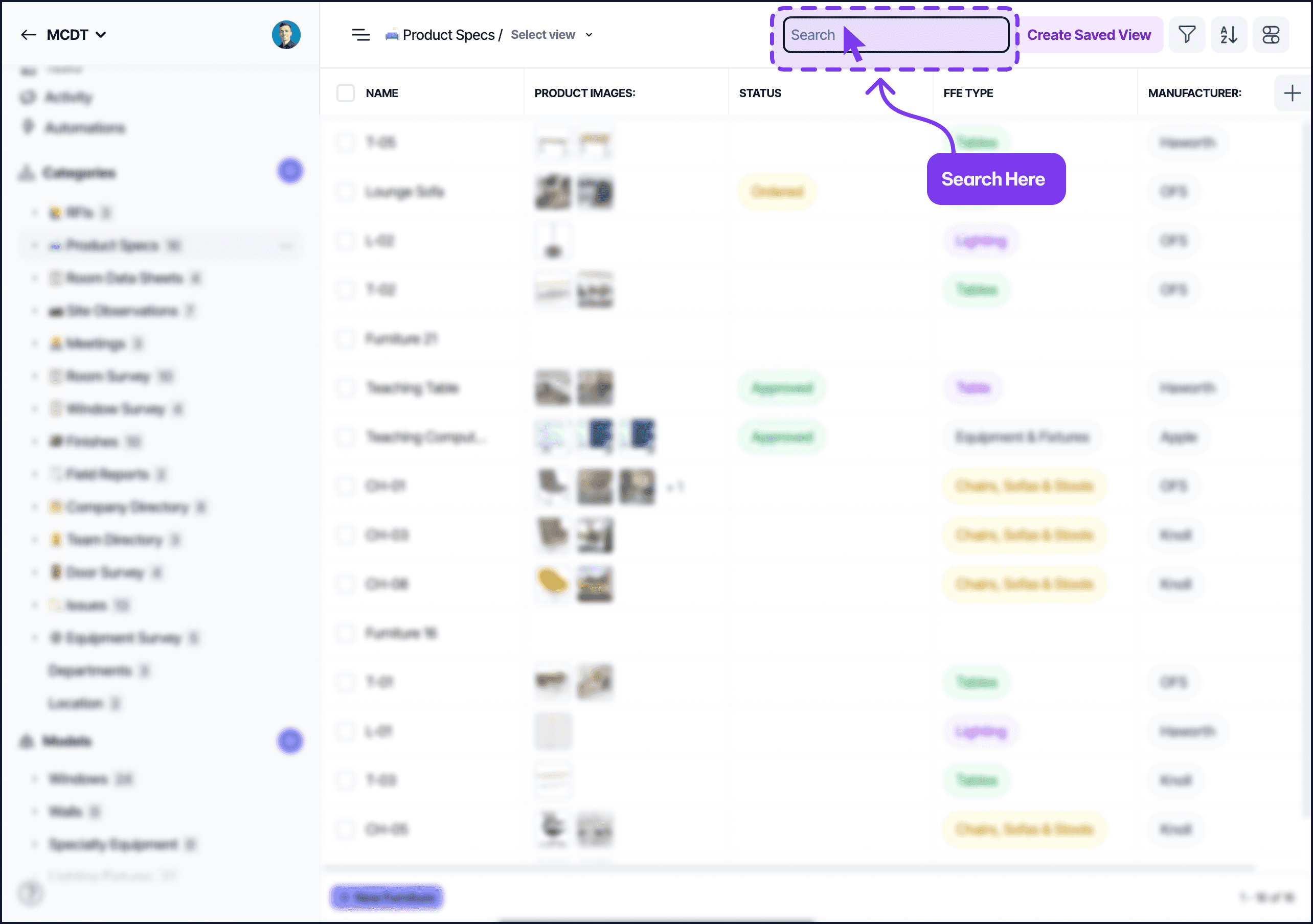
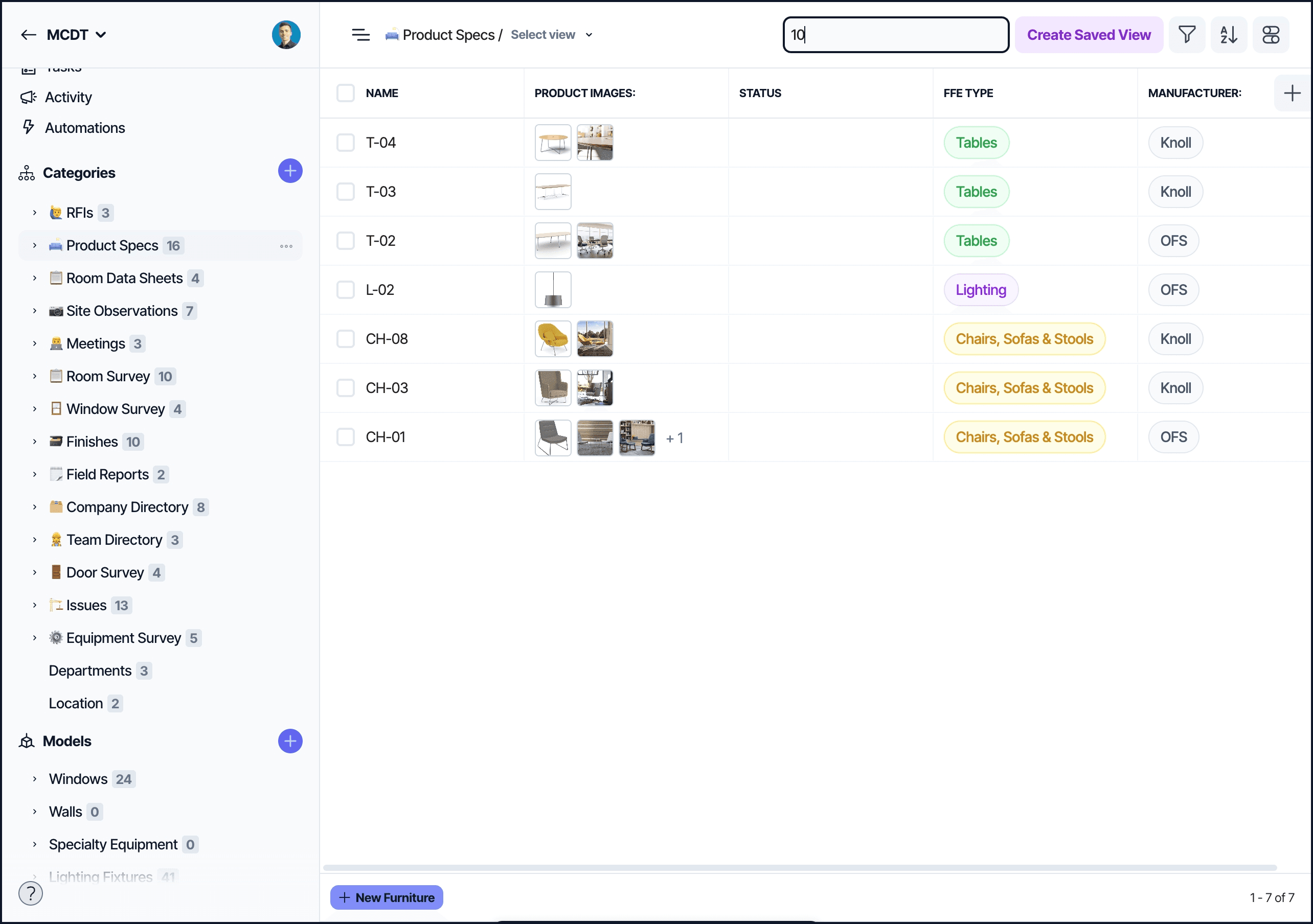
The search bar appears at the top of a category view whenever you are inside a category. It filters the element list in that category in real time as you type: there is no separate search dialog and no keyboard shortcut to open it.
What search matches
Search runs against element data in the current category:
Element names: the display name of every element in the category
Element auto-increment ID: the numeric ID assigned to each element
Field values: text fields, formatted text fields (HTML is stripped before indexing), select and multi-select option names, and the names of linked context items
Files, notes, tasks, and @mentions are not searched.
Search is case-insensitive and matches partial words. Searching room 10 finds Room 10, Room 100, Room 101, and so on. Results update approximately half a second after you stop typing; no Enter key is required.
Scope
Search is scoped to the category you are currently viewing. There is no project-wide search across all categories at once.
Barcode search
On iOS and iPadOS devices running the native Layer app, the search bar includes a barcode icon. Tap it to open the device camera and scan a barcode or QR code. Layer searches every Barcode field in the project for the scanned value and opens the matching element, or shows a results list if more than one match is found.
Barcode scanning is not available on Android or in the web browser.
Offline behavior
The search bar is disabled when the device is offline and the app has not yet loaded your project data. Ensure the app has synced before searching.
Search and Restricted Users
Restricted Users see results only for elements in the categories and views they have been granted access to. Elements outside their shared views do not appear in search results.