How to use Quick Actions in Layer: open the Ctrl+K (Cmd+K) command bar from anywhere in a project to jump to an element, view, or action and run common tasks without leaving the keyboard.

Mike Lee
Search in Layer helps you find anything in a project and jump to it quickly. The search bar finds content across the project, and the search palette lets you navigate and run common actions from the keyboard.
Open search
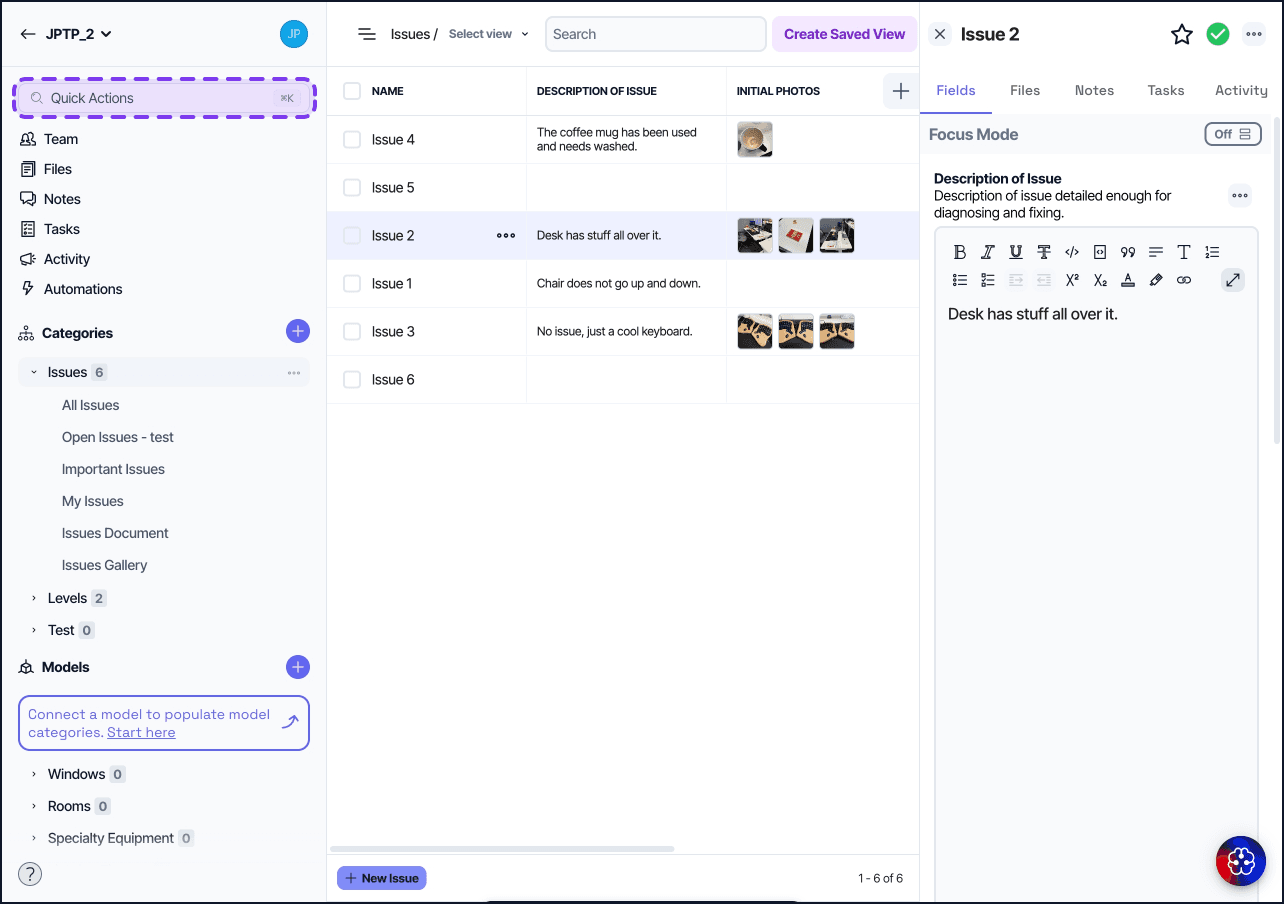
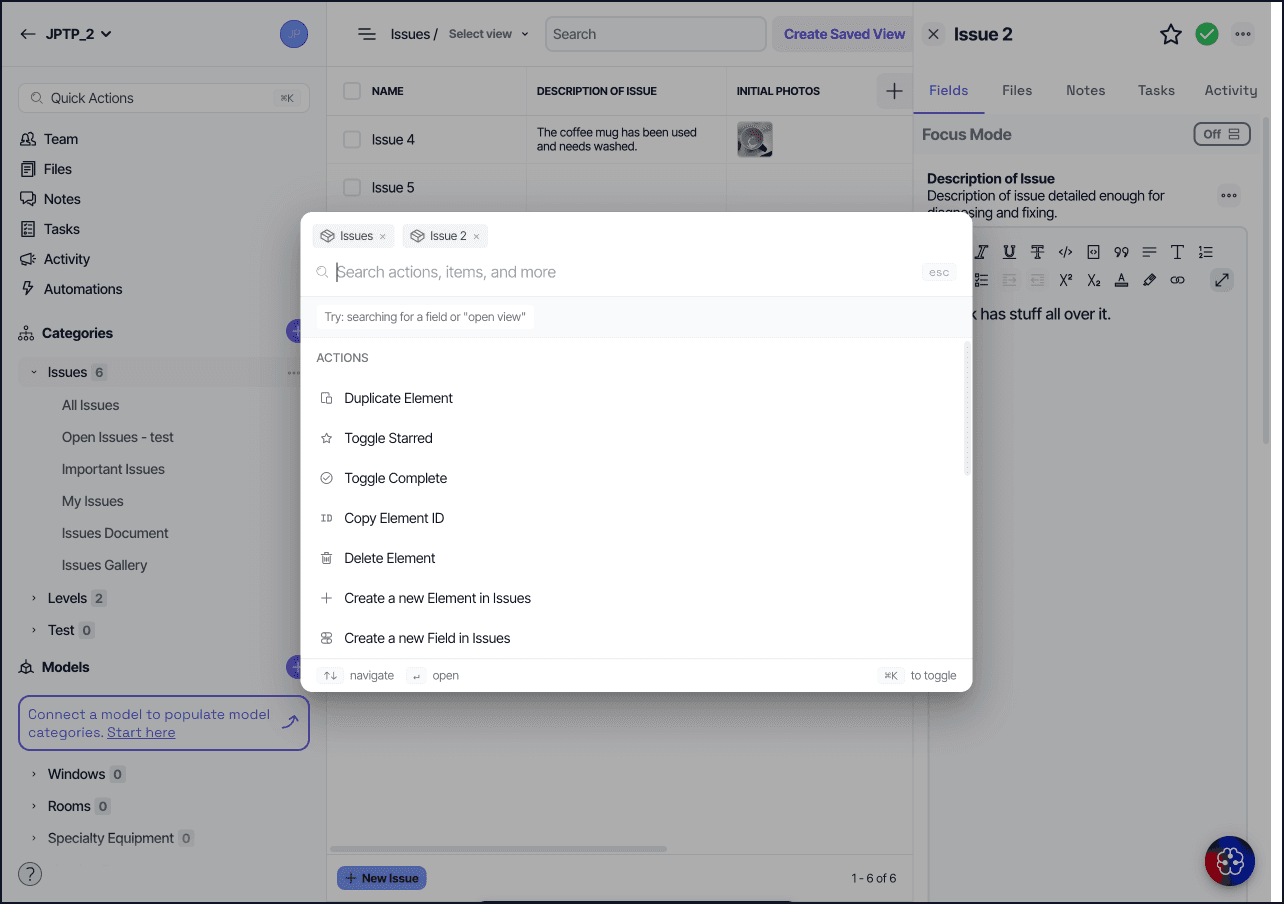
Click the search icon for “Quick Actions” at the top left of any project view, or use the keyboard shortcut Ctrl/Cmd plus K. The search dialog opens with a single search input field.
What search finds
Search runs against:
Element names: every element's display name.
Element field values: text, formatted text, select, and other text-based fields.
File names: files attached anywhere in the project.
Note bodies: note titles and content.
Task titles and descriptions: every task in the project.
Mentions and people lookups: searching a teammate’s name or email returns matches from indexed project content (including notes, tasks, and elements), but results are not guaranteed to include every mention in every case.
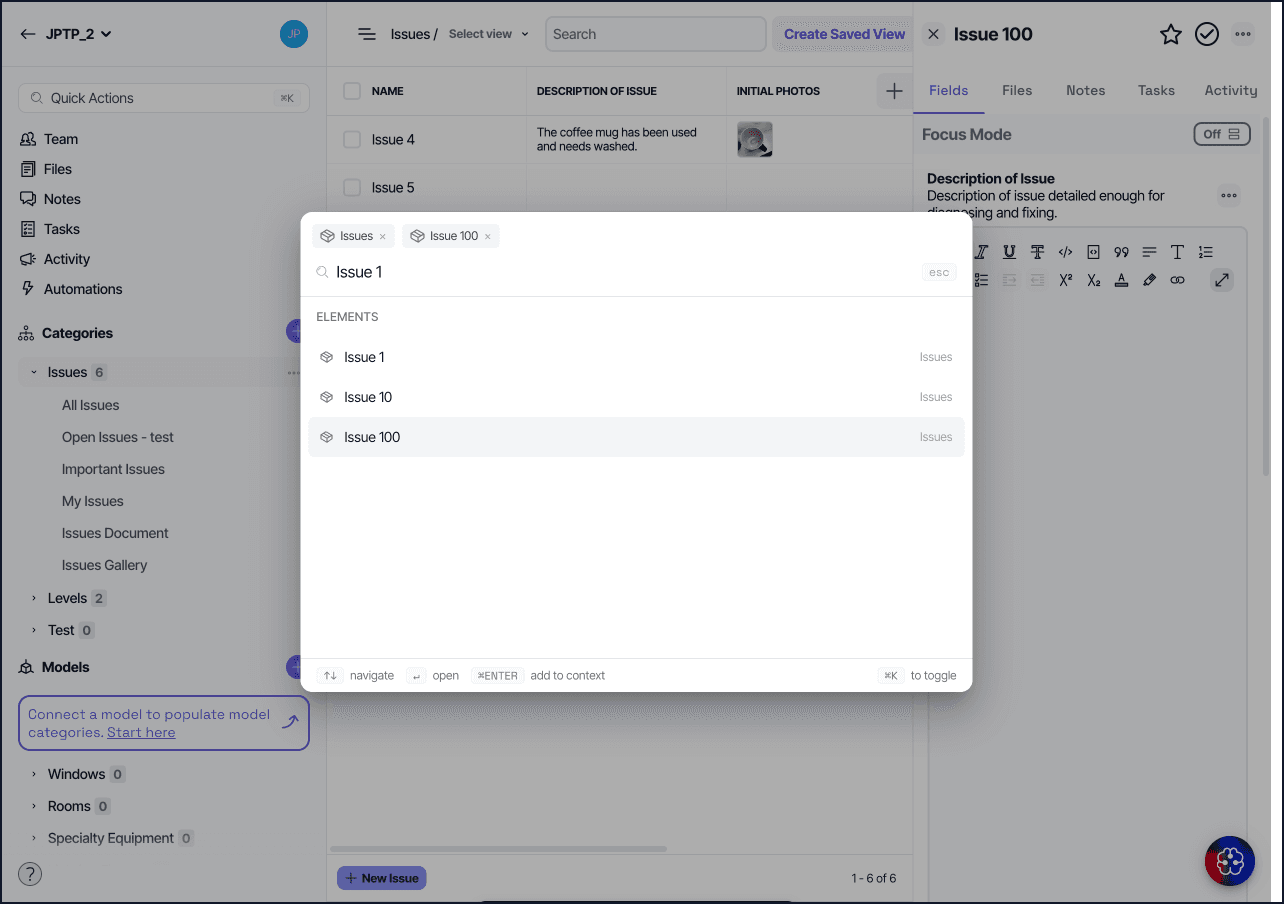
Search is case-insensitive and matches partial words. Searching room 10 finds Room 10, Room 100, Room 101, and so on.
Navigate and run quick actions
Beyond finding content, search lets you move through the project and act without leaving the keyboard. From the search dialog you can:
Jump to a category, view, element, or field.
Create a category, element, field, or view (Document, Table, Gallery, Form, or Model).
Open a view's report or settings, project activity, element import, or the project team.
Run element actions: duplicate, delete, copy the element ID, or mark an element complete or starred.
Favorite or unfavorite a view.
Add a company user to the project.
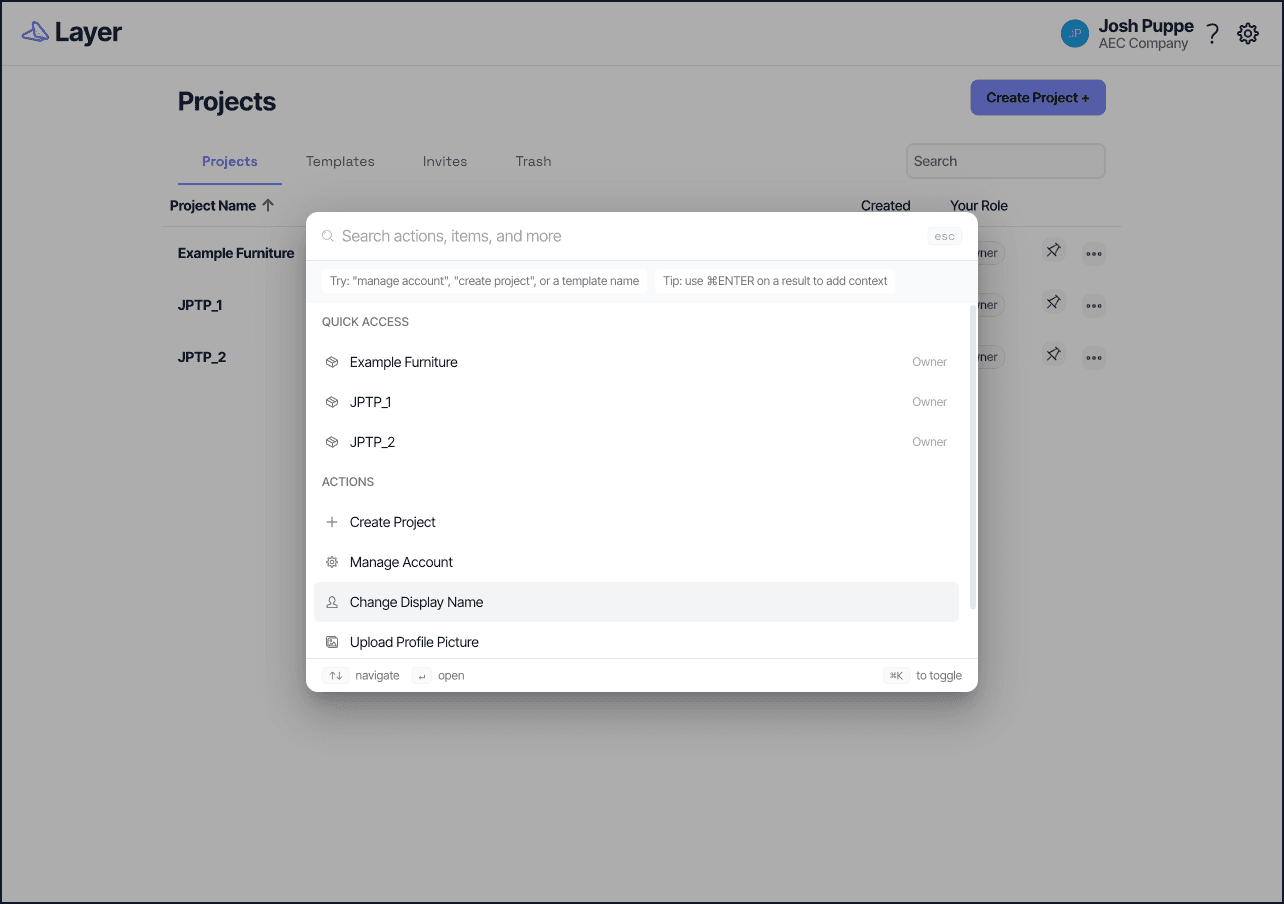
From the Home screen, search also lets you open a project, pin or unpin a project, create a project or use a template, and open account and company management areas.
Tip: you can type more than one word. Common words such as "go", "open", "find", and "search" are ignored, so phrases like "create view" or "go to settings" work as expected.
Scope a search
By default, search runs across the entire project. To narrow:
By category: type a category name and select it as a filter to limit matches to that category.
By type: filter to elements, files, notes, or tasks using the type chips above the results list.
Barcode search
On mobile devices with the Layer app, the search bar includes a barcode icon. Tap it to open the device camera and scan a barcode or QR code. Layer searches every Barcode field in the project for the scanned value and returns the matching elements. Barcode search is iOS-only at this time.
Search and Restricted Users
Restricted Users see search results only for views, elements, and fields they have access to. Items outside the views shared with them do not appear, even if the underlying value matches.
Things to know
Search is real-time. Results update as you type; there is no Enter to submit a content search.
Search runs against the current sync state. If you are offline or have unsynced local changes, sync first for fully up-to-date results.
Drawing views are not offered in the quick-create view actions because a Drawing View needs an uploaded PDF. Create one from the category instead. See Drawing View.