Learn how to set relationship cardinality in Layer to model real-world constraints and prevent invalid connections across your project data.

Silvia Lee
When you connect elements in Layer through a relationship, you are required to determine relationship cardinality: how many of one thing can be linked to another? This article will walk you through setting up those controls in Layer. For example: whether a room can contain many pieces of furniture, or whether a specific chair model can only be linked to a single vendor.
Getting cardinality right matters because it reflects real-world constraints and prevents invalid or confusing connections.
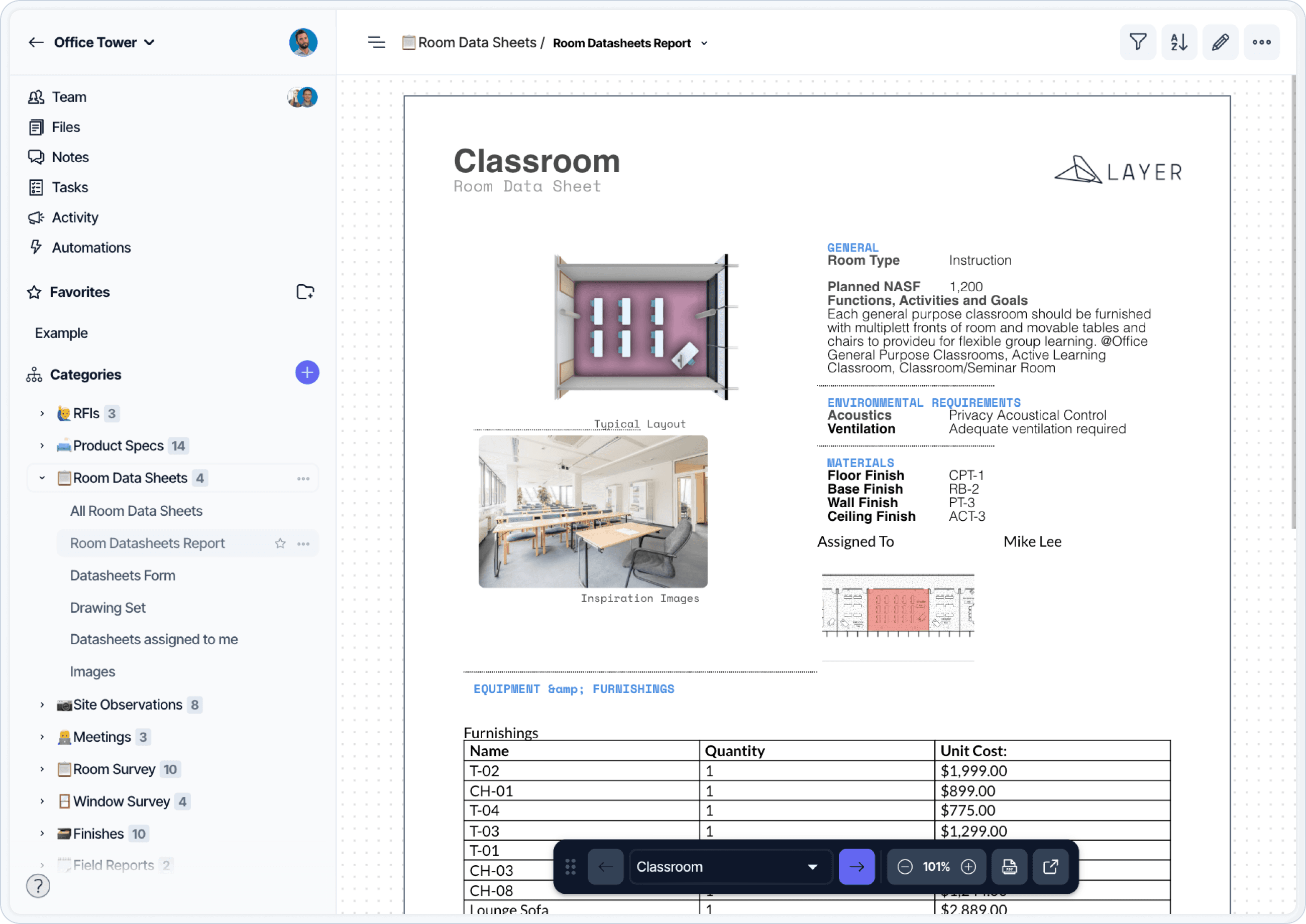
A Room Data Sheets template illustrating how rooms, furniture, and vendors are connected through relationship cardinality.
For example, when creating Room Data Sheets, each room has multiple pieces of furniture. But each piece of furniture only belongs to one room, but could have only one, or many vendors depending on how your team handles procurement. Layer gives you the flexibility to make those decisions yourself so that our tools match how you work.
In Layer, these rules are set directly through relationship field configuration. Want to learn more about Relationships in Layer? View our Layer Maker video on Relationships →
Which side of the relationship owns the field?
The most common point of confusion with cardinality is where you place the field. The Selection Mode you choose applies to the side of the relationship where the field lives, not to the other side.
Worked example: you have a Departments category and a Key Planning Units (KPU) category, and you want each Department to be linked to many KPUs while each KPU belongs to one Department.
If you put the relationship field on Departments and set Selection Mode to “select many,” each Department can select many KPUs. This is the configuration that gives you one Department to many KPUs.
If you put the relationship field on KPUs instead, the cardinality reads in reverse: each KPU can select many Departments. This is the configuration that gives you many KPUs to many Departments, or one KPU to one Department, depending on the Selection Mode.
If the relationship behaves “backwards” compared to what you expected, the fix is almost always to move the field to the other side of the relationship, then choose the Selection Mode that matches.
How to set relationship cardinality in Layer
First, you need to determine what type of relationship you are creating.
One to One: A one to one relationship means each element can be linked to only one corresponding element on the other side.
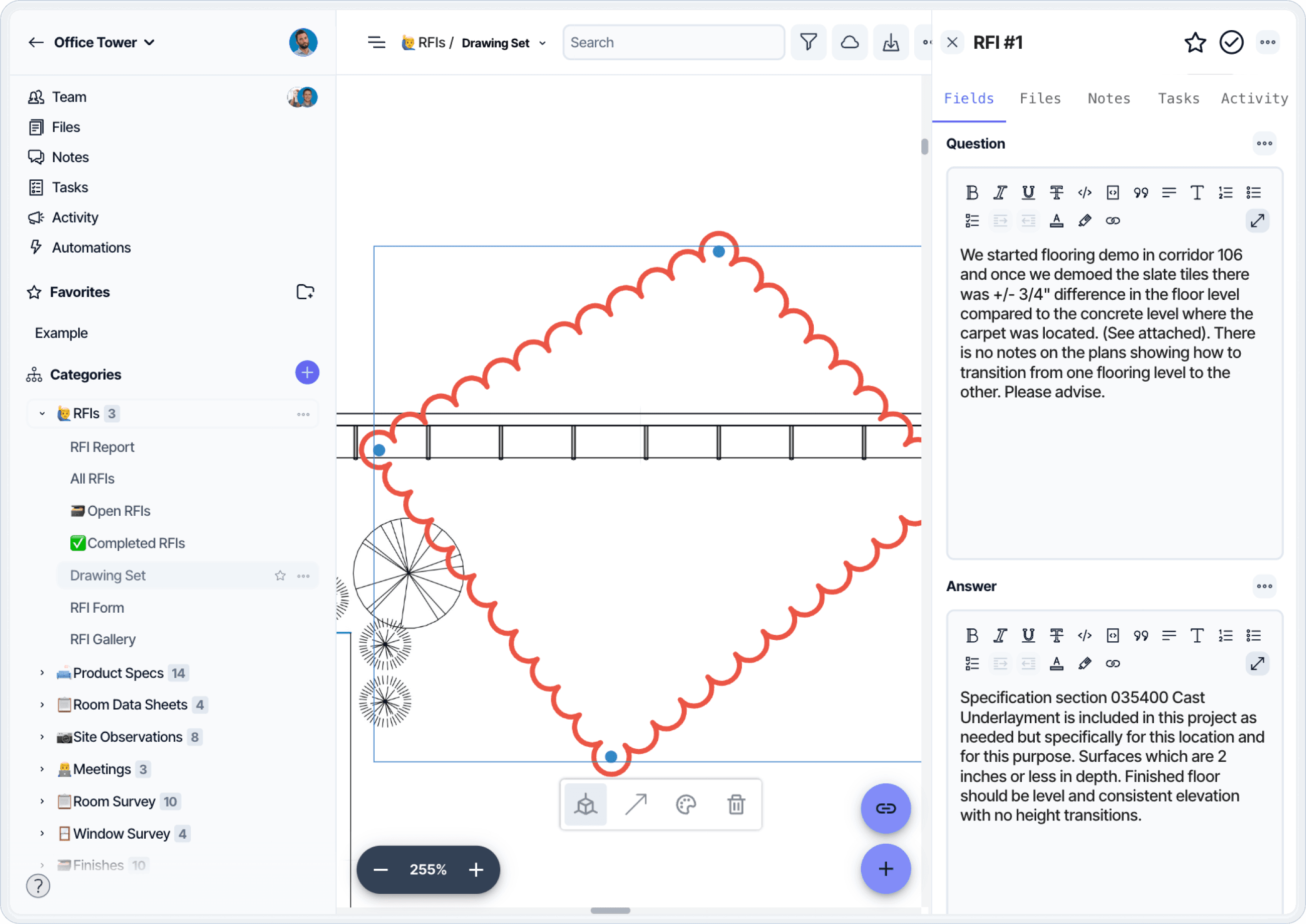
A one-to-one relationship example: an RFI pinned to a single drawing sheet location.
Example: Each RFI is linked to one specific drawing sheet, and each drawing sheet reference in that context points to only that RFI.
One to Many: A one to many relationship means one element can be linked to multiple elements, while each of those elements belongs to only one parent.
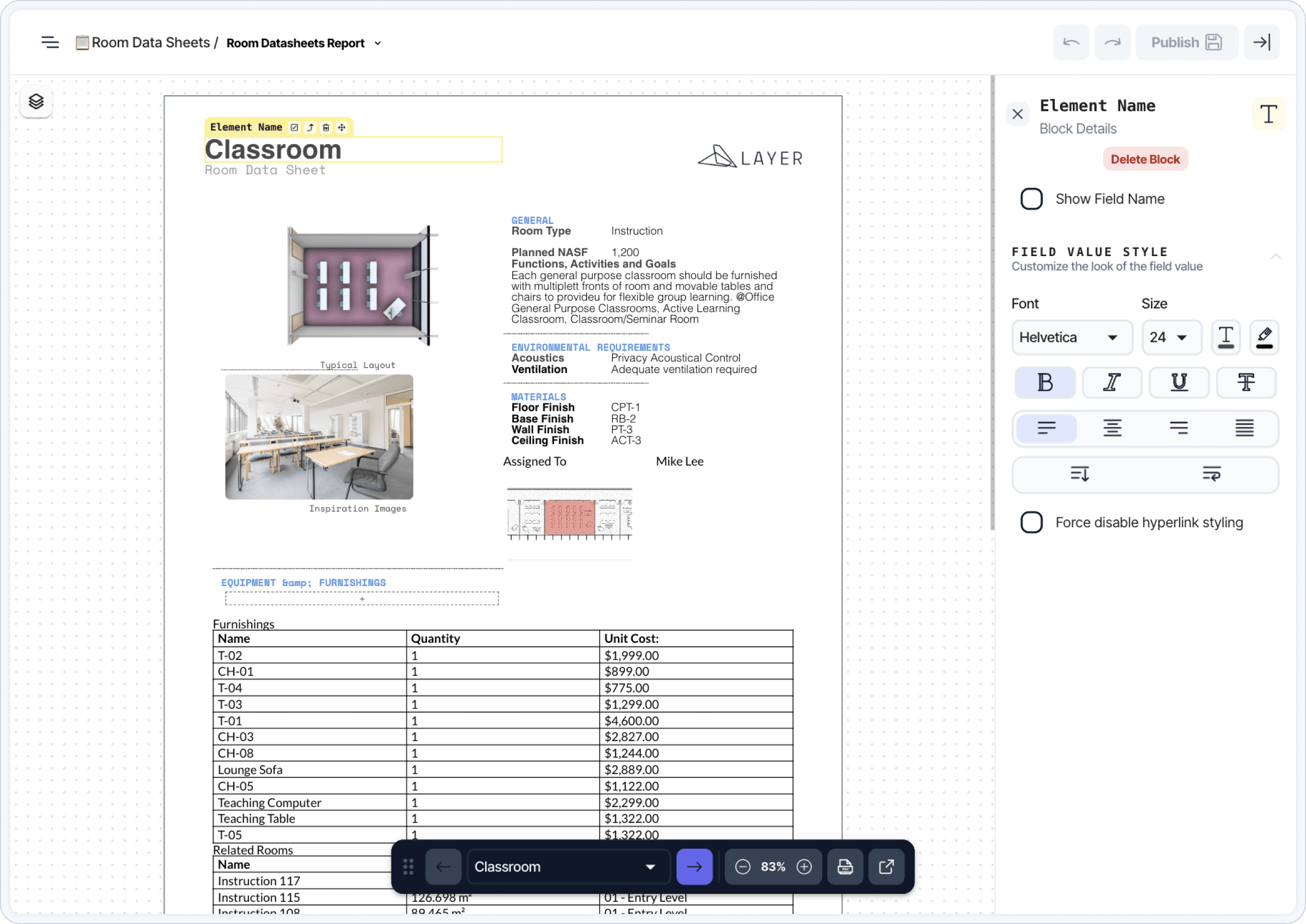
A one-to-many relationship example: a room with many linked furniture items.
Example: One room can contain many pieces of furniture, but each furniture item is assigned to only one room.
Many to Many: A many to many relationship means multiple elements on both sides can be linked to each other without restriction.
Example: A furniture item can be associated with multiple vendors, and a single vendor can supply multiple furniture items across a project.
Once you know the real-world rules you are trying to model,
Setting Selection Mode on a manual relationship field to control cardinality. the next step is configuring those rules in Layer. You can find them under the Relationship Field Settings under “Selection Mode”.
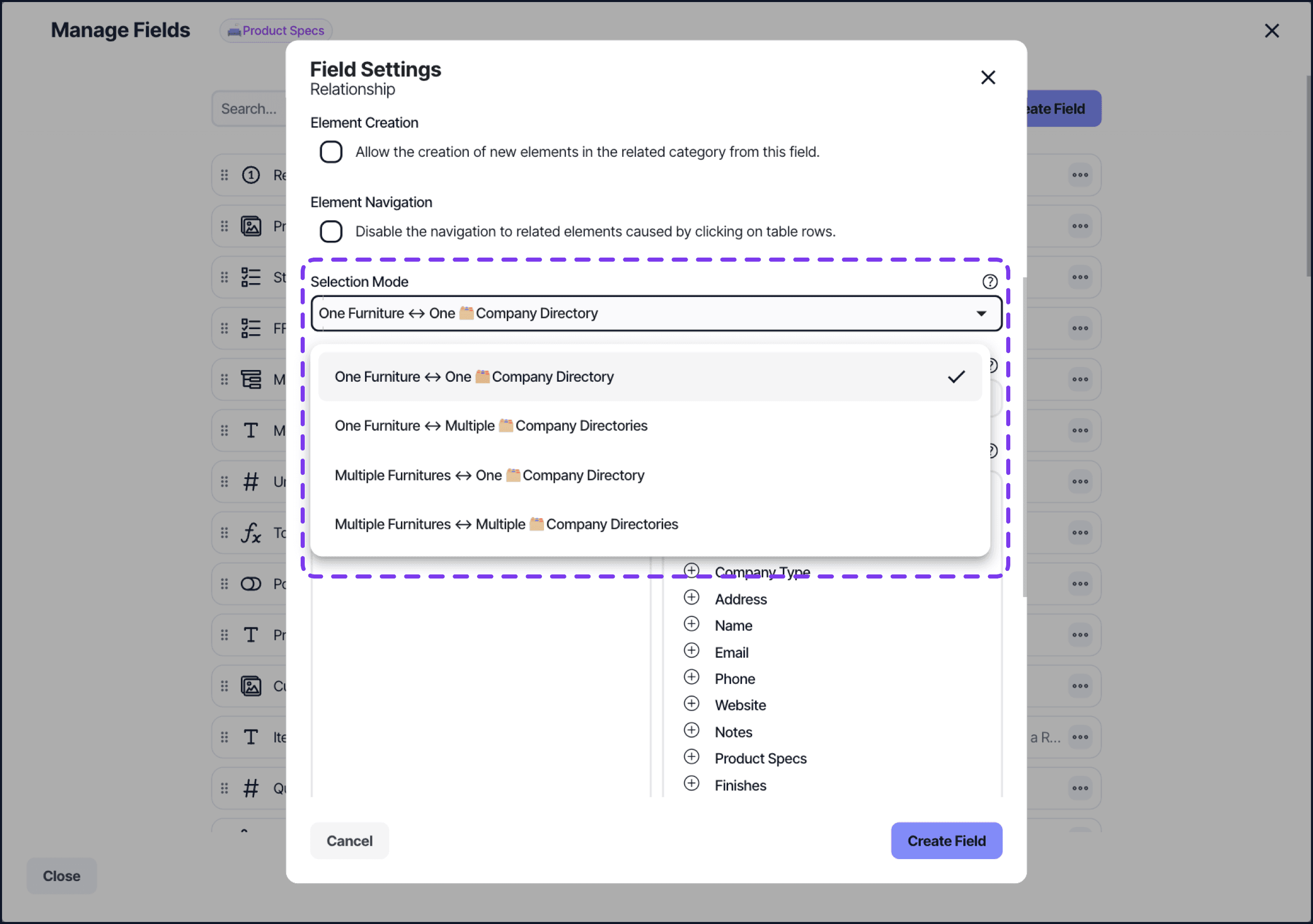
Common configuration issues
Most cardinality issues come from constraining the wrong side of the relationship. This often happens when a relationship field is created on a parent category instead of a child category, or when a one-to-one selection mode is used where one-to-many behavior was intended.
When relationships behave unexpectedly, checking Selection mode and confirming which category owns the field usually resolves the issue quickly.
Changing cardinality on existing relationships
Selection mode can be changed after relationships already exist.
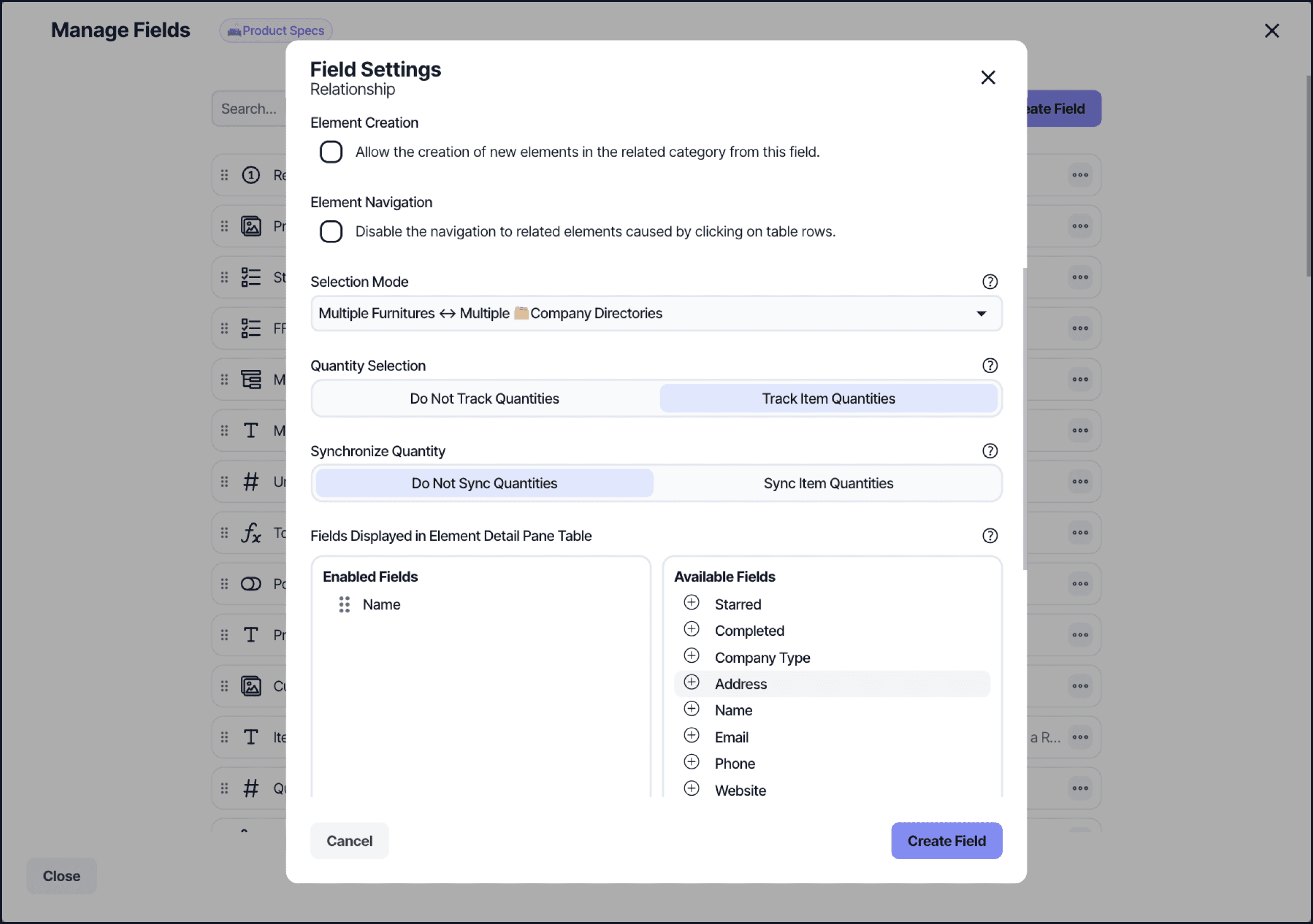
Changing Selection Mode on an existing relationship to adjust cardinality after data has been entered.
When changing cardinality on active data, review existing relationships to ensure the new limits align with expected usage.