Product Release
Keep questions and answers with your project information. Use Comments on rooms, equipment, fields, and saved views in Layer 4.14.0.


Keep questions and answers with the rooms, equipment, and views you’re reviewing.
You’re reviewing a room data sheet and notice an equipment requirement that needs clarification. You know which item is involved and who can answer the question. With Comments in Layer, you can bring those details into a conversation while the data sheet is still in front of you.
Start a comment directly on Document View, reference the equipment, and mention your colleague. Their reply stays with the original question, ready for the next person reviewing the sheet.
Comments is now available in every project. You can start conversations on individual items, specific fields, and saved views, giving your team a place to discuss the information they’re working with.

A question and its answer stay with the observation they concern. Sample project shown.
Discuss the view you’re reviewing
Comments on saved views let your team discuss a report or schedule while reviewing it together. This includes Document View, where you assemble room data sheets and other project reports.
Start a conversation on the view when your question concerns that report. Add an item reference when a particular room or piece of equipment needs attention.
You can also comment directly on an individual item or field. Choose the place that gives your colleague the clearest context for the question.
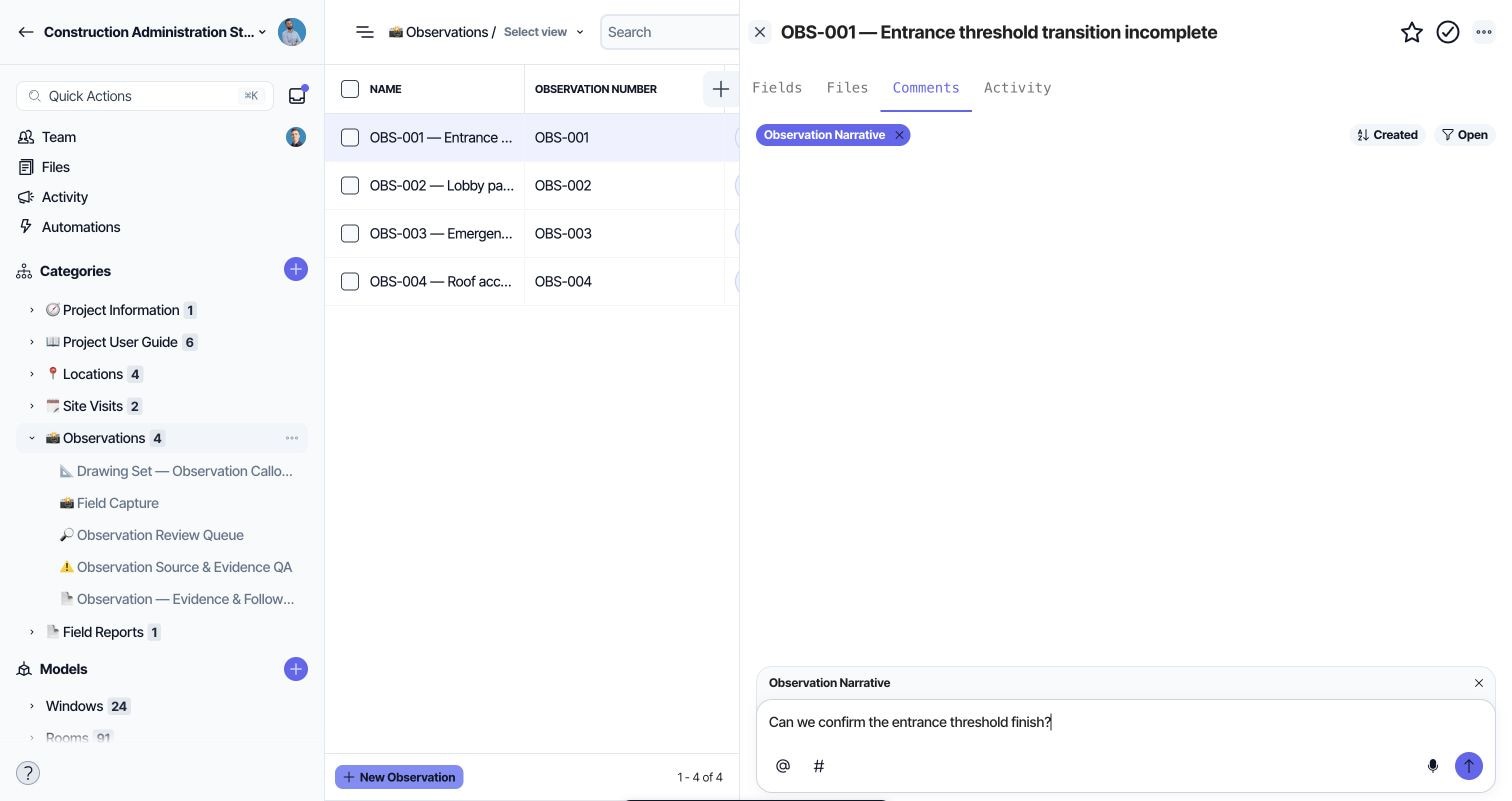
Start a comment on a specific field when the question concerns that detail. The composer is shown before posting in a sample project.
Bring the right person into the conversation
Use @ to mention a teammate in a comment. Select the person you need input from, then explain what needs checking.
On a room data sheet, that might be the colleague coordinating equipment requirements. On an equipment schedule, it might be the person checking quantities or specifications.
Give them enough context to answer: what you’ve noticed, which requirement needs clarification, and what decision you need. The mention identifies who you’re asking, while the comment carries the details.

Use @ to choose a teammate for your comment. Sample project shown.
Point to the item you mean
Use # to reference a project item, such as a room or piece of equipment. Your colleague can open that item from the reference to check its information.
This is useful when the question involves more than what’s visible in the current view. You might be reviewing a room data sheet but need someone to check the equipment assigned to that room. Referencing the equipment gives them a direct route to it.
You can include the room and the equipment in the same comment when both are relevant.

Use # to find and reference a project item. Sample project shown.
Keep the question and answer together
The question and its replies stay with the item, field, or view being discussed. Someone returning to that information can read the original question, the response, and any follow-up in order.
For example, an architect asks whether a room needs additional power for its equipment. A colleague confirms the requirement, then another teammate checks the proposed outlet locations. Those replies stay together with the question that started the discussion.
When the conversation leads to a change, update the relevant project fields as well. That keeps the room or equipment requirements current wherever they appear in your project.
Resolve the conversation when the question has been addressed. You can find conversations you’re part of in the Comments tab in your notifications menu.

Resolve the conversation once the question is answered. The question and confirmation remain together in the resolved view. Sample project shown.
Try it during a room review
Suppose you’re checking a room data sheet before issuing it and need to confirm an equipment requirement. Open the comments on Document View and use # to reference the equipment. Choose the item you need checked so your colleague can open its details from the comment.
Use @ to mention the colleague who can help, then ask a specific question. For example: “Can you confirm the power requirement for this equipment before we issue the room data sheet?” Continue any follow-up through replies so the answer and its context stay together.
Once the requirement is confirmed, update the relevant equipment or room fields. Check the data sheet reflects the change, then resolve the conversation. The same information will be ready for the next person reviewing the sheet.
The same approach works for questions about quantities, specifications, finishes, and other information your team reviews in Layer.
Include comments in your deliverables
The new Element Comments block lets you include an item’s comments in Document View and PDF reports. Place the block alongside the room or equipment information it concerns.
A conversation on Document View lets your team discuss the view itself. The Element Comments block brings comments attached to individual items into the document’s content.
Use it when a report needs the discussion supporting a requirement or recommendation. Review the document and exported PDF to check that the included comments are appropriate for its audience.
Your existing notes and tasks
Comments replaces the Notes and Tasks tabs on individual items. Existing notes and tasks have been moved into Comments, bringing that content into the same place as new conversations.
If you prepare reports that include project discussions, use the Element Comments block to include comments alongside the relevant item information.
Also in Layer 4.14.0
Element Matrix cells can now show more than one measure, such as count and cost. Element duplication works offline and lets you choose whether to copy files.
The release also preserves Revit phase selections when applying a new model version, adds controls for locking drawing markups on phones and tablets, and fixes issues affecting mobile drawing views, relative-date relationships, and PDF exports.