asset register, asset management, facilities data, equipment inventory
A step-by-step guide to building a facilities asset register with stable IDs, required fields, and links to work orders and preventive maintenance.


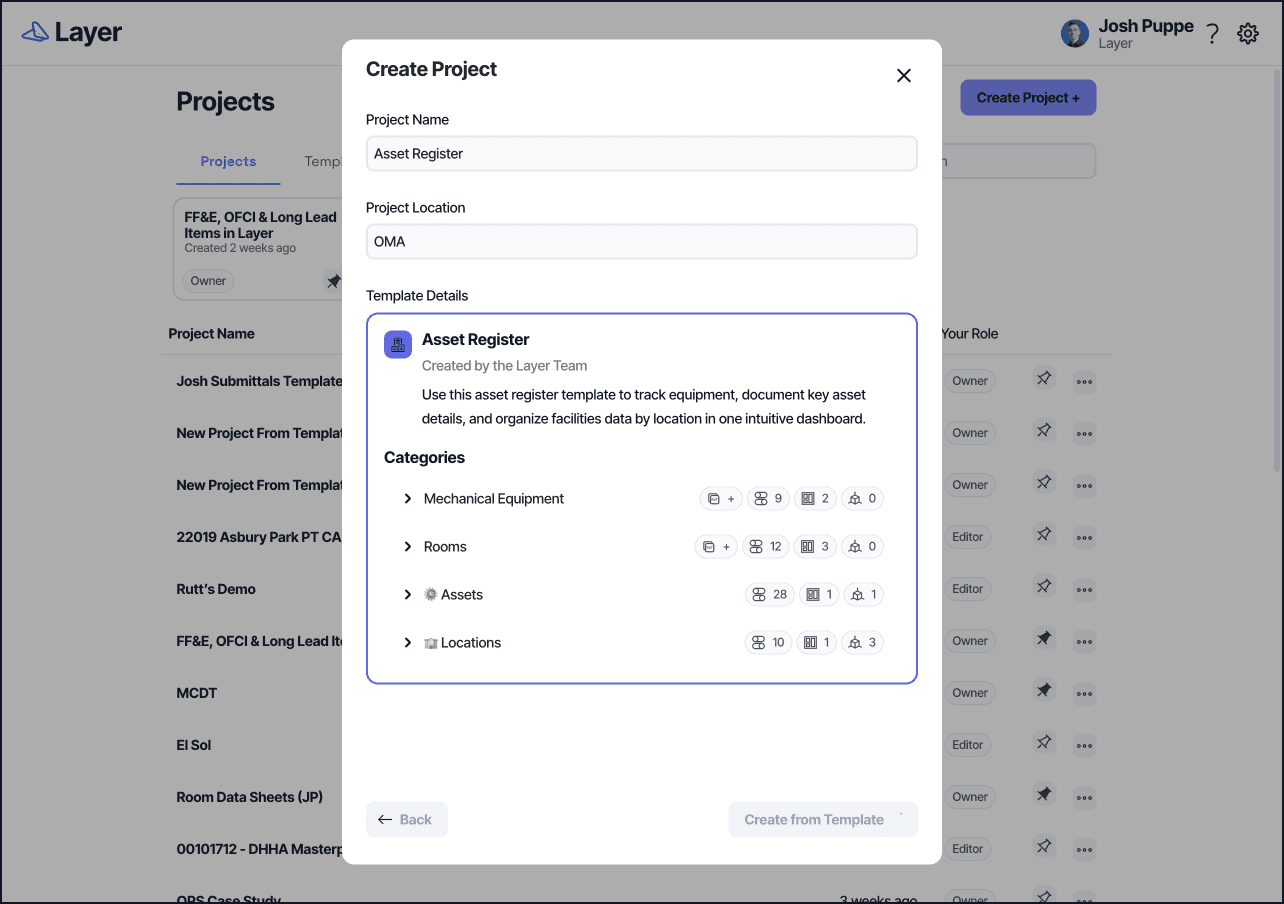
An asset register is a structured list of equipment and maintainable assets used to support maintenance planning, work history, lifecycle decisions, and budgeting. An asset register differs from an equipment inventory that is only used for handover documentation because the register is intended to remain active and to be updated over time. It also differs from an O and M manual library because it stores fields that can be filtered, related, and reported. In Layer, an asset register is implemented as an Assets Category with stable identifiers, relationships to locations, and links to work orders. The Asset Register template provides a starting point.
How an asset register works in Layer
Building an asset register is primarily a data modeling task. The register should define which asset types are included, what fields are required, how assets are named, and how assets relate to locations and maintenance records. A practical register supports three uses. It supports search and identification in the field. It supports maintenance history and recurring work. It supports analysis and planning, such as warranty tracking, replacement planning, and cost tracking.
Layer adds a few capabilities that change how the register is used in the field. Each asset can carry a Barcode field, so a QR or barcode label opens the correct record from a phone. Each asset can relate to its Revit model element, so it can be located in the model and on a plan. Building and floor can be Lookup fields that read from the related location, so location data is entered once and not retyped. Formula fields can turn dates into planning signals, such as warranty status and replacement year. Photos and conditions can be recorded on a phone at the asset.
Step 1: Define asset scope and what qualifies as an asset
The first decision is scope. Some organizations register only maintainable equipment, such as HVAC, pumps, generators, and major electrical components. Others include fixtures, doors, and other building components that drive recurring work orders. Scope should match the work management process. If a component frequently appears in work orders, it is a candidate for inclusion because it benefits from having history and attributes.
Define what counts as one asset. For example, a rooftop unit may be one asset, while its components are sub-assets. A panel may be one asset, while breakers are tracked as attributes. Choose a level of granularity that technicians can maintain without excessive data entry.
Step 2: Create naming conventions and stable identifiers
An asset register should have at least one stable identifier. This is often an asset tag or Asset ID. The Asset ID should not depend on asset location alone, because assets move and spaces are renumbered. If you already have labels in the field, use those labels as the Asset ID. If you are creating labels, define a pattern that is short, unique, and readable.
Define the difference between Asset ID and Asset name. Asset ID is the stable code, such as AHU-3. Asset name is a descriptive name, such as Air Handling Unit 3. Store both so field teams can search using either.
Step 3: Build the Assets Category and required fields
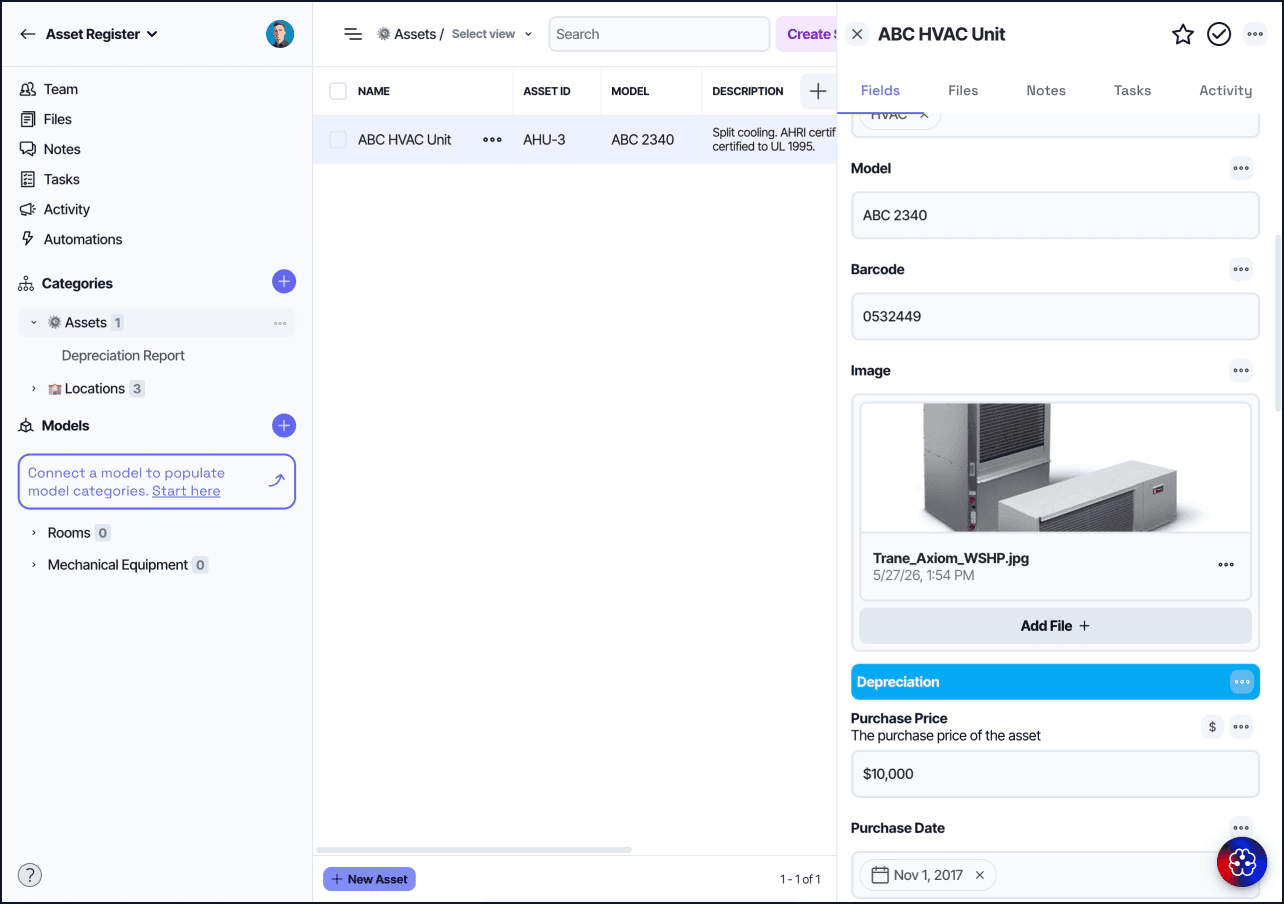
Create a Category named Assets. Group the fields so the record stays readable, and link the asset to a Locations hierarchy and to the work order records that hold its history. The full field list lives in Layer's Asset Register template, which can be installed as a starting point.
Identification and classification.
Asset ID. A stable, unique code such as AHU-3.
Asset name. A descriptive name such as Air Handling Unit 3.
Barcode. The same value as Asset ID, printed as a QR or barcode label.
System. Select: HVAC, electrical, plumbing, fire and life safety, conveyance, building envelope, controls.
Trade. Select: mechanical, electrical, plumbing, controls, general.
Asset type. Select: air handling unit, pump, generator, panel, RTU, boiler, chiller.
Manufacturer. Select, not free text, to prevent spelling drift.
Model number, Serial number. Text.
Criticality. Select: critical, high, medium, low.
Location.
Location. Relationship to the Locations Category.
Building, Floor. Lookup fields that read from the related location, so location data is entered once and not retyped.
Model element. Relationship to the Revit model element, so the asset can be found in the model and on a plan.
Lifecycle and condition.
Status. Select: in service, out of service, needs repair, decommissioned, removed.
Condition. Select: 1 excellent to 5 poor.
Last condition assessment. Date.
Install or commission date. Date.
Expected service life. Number of years.
Replacement year. Formula: install year plus expected service life.
Warranty expiration date. Date.
Warranty status. Formula: active, expiring, or expired.
Responsible owner. Person.
Documentation.
O and M or cut sheet. File.
Warranty document. File.
Nameplate photo. File.
Notes. Rich text for access notes and special handling.
Build the Locations Category as a hierarchy rather than a flat list. Use a Location type select (site, building, floor, wing, room, zone, exterior, mechanical room) and a Parent location relationship so locations nest from site down to space. Relate the asset to the most specific location that applies, and read Building and Floor through Lookup fields rather than copying those values onto the asset record.
Step 4: Import existing asset lists when possible
If your organization has an existing asset list, import it rather than re-entering it manually. Before importing, normalize column headers and remove duplicate rows. During import, map spreadsheet columns to fields in the Assets Category. If you are updating an existing register, use a match-to-property rule, typically Asset ID, so imports update existing elements instead of creating duplicates.
A typical column mapping looks like this:
Tag, Equipment ID, Barcode → Asset ID
Equipment, Description, Name → Asset name
Discipline, Trade Group → System
Make → Manufacturer
Mfg Model, Model Number → Model
S/N, Mfg Serial → Serial
Room, Space, Location → Location (relationship, matched by name)
Install, Commissioned, Acceptance Date → Install or commission date
Warranty End, Warranty Expiry → Warranty expiration date
After import, validate the register. Run a data quality view that filters for assets missing Asset ID, System, Location, or Condition. Check for inconsistent manufacturer spellings (such as Trane and TRANE) and normalize them by switching the field to a Select. Fixing these early prevents reporting issues later.
Step 5: Relate assets to work orders and preventive maintenance
The asset register becomes operational when it connects to maintenance records. Add a relationship field on Work Orders that links to Assets. When technicians create or update work orders, they should select the affected asset whenever the work relates to equipment. Over time, each asset accumulates a history of failures, repairs, and preventive tasks. The Work Order Management template and the work order management guide cover the request to closeout flow that pairs with this register.
If you run preventive maintenance, link PM tasks or PM work orders to assets. The preventive maintenance program guide covers how PM schedules attach to assets in Layer. This link supports visibility into what was planned and what actually occurred. It also supports analysis, such as whether PM completion reduces reactive work for a specific asset class.
Step 6: Create operational views for technicians and planners
Views make the asset register usable without requiring people to browse the full database. Each operational role needs a different cut of the same data.
By System. Group by HVAC, electrical, plumbing, fire and life safety, conveyance, and building envelope. Used by trades to scope inspections.
High criticality. Filter Criticality is Critical or High. Used by planners to prioritize work and capital decisions.
Warranty expiring. Filter Warranty status is Expiring or Expired. Used by owners to file claims before coverage ends.
Poor condition. Filter Condition is 4 or 5. Used in capital planning to identify candidates for replacement or refurbishment.
Due for replacement. Filter Replacement year is within the next two years. Used in budget planning.
Repeated failures. Filter for assets with multiple linked work orders in a recent period. Used to flag candidates for root cause analysis.
By Building or Floor. Group by location. Used by field staff to find assets in their area.
Data quality. Filter for assets missing Asset ID, System, Location, or Condition. Used by administrators to keep the register clean.
Decommissioned. Filter Status is Decommissioned or Removed. Used as an archive rather than deleting records.
Views are saved per Category in Layer, so each technician, planner, or administrator can open the cut they need without rebuilding it.

How an asset register compares with a CMMS and a CAFM system
An asset register is one part of a broader facilities technology stack. The terms overlap, so it is worth defining where each tool sits.
Asset register. The structured list of equipment and maintainable components. It stores identity, location, condition, and lifecycle attributes. The asset register is the spine that work orders and PM records attach to.
CMMS. A computerized maintenance management system manages the work itself: work orders, preventive maintenance schedules, technician assignments, parts, and labor. A CMMS without a clean asset register is hard to report on, because work cannot be attributed back to specific equipment with confidence. Layer's CMMS template attaches to the same asset register described above. The what is a CMMS used for article covers day-to-day use.
CAFM. Computer-aided facilities management adds space, occupancy, and move management on top of maintenance. CAFM tools rely on the asset and location data this register defines.
In Layer, all three live in the same database. The Assets Category is the register. The Work Orders and Preventive Maintenance categories are the CMMS. Locations and floor plans provide the CAFM layer. They share fields rather than syncing across separate systems, which is what makes the register usable in operations rather than only as a reference.
Tips
Start with the minimum required fields and expand when the workflow requires it. A register that has consistent Asset IDs, locations, system, and trade is often more useful than a register with many partially filled fields. Add serial numbers, model details, and attachments over time, especially when those fields support warranty claims or planned replacement.
Keep manufacturer and model values consistent. If one asset uses "Trane" and another uses "TRANE," filtering and reporting will be unreliable. Standardize these values using select fields when possible, or periodically normalize text values.
Avoid creating multiple assets that represent the same physical equipment. Duplicates usually come from inconsistent IDs. Treat Asset ID governance as a core operational rule and document how new assets are created.
FAQ
What is the difference between an asset register and an equipment inventory?
An inventory is usually a one-time list produced at handover. An asset register stays active. It is updated as assets are serviced, moved, reconditioned, or replaced, and it stores fields that can be filtered, related, and reported.
What fields are required in an asset register?
At minimum, a stable Asset ID, an Asset name, the System or discipline, the Location, and a Criticality rating. Condition, install date, warranty, and manufacturer details are added as the workflow requires them.
How should assets be numbered?
Use a short, unique, readable code that does not depend on location alone, because assets move and spaces are renumbered. If field labels already exist, use those as the Asset ID.
How does an asset register connect to work orders?
Relate work orders and preventive maintenance tasks to assets. Over time each asset accumulates a history of failures, repairs, and inspections, which supports lifecycle and budget decisions. See the work order management guide for the request to closeout flow.
How do you keep an asset register accurate?
Define update triggers (install, transfer, significant repair, decommission), use select fields to keep values consistent, enforce unique Asset IDs, and review a data quality view that flags assets with missing required fields.
Is an asset register the same as a CMMS?
No. A CMMS manages the work (work orders, PM, labor, parts). The asset register is the list of equipment that the work attaches to. A CMMS without a clean asset register is hard to report on. The CMMS template attaches to the same register described here.
Keeping the asset register accurate over time
An asset register supports maintenance execution, history, and planning when it uses stable identifiers and consistent fields and when it connects directly to work orders and preventive maintenance. In Layer, an asset register is implemented as an Assets Category related to Locations and Work Orders, supported by views that match how technicians search and how planners prioritize work.