work order management, CMMS, maintenance workflow, work order closeout
A complete work order management guide for facilities teams, covering intake, triage, assignment, picklists, views, automations, and closeout standards.

Work order management is the process facilities and operations teams use to capture maintenance needs, assign responsibility, document work performed, and keep a record for reporting and asset history. A work order system is expected to support intake, prioritization, assignment, and closeout. It also needs a clear status trail and a place for photo evidence.
In Layer, a work order workflow is built from Categories, fields, relationships, views, and Automations. This approach supports CMMS-style work order tracking without forcing a fixed data model.
Work order lifecycle in Layer
A work order lifecycle usually moves through intake, triage, assignment, execution, verification when required, and closeout. The system should preserve the original request. It should also capture what changed during triage, such as priority, due date, and assignment.
For reporting, the work order record needs structured fields. The problem description stays as text. The reporting fields should be standardized, including priority, maintenance type, asset, location, failure code, resolution code, and downtime.
Set up work orders in Layer
Step 1: Create the Work Orders Category
Create a Category named Work Orders. This Category stores each request, from the initial report to closeout.
Add a Status field that represents process stage. Use a short list that matches how work moves through your team. A common set is Requested, Approved, Assigned, In Progress, Blocked, Completed, Verified, and Closed.
Add a Priority field that represents urgency. A common set is P1 Emergency, P2 High, P3 Normal, and P4 Low.
Add ownership and timing fields. Include Requested by, Assigned to, Requested date, Due date, and Closeout date. Add Description for the plain-language request. Add Evidence for photos and attachments.
Add reporting fields if you want consistent analysis. Use picklists for Failure code and Resolution code. Use numeric fields for Labor hours and Downtime minutes. If you track parts, add Parts used. This can link to a Parts Category, or it can be text until inventory is formalized.

Step 2: Create the supporting Categories
Work orders are easier to manage when they reference stable records.
Create an Assets Category if you do not already have one. The asset record is the anchor for work history. Include Asset ID, Asset name, System, Trade, Manufacturer, Model, Serial, Install date, Warranty end, and Criticality.
Create a Locations Category if you need consistent space references. Include a Location ID, a display name, and any hierarchy fields you use. Common fields are building, floor, and room.
If you track technicians and requesters as records, create a People Category. Store names and any identifiers you use for dispatch.

Step 3: Link work orders to assets and locations
Add relationship fields on Work Orders that link to Assets and Locations. Most teams require a location for every work order. Many teams also require an asset link for equipment work.
When relationships are in place, each work order can be viewed from the asset record and from the location record. This supports troubleshooting and audits. It also creates an asset history without copying information into every work order.
Decide how to handle work that affects multiple assets. One approach is one work order per asset. This keeps asset history strict. Another approach is one work order linked to multiple assets. This reduces record creation. Choose one approach and write it down as a rule.


Step 4: Define picklists before you scale
Picklists function as the shared vocabulary for the workflow. When picklists are long or inconsistent, teams fall back to free text. Reporting becomes unreliable.
Use separate fields for status, urgency, and work type. Do not encode multiple concepts into a single field.
Work order picklist dictionary
Field | Allowed values | Definition | Notes |
|---|---|---|---|
Status | Requested, Approved, Assigned, In Progress, Blocked, Completed, Verified, Closed | Process stage | Do not include urgency or work type |
Priority | P1 Emergency, P2 High, P3 Normal, P4 Low | Urgency level | Use due dates for SLAs |
Maintenance Type | Reactive, Corrective, Preventive, Predictive or Condition-based | Why the work was initiated | Keep stable through the lifecycle |
Failure code | Electrical, Mechanical, Controls, Plumbing, Other | Primary failure category | Keep the list short |
Resolution code | Replaced, Adjusted, Cleaned, Reset, Vendor repair, No issue found | Primary action taken | Describe action taken |
Downtime definition | Total outage, Partial outage, Estimated impact | Meaning of downtime minutes | Choose one definition |
Note: If predictive maintenance is not used, keep the field and use the values that apply today. A stable field is still useful because it prevents inconsistent labeling later.
Step 5: Build intake, triage, and execution views
Create an intake view for new requests. Include Status, Priority, Location, Asset, Description, Evidence, and Requested date.
Create a triage view that highlights missing information. Common gaps include missing location, missing assignment, and missing due date.
Create role-based views that reflect daily work. A technician view usually filters Assigned to equals the technician and Status is Assigned or In Progress. A dispatcher view usually filters for unassigned work, blocked work, and overdue work. A supervisor view often focuses on work waiting for verification and repeat issues by asset.
If you use Maintenance Type, create a preventive view that filters Maintenance Type equals Preventive. Keep preventive work visible without mixing it into reactive queues.
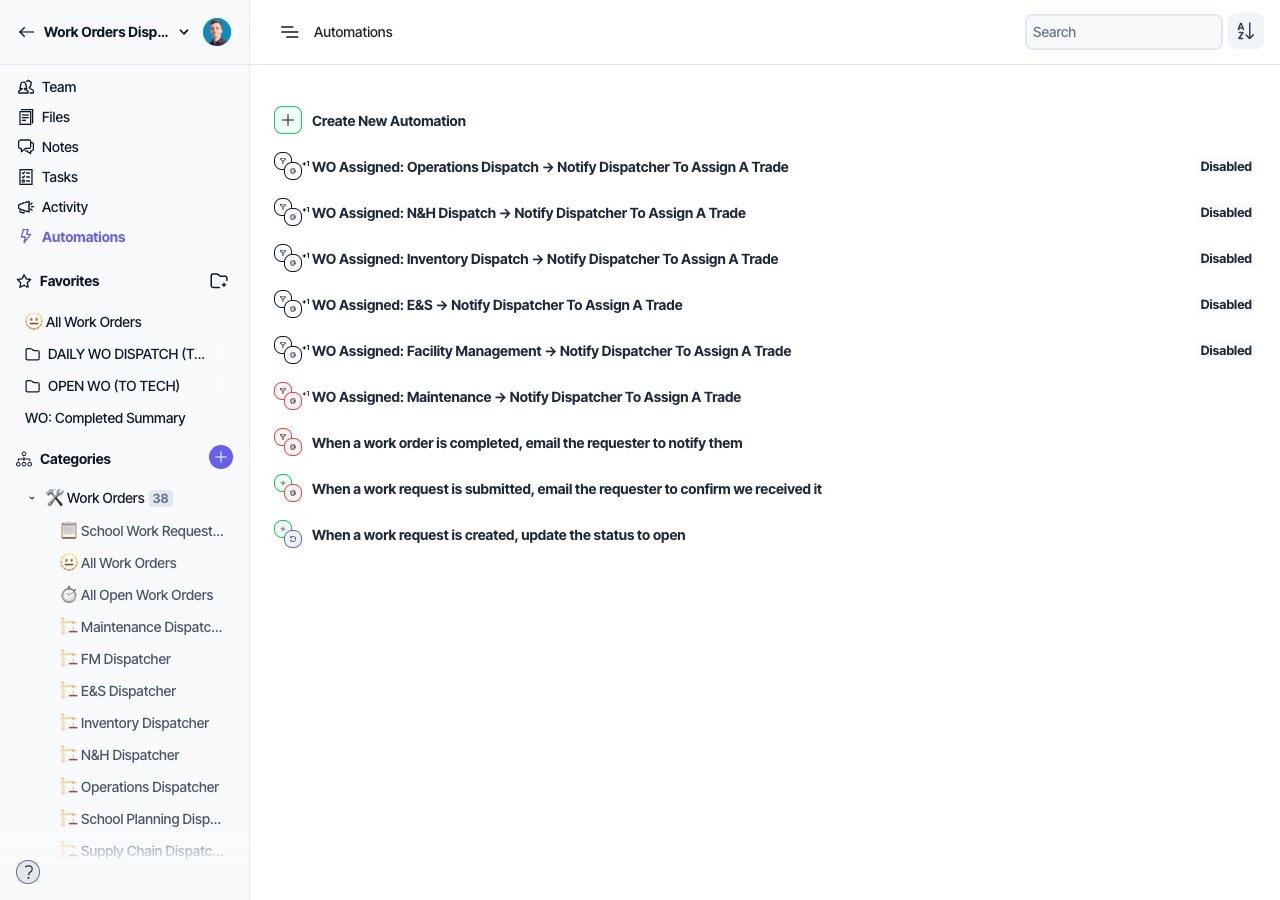
Step 6: Add Automations for dispatch and reminders
Automations reduce manual follow-up.
Start with a notification when a work order is assigned. Add a reminder when a due date is approaching. Add an escalation when a due date passes, if your team uses that rule.
If you use verification, notify the verifier when status changes to Completed.
Keep notification messages short. Include the work order identifier, asset or location, and priority.
Step 7: Standardize closeout requirements
Closeout is where work orders become usable history.
Define what is required before a record is set to Closed. Many teams require a completion photo when work is visible. Many teams also require labor hours, a resolution code, and downtime minutes when downtime occurred.
If you care about failure analysis, require a failure code for corrective work. If compliance work is tracked, add a pass fail field for the relevant work types.
If you use review, keep Verified as a separate status. This separates completion from acceptance. If review is not required, closeout can move from Completed to Closed.
Work order data standards
These standards keep work orders consistent as the workflow grows.
Work order data standards table
Topic | Standard | Where to enforce it in Layer | Example |
|---|---|---|---|
Picklists | Keep picklists short and defined in plain language. | Select fields | Priority uses four values |
Failure codes | Codes must be quick to choose and consistent. | Failure code field | Electrical, Mechanical |
Resolution codes | Codes describe what changed. | Resolution code field | Replaced, Adjusted |
Downtime definition | Downtime minutes must have one definition. | Field description | Total outage time |
Status meaning | Status represents stage only. | Status field and views | Assigned, In Progress |
Priority meaning | Priority represents urgency only. | Priority field | P1 Emergency |
Maintenance type meaning | Maintenance type represents initiation. | Maintenance Type field | Preventive |
Location naming | Locations follow a naming rule. | Locations Category | BLDG-A, Floor 02 |
Stable IDs | Imports update existing records. | Match-to-property | Asset ID updates |
Next steps in Layer
Create or confirm the Assets and Locations Categories, then add relationships so each work order can be linked to an asset, a location, or both.
If you have existing asset lists or location lists, import them before rolling out the workflow to technicians. This reduces free text entries during intake.
If you want to extend this workflow, the next setup is usually preventive maintenance scheduling, an asset register structure, and a deferred maintenance log.