How to add, edit, and manage notes on an individual element in Layer.

Josh Puppe
Element notes are short discussions attached to an element, with an optional field reference. Use them to capture decisions, record observations, ask follow-up questions, and preserve context while work is in progress.
For the project-wide view of notes across a project, see All Notes. This article covers the note experience from an element.
Where Element Notes Live
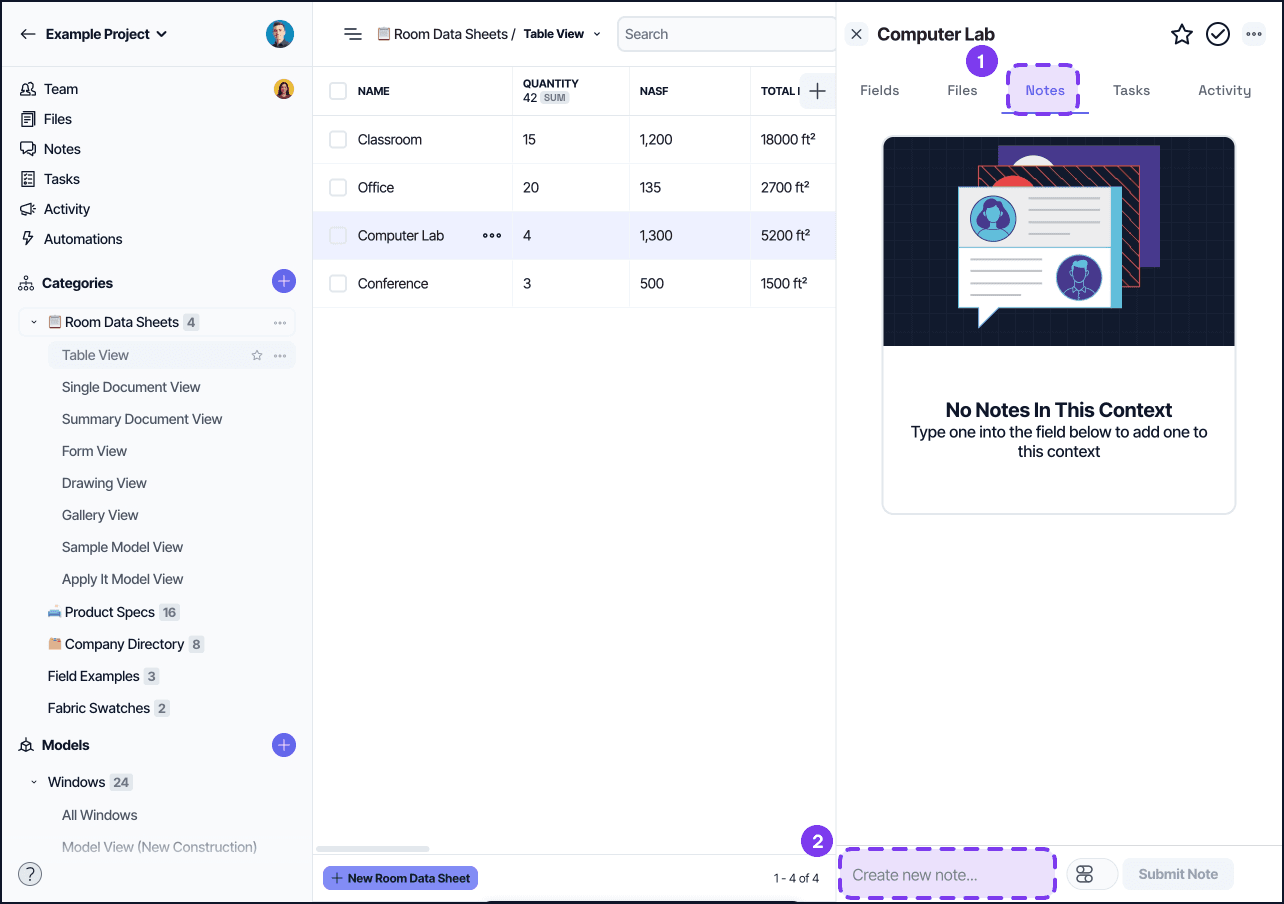
Open an element to access the Element Detail Pane, then click the Notes tab. Notes are displayed in chronological order, with older notes at the top and newer notes at the bottom.
A note can also include a reference to a specific field. When a field is attached, it appears on the note as a reference pill in the note list.
Adding A Note
To add a note from an element:
Open the Notes tab.
Use the note form at the bottom of the pane.
Enter the note body.
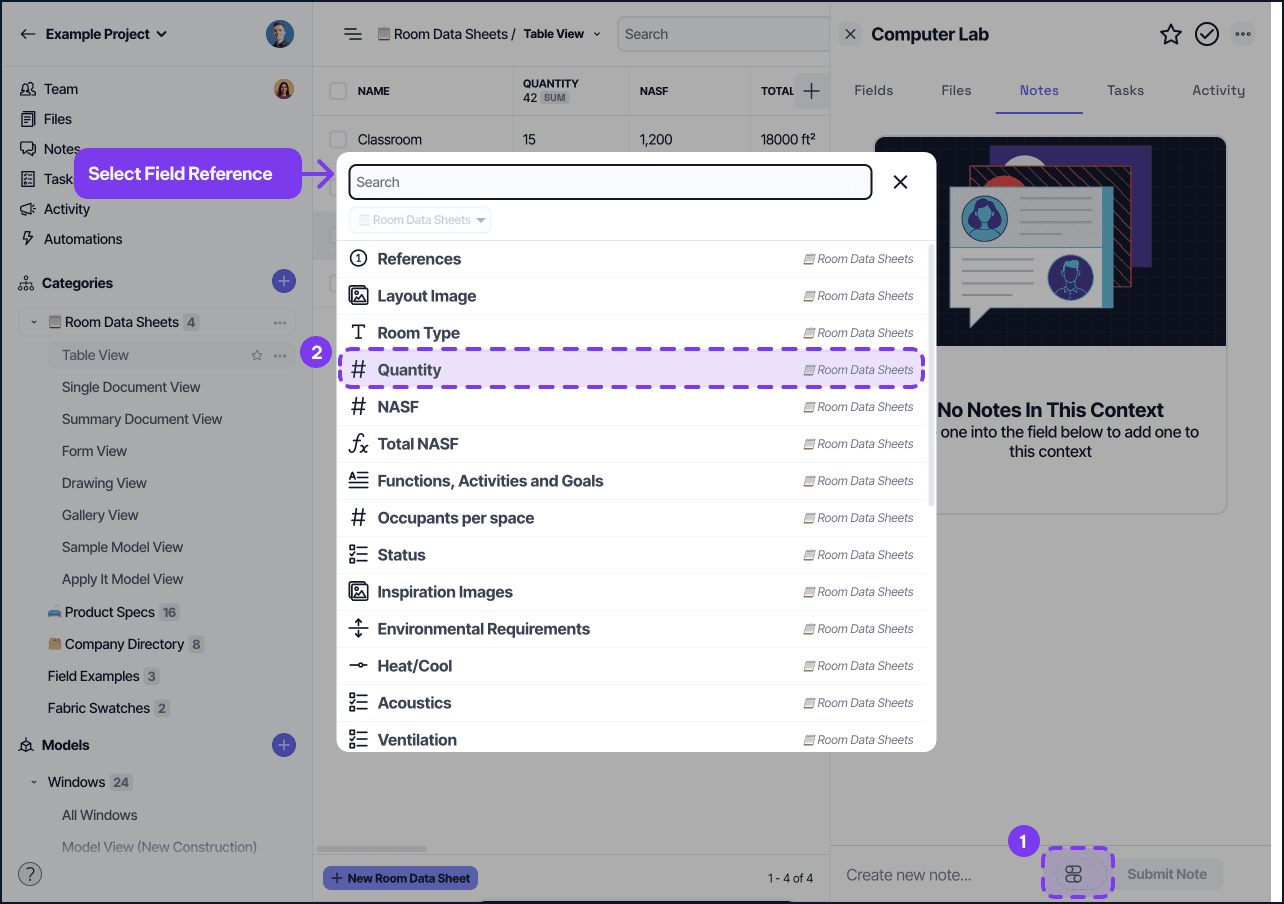
Optionally attach the note to a field.
Save.
Notes do not currently have a separate title field. The note body is the full note content.
Field References
Notes can include an optional field reference. Use the field picker in the note form to associate the note with a field on the current element.
When a note includes a field reference, it still appears in the main Notes tab for the element. The attached field is shown on the note so you can see what part of the element it relates to.
Editing And Deleting
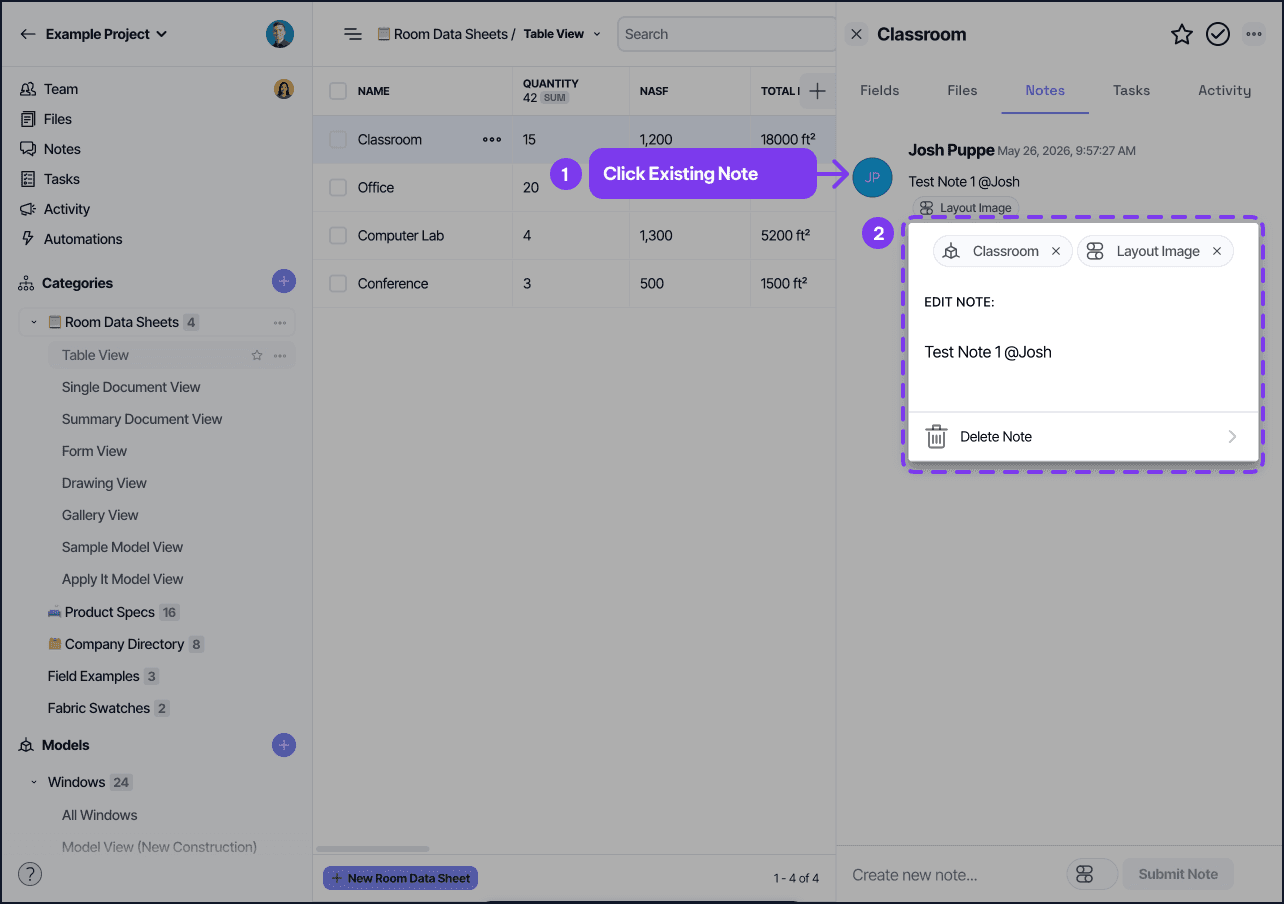
Open a note to edit it or delete it.
What you can change depends on your project permissions:
You may be able to edit and delete your own notes.
Users with broader note permissions can edit and delete any note.
Access to the All Notes page is also permission-based.
In the default role setup:
Owner can edit and delete any note.
Editor, Contributor, and Viewer can edit and delete their own notes.
Restricted can create notes and manage their own notes, but cannot access the All Notes page.
Element Notes Vs. All Notes
Element notes are scoped to the element you are viewing. Use the Notes tab when you want a focused discussion tied to one record.
All Notes is the project-wide notes page. It shows notes across the project and is useful when you want to review discussion more broadly. The current All Notes page supports filtering by category, element, and field.
Things To Know
Notes are plain-text notes with optional element and field references.
Notes do not currently support titles, file attachments, or @mentions.
The current All Notes page does not support note-body search or author filtering.
Editing and deleting notes follows project note permissions.
Notes are separate from tasks. Use a task when the item needs ownership or completion tracking.
Additional Resources
All Notes
Element Tasks
Element Detail Pane
Project Activity
Project Roles
If you want, I can do the same pass for the Project Notes article next so the two docs stay consistent.