How to use the Project Activity feed to see who changed what and when, recover deleted items, and audit project history.

Josh Puppe
The Project Activity feed is a chronological log of every change made to a project. Use it to see who edited what, when changes happened, and to recover items that were deleted within the past 30 days.
This article explains how to open the activity feed, what events it captures, how to filter it, and how to revert changes.
Opening the project activity feed
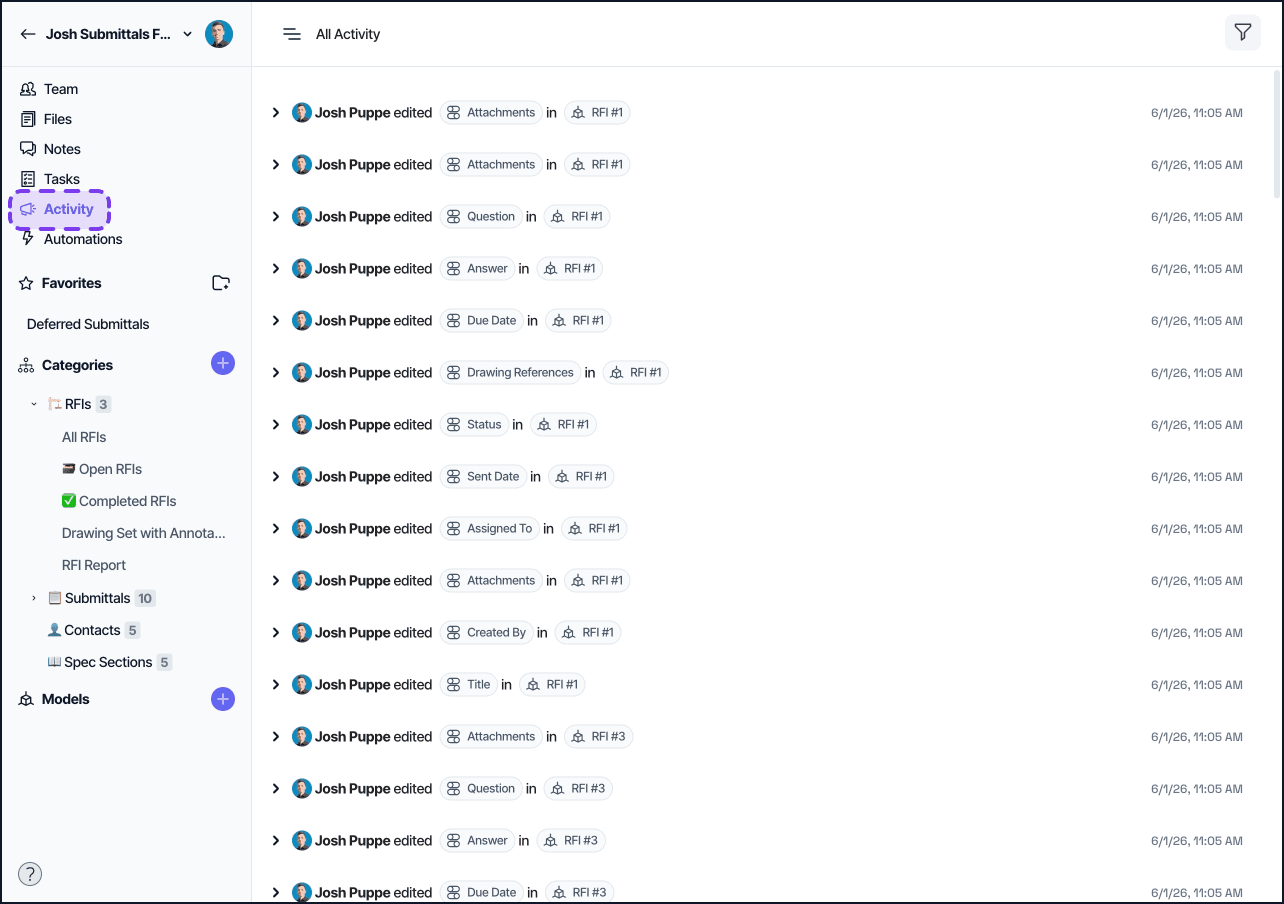
Open any project, then click the Activity tab at the top of the left sidenav. The feed loads with the most recent events at the top. The URL pattern is /project/{projectId}/activity.
What gets logged
The activity feed captures every state-changing event in the project, including:
Element creation, edits, and deletion
Field value updates (the previous value is preserved alongside the new value)
Field creation, renaming, and deletion
Category creation, renaming, and deletion
View creation, edits, and deletion
Notes and tasks added, edited, deleted
Files uploaded and deleted
Project settings changes (rename, transfer ownership, change date or currency format)
Automation runs (each fired automation is recorded)
Model uploads and version changes (Revit-linked projects)
Each event records:
The event type
The user who performed it
The timestamp
The before and after values (where applicable)
A link back to the affected element, field, or view
Filtering the feed
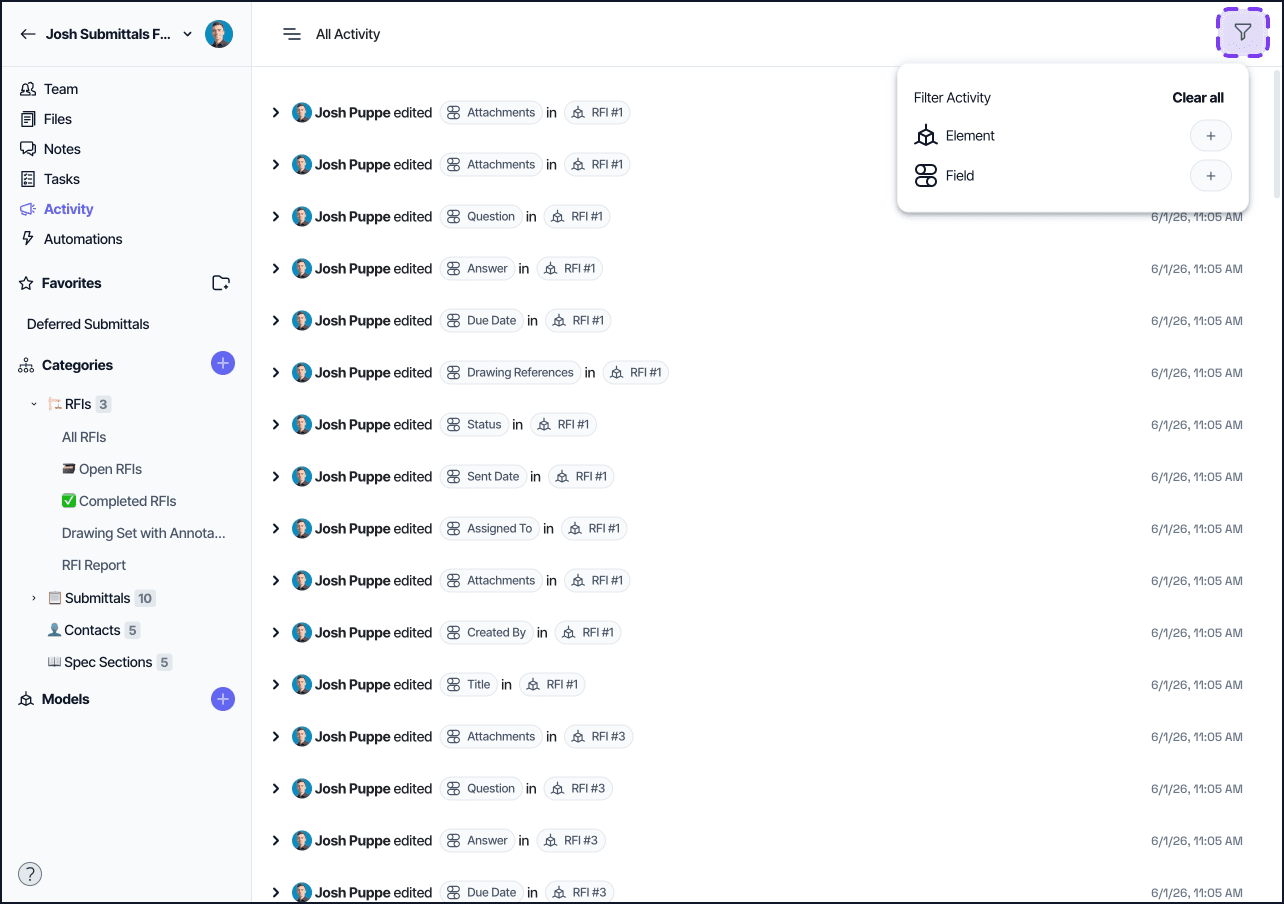
The activity feed supports filters for narrowing what you see:
User: events performed by a specific teammate.
Date range: events within a specific window.
Type: element edits, field changes, deletions, automation runs.
Category: events that affect elements in a specific category.
Combine filters to drill into specific situations, such as every deletion this week by user X.
Reverting a change
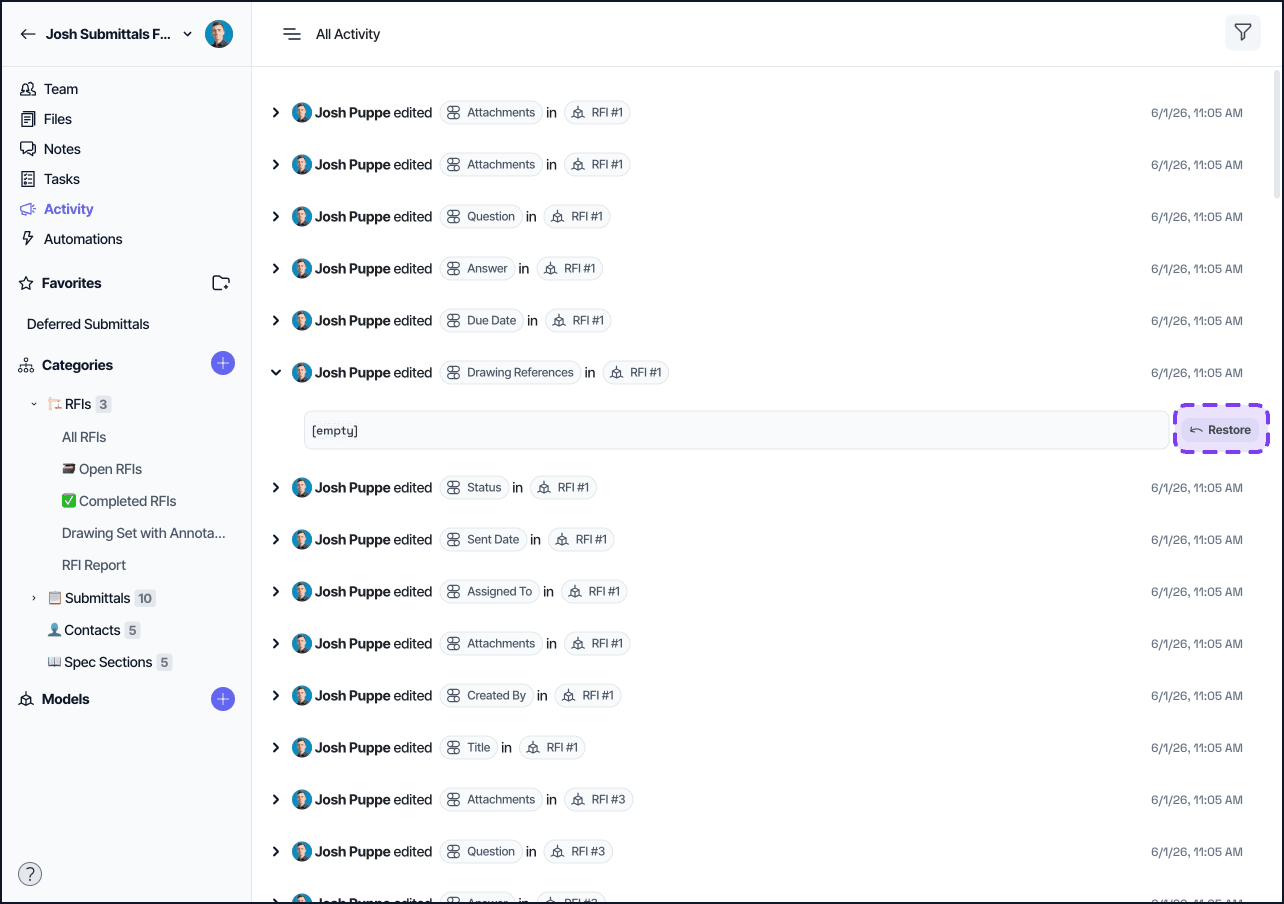
Many activity events can be reverted directly from the feed. A revert restores the affected item or value to its previous state.
Eligible revert targets:
Deleted elements within the past 30 days
Deleted fields within the past 30 days
Deleted categories within the past 30 days (contact support for help)
Field value changes (revert reapplies the previous value)
View edits
To revert, find the event in the feed and click Revert change on the right side of the event row. Confirm in the dialog that opens. Reverts are themselves logged as events. You can revert a revert.
Some changes cannot be reverted, including project deletions (those go to Trash, see below) and automation-triggered actions.
Element-level activity
Each element has its own activity feed visible from the Activity tab in the Element Detail Pane. The element-level feed shows only events affecting that one element.
Use the project-level feed for cross-element audits and the element-level feed for the detailed history of a single record.
Recovering deleted projects
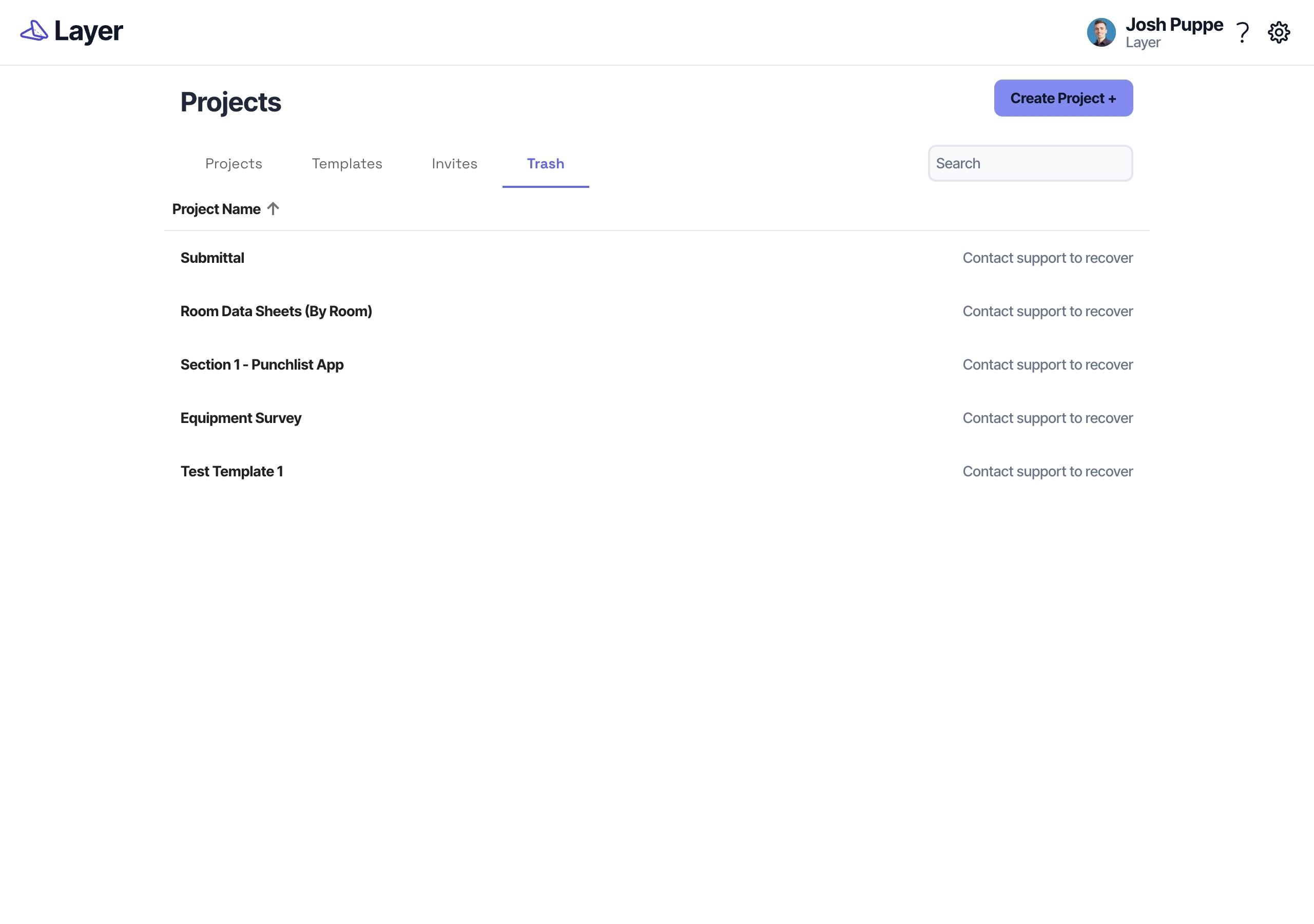
Deleted projects do not appear in the activity feed. They go to the Trash tab on the Project Dashboard for 30 days. Open Trash to see the projects you have deleted and contact support to restore one.
Things to know
30-day window: archived items are recoverable for 30 days after deletion. After that, they are permanently purged and no longer appear in the activity feed or Trash. If you need to recover something older, contact support before the 30 days are up.
Activity is read-only for events older than the revert window. You can still see them in the feed, but the Revert action is no longer available.
Restricted Users see only events for views and elements they have access to.
