A guide for new Layer users to set up Room Data Sheet templates using categories, fields, and model data from Revit.

Mike Lee
How to create a Room Data Sheets template From Scratch
Templates in Layer are saved from fully configured projects. To create one, start by building a Room Data Sheets project with the categories, fields, relationships, and document views your team wants to reuse.
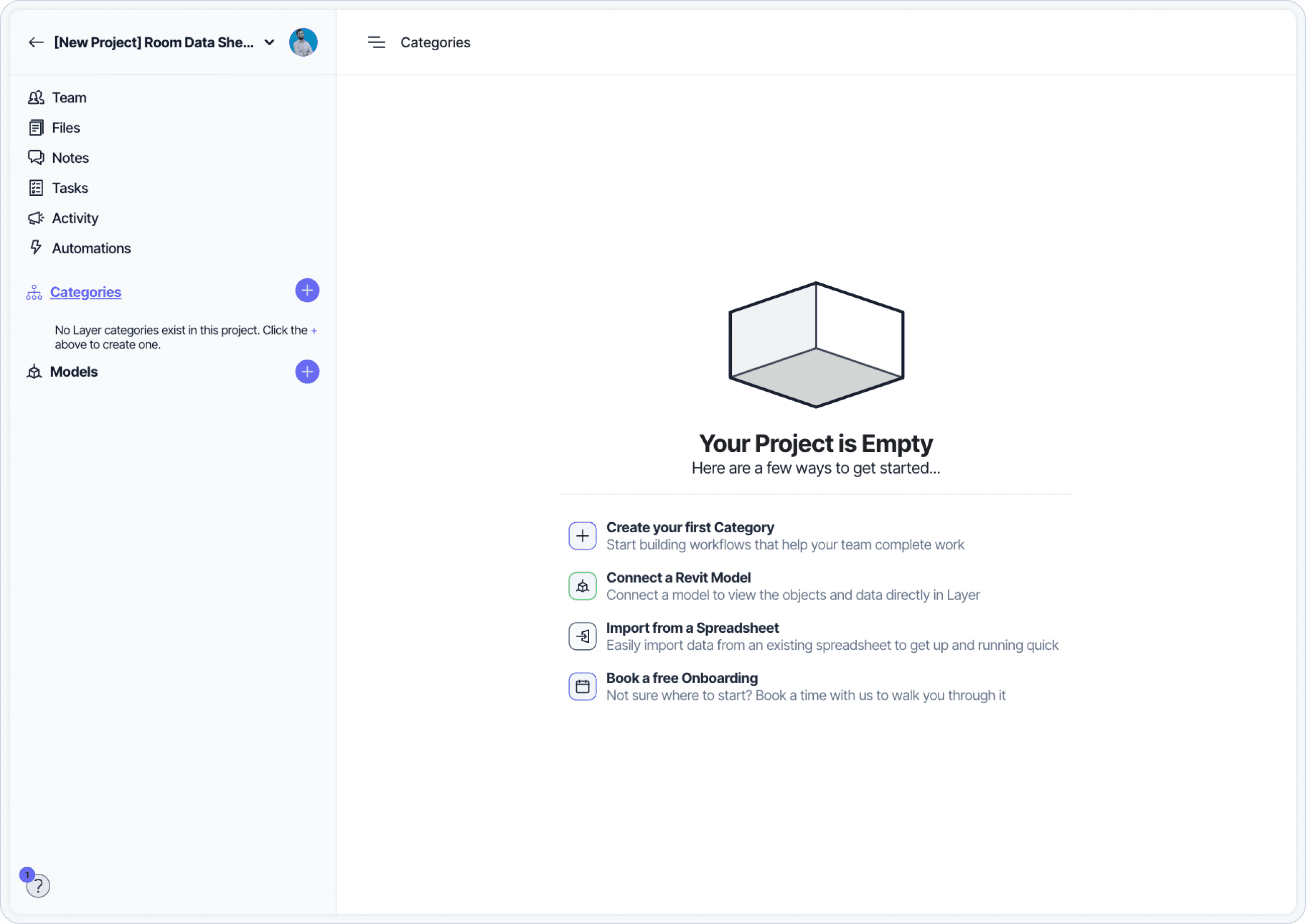
Building a Room Data Sheets template from scratch by configuring categories, fields, relationships, and a Document View.
If you want a faster starting point, Layer includes a ready-to-go Room Data Sheets Template → you can find in our Template Gallery → instead of building from scratch. Watch this demo video to see how it works →
Step 1: upload or add your rooms to Layer
Before you can generate Room Data Sheets in Layer, rooms need to exist in Layer. Teams typically do this in one of two ways, depending on where room information lives today.
Option 1: Generate from Revit rooms
Use this option if rooms already exist in your Revit model and include parameter data you want to display on your sheets.
Please note: This works best once the room layout is relatively stable and your model will not go through any significant changes. If your model is still in early development it may be best to skip straight to Option 2.
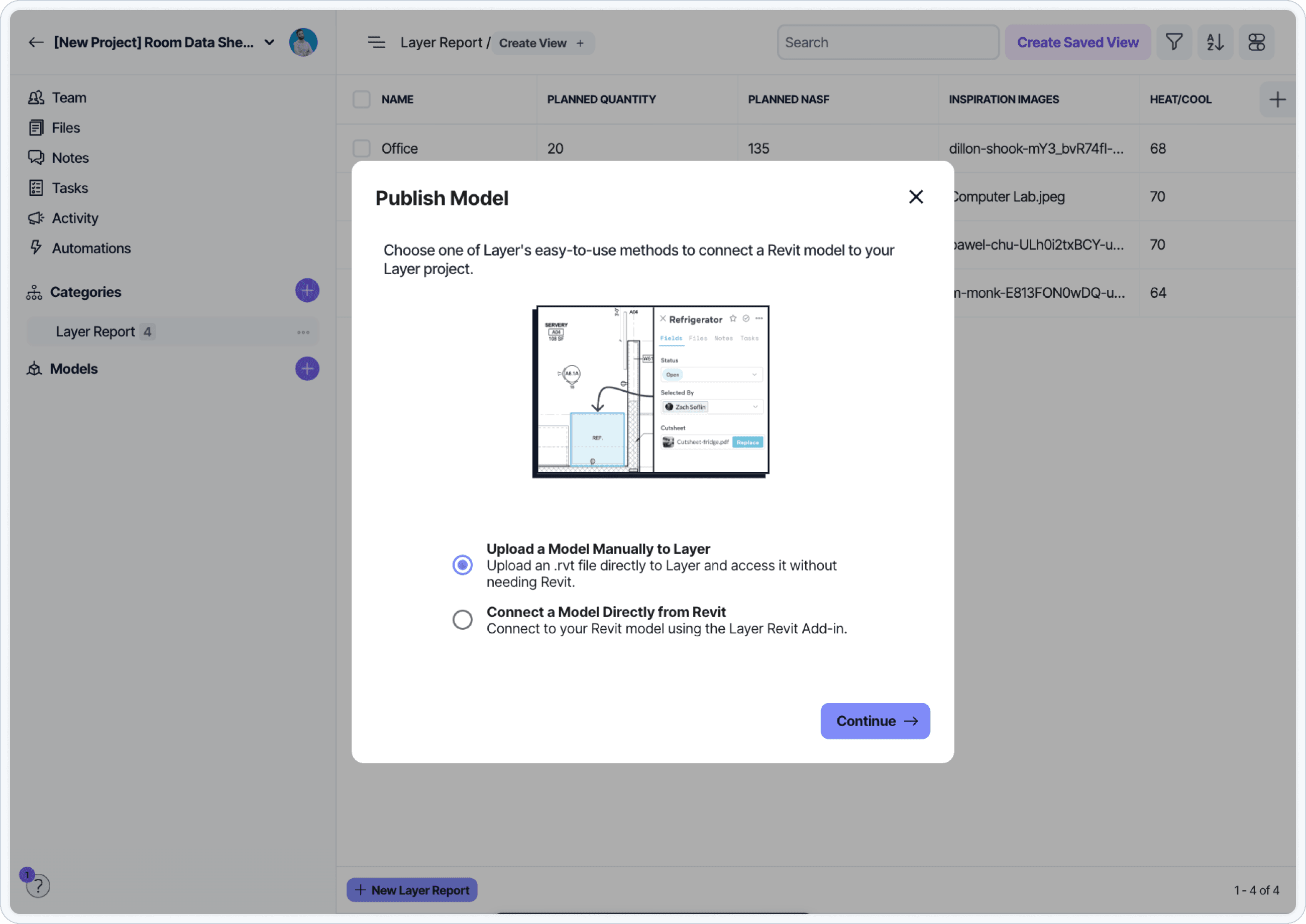
Generating Room Data Sheets from rooms already modeled in Revit.
Option 2: Import from a spreadsheet or requirements list
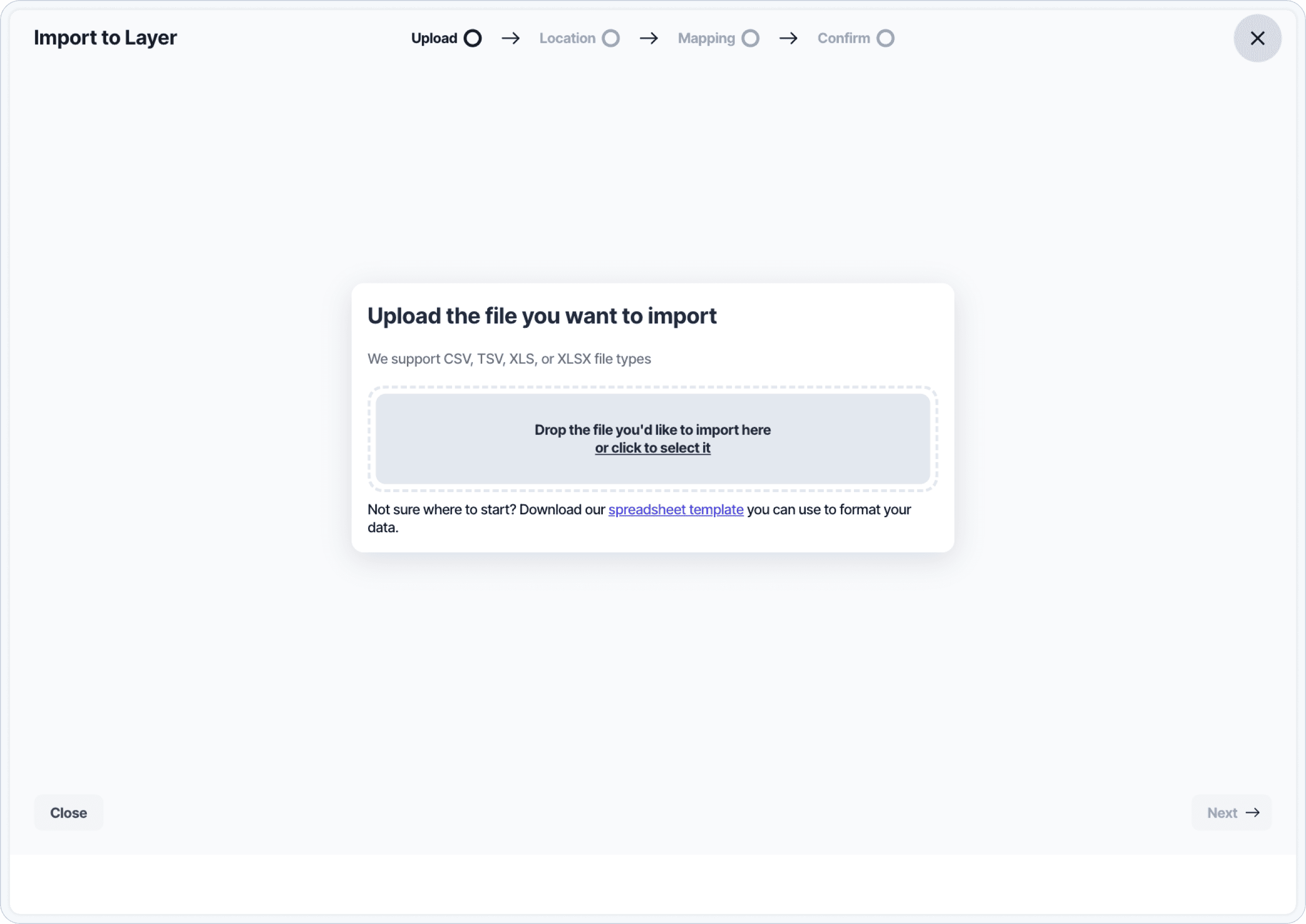
Importing rooms from a spreadsheet to populate the Room Data Sheets category.
Step 2: choose which category will generate your sheets
Once rooms exist in Layer, each Room Data Sheet is generated from a single element in a category using a Document View.
In practice, this means you need to decide which category represents one room per page. Most teams use the same category that was used to create rooms in Step 1, but Layer also allows you to generate sheets from a different category if needed.
A category created in Layer with Room Requirements
Use this option when rooms did not come from Revit, or when you need to define room requirements before the model is ready. This is common during early programming or when working from a spreadsheet.
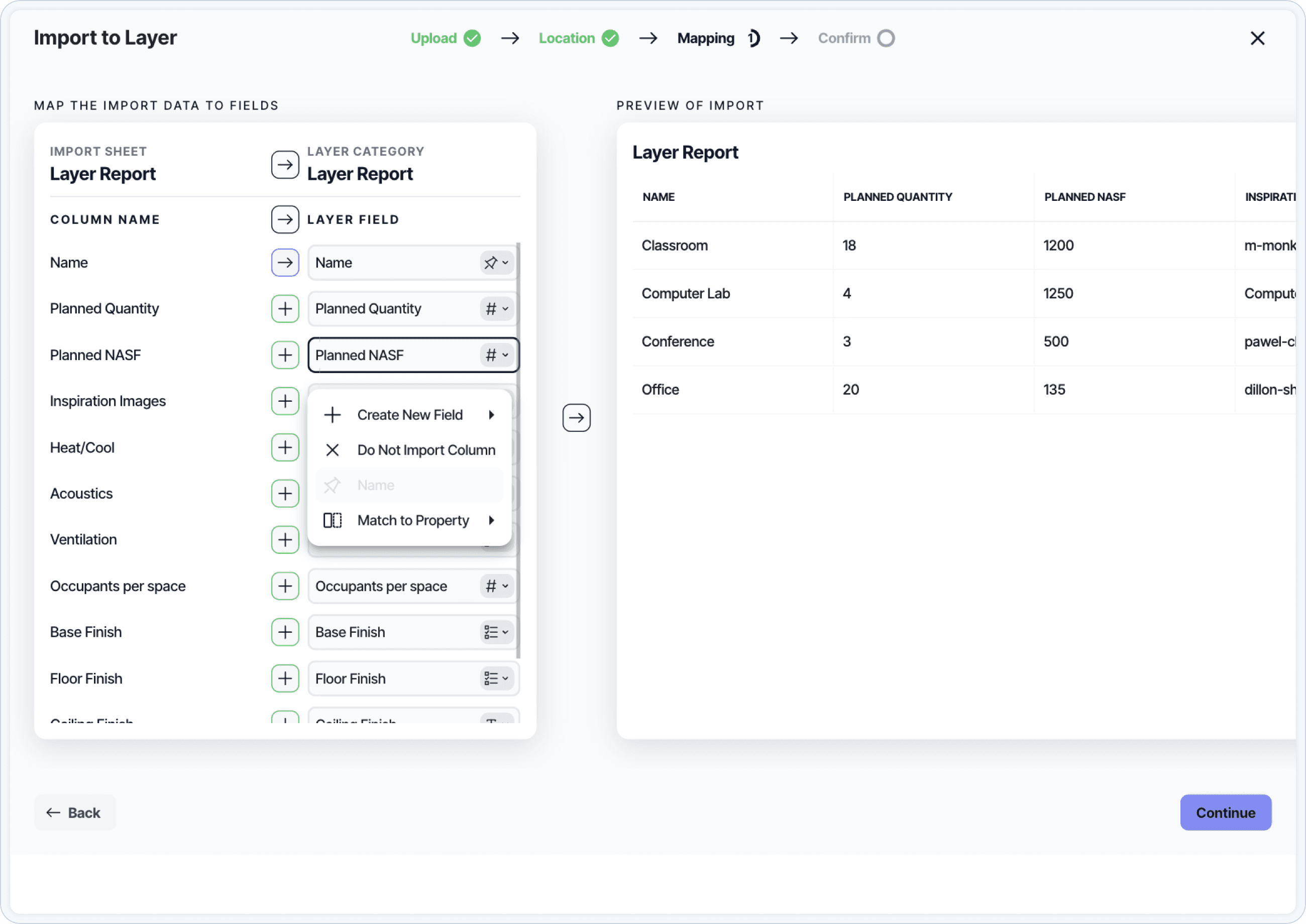
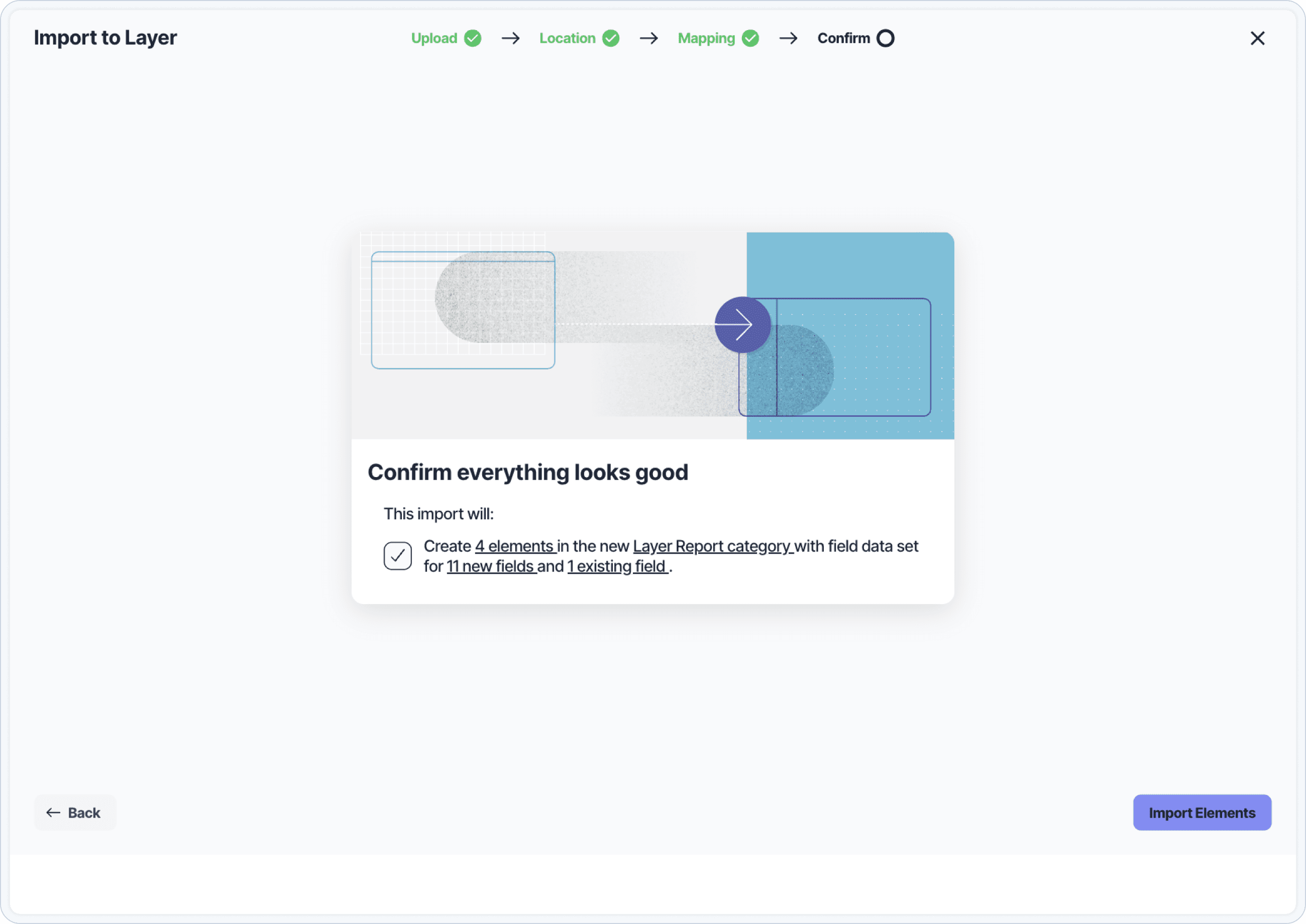
You can import your rooms into this category using the import tool. Each row becomes a room, and each column maps to a field.
The new category dialog used to host one Room Data Sheet per element.
Revit Rooms Category
Use this when rooms already exist in the model and you want one sheet per modeled room. Sheet count, naming, and other parameters stay aligned with Revit.
Selecting the Revit Rooms category as the source category for sheet generation.
Connect your Revit model
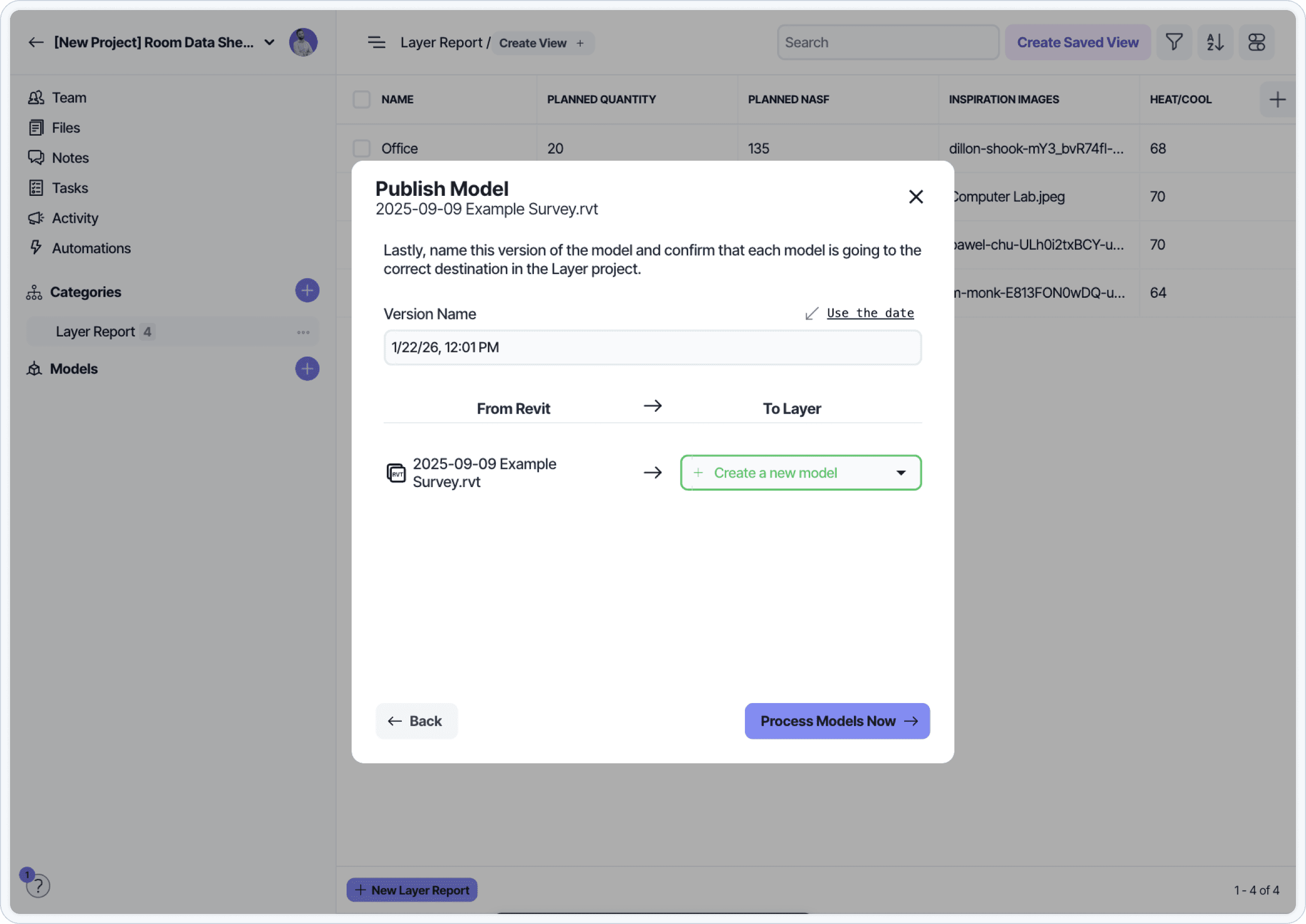
Publish your model to Layer and confirm that rooms appear in the Revit Rooms category.
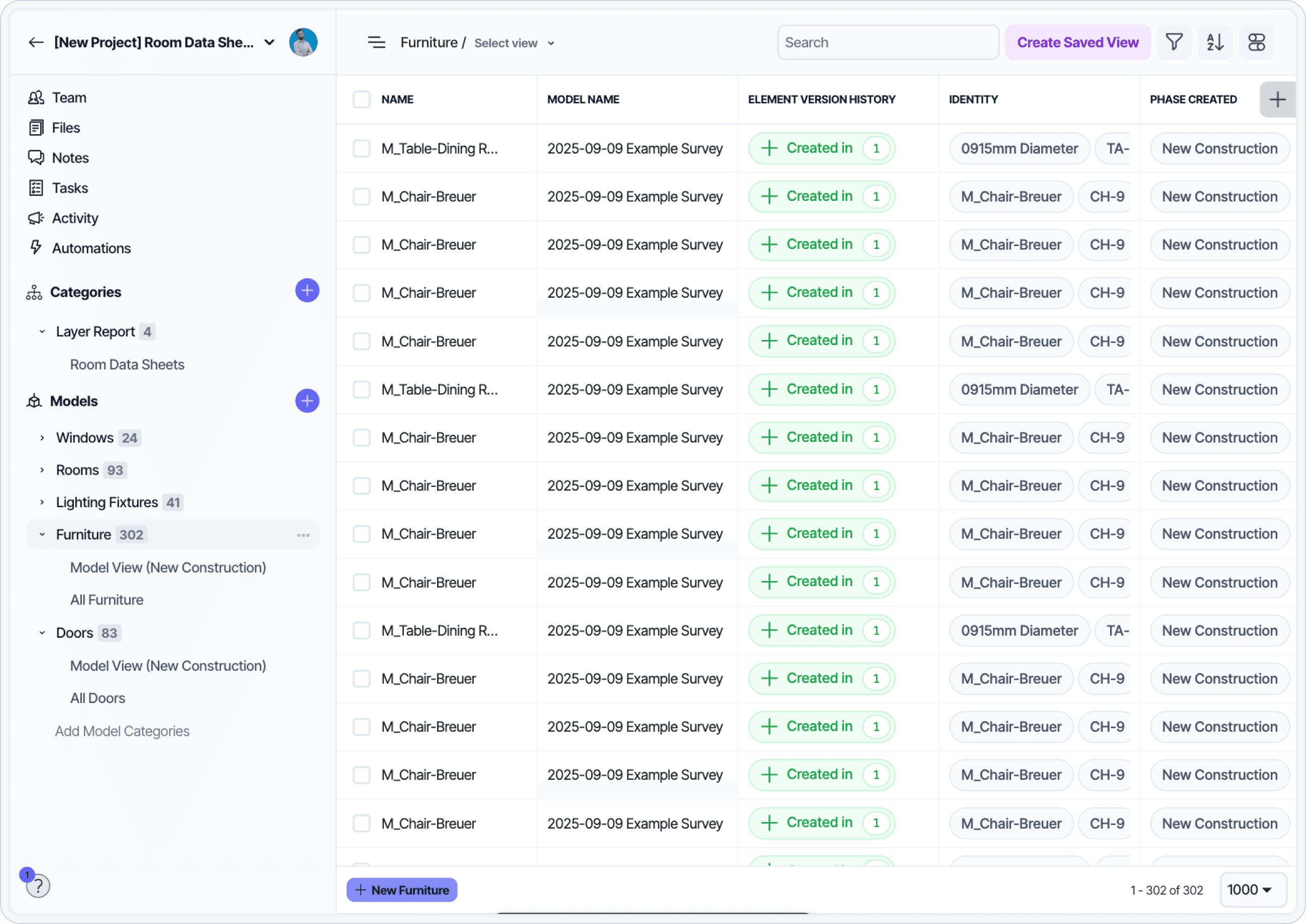
Publishing the Revit model and confirming rooms appear in the Revit Rooms category.
Next, verify that the category includes a stable identifier in your parameters such as Room Number, Room Name, or Type Mark. You’ll use this to match records across categories.
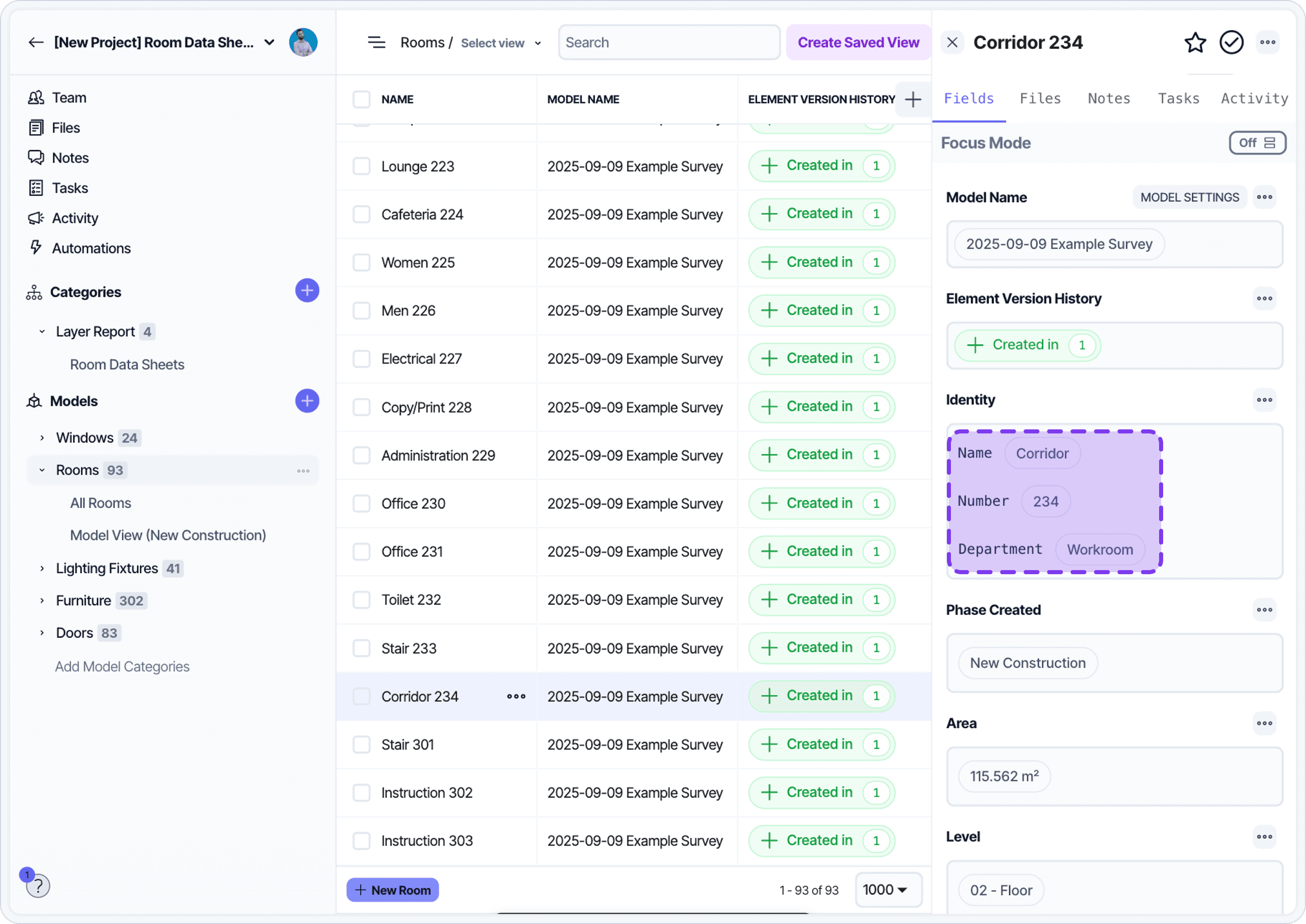
Identifying a stable parameter like Room Number to use as the match key between categories.
Link Revit Rooms to Room Data Sheets
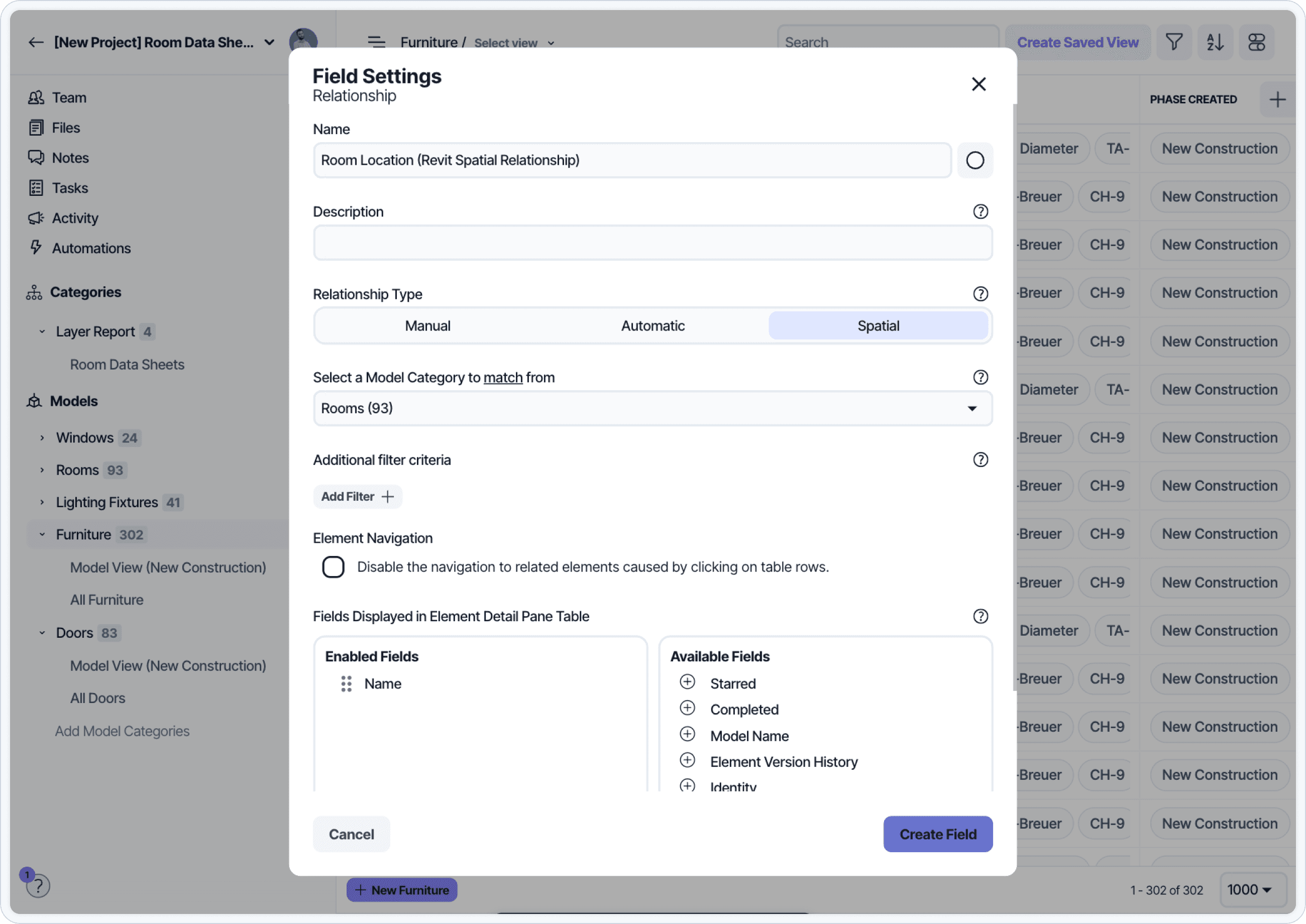
If you're using both categories, create a relationship between them so Revit data can appear in your Room Data Sheets.
You can use an automatic relationship field to programmatically update data in a Layer category based on your matched identifier from the step above, such as the Room Number, Department, or Room Type.
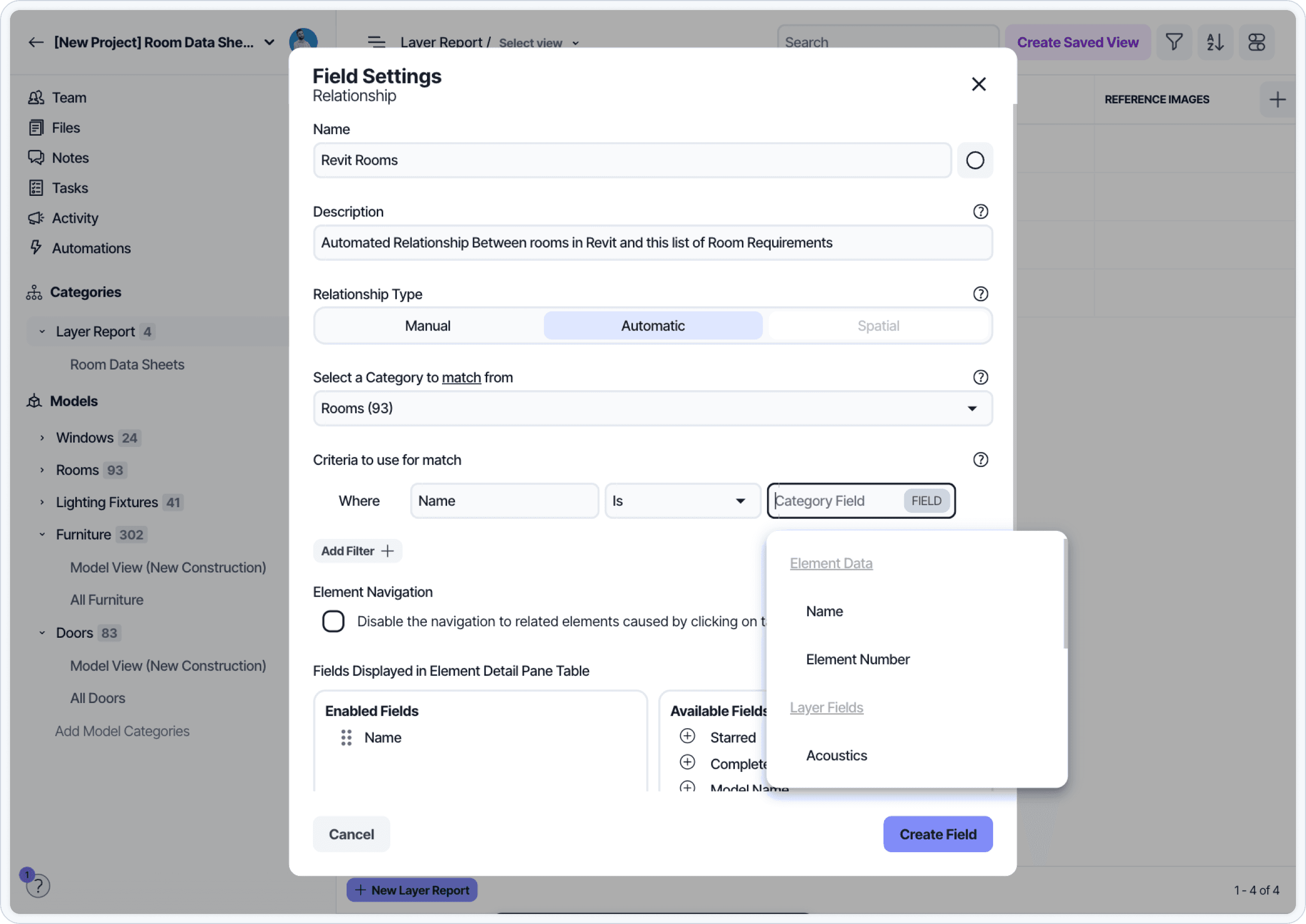
Creating an automatic relationship between Room Data Sheets and the Revit Rooms category.
In the Room Data Sheets category, create a new relationship field
Set the related category to Revit Rooms
Choose Automatic as the relationship type
Select a shared field to match (Room Number is the most common)
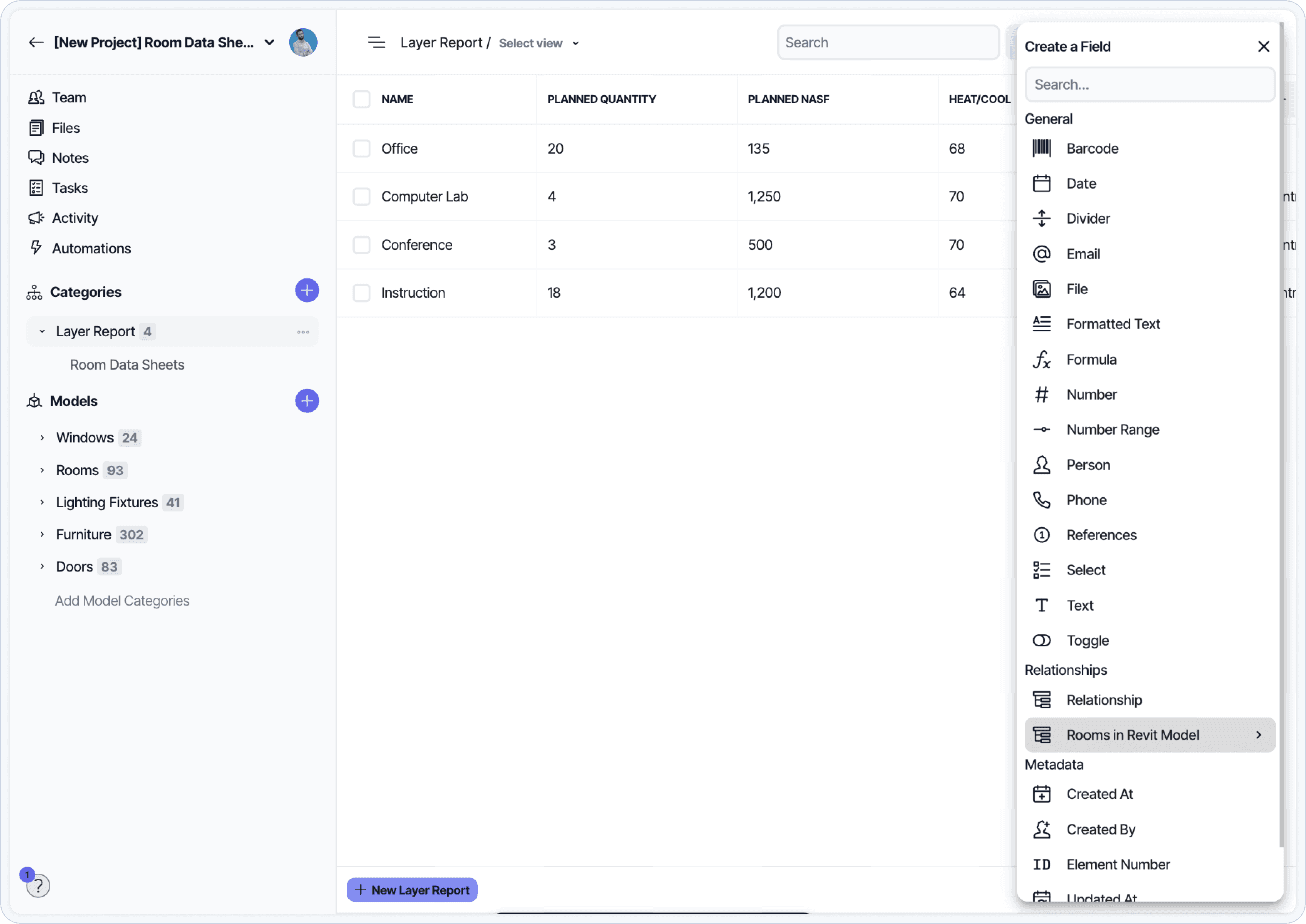
Configuring the relationship match criteria with shared field selection.
Once linked, use formula fields to display Revit parameters in the Room Data Sheets category.
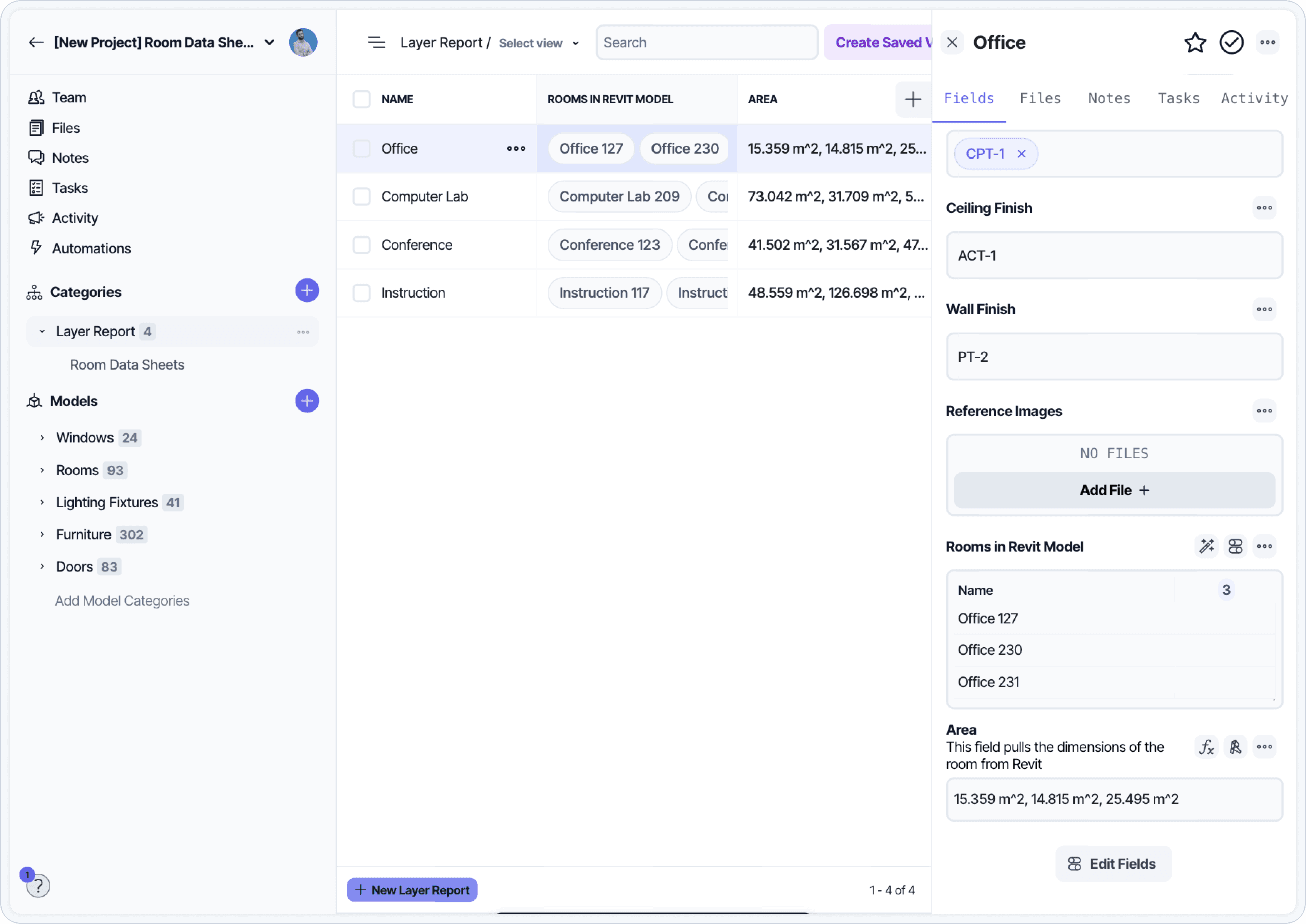
Formula fields displaying related Revit parameters inside the Room Data Sheets category.
Add fields to define your sheet content
Add the fields needed to track and display information for each room. These may include:
Room Name
Room Number
Department or Phase
Wall, Floor, and Ceiling Finishes
Equipment
Comments
Reference Images
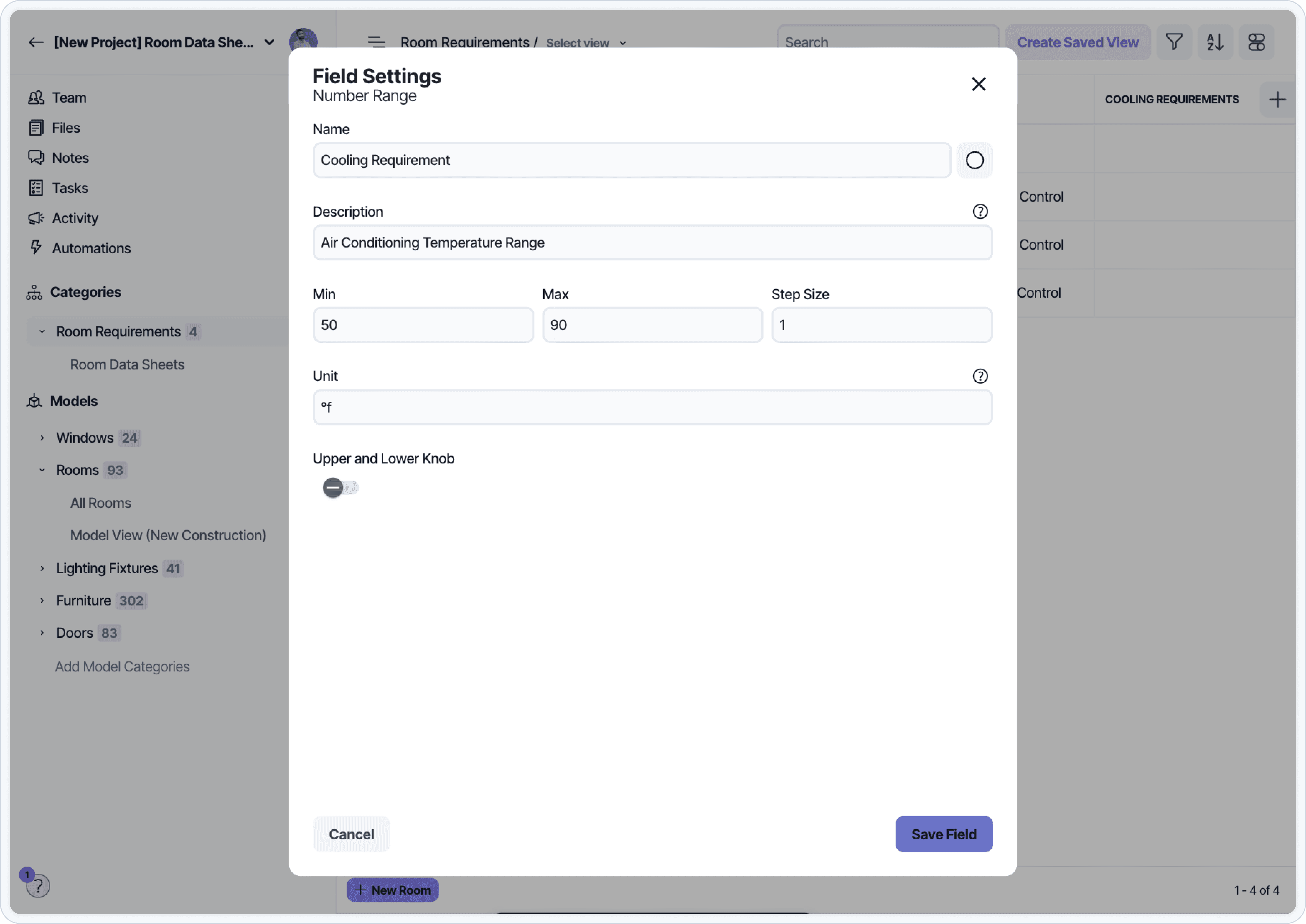
Adding fields like Room Name, Number, Department, finishes, equipment, and reference images to the Room Data Sheets category.
Use field groups to organize sections for formatting. Use formula fields to display values from related Revit elements.
Link furniture to rooms (optional)
If your Room Data Sheets need to display furniture or equipment, create a spatial relationship and calculate values using formulas.
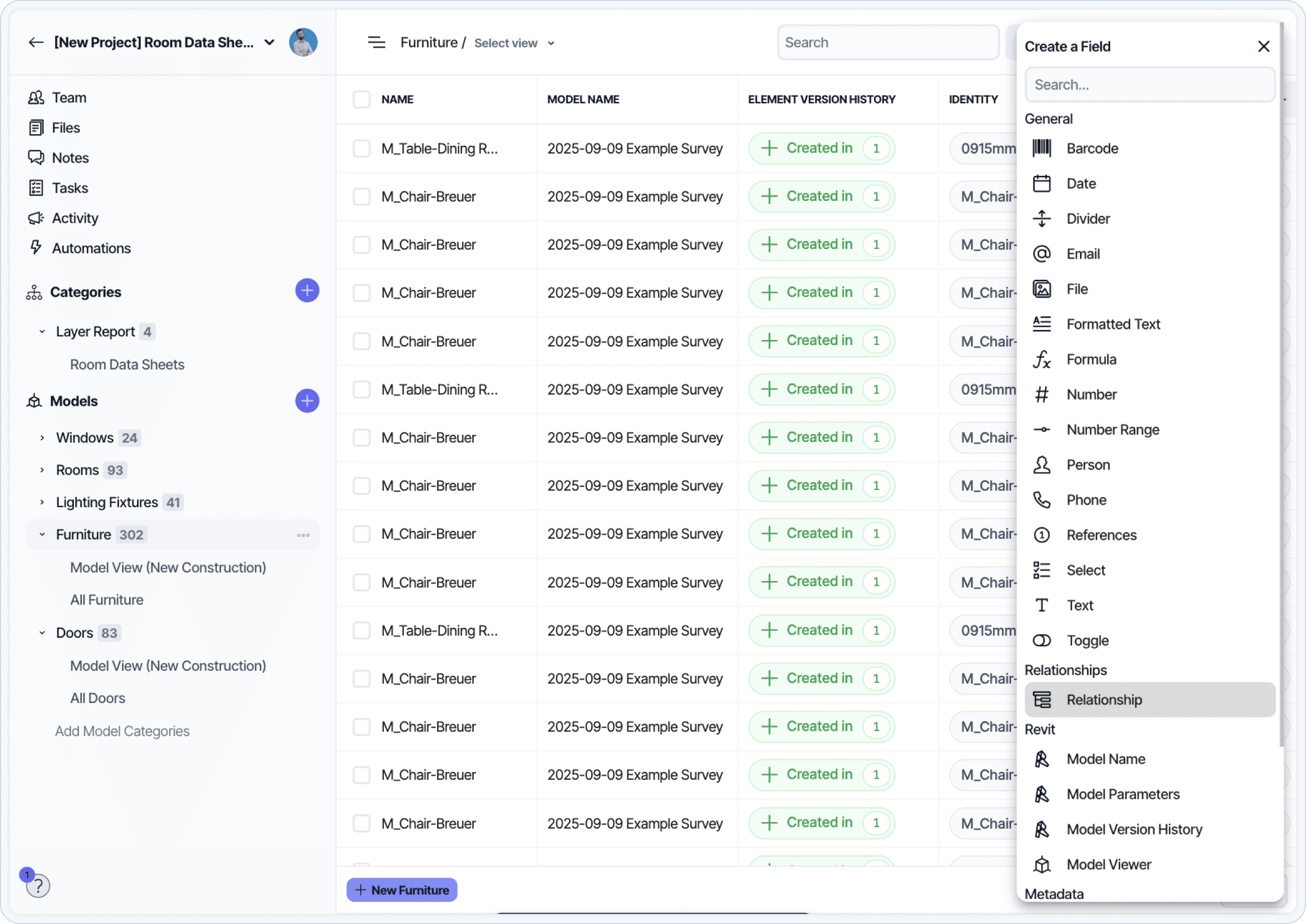
Creating a Furniture category linked spatially to Rooms to display equipment per room.
Watch the Layer Maker Course 🎥 Video: Spatial Relationships →
Create a Furniture category and add a cost field
In Furniture, create a relationship field to link each item to a room
In Room Data Sheets, add a formula field to display related furniture
Add a formula field to total quantities or cost
This structure updates automatically when furniture assignments change.
A spatial relationship surfacing furniture and equipment counts and totals per room.
Read more about Spatial Relationships in Layer →
A populated Room Data Sheets category with rooms ready for layout.
Create your Document View
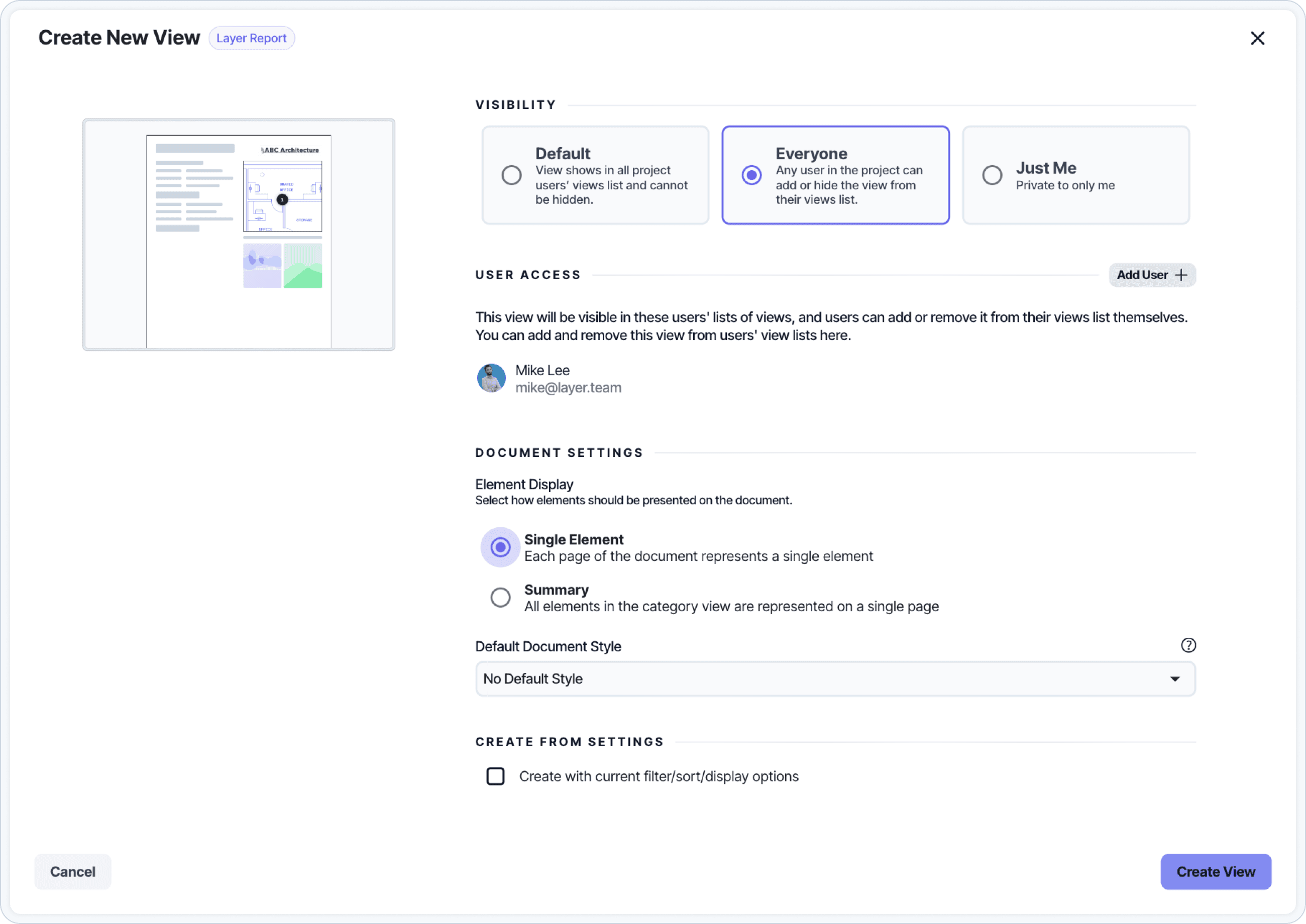
The Document View controls the layout of each Room Data Sheet.
The Document View controls used to design each Room Data Sheet page.
In the Room Data Sheets category, create a new Document View
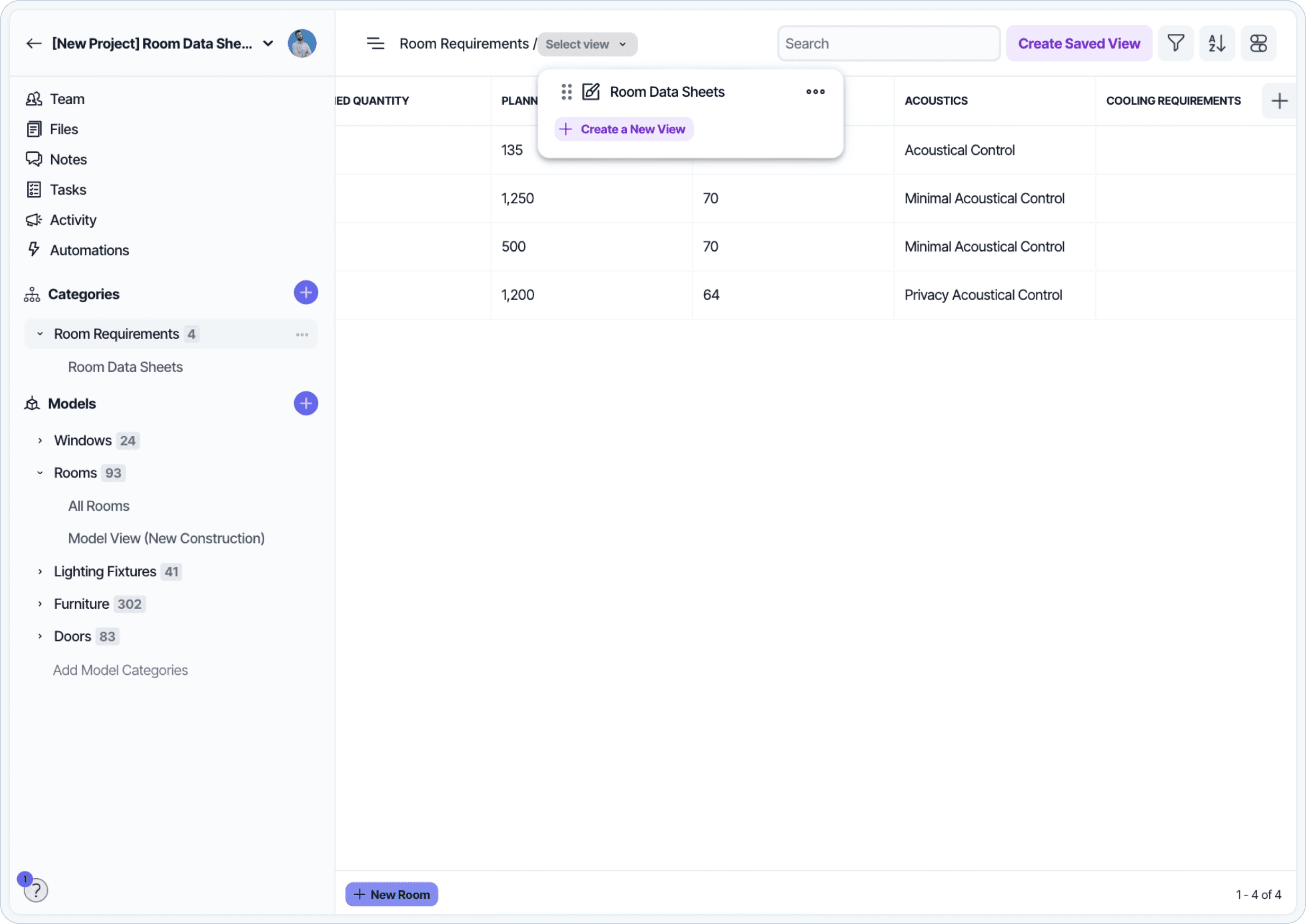
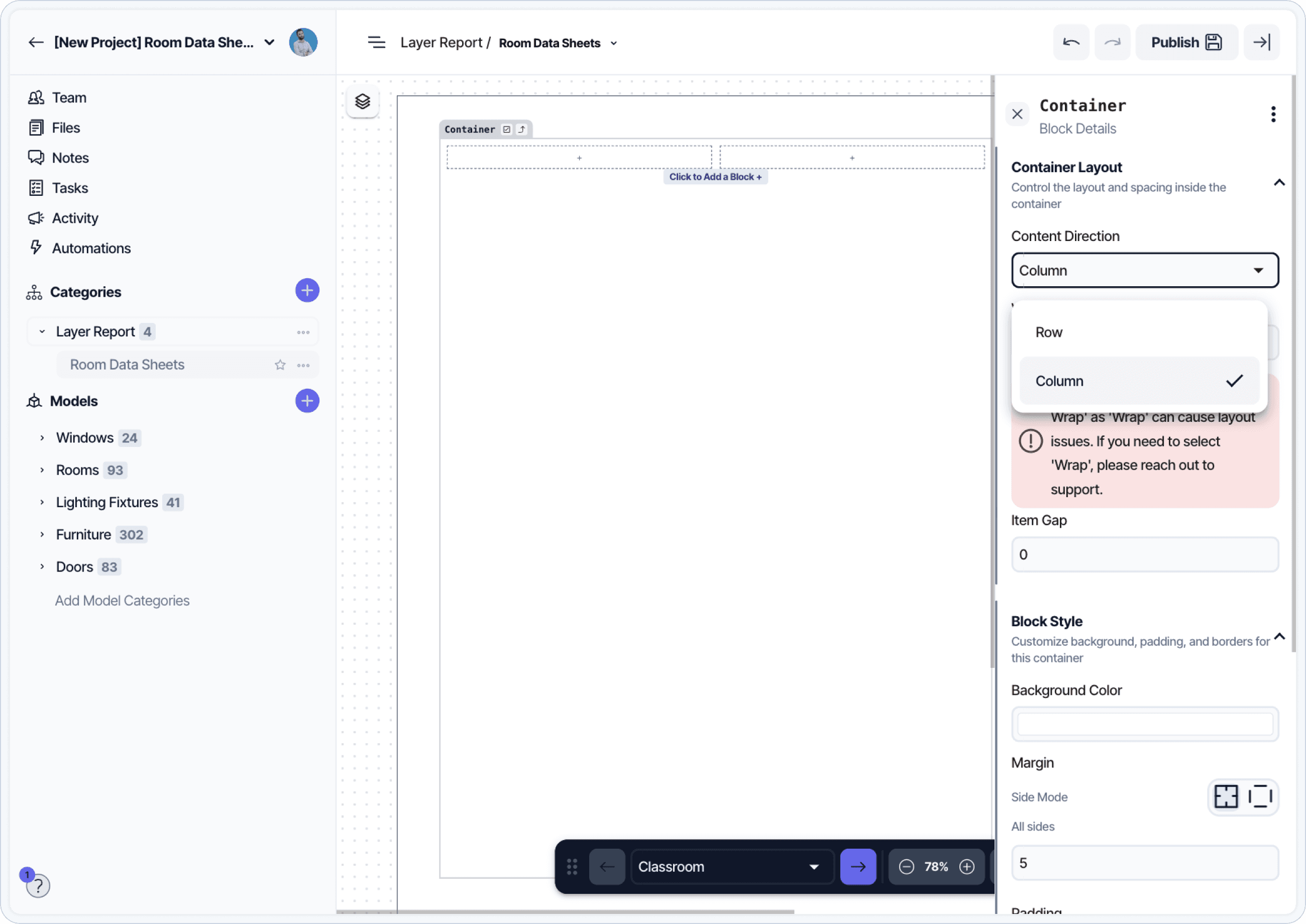
Creating a new Document View inside the Room Data Sheets category.
Add the fields that should appear on each sheet
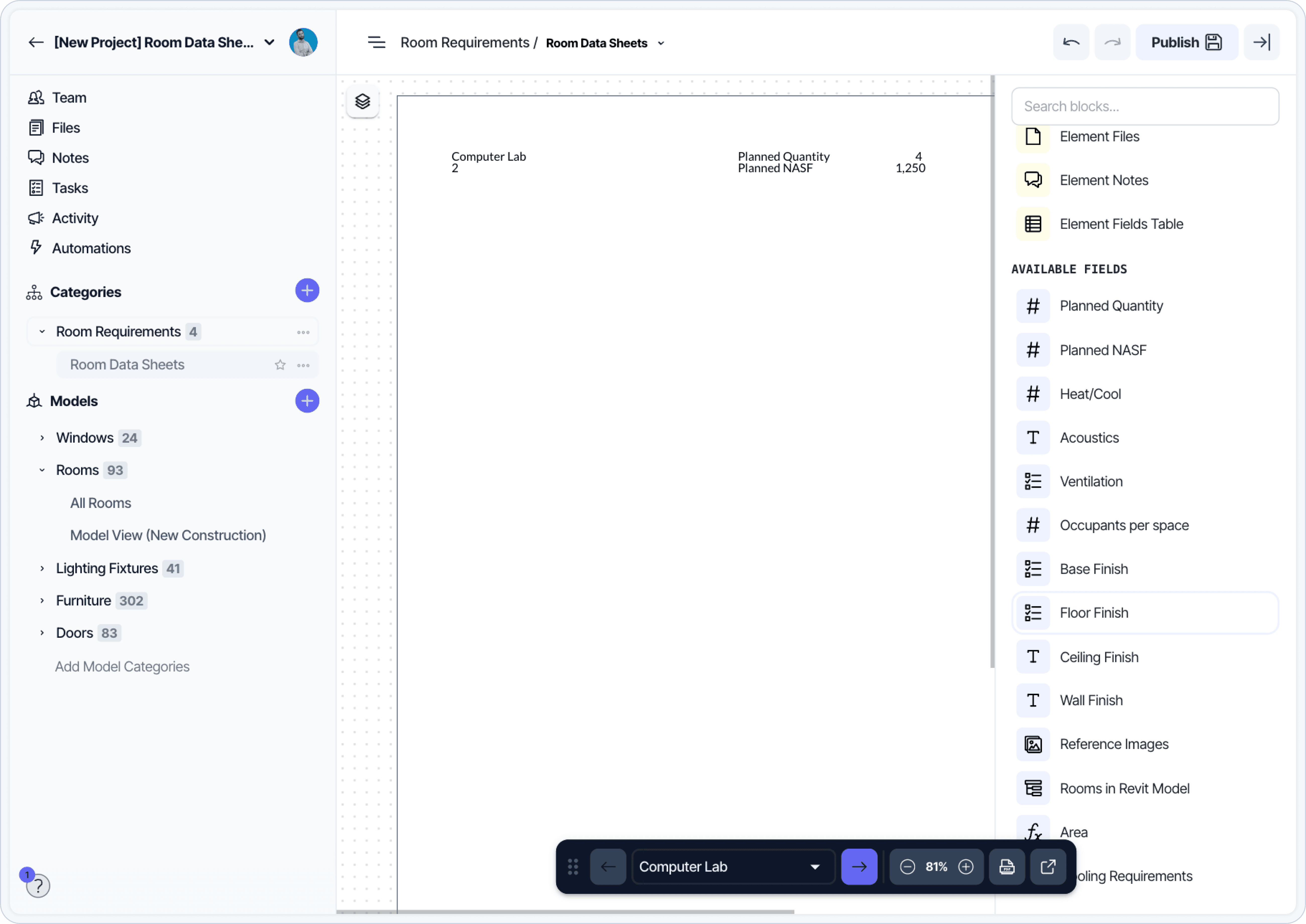
Adding fields to the Document View canvas for each Room Data Sheet.
Use layout controls to arrange fields into columns or sections
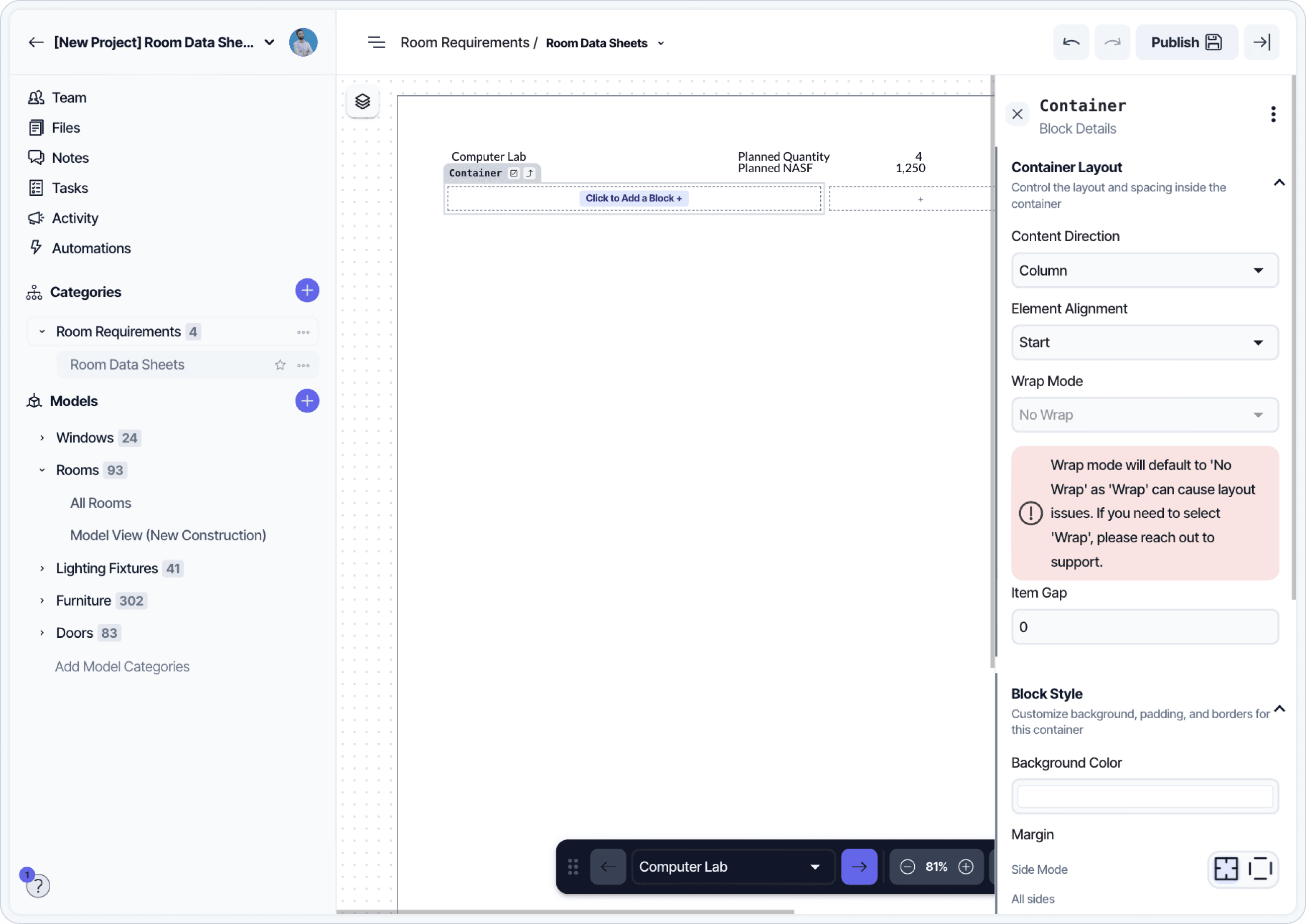
Arranging Document View fields into columns and sections with layout controls.
Each page of the Document View corresponds to one element in the category. Use filters to limit which elements are included if needed.
Save your project as a template
Once the project structure is complete, save it as a template from the project dashboard.
Click on your project’s name
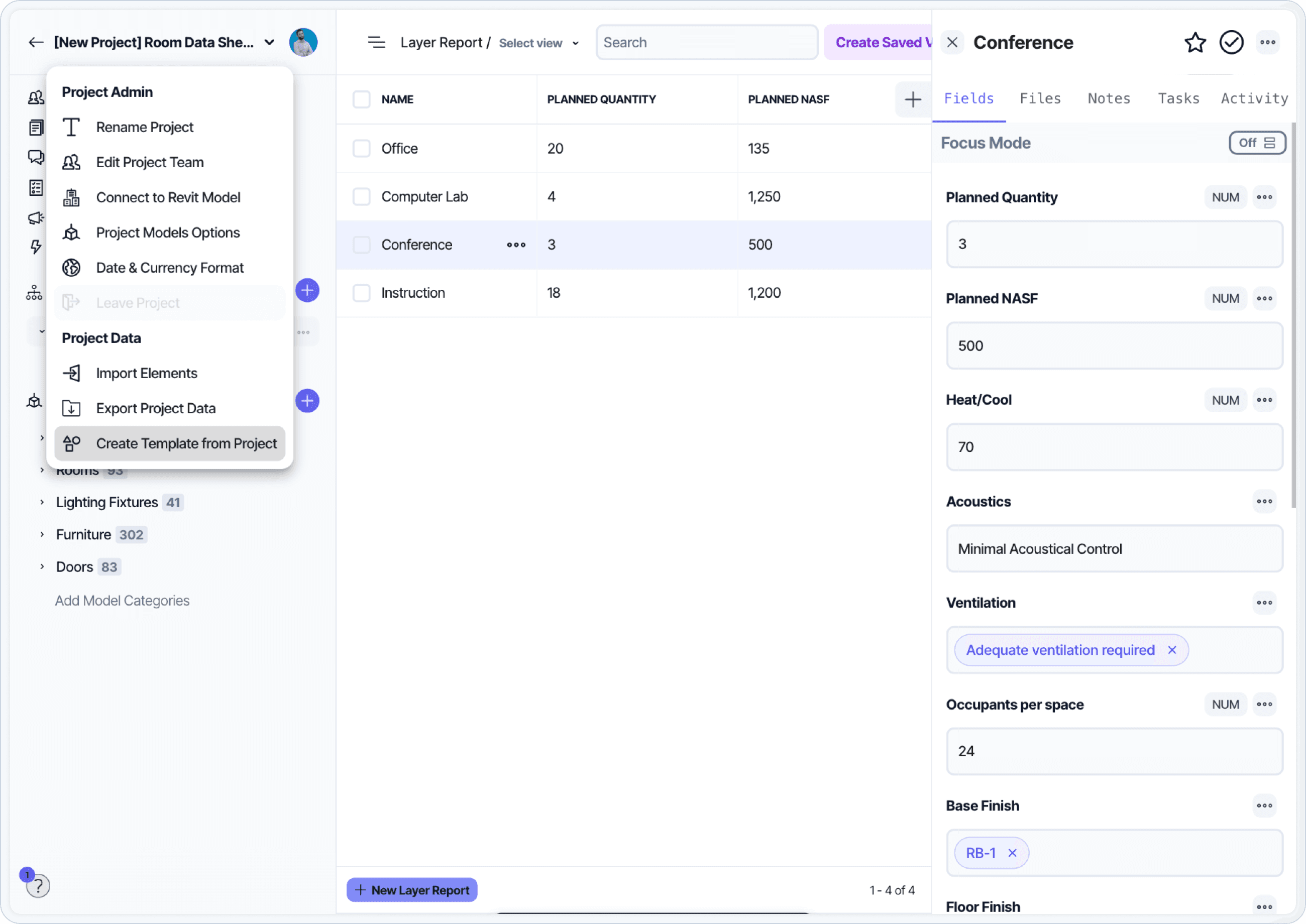
Saving the configured project as a reusable Layer template.
Choose whether to include example data or only the structure
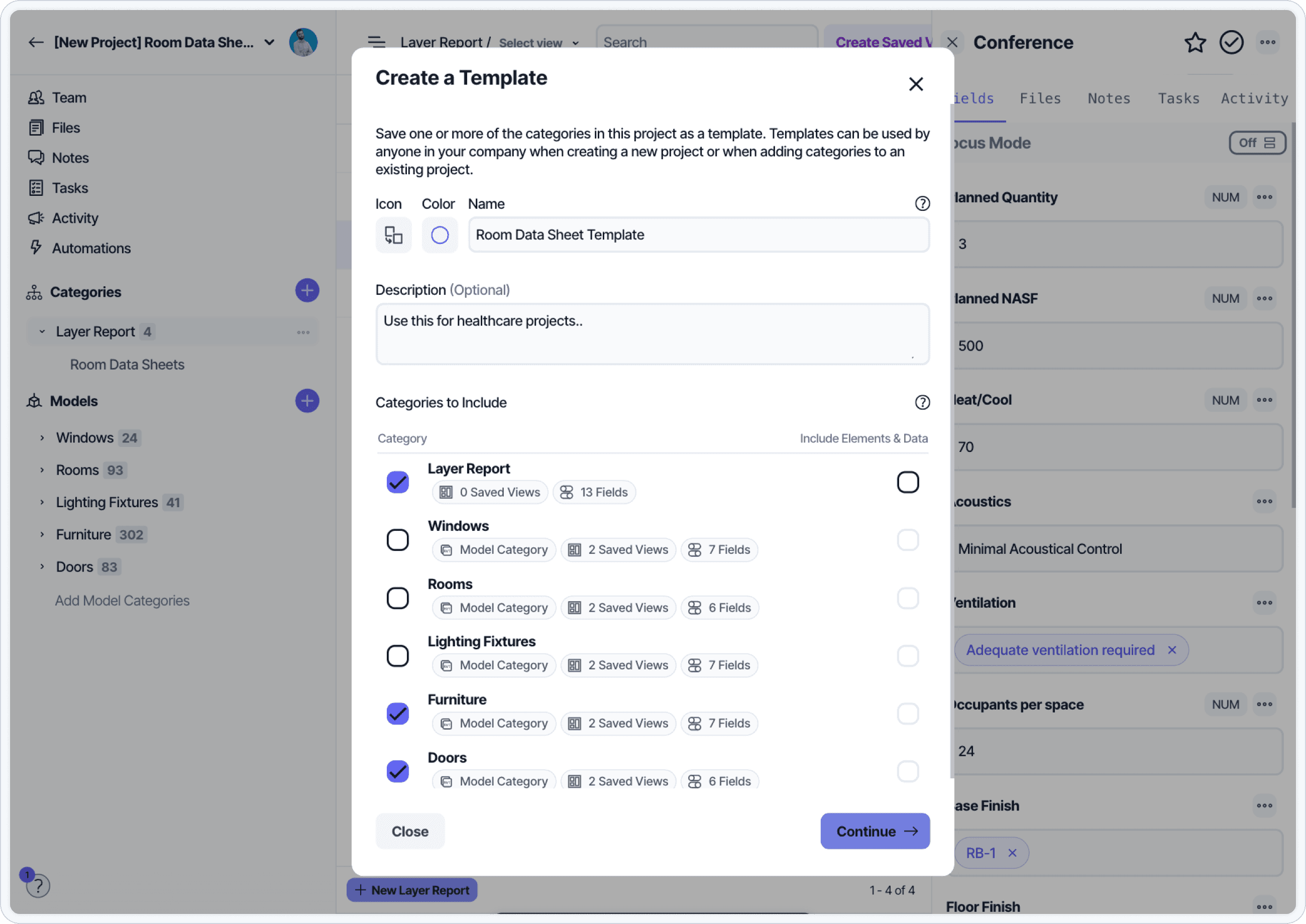
Selecting whether to include example data or just the structure when saving the template.
This creates a reusable Room Data Sheets setup for future projects.
Additional Resources
Want to read additional guides for setting up new workflows in Layer? You can find more information in the guides linked below: