Discover how to use Summary Document View in Layer to display and manage category elements with customizable filters and sorting options in table format.

Zach Soflin
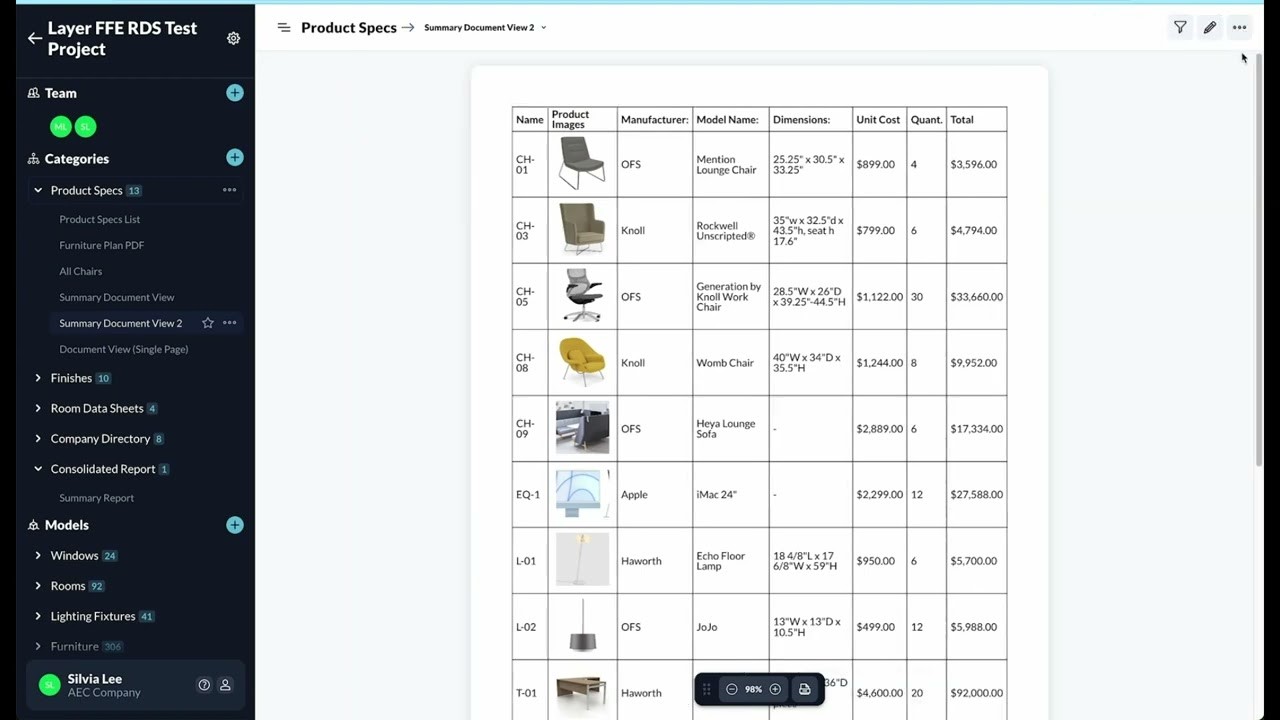
Summary Document View is a table of all the elements in the category, which can be controlled through filters and sorts on the view and on the table.
To create a Summary Document view, create a new view and choose the Document view type. Scroll down to the Document Settings and choose Summary for the element display.
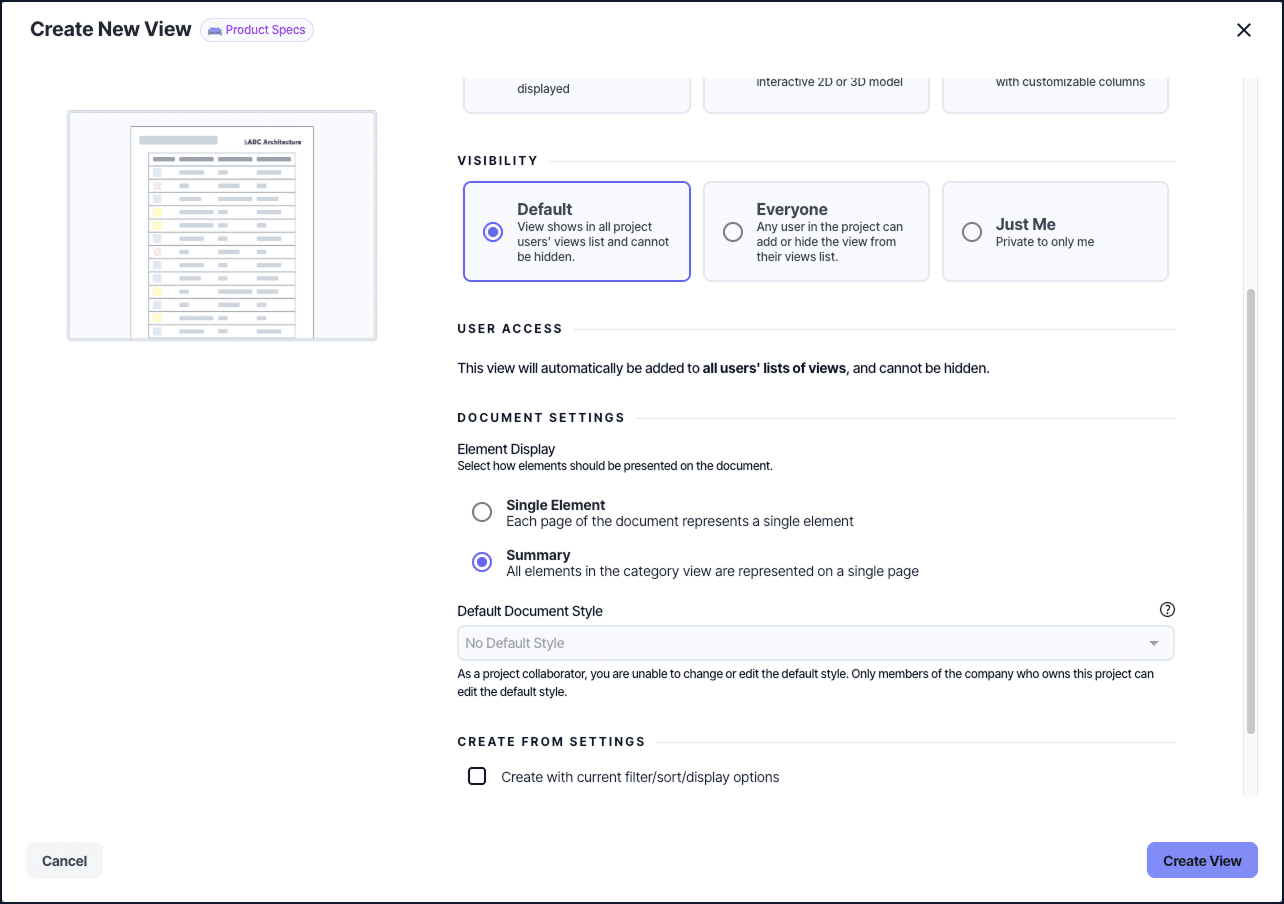
Creating a new Document View and selecting Summary as the element display mode.
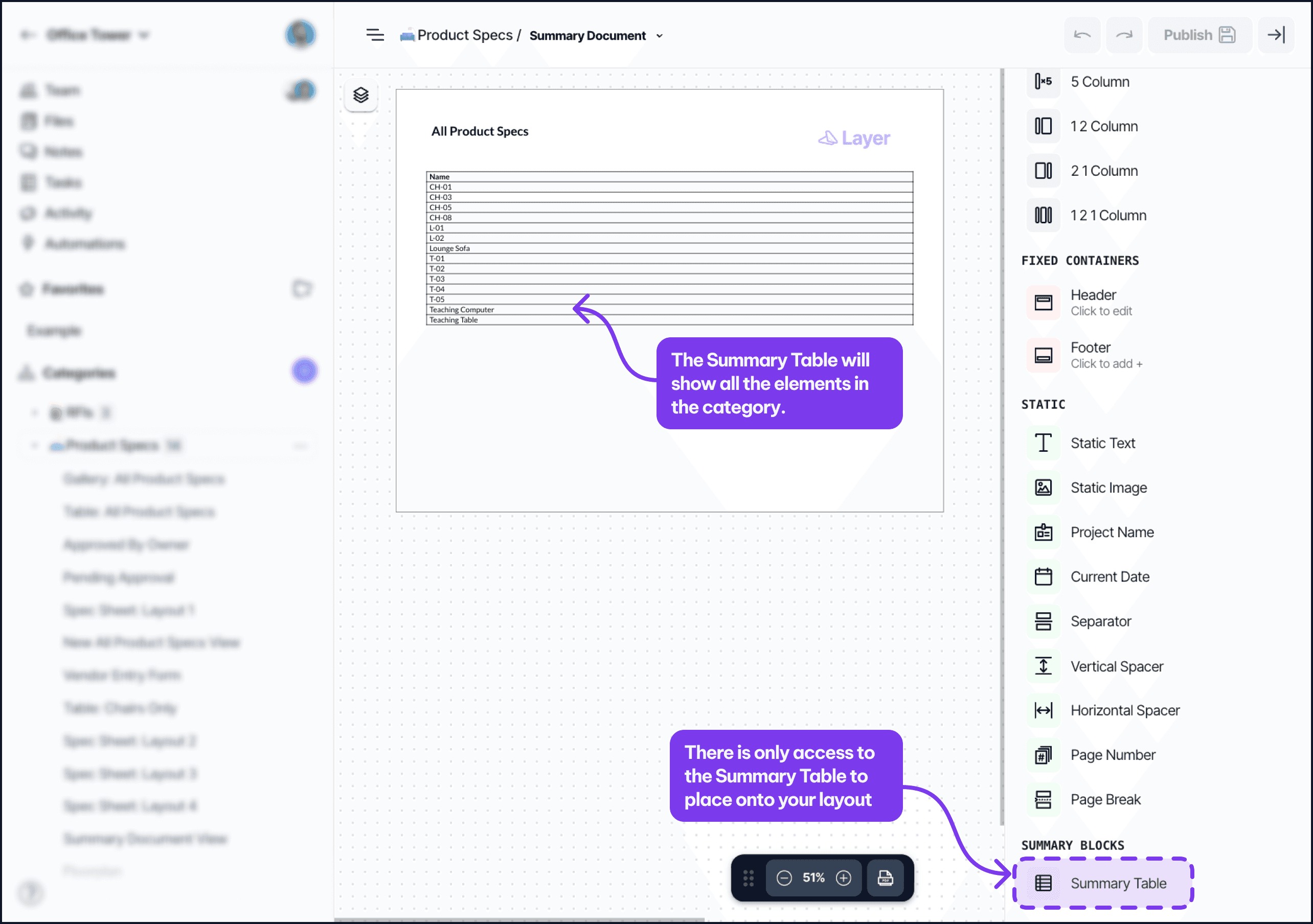
Once the view is created, you’ll see the Summary Block table is the only block for the category available to be added. Adding the table will create a list of the elements in the category. Edit the table’s settings to add fields.
A configured Summary Document View with a Summary Block table and added fields.
Sorts and Filters can be placed on the view or on the table depending on your needs.
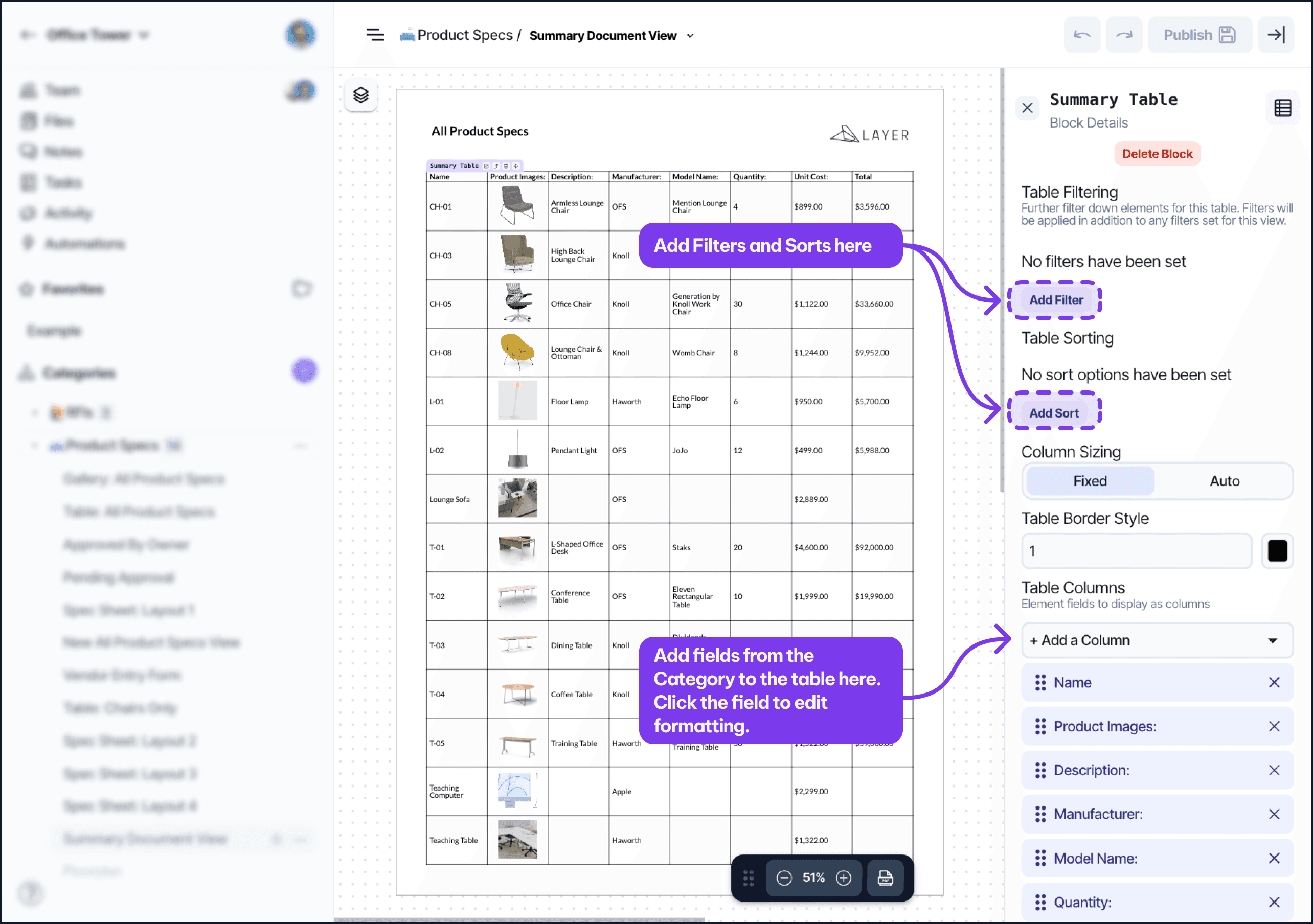
Sorting and filtering options applied to a Summary Document View table.
To add Summary Labels into your table, scroll down to the bottom of the details, and then check the box to Show Summary Label.
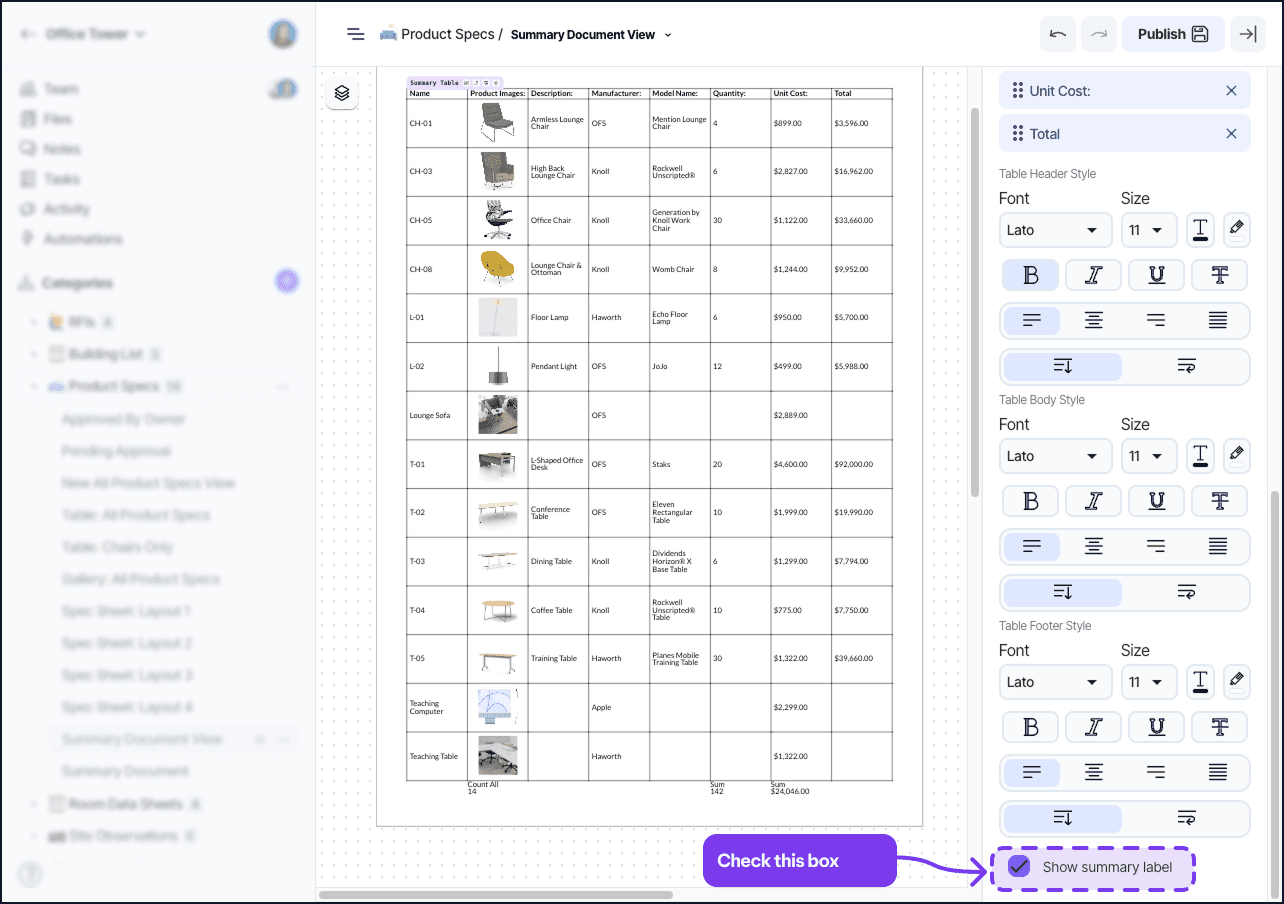
The Show Summary Label option enabled in the Summary Block table settings.
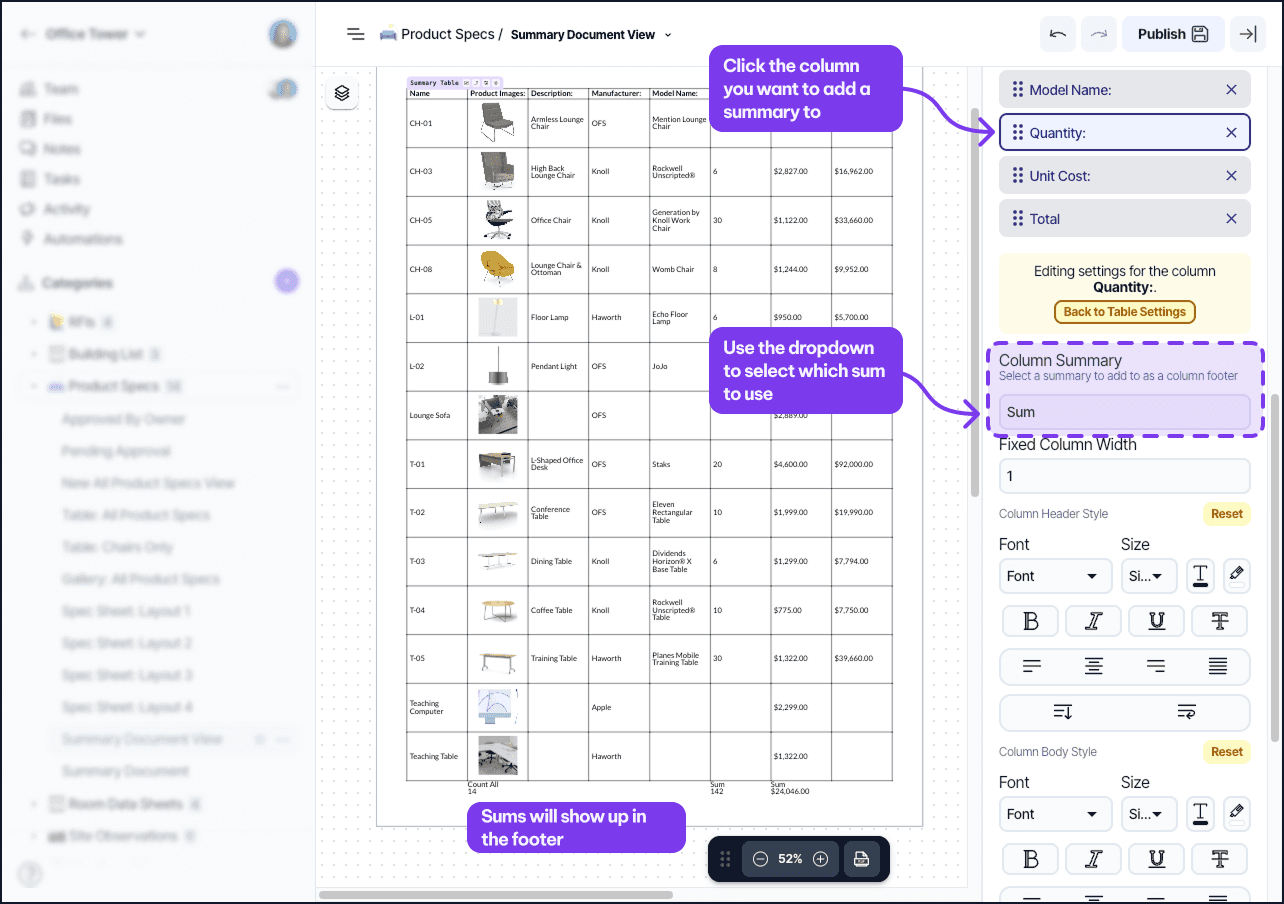
After that, go to the column you want to add a summary to, and scroll down to the Column Summary to choose a summary type. Then your summary label will appear at the bottom of your table.