Build a Formula v2 field that sums quantities, counts related items, or aggregates dates across a Layer relationship. Three recipes with examples.

Mike Lee
A common requirement in Layer is summarizing a set of related elements on the parent that links to them. The classic AEC example is a Room that has many Furniture items, and you want each Room to show the total furniture quantity, the total cost, the count of furniture items, or the latest delivery date. Formula v2 fields handle every variant of this pattern through aggregation functions that walk a relationship.
This article covers three recipes you can copy into your own project: total a number across related items, count related items, and aggregate dates. Each recipe assumes a Related Element field is already in place. The last section covers where the result appears and a few performance notes.
Prerequisites
Before writing the formula, confirm:
There is a Related Element field on the parent category that points at the child category. For the Room and Furniture example, this is a field on Room linked to Furniture.
The child category has the field you want to aggregate. For totaling quantities, the child category needs a Number field such as Quantity.
You have permission to add a field to the parent category. Owners and Editors have this permission.
With the relationship in place, you can add a Formula v2 field on the parent category and write one of the recipes below.
The most common request is a total. On Room, sum the Quantity of every linked Furniture item.
Formula:
How this reads, left to right:
{Furniture}references the Related Element field on Room that points at Furniture.MAP({Furniture}, Quantity)walks the relationship and returns a list of Quantity values, one per linked Furniture item.SUM(...)adds the values in the list and returns a single number.
The formula returns 0 when the Related Element field is empty. If you want to show empty rather than 0 when there are no linked items, wrap it in an IF:
Variations
Average instead of sum: replace
SUMwithAVERAGE.Min or max: replace with
MINorMAX.Sum a different field, such as cost: replace
Quantitywith the relevant Number field name.Filter the related set before summing: nest
FILTER. For example, total quantity for Furniture items where Status equals "Ordered":
Recipe 2: Count related items
Use COUNT for a simple count of how many records the Related Element field points at.
Formula:
The formula returns 0 when the field is empty.
Variations
Count only items matching a condition: nest
FILTER. For example, count of overdue Furniture items:
Count unique values, not all values: use
COUNT_UNIQUEpaired withMAP. For example, count distinct Suppliers across linked Furniture:
Recipe 3: Aggregate dates
Dates aggregate the same way numbers do. The most common AEC date aggregations are earliest, latest, and the count of items with a given date status.
Earliest expected delivery across linked Furniture
The result is a Date the formula field can render in the project's locale.
Latest installed date across linked items
Number of items installed in the last 30 days
Date functions accept the same calendar units (days, weeks, months, years) used elsewhere in the Formula v2 engine; see Date math formulas for the full reference.
Aggregating across multiple hops
If the data you need is two relationships deep, walk both hops with nested MAP calls. For example, a Project that links to many Rooms, where each Room links to many Furniture items, can total all Furniture across the Project:
The outer MAP walks each Room. The inner MAP walks the Furniture on that Room. The inner SUM totals quantities for one Room, and the outer SUM adds those per-Room totals to a single project-wide number.
Multi-hop formulas evaluate left to right and respect the cardinality of each relationship at every step.
Where the result appears
The Formula v2 field shows up like any other field:
In the Element Detail Pane next to the field name.
As a column in Table View. Drag the column where you want it.
In Document View blocks, when the field is added to the document layout.
In API responses for the parent element.
Formula fields are read-only. The value updates automatically when the relationship changes or when one of the input values on a linked element changes.
Aggregations on the column footer
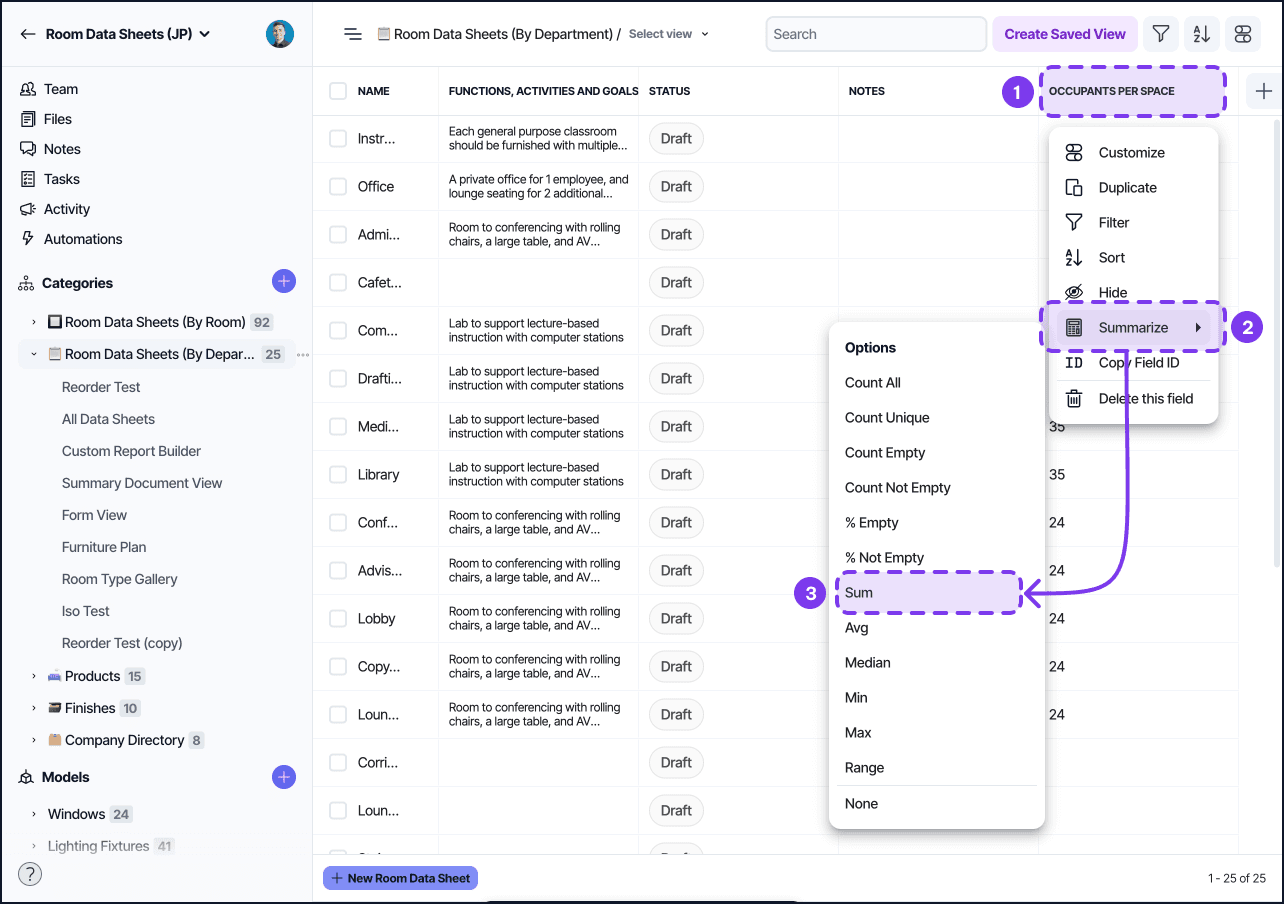
A formula that returns a Number can also be summarized at the bottom of the Table View column. Open the column header menu on the desired field and choose Summarize. The view-level aggregation respects the view's filter, so the column footer sums only the rows visible after filtering.
This means you can build two levels of aggregation: a per-element total via Formula v2 on each parent, and a view-level total via the column footer that sums those per-element totals. The combination is useful for project dashboards.
Performance notes
Formulas that walk a single hop (Recipes 1 and 2) evaluate quickly even with hundreds of linked items per parent.
Multi-hop formulas with thousands of grandchild records can slow down the parent element load. If you see a noticeable lag, consider materializing the intermediate total as a Number field updated by an automation rather than a live formula.
FILTERinsideMAPis faster when the filter narrows the set significantly. Order conditions from most-restrictive to least-restrictive when chainingAND.
Permissions and visibility
The Formula v2 field respects the project's role-based field visibility. If a user cannot see a child category that the formula reads from, the formula evaluates against only the records they can see. This is rare in practice because relationship fields and the formula run on the server side using the parent's relationship, not the user's individual access.
For formulas that include user-specific functions such as USER(), the formula evaluates per viewer rather than being shared. Most aggregation use cases do not need user-specific evaluation.