Download many photos or files at once from a Layer project using the project export, exports from Table View, or the Layer API.

Josh Puppe
Downloading every photo or file from a Layer project is a common request, especially at the close of a survey, hand-off to a client, or migration to another system. Layer does not currently support multi-selecting files inside the file viewer for batch download. There are three reliable workarounds depending on how much you need to download and who needs to run the export.
This article covers the three approaches, their permission requirements, and which one fits which job.
Approach 1: Per-file download inside an element
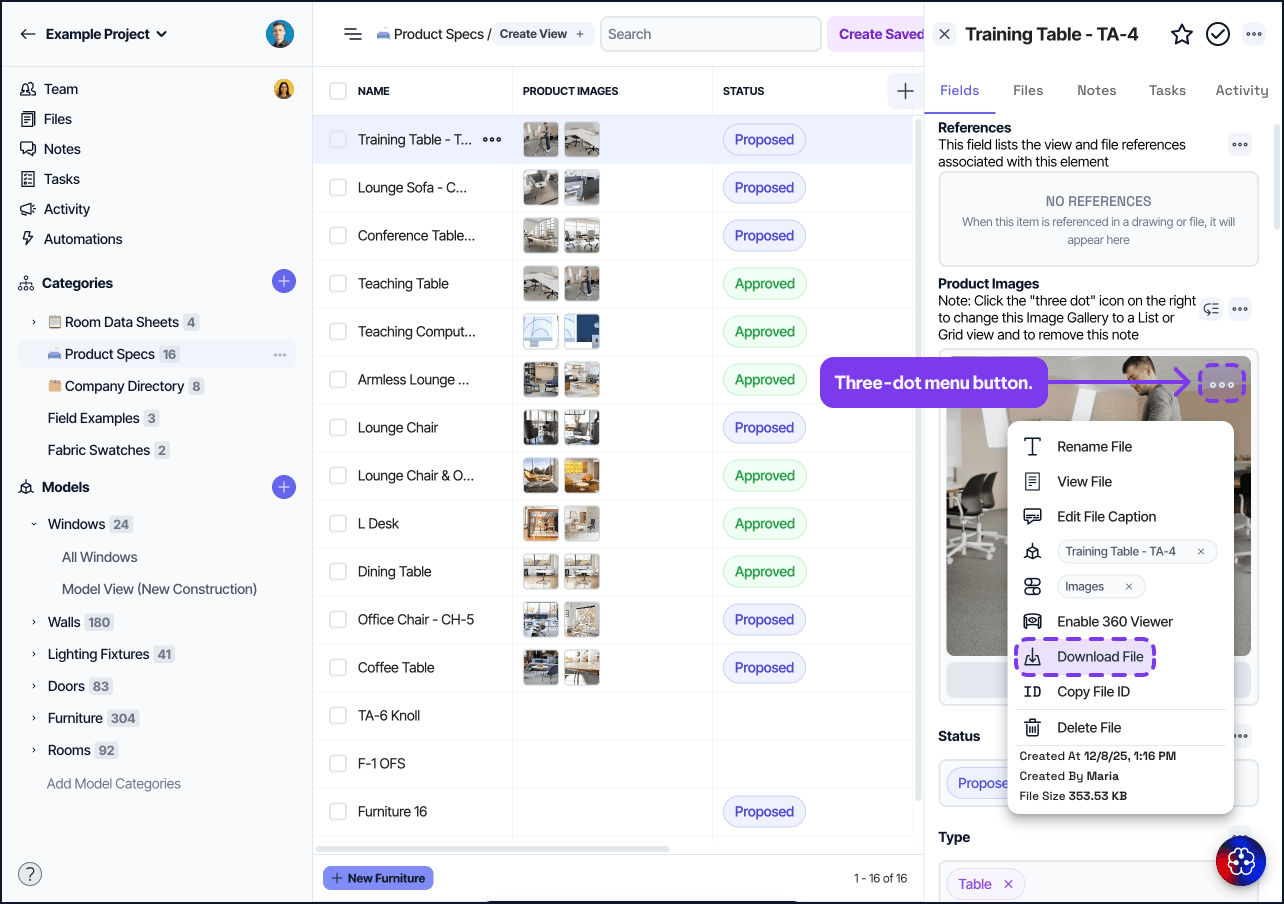
The simplest workflow handles one file at a time. Inside any element, open the file pane, click the three dots button to open the preview, then click the “download file” icon. The file downloads to your device with its original filename.
Use the keyboard shortcuts to move quickly through a series of files:
Right arrow: next file in the same element
Left arrow: previous file
Esc: close the preview
This works well when you need a small number of files (say, fewer than 20) and want to pick which ones. It does not scale to whole-project exports.
Approach 2: Export Project Data (whole project as a ZIP)
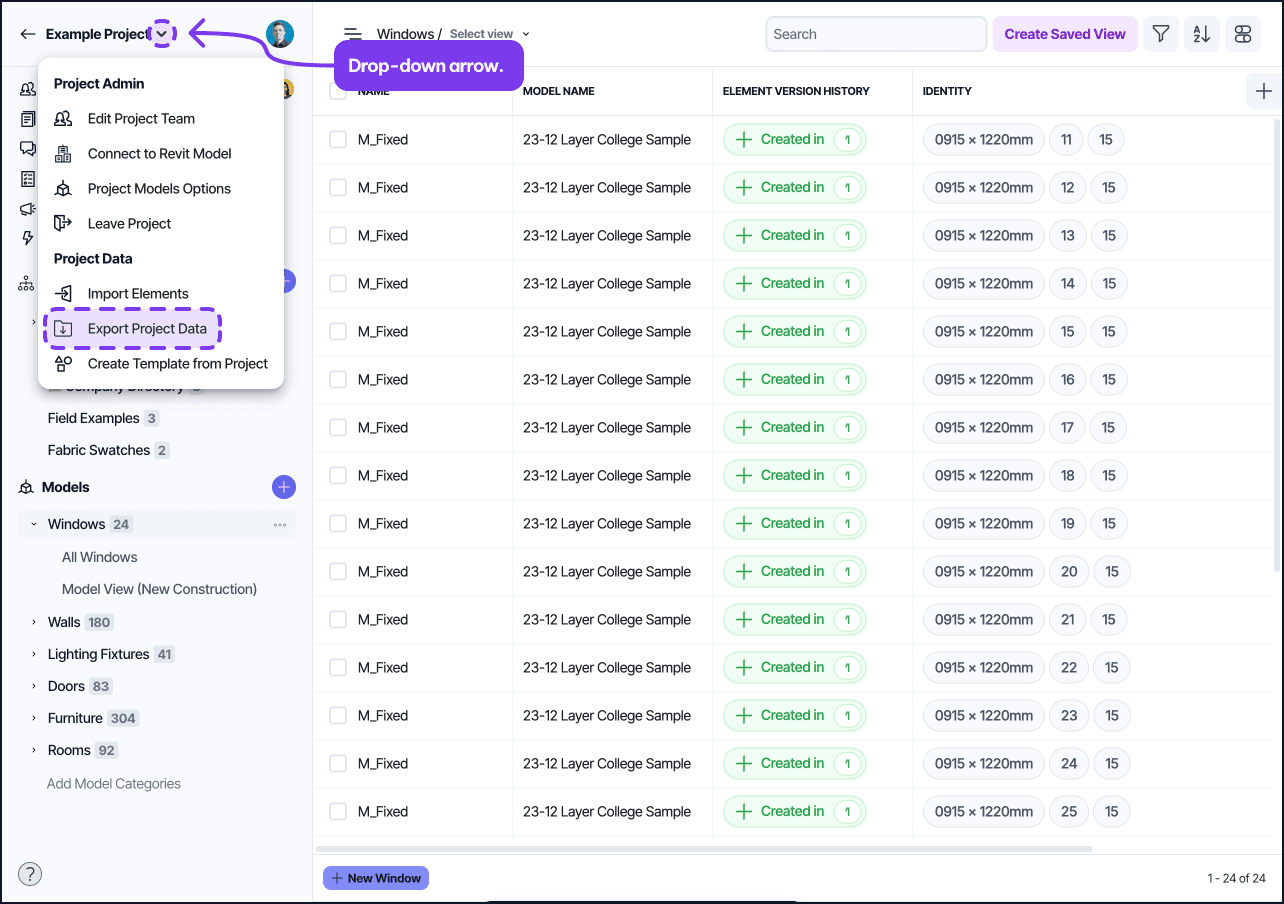
For a complete backup of a project's files, run Export Project Data from the project's three-dot menu. The export packages every file in the project, organized by category and element, into a single ZIP archive that Layer makes available for download once the export completes.
To run Export Project Data:
Open the project dashboard.
Click the drop down arrow right of the project name.
Choose Export Project Data.
Select the data and files you want to include.
Click Export.
Wait for the export to finish; you receive a notification when the ZIP is ready.
Download the ZIP from the notification or from the project's export history.
Exports can take several minutes to over an hour for very large projects with thousands of photos. The download link remains available for several days after the export completes.
Permissions
Only Project Owners and Project Editors can run Export Project Data. Contributors, Viewers, and Restricted users do not have access to this action.
When to use it
Use Export Project Data when you need a complete backup, when you are migrating off the platform, or when an external client needs the full file set. The ZIP includes every file Layer holds for the project, not just the ones in a specific view.
Approach 3: The Layer API
For automated or scheduled exports, use the Layer API. The API exposes file metadata for every element and download URLs for each file. A short script (Python, Node, or your tool of choice) can iterate over the elements in a category, download each file by URL, and save them locally with whatever naming convention you prefer.
This approach is useful when:
You run regular backups outside Layer's UI.
You need files organized by something other than category and element (for example, by date or by a specific field value).
You want to integrate Layer with a downstream system that pulls files automatically.
See API for the authentication and endpoint details, and Personal API Tokens for generating a token.
Why there is no multi-select inside the file viewer
The file viewer in Layer is designed for one-at-a-time inspection. Selecting multiple files and downloading them as a batch is a feature on Layer's roadmap but is not available today. The approaches above cover every workflow we have seen in customer use.
Table View's Export menu (CSV, XLSX, JSON) does not currently include a ZIP option. To get the files attached to a filtered subset of elements without running a whole-project export, the API is the right tool.
If bulk download inside the file viewer matters to your team, submit a feature request through Layer's product feedback channel so the team can weigh it against other priorities.
Common questions
Will the ZIP preserve element names in the file structure?
Yes. The Export Project Data ZIP organizes files into folders by category and element, using the element's name as the folder name. View-scoped ZIPs use the same structure for the filtered elements.
Do exports include files attached to deleted elements?
No. Only files on currently active elements are included. If a file was attached to an element that has been deleted (and not yet recovered), it is excluded from the export.
Can I cancel an export in progress?
No. Once started, the export runs to completion. You can ignore the resulting ZIP if you no longer need it.