How to show or hide blocks in a Document View based on field values, so reports adapt to each element.

Josh Puppe
Conditional visibility lets you hide blocks in a Document View based on the value of a field on the element. Use it to suppress empty sections, branch the layout based on a status, or build templates that adapt to each record.
This is distinct from Conditional Formatting, which changes how a value is styled. Conditional visibility changes whether the block appears at all.
When to use conditional visibility
Hide a comments section when there are no comments to show.
Hide a piece of equipment data when the relevant Toggle field is set to false.
Show different sections of a Room Data Sheet for different room types.
Hide a Pending Approval banner once the Status field changes to Approved.
Adding a conditional visibility rule
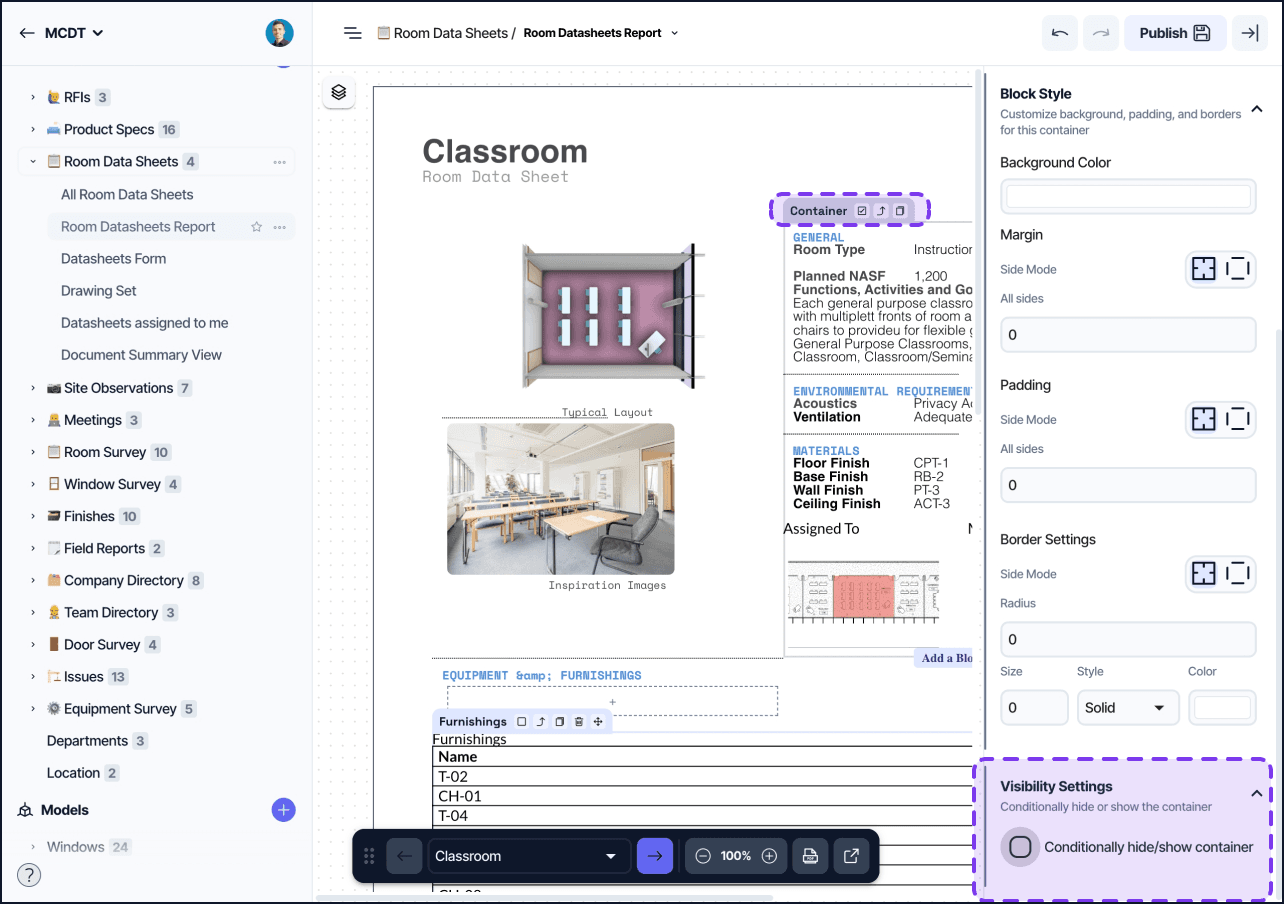
In edit mode, select a block (or a container, which hides every block inside it). Open the block's settings panel and find the Conditional Visibility section.
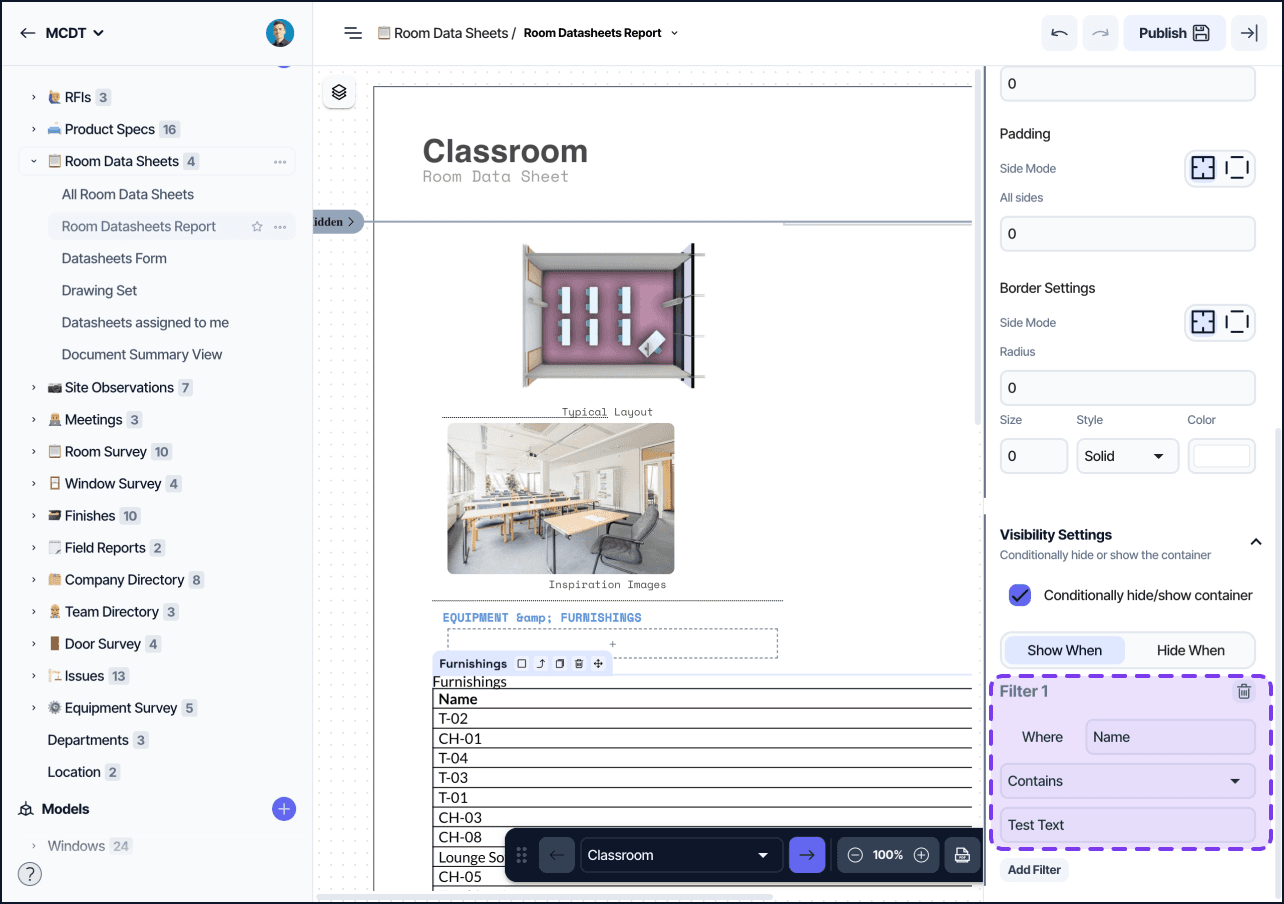
Add a rule with three parts:
Field: which field on the element to evaluate.
Mode: either Show when condition is true or Hide when condition is true.
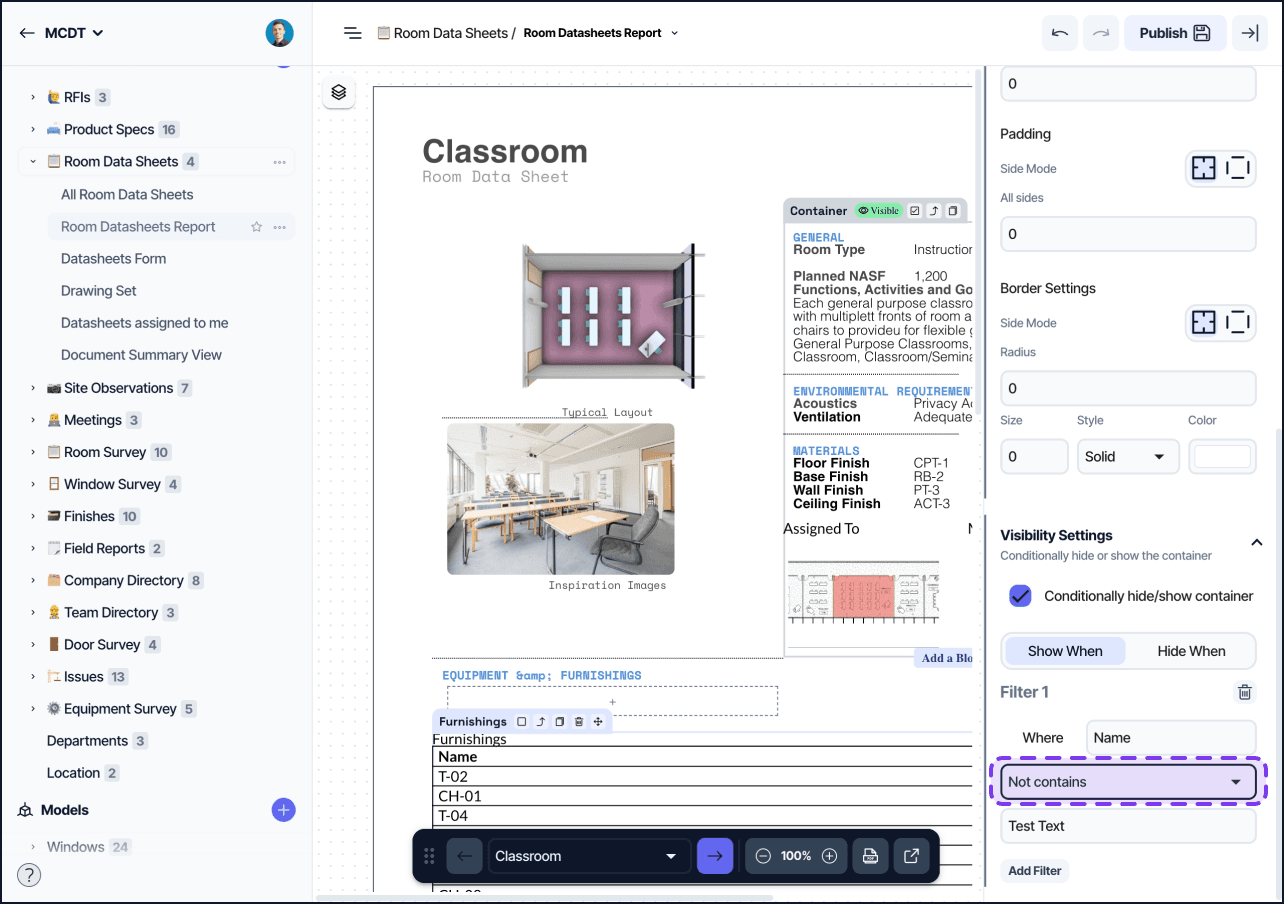
Filter: the comparison itself (equals, is empty, is greater than, etc.).
A block with no conditional visibility rule always appears.
A block with a rule appears or hides based on whether the rule evaluates to true for the current element.
Hiding entire sections
Group the blocks that belong together inside a Container, then add the conditional visibility rule on the container. The rule applies to every block inside, so you do not need to set it on each block individually.
This is the recommended pattern for showing or hiding entire sections of a document.
Common patterns
Hide an empty section
Use the Hide when condition is true mode with a field is empty filter. The container disappears when the field has no value.
Branch based on status
Add two containers with opposite visibility rules. One shows when Status equals Approved, the other shows when Status does not equal Approved. Only one renders at any time.
Filter rows in a related table
Tables of related elements support a separate filter configuration that controls which rows appear. See the Table block reference for filter syntax. The filter is independent of conditional visibility on the container.
How conditional visibility interacts with exports
When you export the Document View as a PDF, conditional visibility runs once per element. Hidden blocks are excluded from the exported PDF entirely. They do not occupy whitespace.
This means a single Document View can produce different page counts for different elements depending on which sections are hidden.
Tips
Test conditional visibility against several elements before publishing. The Sample Element preview is good for catching empty-state issues that do not show on a populated record.
Conditional visibility evaluates against the current element only. To branch on the count of related elements, use a Lookup field with a Count aggregation and reference that count in your visibility rule.