How to configure page size, orientation, and margins for Document View reports in Layer.

Josh Puppe
Document View page settings control the physical page that your report renders onto. This article covers page size, orientation, and margins.
Opening page settings
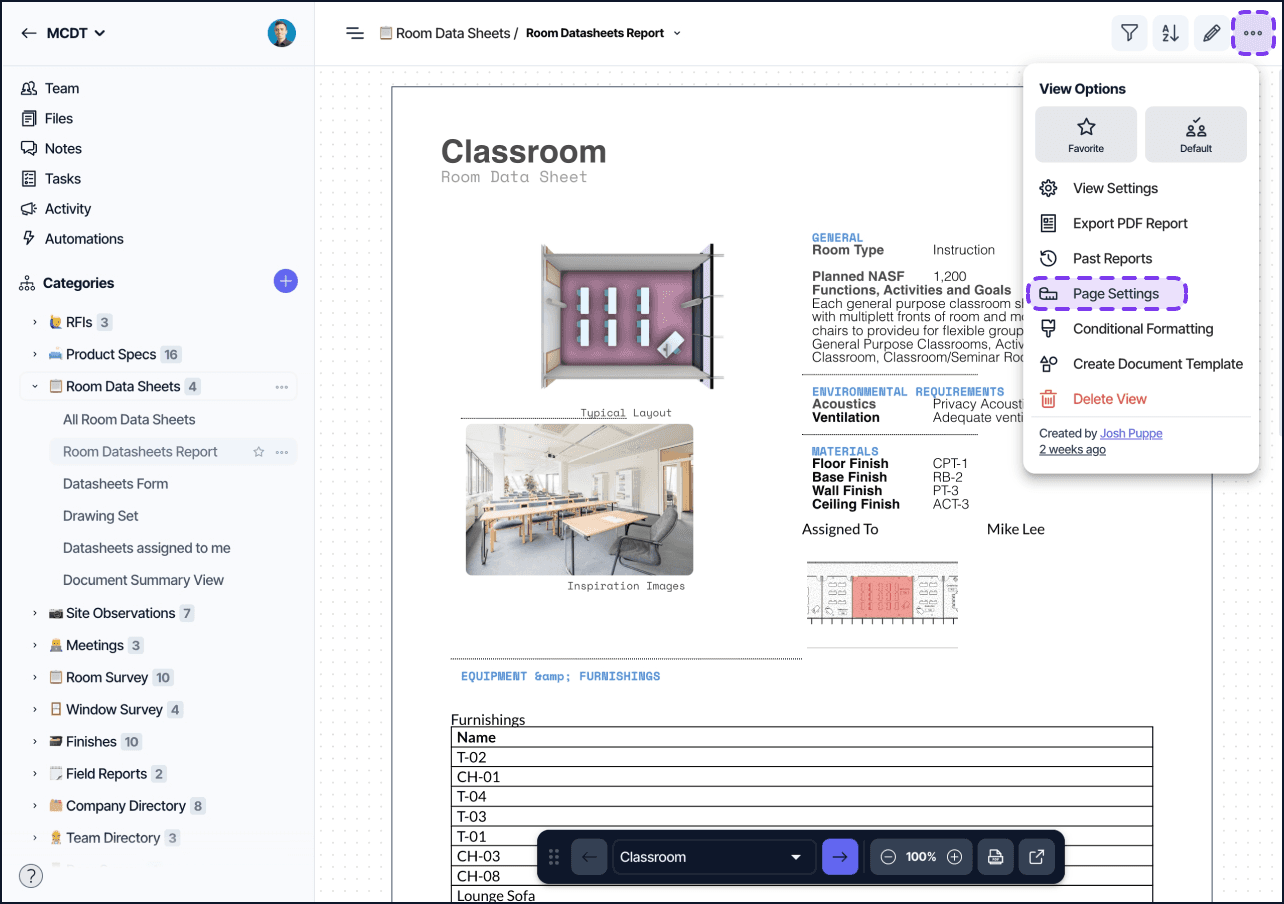
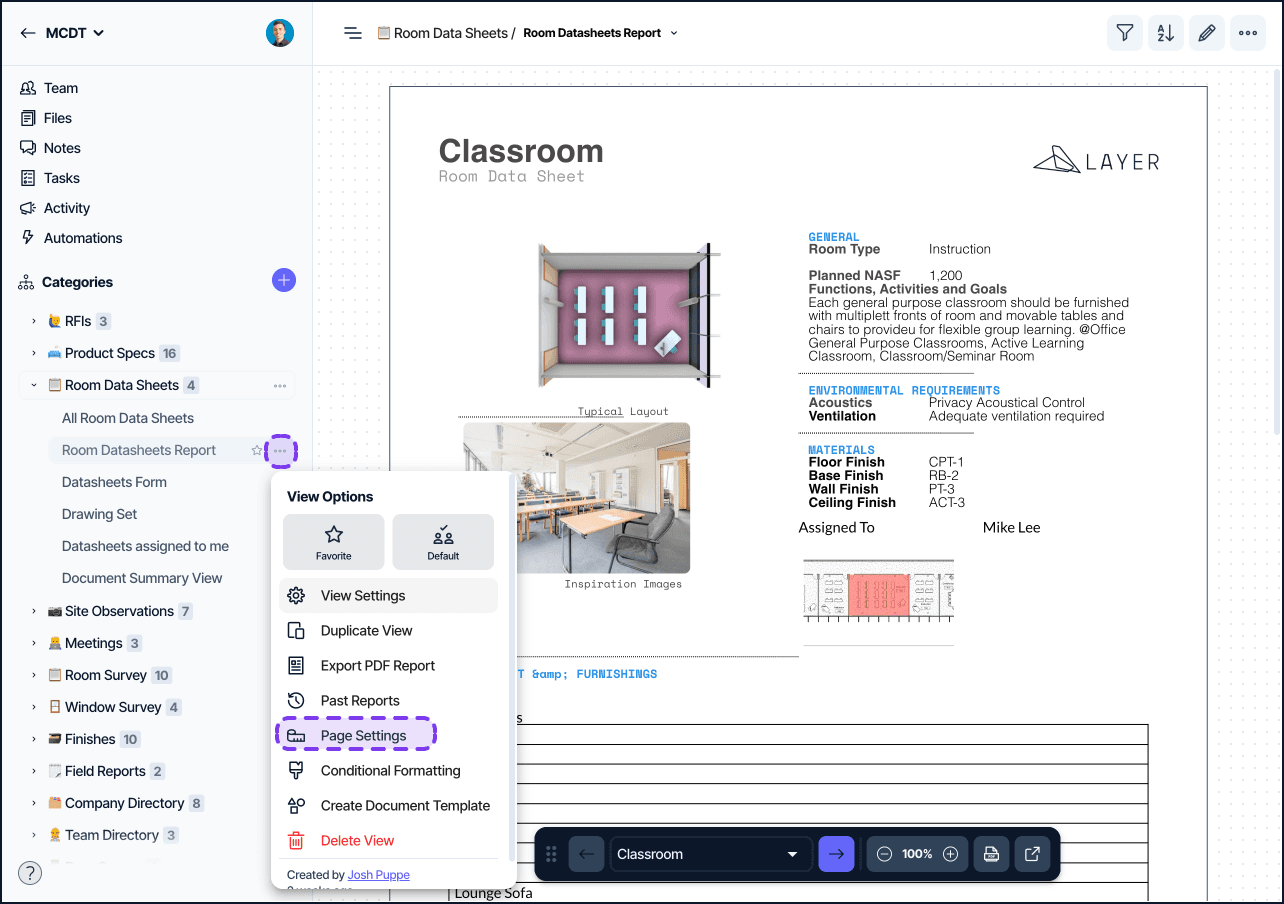
Open page settings from the document header in edit mode, or in the Category options context menu. Click the page settings icon to open the settings dialog.
Page size
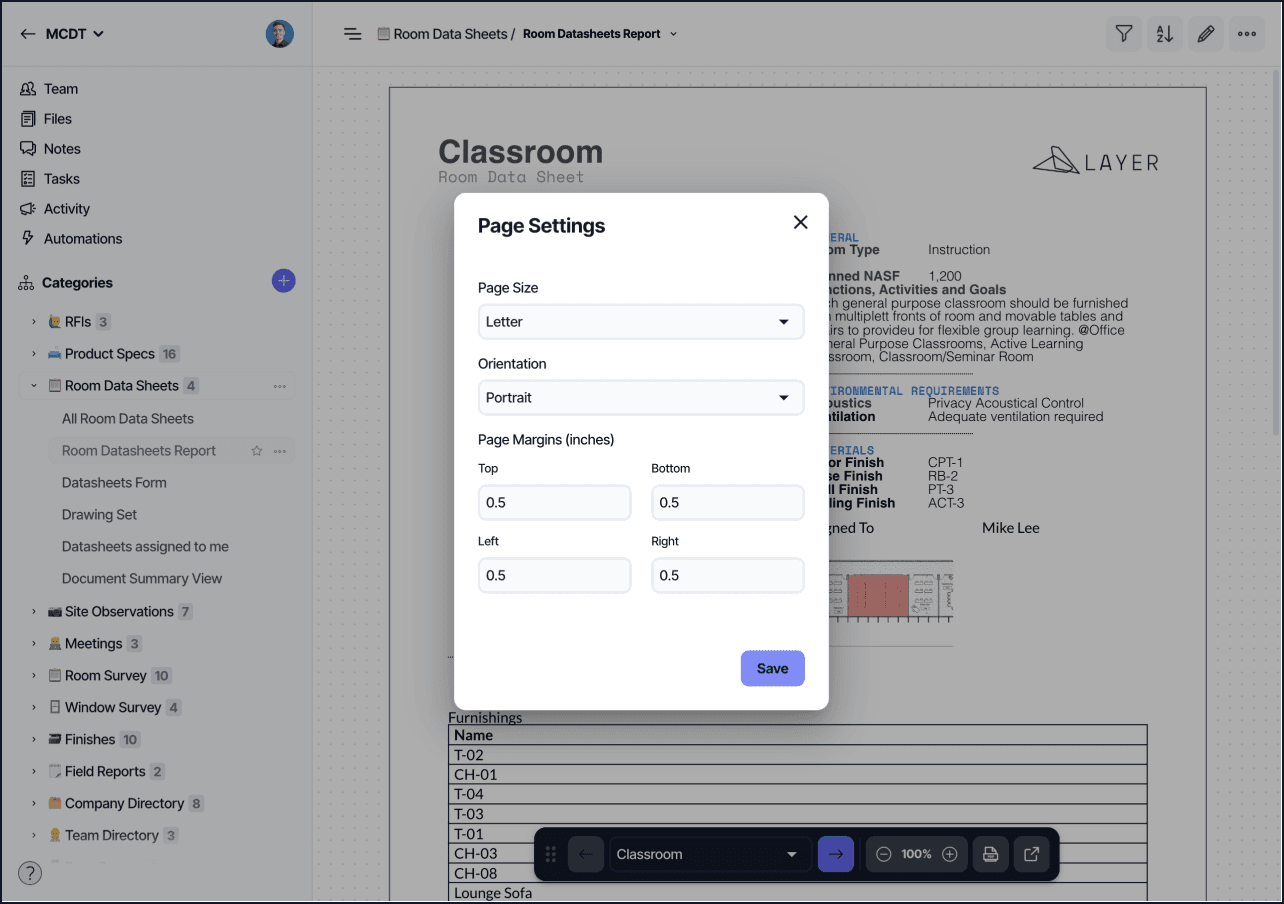
Choose the paper size that the document will render at. Common sizes include:
Letter (8.5 in by 11 in)
Legal (8.5 in by 14 in)
Tabloid (11 in by 17 in)
A4 (210 mm by 297 mm)
A3 (297 mm by 420 mm)
The exported PDF uses the selected size. The on-screen editor renders at the same proportions so you can preview how content will fit.
Match your page size to the audience. Letter is the safe default in North America, A4 elsewhere. Tabloid and A3 are useful for finish schedules, room data sheets with floor plan inserts, and any layout with wide tables.
Orientation
Choose Portrait or Landscape:
Portrait (default): height greater than width. Use for one-element-per-page records, room data sheets, and most documentation.
Landscape: width greater than height. Use for summary tables with many columns and any layout that benefits from horizontal real estate.
Margins
Margins set the empty space around the printable area. Set top, right, bottom, and left independently. Margins are entered in inches or millimetres depending on your project's unit system.
Smaller margins give you more usable area but can crowd the page. The defaults are sensible for most reports. Reduce margins only when you have a specific layout that needs the extra space.
Saving page settings
Changes save automatically when you close the dialog. Click Publish in the document header to make the new settings visible to other users.
Tips
Set page settings before designing the layout. Changing page size or orientation later will reflow the content and may cause unwanted page breaks.
Use page break blocks to control where content ends on a page rather than relying on margin tweaks to push a block onto the next page.
For records that may not fit on a single page, set generous margins and add page breaks at logical section boundaries. The PDF will paginate automatically based on content height, but explicit page breaks give you more control over the result.