How the Document View editor works in Layer, including frames, containers, blocks, edit and view modes, and saving changes.

Josh Puppe
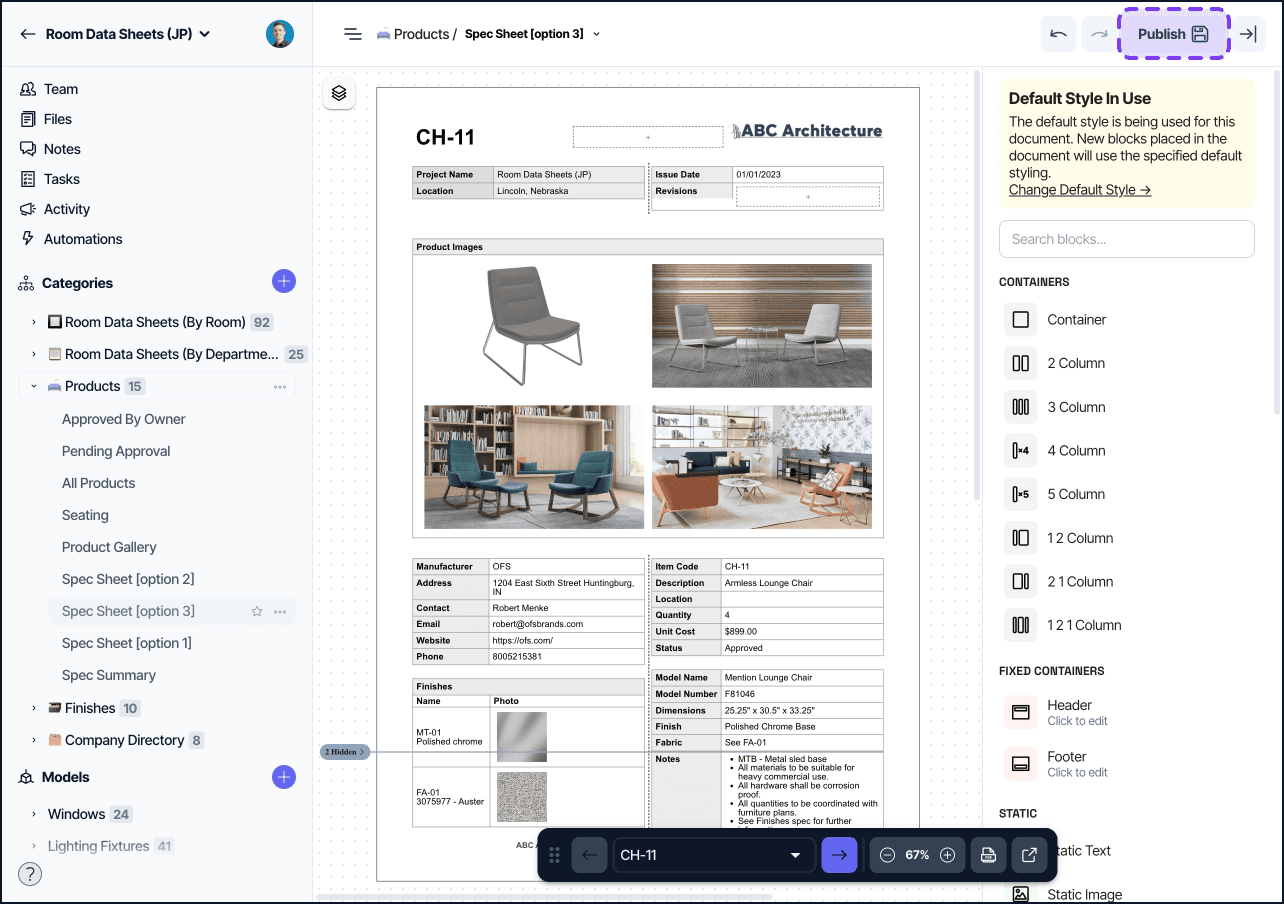
The Document View editor is the visual page-layout tool that powers PDF reports in Layer. It works like a stacking editor: each document is built from frames, containers, and blocks that you arrange and configure to control what appears on the exported page.
This article covers the structure of the editor, edit and view modes, the two element modes, and how changes are saved.
Editor concepts
Frame
Each page in a Document View is a frame. Frames carry the page settings (size, orientation, margins) and contain the blocks that render onto the exported page. See Document View page settings for sizing and margins.
Container
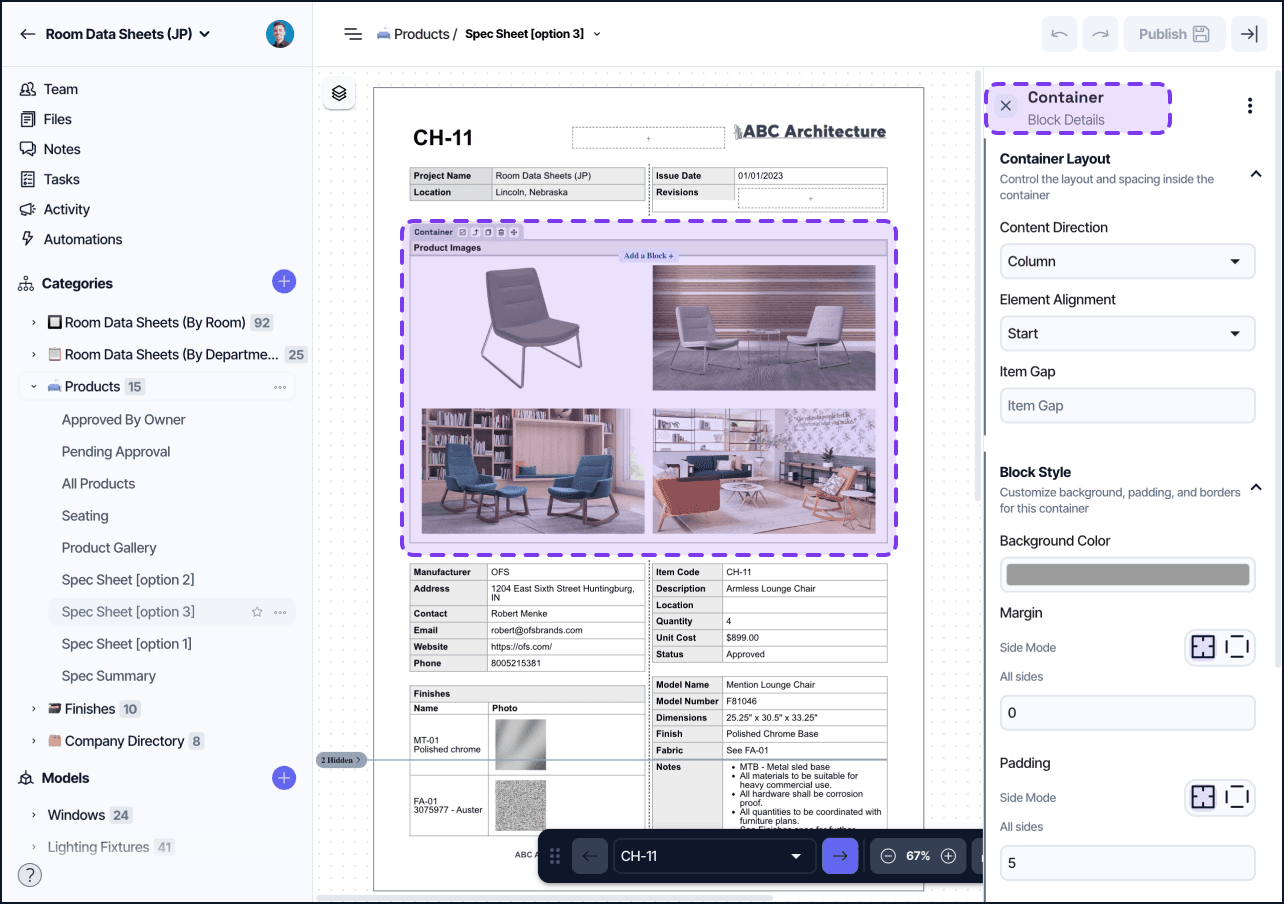
Containers group blocks into rows or columns. A container can hold any number of blocks and can be nested inside another container. Use containers to lay out blocks horizontally, vertically, or in grids.
Containers have settings for padding, alignment, width, and conditional visibility.
Block
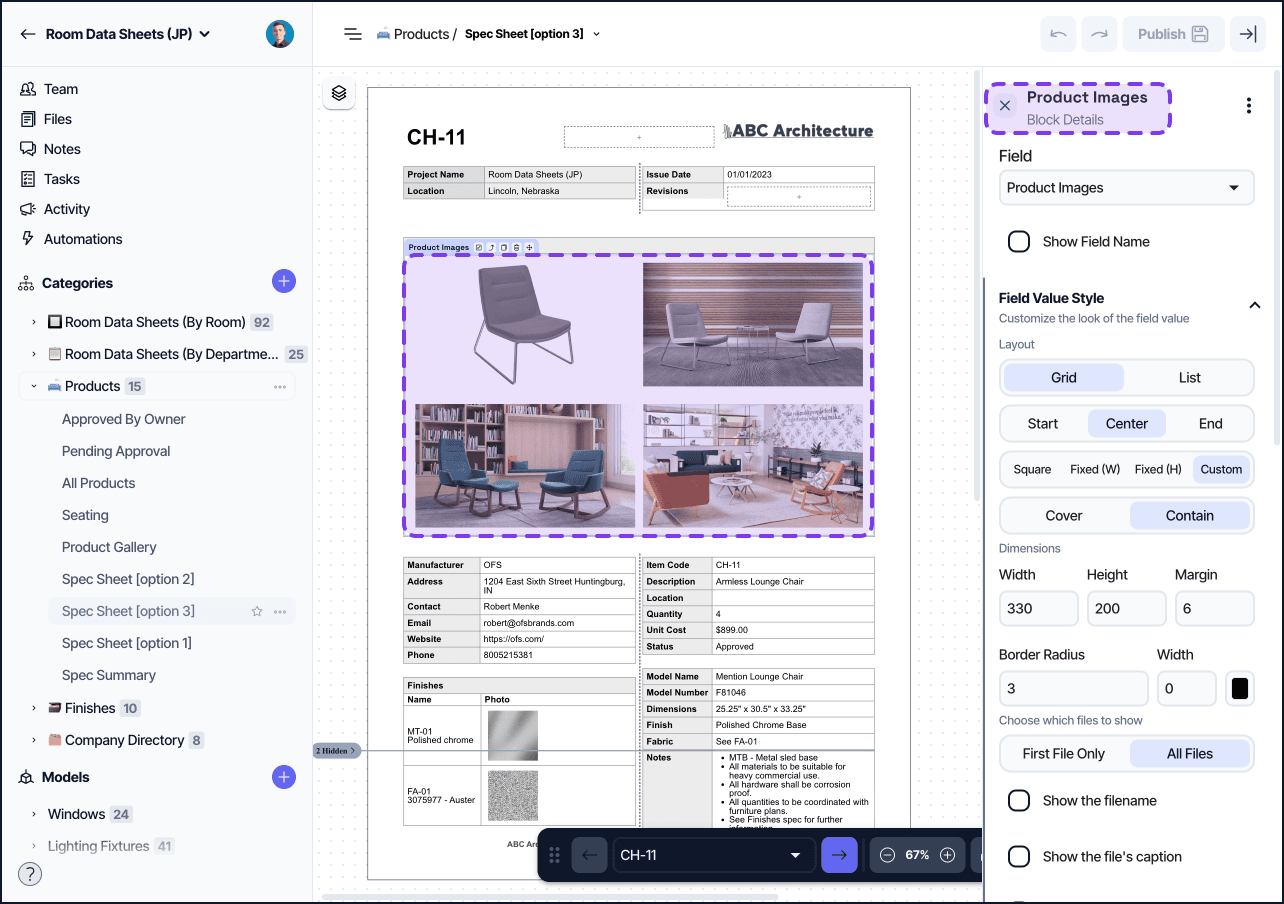
Blocks are the atomic units of a Document View. Each block displays one piece of content: a field value, a piece of static text, an image, a table of related elements, and so on. See Document View blocks for the full block reference.
Stacking and order
Blocks within a container stack in the order you place them. Drag a block above or below another to reorder it. Containers themselves stack in the same way.
Edit mode and view mode
The editor has two modes:
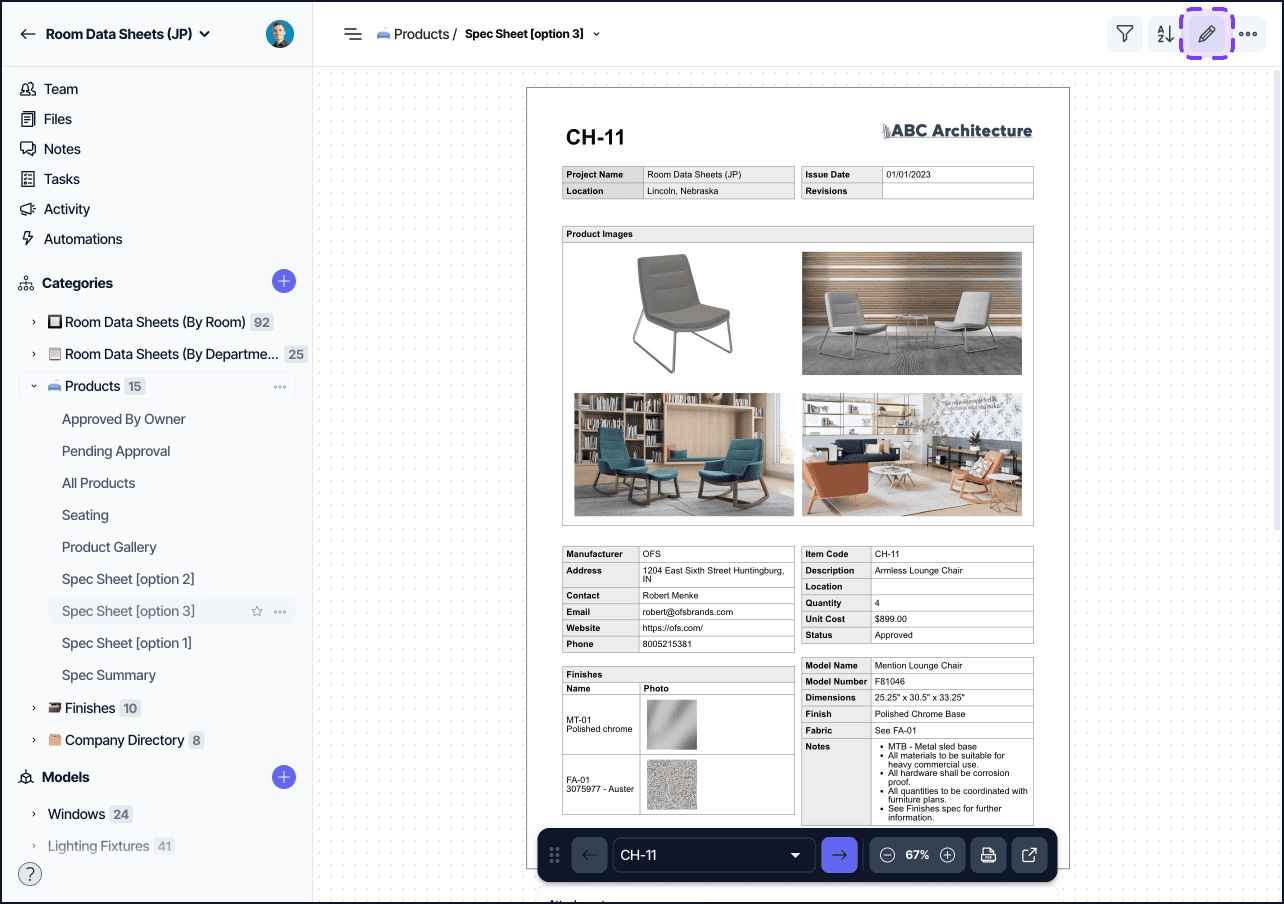
Edit mode lets you add, configure, reorder, and remove blocks. Click the Edit Document button in the document header to enter edit mode.
View mode is the read-only preview. The toolbar disappears and the document renders the same way it would in an exported PDF. View mode is the default when opening a Document View.
Editing requires a desktop browser with mouse or trackpad input. The editor is not supported on touch devices or while offline.
Saving and publishing
Changes you make in edit mode save automatically as you work. To publish your changes so other users see them, click Publish in the document header. The dirty indicator next to the title shows whether there are unpublished changes.
If you close the page before clicking Publish, your unsaved local edits are lost. Save before navigating away.
Single Element vs Multi Element mode
Document Views run in one of two element modes:
Single Element: each exported PDF page corresponds to a single element. Use this for room data sheets, equipment data sheets, condition assessments, and any per-record document.
Multi Element (Summary): the document includes a summary table block that lists multiple elements across rows. Use this for schedules, finishes lists, and tabular reports. See Summary Document View.
PLEASE NOTE: The mode is set when the view is created and can NOT be changed later in the document settings. If you would like to create a Summary Document, you must make a new view and select “Summary - All elements in the category view are represented on a single page” in the Document Creation Settings.
Sample Element mode
Sample Element mode lets you preview and edit the document layout against a fictitious element rather than a real one in your project. This is useful when building a template category that is configured to not include elements, so the layout can still be designed using placeholder data.
Sample Element mode activates automatically when you are viewing a document view within a Template project category that has elements disabled. It cannot be toggled manually.
When active:
The navigator displays the sample element's name instead of a real element, and navigation between elements is disabled.
The editor toolbar changes color to indicate you are in Sample Element mode.
A notice appears explaining that elements are disabled for this template category, with quick-access buttons to Edit Category Fields and Edit Category Settings.
The rest of the editor renders with placeholder data sourced from the sample element.
To exit Sample Element mode, update the category settings to re-enable elements.
Tips
Group blocks into containers before fine-tuning padding or alignment. Containers are easier to align across pages than individual blocks.
Use page break blocks to force content onto a new page. Without an explicit page break, content flows automatically based on page size and content height.
Save your layout as a Document View Template once it is in good shape. Templates can be applied to other categories, saving you the work of rebuilding the layout from scratch.