How to create and use a smaller PDF copy for mobile Drawing View performance without changing the source file or exported deliverables.

Mike Lee
Optimize for Mobile Performance creates a smaller copy of the PDF attached to a Drawing View. Layer uses this copy on smaller screens when it is ready, while the original PDF remains available for desktop editing and backend operations.
Use this setting when a large or complex drawing loads slowly or refreshes while you pan and zoom on a mobile device. For help with Drawing View setup, markups, filters, and PDF export, see Drawing View.
Who Can Change This Setting
You need the Update Views project permission to change Drawing View settings. If the settings are read-only, ask a project owner or administrator to update your project role.
Turn On Mobile Optimization
View Settings opens at the top of the view configuration. The Drawing Settings section appears farther down the page.
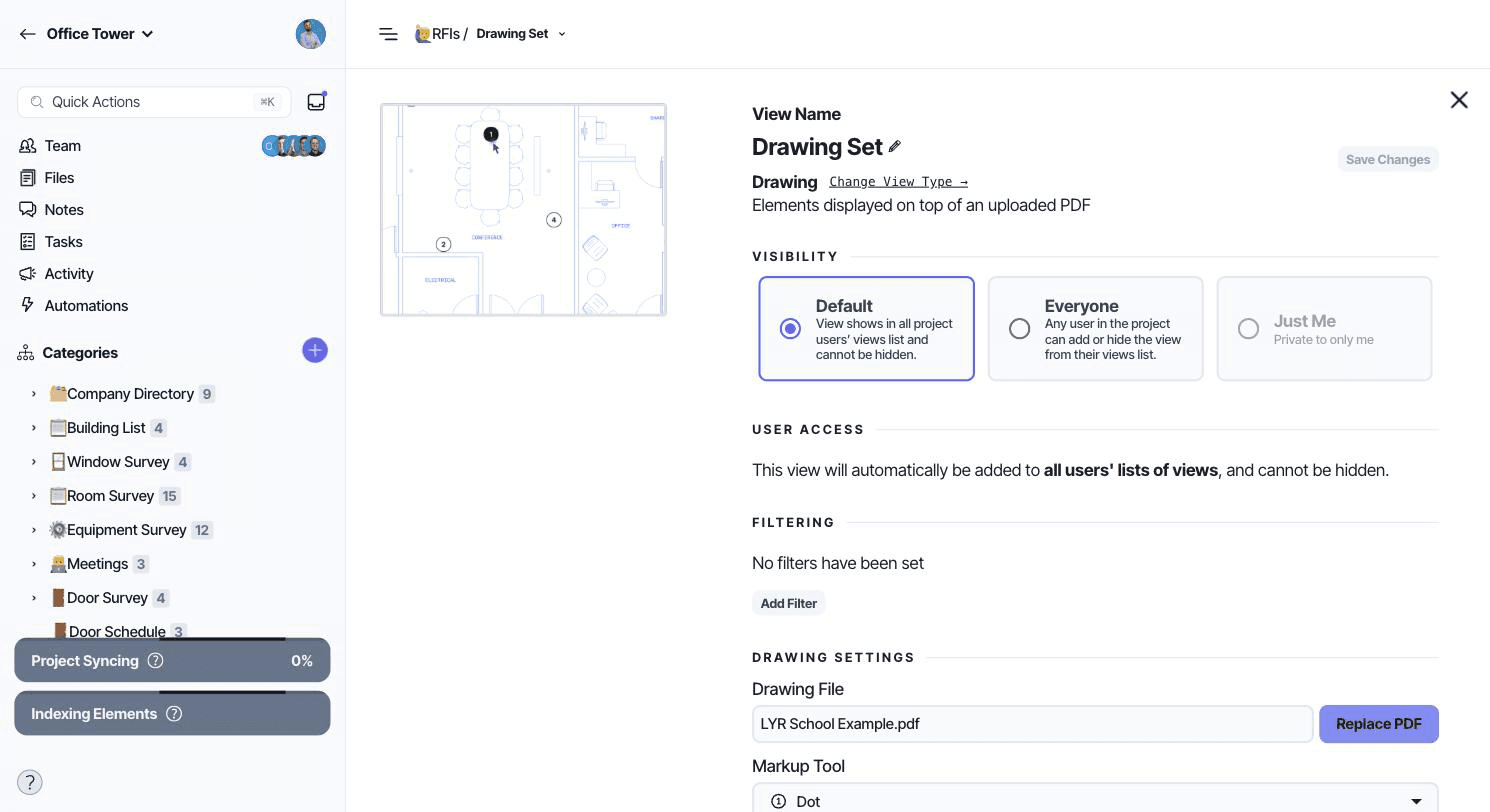
Open the Drawing View.
Click the three-dot icon next to the view name, then click View Settings.
Scroll to Mobile Performance under Drawing Settings.
Check Optimize for Mobile Performance.
Click Save Changes.

Layer generates the optimized PDF in the background. Until it is ready, Layer continues to load the original PDF. You do not need to keep View Settings open while the optimized copy is generated.
You can also turn on Optimize for Mobile Performance when you create a Drawing View.
When Layer Uses The Optimized PDF
Layer prefers the optimized copy in the native iOS app and in browser windows up to 1000 pixels wide.
Larger browser windows continue to use the original PDF.
If the optimized copy is not ready, Layer falls back to the original PDF.
Desktop editing and backend operations continue to use the full-size source PDF, so the mobile copy does not reduce the quality of exported deliverables.
When To Use It
Turn on mobile optimization for large-format drawings, visually complex plans, or drawings with many markups. These files are more likely to strain a phone or lower-powered device during rapid panning and zooming.
Page count alone does not determine performance. A drawing with a few complex sheets or many visible markups can require more memory than a longer, simpler set.
Turn It Off
Open View Settings.
Uncheck Optimize for Mobile Performance.
Click Save Changes.
Layer removes the optimized copy. The source PDF and existing markups are not changed.
If The Drawing Still Refreshes On Mobile
Mobile optimization reduces the PDF's memory requirements, but visible markups and rapid zooming can still affect performance. Try the following:
Save a filter on the Drawing View so fewer markups are visible.
Wait for the current page to finish rendering before zooming again.
For very large sets, split the PDF into separate Drawing Views by area, floor, or discipline.
Things To Know
The optimized copy is generated in the background and is not available immediately after you save.
Layer selects an optimization method based on the PDF. Some complex drawings are rasterized for mobile use and can look softer at high zoom. The original PDF used for desktop editing and backend operations is unchanged.
The setting belongs to one Drawing View. Turning it on does not change other Drawing Views in the same category.
Replacing the Drawing View PDF while optimization is on generates a new optimized copy for the replacement file.
Turning the setting off deletes the optimized copy. Turning it on again generates a new copy.