When a Layer PDF report has missing items, broken layout, or footers that disappear, work through these checks. Covers Document View and Drawing View PDF outputs.

Mike Lee
Generating a PDF report from a Layer view sometimes produces output that does not match what you see on screen. The two most common patterns are missing items (the PDF leaves out elements that should be included) and layout issues (footers do not appear on every page, content breaks across pages awkwardly, or the page looks scaled wrong). This article covers both, the most likely causes, and the fixes that work in each case.
Missing items in the PDF
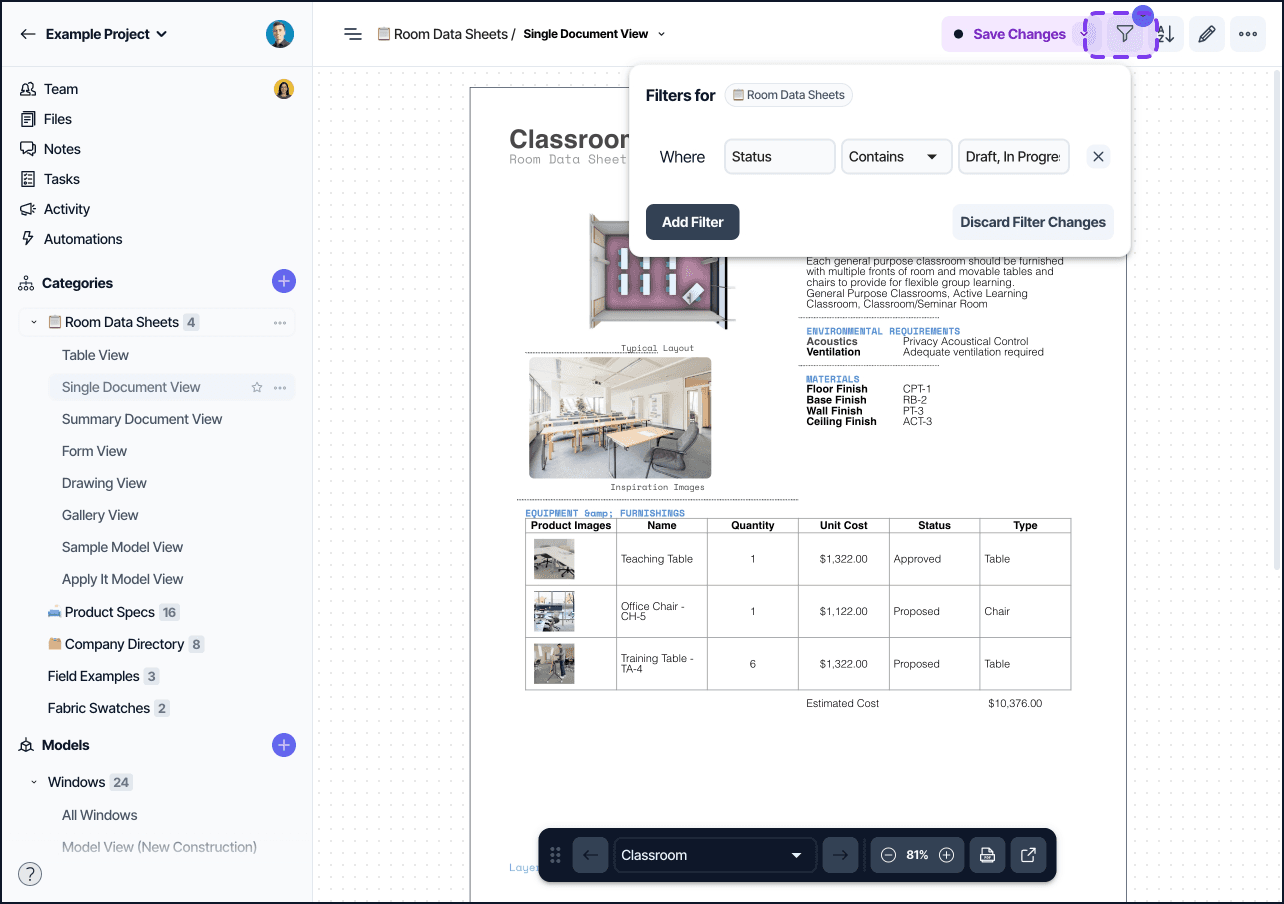
The most common reason a PDF report leaves out elements is a filter scope mismatch. Layer renders the PDF using the view's current filter. Anything filtered out of the view is filtered out of the PDF.
Check the view filter first
Open the Document View that produced the PDF.
Open the filter panel.
Confirm the filter includes the elements you expected. A common case: a filter like "Status is Open" hides items in Status "Resolved" or Status "Closed," even if those are also valid statuses for the report.
Adjust the filter, then re-export the PDF.
If the filter is correct and items are still missing, check the personal filter overlay (if any). Personal filters apply only to your session but do affect exports run from your session.
Check the element count
The Document View shows the element count at the top of the view. Compare that count to the number of elements you expected. If the count is lower than expected:
One or more elements may not be linked to the right category.
An automation may have moved or deleted elements unexpectedly.
An element may have been deleted within the last 30 days and not yet recovered. See Restoring deleted items.
Check for search index lag
Newly created or recently edited elements can take a moment to appear in Summary Document Views. The Summary view uses the search index, which rebuilds in the background. If the count is one or two off and a fresh element is missing, wait one to two minutes and re-export. If the count is still off, run the Reset Element Sync Engine step in Troubleshooting Layer.
When the PDF is genuinely truncated
For very large views (hundreds of elements with many fields each), the PDF generation can hit a page limit. Layer's generator handles most realistic project sizes, but if you have a punchlist with thousands of observations, splitting the view is the cleanest workaround.
Split the view into two or more views using a date range, a phase, or another natural divider.
Generate one PDF per view.
Combine the PDFs after the fact if a single output is required.
A spreadsheet export (XLSX or CSV) is also a useful complement, since the tabular format does not have the same page-count limitations and includes every element in the filter.
Layout issues in the PDF
When the elements are all present but the visual output looks wrong, the issue is usually with the Document View page settings, the placement of blocks on the page, or conditional visibility rules.
Footers and headers not repeating
Document View supports header and footer blocks that appear on every page of the PDF. If a footer is missing from some pages:
Open the Document View editor.
Confirm the footer is configured as a Footer block, not as a Text block placed near the bottom of a page.
Save the view, then re-export.
Text blocks placed visually at the bottom of one page appear only on that page. Layer treats them as ordinary content. Use the Footer block type for content that should repeat.
See Document View page settings for header and footer configuration.
Content breaks across pages awkwardly
Layer paginates Document View content automatically based on the page size and margins. If an element's section is split between two pages in a way that is hard to read, you have two options:
Adjust page size or orientation in Document View page settings (for example, switch from Portrait to Landscape, or from US Letter to A4).
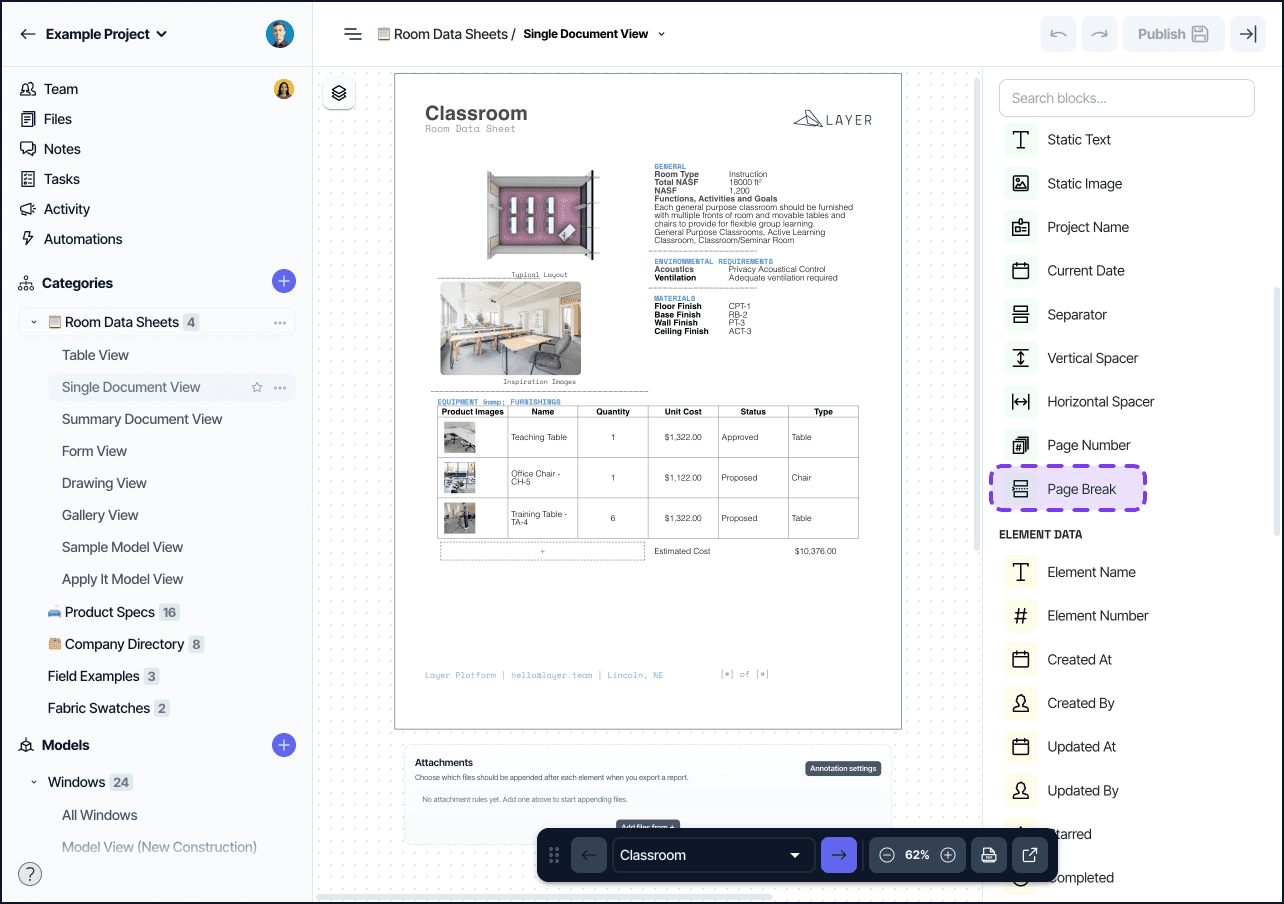
Insert a manual page break before the element that splits awkwardly.
Manual page breaks are available from the block insertion menu in the Document View editor.
Scale-to-fit versus native sizing
Drawing View PDFs export at the source PDF's page size. If your source PDF is 24 by 36 inches (architectural D), the export is 24 by 36 inches. Printing on a smaller paper size requires scale-to-fit at print time on the device, not inside Layer.
Document View PDFs export at the page size set in the view's page settings. If the printed result looks scaled, confirm the page size matches the target paper.
Print View versus screen view
Document View applies print-only styles when generating the PDF: page numbers, headers, footers, and page breaks all render. The on-screen view shows a single continuous flow without those styles. The two are intentionally different. If the screen view looks correct but the PDF looks broken, run a Preview from the Document View toolbar to see the print-styled result inside Layer before committing to a download.
Conditional visibility hiding content
Document View supports conditional visibility rules that hide blocks based on field values. If a section is missing in the PDF but present on screen:
Open the block in the Document View editor.
Check its conditional visibility settings.
Confirm the rule evaluates correctly for the elements in the export.
See Document View conditional visibility for the syntax and common patterns.
Drawing View PDF specifics
Drawing View has a dedicated PDF export button in the top right corner of the view, next to the three-dot menu. The output preserves the source PDF plus the linked Layer Elements as they appear on the canvas.
For Drawing View PDFs:
The view filter applies. Filtered-out elements do not appear on the PDF.
Markups are included.
The export uses the source PDF's page size.
If the dot annotations look small in the export, increase the dot size in View Settings, then re-export.
When to contact support
Contact support with a specific example if:
The PDF is missing items even after correcting the filter and verifying the count.
The page layout is consistently broken across multiple views, suggesting a platform issue rather than a view configuration.
The PDF generation fails entirely with an error message.
Include the view URL, a description of the expected versus actual output, and a screenshot of any error.