When Layer will not load, a drawing will not open, or data seems out of sync, work through these steps before contacting support.

Josh Puppe
Most loading problems in Layer come from one of three causes: a stale browser tab or a temporary network or service issue. This article walks through the standard troubleshooting steps in order, from the quickest fix to the most involved. Run the steps in the order they appear. Most users solve their issue at step one or two.
If you reach the end of the article and the issue is still not resolved, the final section explains what to send to support so the team can help you quickly.
Common symptoms this article addresses
Layer will not load past the splash screen
One project shows a purple loading dot but never opens
A Drawing View shows an Error Loading Document or cannot connect to server message
A Document View shows no elements even though they exist in the underlying view
Recently edited values appear on one device but not another
Files or photos show a red exclamation mark in the file pane
Element counts in a Summary Document View do not match the Table View count
A voice caption you recorded while taking a photo is missing from the file
Step 1: Refresh the page
The first step for any loading problem is a hard refresh of the browser tab.
Windows and Linux: Ctrl+Shift+R
macOS: Cmd+Shift+R
A hard refresh forces the browser to reload all resources rather than using cached copies. Many loading problems are resolved by this single action.
If the issue is on the Layer mobile app rather than the browser, force-quit the app and reopen it. On iOS, double-tap the home button or swipe up from the bottom, then swipe Layer off the screen. On Android, open the app switcher and dismiss Layer. Then reopen the app from the home screen.
Step 2: Close extra Layer tabs
Layer is built to run with one tab per browser per project at a time. Multiple Layer tabs in the same browser can cause the sync engine to confuse data between tabs, leading to projects that appear to load forever or to data that does not refresh.
Look through your browser windows for any other Layer tabs and close them. Keep only the one tab you are actively working in. After closing the other tabs, hard refresh the remaining tab.
This step resolves a meaningful share of Drawing View and Document View loading issues, especially after a user has worked across several projects in a session.
Step 3: Try a different browser
If refreshing and closing tabs do not help, the issue may be specific to your current browser or to a browser extension. Open Layer in a different browser to test:
Chrome, Edge, Firefox, and Safari are all supported (see Supported devices for the full list).
Use a clean browser profile or an incognito or private window if possible. Some extensions, especially ad blockers and privacy tools, interfere with Layer.
If Layer works in the second browser, the issue is local to the first browser. The next step is to clear the original browser's cache and site data for the Layer domain.
Step 4: Clear Layer site data
Clearing site data resets the local cache, cookies, and offline storage for the Layer domain only, without affecting other sites you use.
In Chrome and Edge:
Open the three-dot menu in the top right.
Choose Settings, then Privacy and security, then Site settings.
Click View permissions and data stored across sites.
Find layer.team in the list.
Click the trash icon to clear data for that site.
Sign back in to Layer.
In Firefox and Safari, follow the equivalent steps to clear site data for layer.team.
After clearing, sign in again and re-open the project. The first load takes longer because the cache is empty. Subsequent loads return to normal speed.
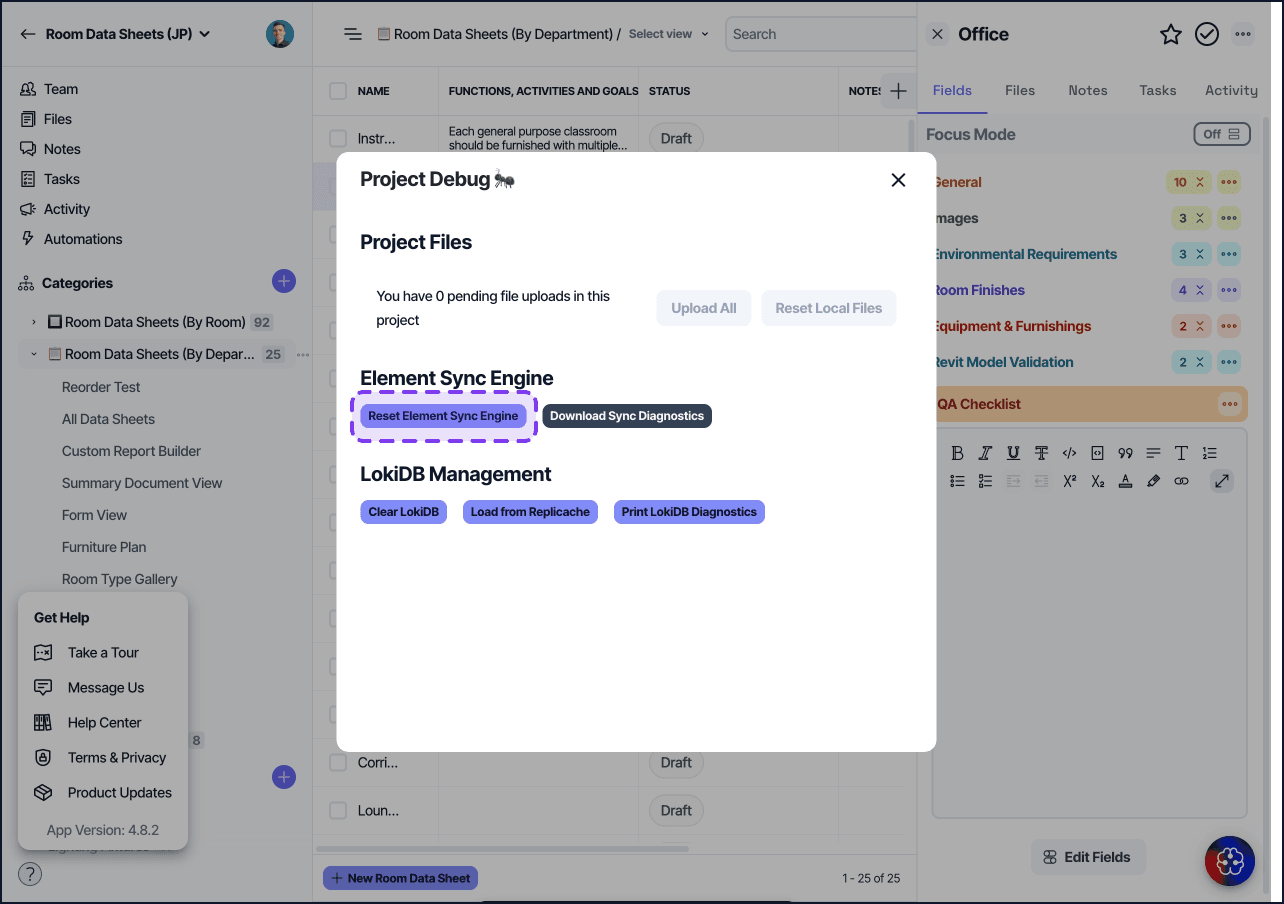
Step 5: Check internet connectivity
Layer is a real-time application and depends on a stable connection. If the previous steps do not help, confirm that:
You can reach other sites in the same browser.
You are not on a captive-portal Wi-Fi that requires periodic re-authentication.
A VPN or corporate firewall is not blocking the Layer domain or websocket traffic.
If you are on a corporate network, ask your IT team to confirm that traffic to .layer.team and .layer.cloud is allowed, including websocket connections.
When a file shows a red exclamation
A red exclamation mark on a file in the file pane usually means the file uploaded successfully but cannot be processed for preview. Common causes:
The file is in HEIC or HEIF format. Layer accepts the upload but cannot generate a thumbnail. Re-upload the file as JPEG. iOS users can change the camera format to Most Compatible (JPEG) in Settings, then Camera, then Formats.
The file is a PDF that is corrupted or password-protected. Re-export the PDF from the source application and try again.
The file exceeds the supported size for that field type. Compress and re-upload.
The file itself is preserved in the project. You can still download the original through the file menu.
When a voice caption did not save to a photo
On mobile you can narrate a caption while capturing a photo. Because this feature is order-sensitive today, the caption sometimes does not attach to the photo.
To capture voice captions reliably:
Tap the microphone and speak your caption before you press the shutter, not after.
After the shot, check the photo preview for a purple microphone icon in the bottom-left corner — that confirms the caption was captured. Tap the preview to open the full-screen view and read the caption back before you finish uploading.
Capture one photo at a time when using voice captions.
If a caption is still missing, add it by hand: open the file, tap the three-dot menu, choose Edit File Caption, and type it in. See Capture Photos from Your Device for the full flow.
The photos themselves are not affected — they upload and save normally. Only the spoken caption is at risk, and the audio is never stored (Layer transcribes speech to text in the moment and keeps no recording), so a caption that failed to attach cannot be recovered from audio and must be re-added manually.
When recent edits are not appearing
If you or a teammate made an edit that does not appear on another device after a refresh, the most likely causes are:
The edit has not finished syncing. Edits made offline complete syncing when the device returns online. Wait a minute, then refresh.
The other device has the project open in a stale tab. Close and reopen the project on the other device.
The Element Sync Engine is in an unhealthy state. Run step 5.
If the edit still does not appear after running step 5 on the receiving device, contact support with details.
When a Document View summary does not match a Table View
If the Summary Document View shows fewer elements than the source Table View, the most likely cause is a search index sync issue. Layer rebuilds the search index in the background when elements are added or edited.
To recover:
Refresh the page.
Wait one to two minutes for the index to catch up.
Refresh again.
Contact support; the project may need an index rebuild from the server side.
When to contact support
If you have run through this article and the issue persists, contact support through the chat icon in Layer or by emailing help@layer.team. To speed up the response, include:
The project URL or the project name
A short description of what you tried (which steps from this article)
Your browser and operating system
A screenshot of any error message
The approximate time you first noticed the issue
For live outages affecting more than one project, the Layer team posts updates inside the support chat. Check there before opening a new ticket.