Copy a Layer element, field, or file ID directly from its menu. IDs are useful for formulas, support tickets, deep links, and the Layer API.

Josh Puppe
Every element, field, file, and project in Layer has a unique identifier. The identifier is a short alphanumeric string that does not change when you rename the item. Layer surfaces these identifiers through Copy ID menu entries so you can paste them into formulas, support requests, custom links, and API calls without having to look them up by hand.
This article covers where Copy ID appears, what each kind of ID looks like, and a few common reasons to use them.
Where Copy ID appears
Copy ID is hidden inside several three-dot menus across Layer. The menu entries are scoped to the item the menu belongs to.
Element menu
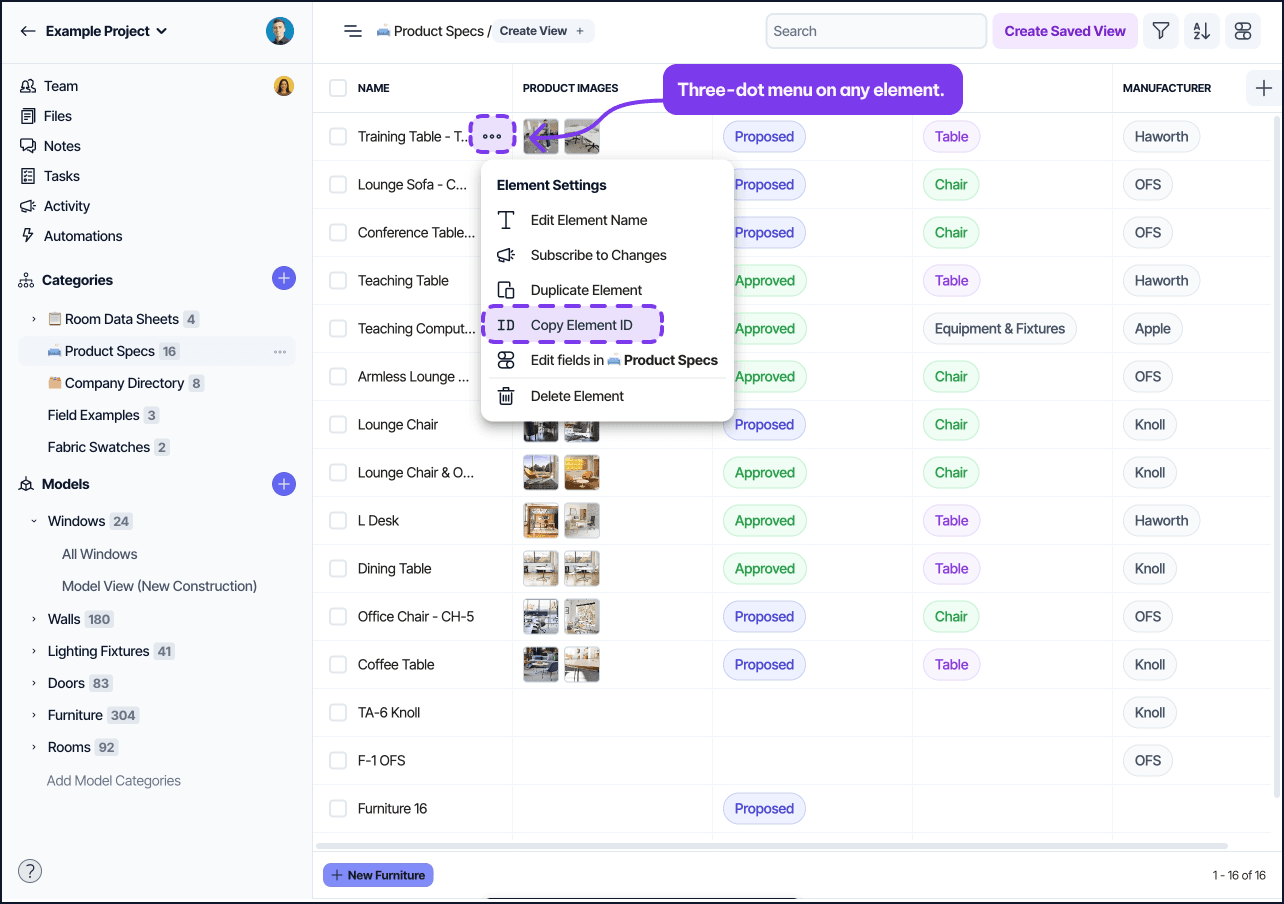
Open the three-dot menu on any element in a Table View, Gallery View, or Drawing View, or open the same menu from the element detail pane. The menu includes a Copy Element ID entry. The ID corresponds to the element record that contains all of the element's field values.
Field input menu
Click the three-dot button next to a field input on the element detail pane. The menu includes a Copy Field ID entry. The Field ID identifies the field definition on the category, not the value stored on the element. Two elements in the same category share the same Field ID for the same field, but their element IDs differ.
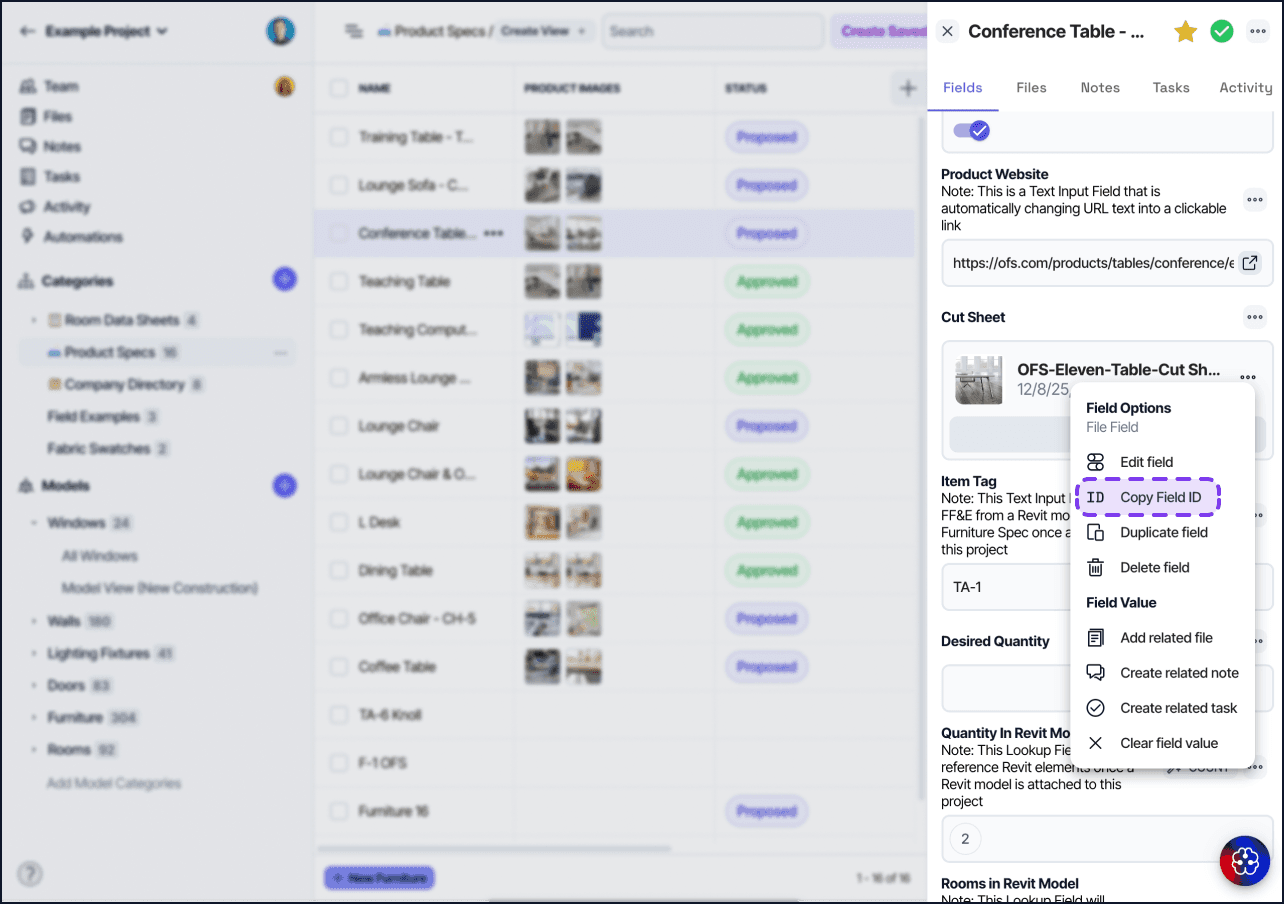
Table column menu
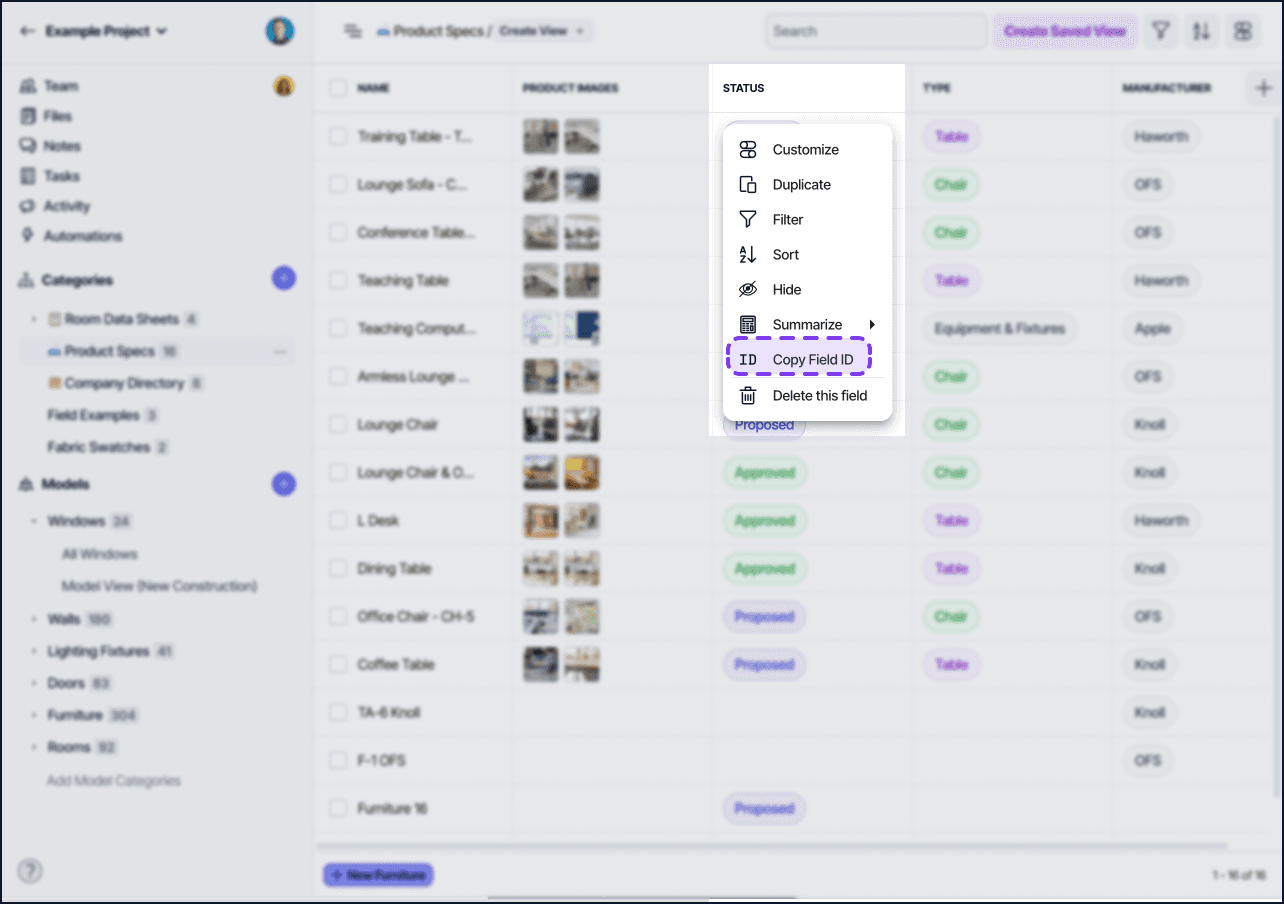
From a Table View, open the column header menu on any column. The menu includes a Copy Field ID entry that returns the same identifier as the field input menu in the element detail pane.
File menu
Open the three-dot menu on any file attached to an element, either from the file list on the element detail pane or from the file preview window. The menu includes a Copy File ID entry. The File ID identifies the uploaded file, not the field that holds it.

What each ID is for
The four ID types you can copy from the menus serve different purposes.
Element ID: identifies one specific element record
Field ID: identifies one field on a category and is shared by every element in that category
File ID: identifies one uploaded file
Project ID and Category ID are not exposed through Copy ID menus, but appear in the URL of any view inside the project; copy them from the address bar when you need them
Common uses
Reference in formulas
Formula v2 functions that work with relationships sometimes accept an explicit Element ID or Field ID. If you need to point at a specific record or field rather than rely on filters, use Copy ID and paste it into the formula expression.
Send to support
When you contact Layer support about a specific element, the team can resolve the issue faster if you include the element's ID in the message. Use Copy Element ID and paste the value into your support note. The same applies for field issues, where Copy Field ID gives the team a precise reference.
Build deep links
Layer URLs include the project ID, view ID, and element ID. If you want to link directly to one element from a wiki, an automation message, or a webhook payload, copy the element ID and assemble the URL using the same pattern Layer uses in the address bar. Pasting the URL into a Layer text field or note also turns it into a clickable link.
Use with the Layer API
The Layer API uses element, field, and file IDs in most endpoints that read or write specific records. Copying the ID from the app saves a lookup call. The Renaming Category Fields how-to is a good example of an API workflow that consumes a Field ID copied from the column menu.
Finding IDs without the menu
IDs also appear in URLs. The address bar shows the project ID and category ID for the current view, and the element ID when an element detail pane is open. If the menu entry is unavailable in your current context, the URL is the most reliable fallback.

The API also returns IDs in every response payload, so calls that list elements or fields include the same IDs you would copy from the menu.
Permissions
Copy ID entries appear for any user who can see the element, field, or file. The action does not change permissions. If you copy an element ID and share it with someone who does not have access to the project, they cannot open the element using that ID alone.