Fields in Layer organize your data, acting like columns in a spreadsheet or data points on a form.

Zach Soflin
What are Fields?
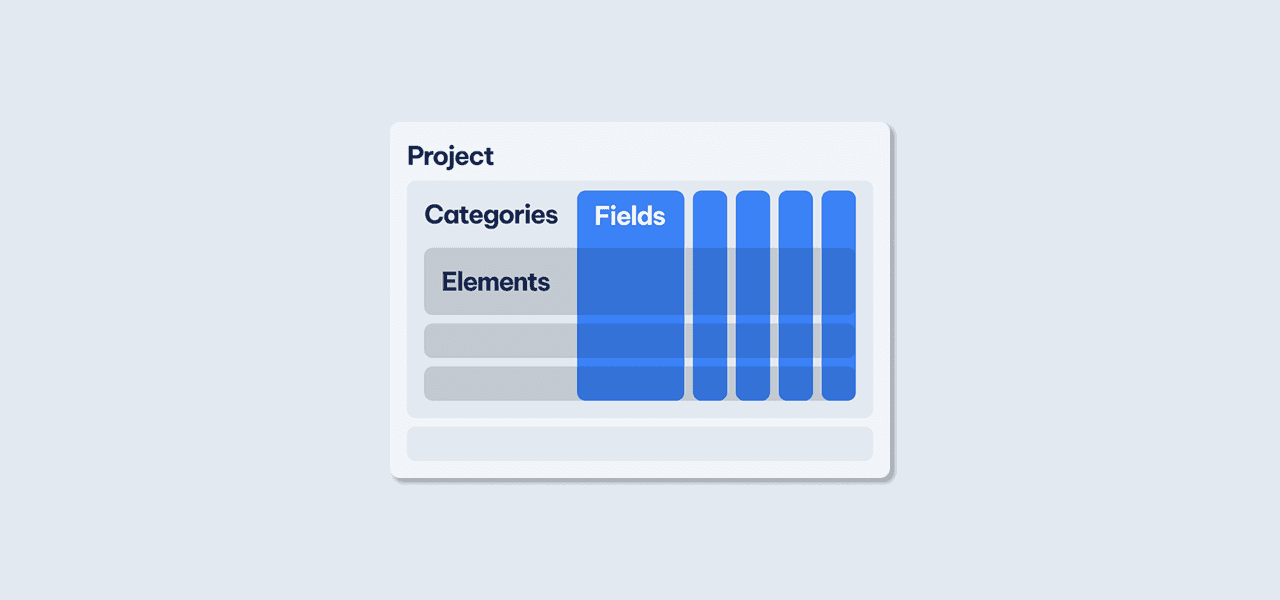
Fields are how all of your data is organized in Layer, completely customizable to your project and needs. Think of Fields as the columns in a spreadsheet or the different data points on a form. When you open the Element Detail Pane, you will see all the different fields set up for that category.
Field types in Layer
The table below lists the field types available in Layer with guidance on when to use each one. For deep dives on any individual field type, see the dedicated articles linked from the Field Types reference.
Field type | What it stores | When to use it |
|---|---|---|
A short string of characters | Names, reference numbers, free-form labels | |
Area | Multi-line text | Notes, comments, longer descriptions |
A numeric value with optional formatting (integer, decimal, currency, percent) | Quantities, dimensions, counts, costs | |
A numeric value selected on a slider with min and max bounds | Tolerance bands, ratings, condition scores | |
A calendar date or date and time | Deadlines, inspection dates, install dates, expiry dates | |
True or false | Binary attributes, flags, approvals, yes/no questions | |
One or more options from a predefined list | Status, category, trade, priority, room type | |
A validated email address | Contact emails, with one-click email send | |
A phone number | Contact phone numbers | |
Uploaded files or photos | Site photos, drawings, PDFs, supporting documents | |
One or more workspace users | Assignees, inspectors, reviewers, responsible parties | |
A scanned barcode or QR code value | Asset tags, equipment IDs, inventory items | |
Links to elements in another category | Linking work orders to assets, rooms to floors, defects to inspections | |
A value read from a related element | Surface a parent value without duplicating data | |
A computed value derived from other fields | Calculated areas, status labels, date math, totals | |
A visual section break in the element form | Organizing related fields into clear groups |
Revit-specific field types
For categories linked to a Revit model, additional Revit-specific field types are available: Model View, Model Name, Revit Parameter, and Spatial Relationships. See Model Categories for details on how Revit-linked categories work.
Auto-managed metadata fields
Every element carries auto-managed metadata: Created At, Created By, Updated At, Updated By, Element Number, and Version History. These cannot be added or edited directly; Layer manages them automatically.