How the in-app notification inbox works, what it shows, and how to filter and clear it.

Josh Puppe
Notifications tell you when work on your projects has moved: a report finishing, a collaborator changing something, an automation running. They arrive in an inbox inside Layer, so knowing what happened does not depend on watching your email.
For the permanent, automatic record of every change to a piece of data, see Project Activity. A notification tells you something happened. The activity log is where you go to audit it afterwards.
Where Notifications Live
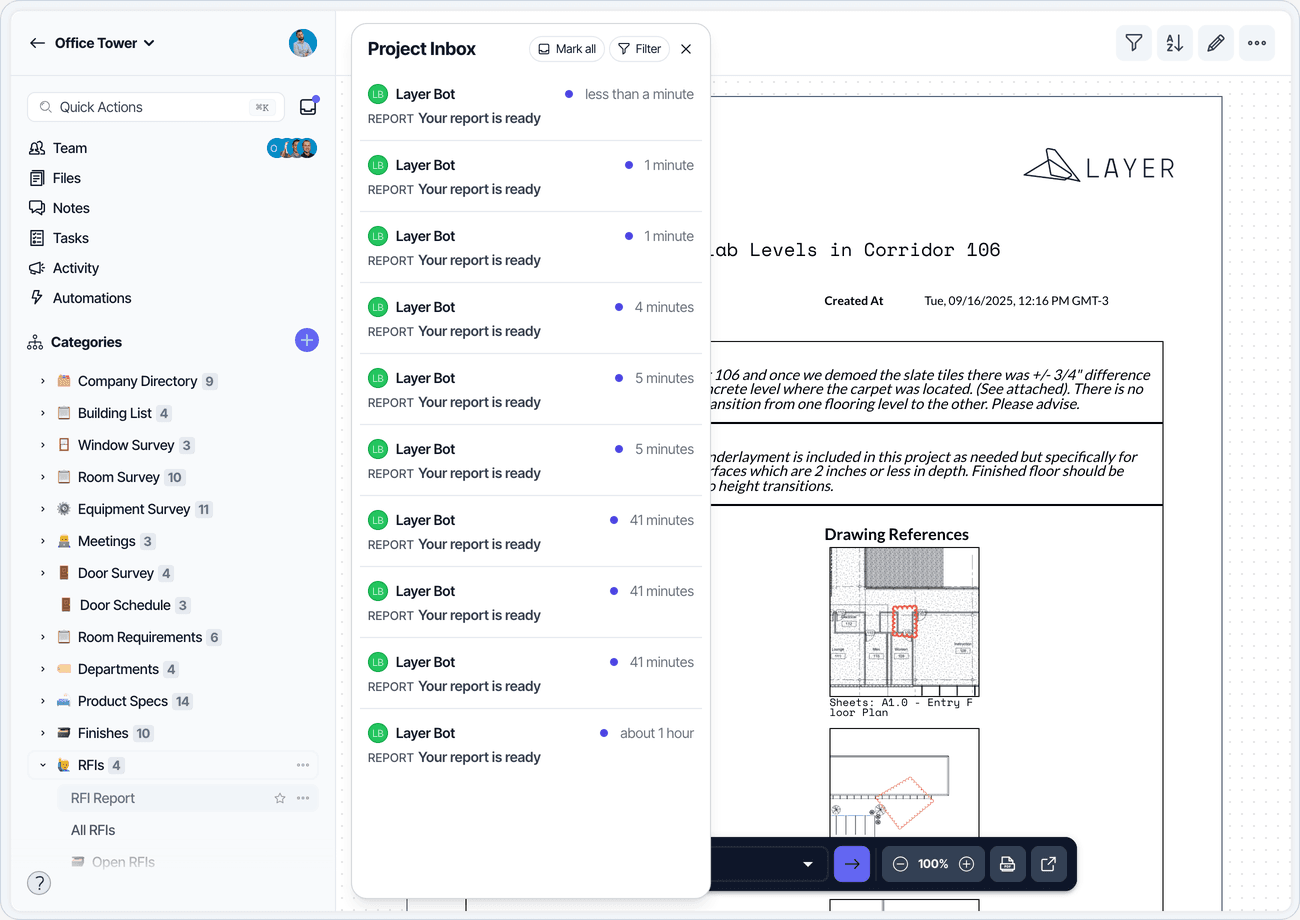
A bell icon in the app header opens the inbox.
Inside a project the panel is titled Project Inbox and shows notifications for that project. From the dashboard the panel is titled Inbox and is not limited to a single project.
Each row shows who or what generated the notification, its category, a short description, and how long ago it happened. Unread rows carry a dot. The list pages in more history as you scroll, and once you reach the end Layer marks it with "That's all, folks".
Filtering The Inbox
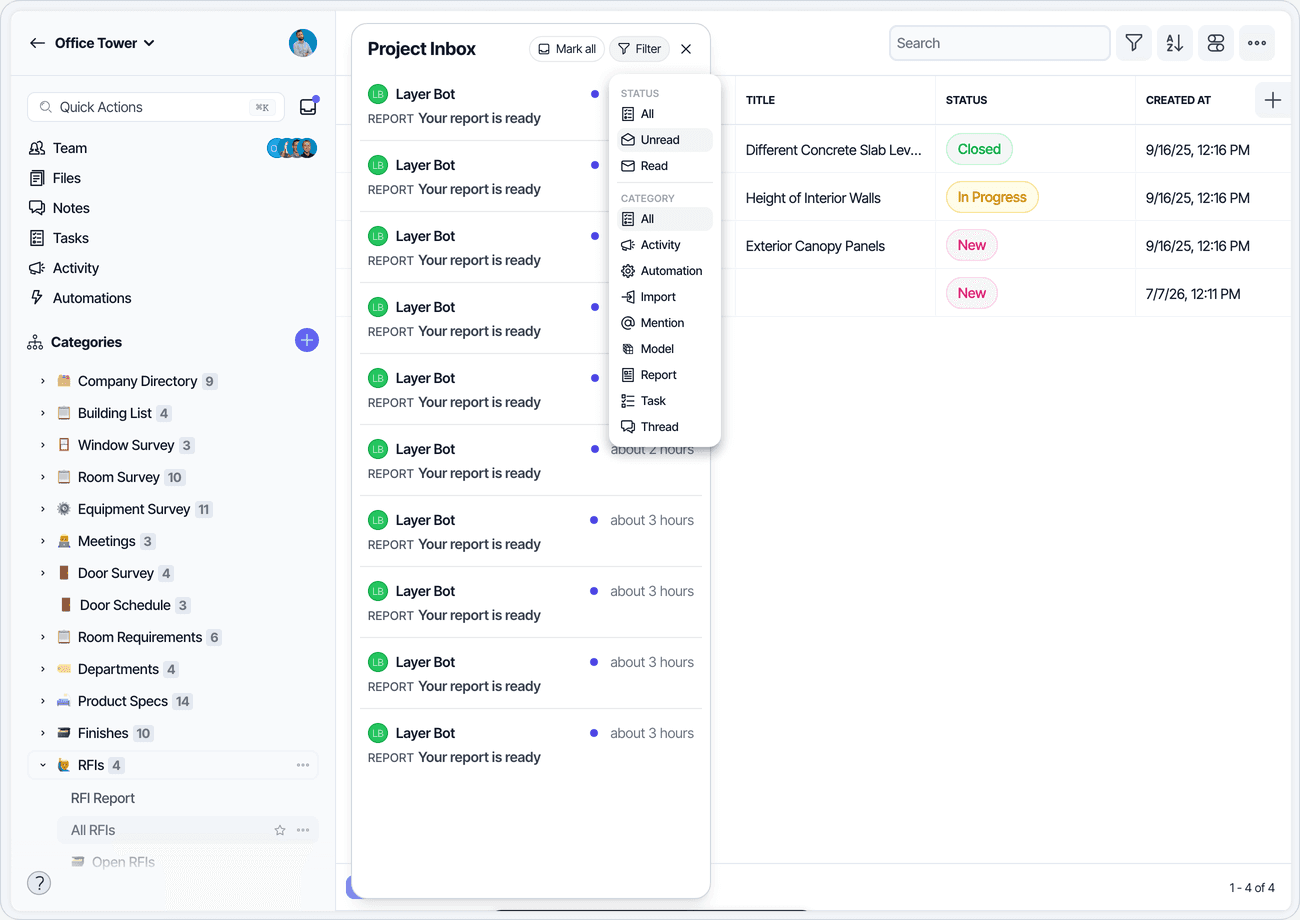
The Filter button opens two groups of options.
Status filters by read state: All, Unread, or Read. The inbox opens on Unread, so a fresh open shows only what you have not dealt with yet. Switch to All to see everything, including notifications you have already cleared.
Category filters by type, one at a time: All, Activity, Automation, Import, Mention, Model, Report, Task, or Thread.
Your filter choice is remembered, so the inbox opens the way you last left it.
Marking Notifications Read
There are two ways to clear notifications.
One at a time. Each row has an envelope control that toggles it between read and unread.
In bulk. The Mark all button opens a short menu with two options:
Read marks the notifications currently shown as read.
Unread does the reverse.
Each option is unavailable when there is nothing for it to act on. In an inbox that contains only unread notifications, Unread is greyed out.
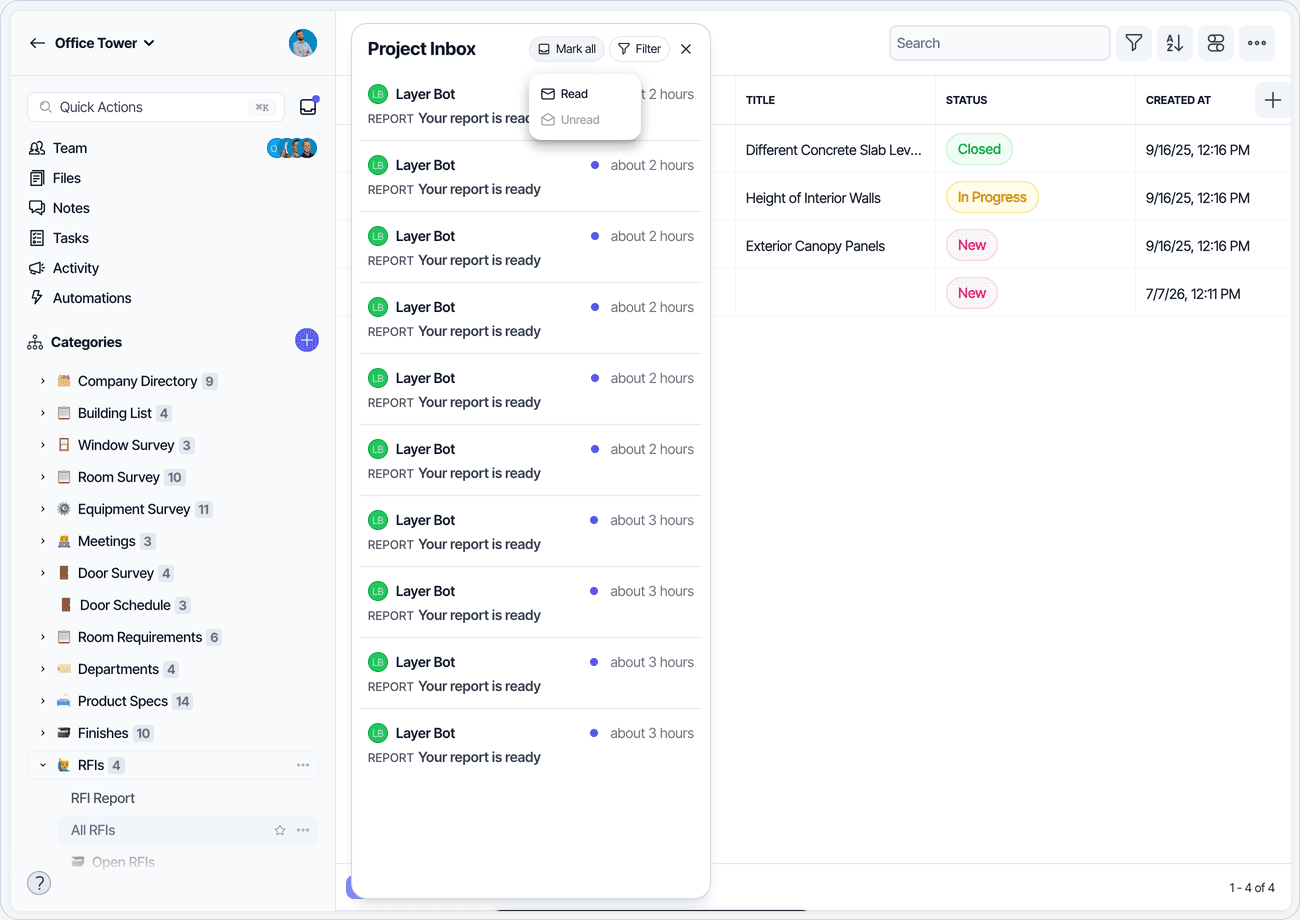
Mark all applies to the rows currently displayed, not to your whole notification history. If a filter is narrowing the list, only those rows change.
Project Inbox Vs. Inbox
Where you are | Panel title | What it covers |
|---|---|---|
Inside a project | Project Inbox | Notifications for that project |
Dashboard | Inbox | Notifications not limited to a single project |
The controls are the same in both. Only the scope differs.
Things To Know
The inbox opens on the Unread filter. Once you have cleared everything it will look empty; switch Status to All to see your history.
Mark all acts only on the rows currently displayed, not your entire history.
The Category filter applies one category at a time. There is no multi-select.
Notifications can also reach you by email. Which channel a given event uses depends on how the project and its automations are configured.
Long descriptions are shortened, with a control to expand the full text.
Notifications tell you that something changed. They are not a substitute for the activity log, which is the durable record of what changed and who changed it.
