Find answers to common questions about getting started with Layer, supported devices, security, offline access, app versions, feature requests, and recovering deleted work.

Zach Soflin
What should I do first after purchasing Layer?
Read Getting Started for an overview of the main steps for setting up and using Layer.
Which devices and applications support Layer?
Read Supported Devices for the current list of supported devices and applications.
How does Layer handle security?
Read Security for information about Layer security practices.
Can I use Layer without an internet connection?
Yes. Read Using Layer Offline for details about what is available offline and how offline access works.
How do I check my Layer version?
Click Get Help in the left navigation. The menu shows the App Version for your current Layer session.
Refresh your browser to load the current app version. To compare your version with the current release, review the product updates.
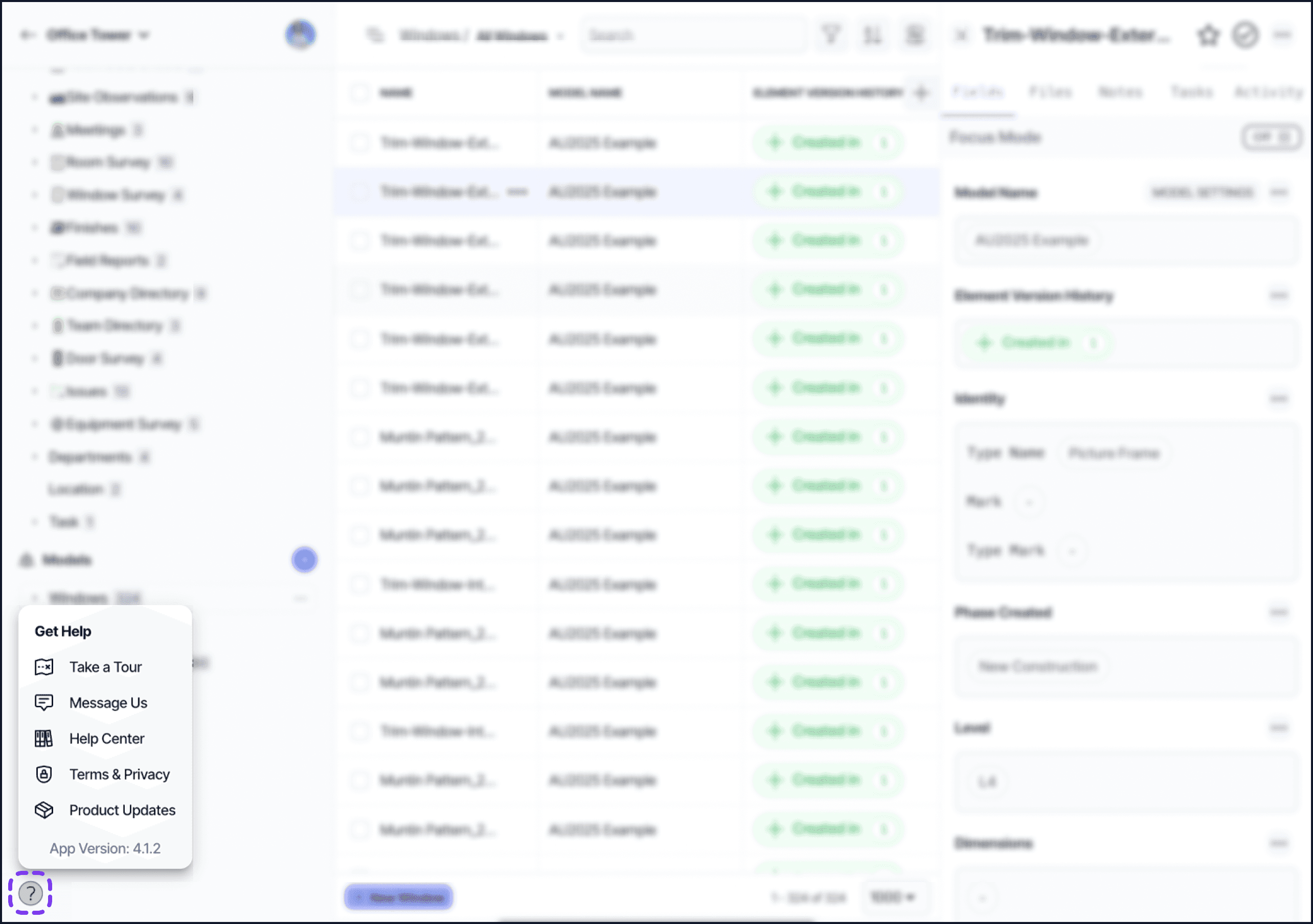
The Get Help menu showing the current Layer App Version for the active session.
How do I request a feature?
Use the Request a Feature button on the product updates page.
Can deleted work be recovered?
Layer maintains an archive of project data for 30 days. The recovery process depends on the type of item that was deleted.
When you contact support, include as much detail as possible so the support team can locate the item. Include the project name, the item type, the person who deleted it, and the approximate deletion date.
Projects
Deleted projects appear in the Trash tab on the project dashboard. Contact support through chat or email help@layer.team to restore the project from the archive.
Categories
Contact support through chat or email help@layer.team to restore a deleted category from the archive.
Elements
After an element is deleted, a red bar appears at the top of the element detail view. Use the recovery button in that view to restore the element.
If you leave the element detail view before restoring the element, contact support through chat or email help@layer.team.
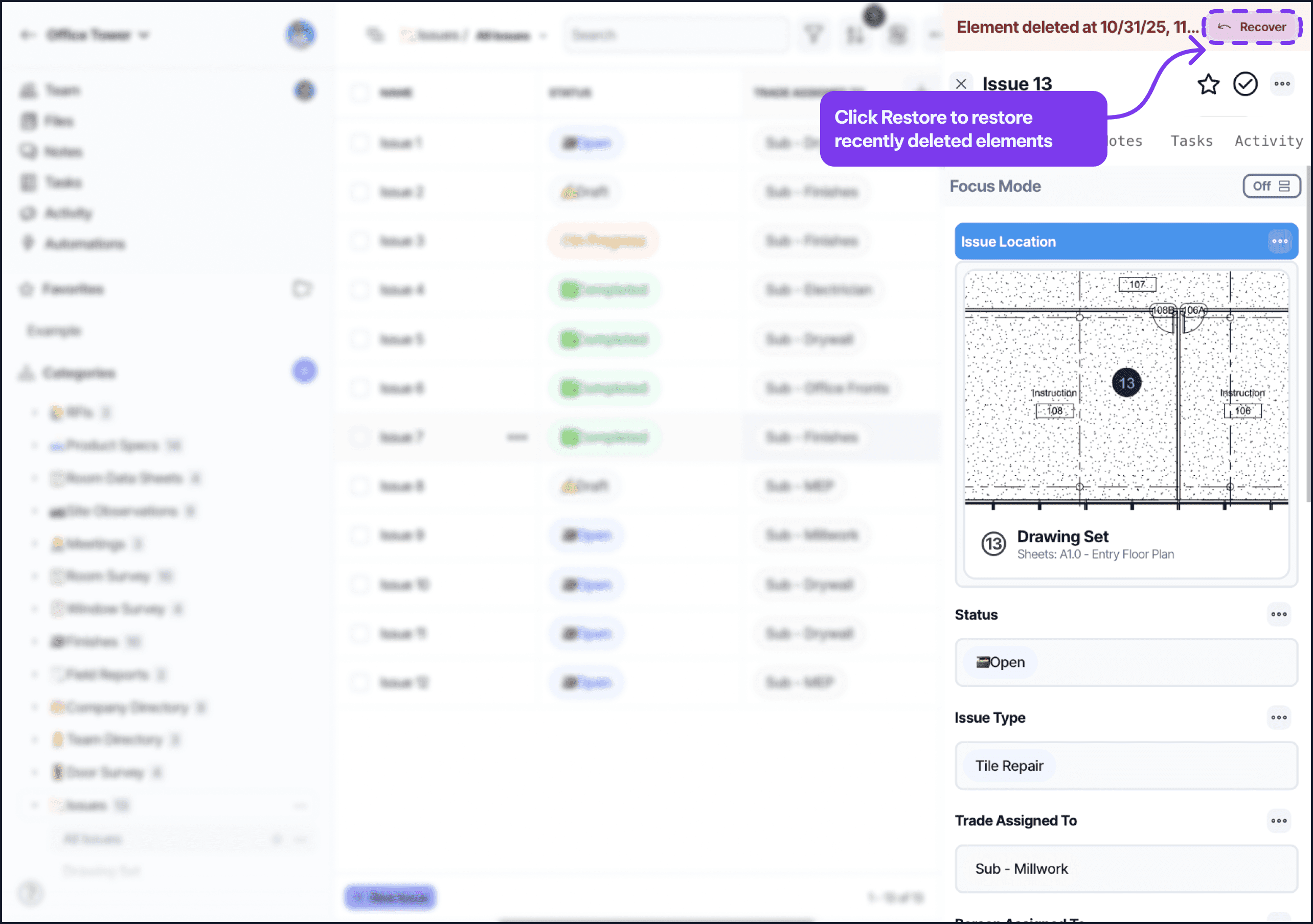
The red recovery bar at the top of an element detail view, used to restore a recently deleted element.
Fields
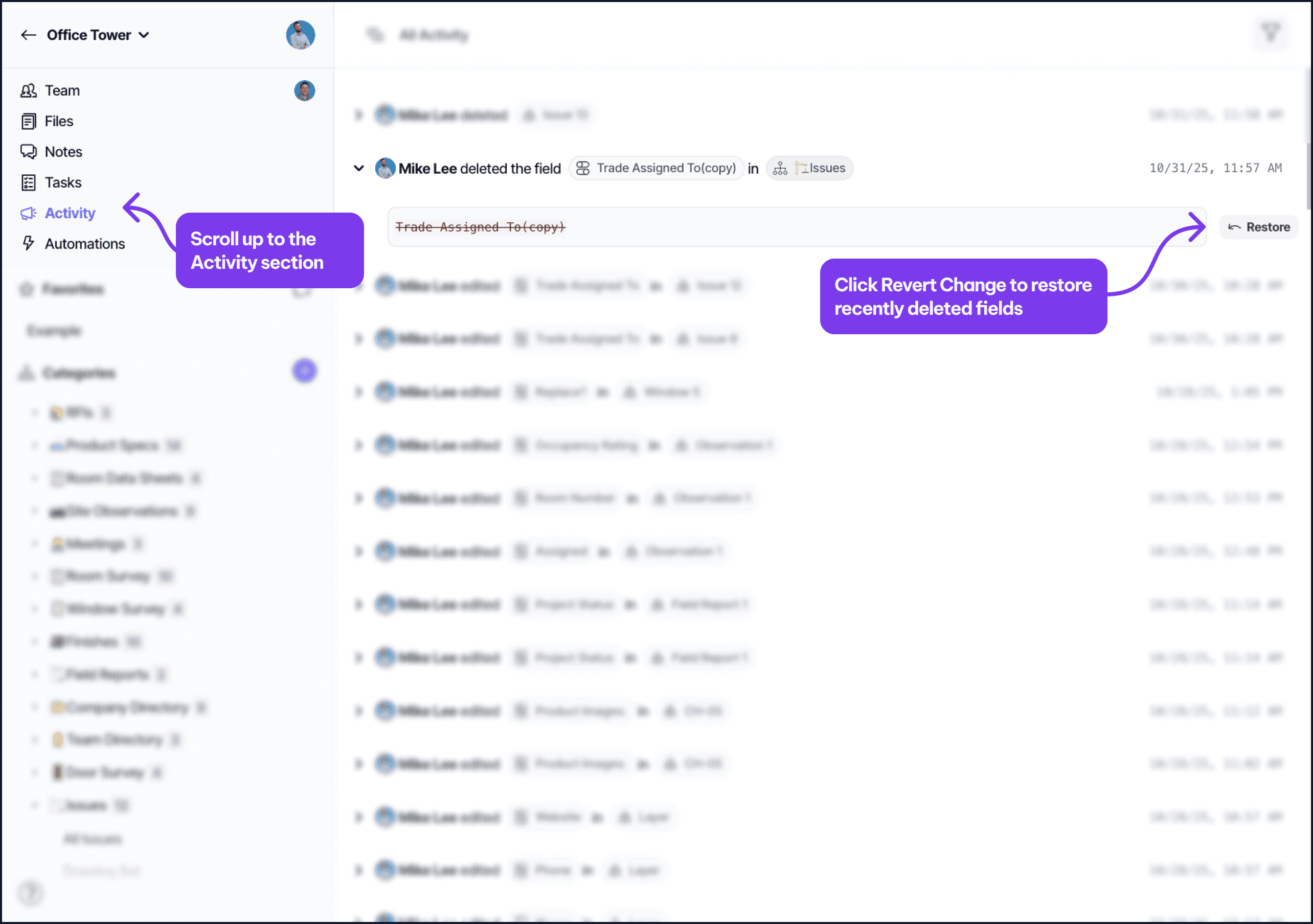
Deleted field activity appears in the project Activity section at the top of the left navigation panel. Click Revert Change next to the deleted field activity to restore the field and its data.
If you deleted a field within the past 30 days and cannot find it in Activity, contact support through chat or email help@layer.team.
The Activity panel’s Revert Change action used to restore a deleted field and its data.
The restored field appears at the bottom of the category field list. If field order matters, drag it to the correct position.
Field values on existing elements are preserved.
The field must be added again to any saved Table Views, Document Views, or other views that used it before deletion.
Clicking Revert Change more than once does not create duplicate fields. Only the first click restores the field.
If you also deleted and restored an element, the element keeps its original element ID. Element IDs are not reissued after restoration.